API Module - Airtable not getting response information
Status: Open · Asked by Graffiki on · 0 views
I have an API module that is requesting data from Airtable as the Airtable modules didn't quite do what I needed. The API request includes a filter and a view to only return records that match specific requirements.
When there are records that fit the criteria, I get all of the data perfectly and I can continue my scenario... no problems.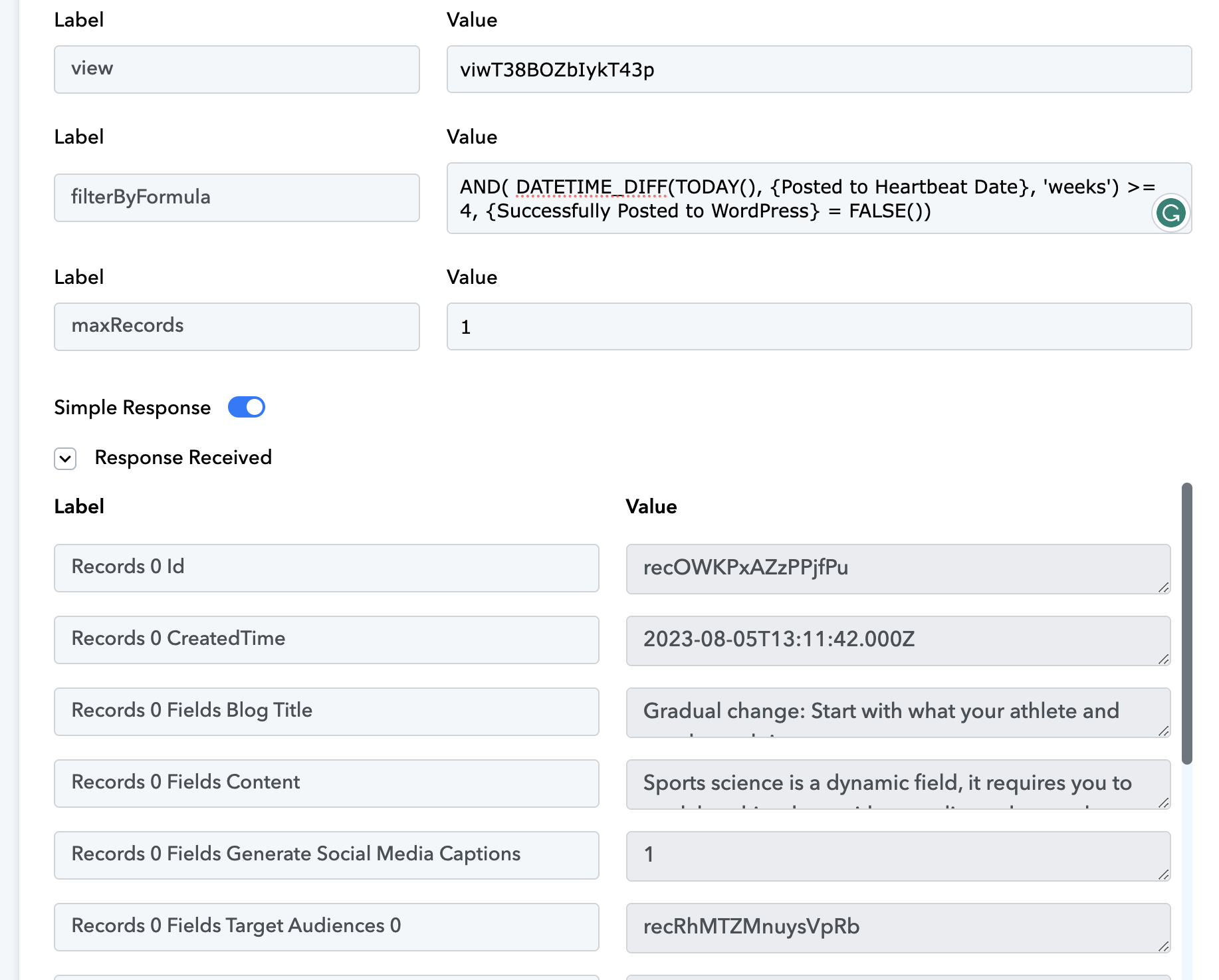
However, when there are no records that match the criteria, the API gives no response for me to work with. 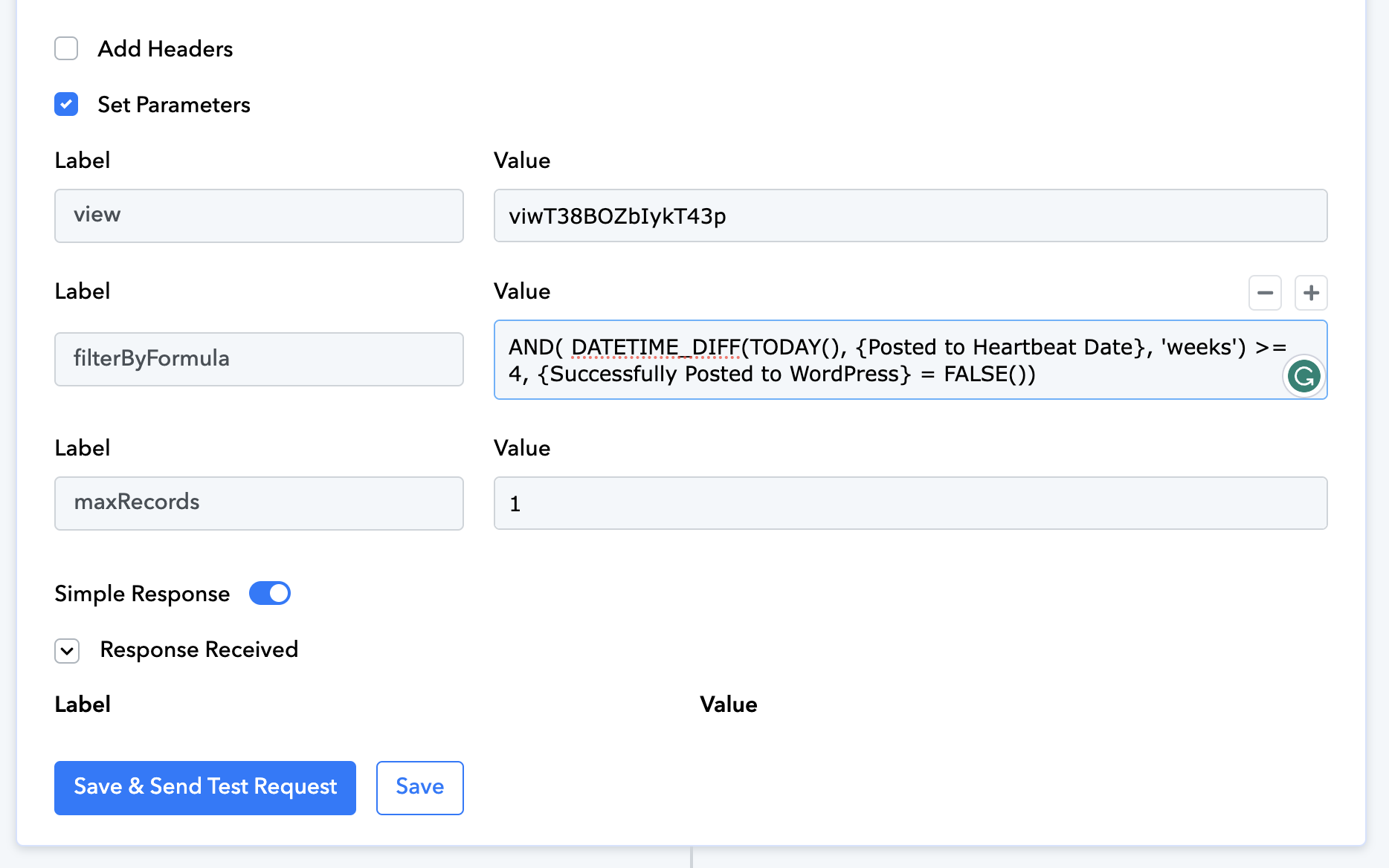
That means that I can't use the filter to stop the workflow as their is noting thing the Get API step to filter by.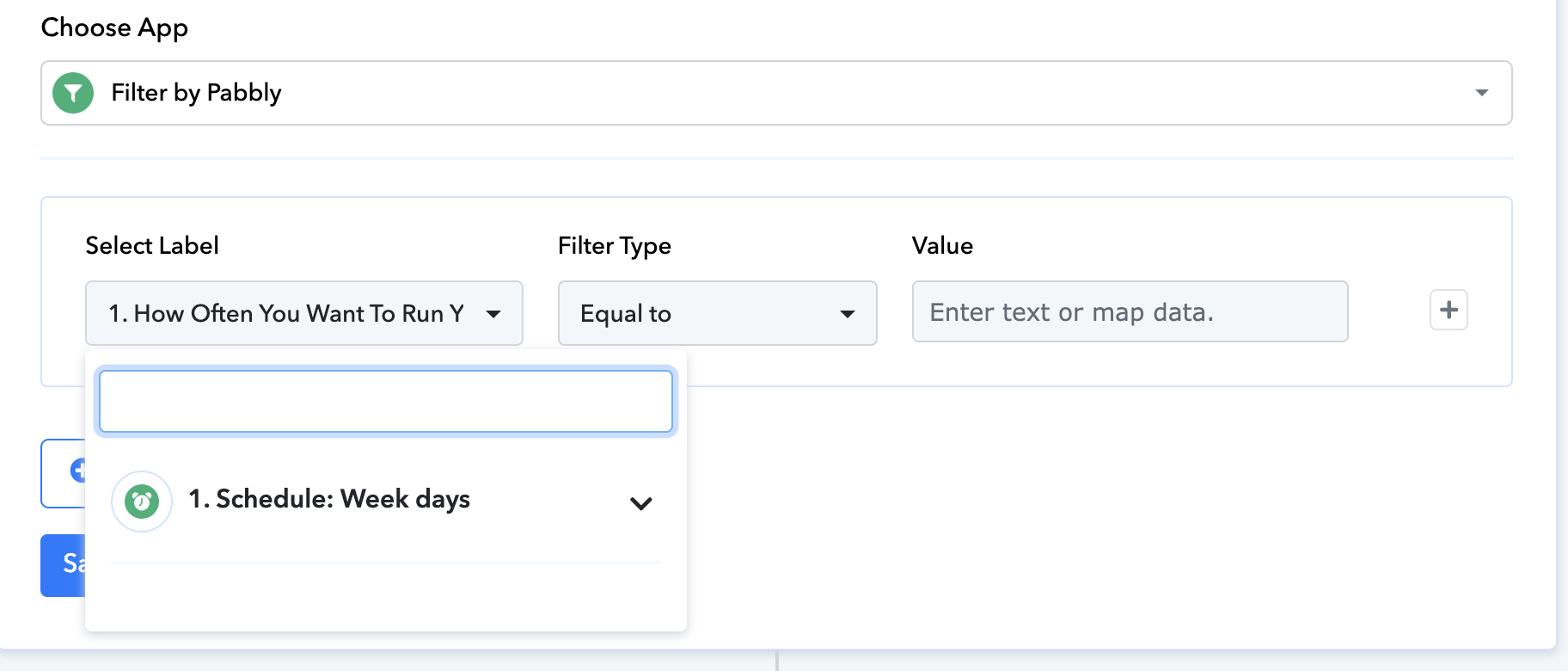
It seems like the Airtable should always be giving me a response and it's not coming through for some reason. Any ideas?
Thanks in advance for any advice you have, I'm a little bit puzzled.
Thanks!
Hi @Graffiki,
Could you please enter the data that fits the criteria and provides a response when you click on 'Save & Send Test Request'?
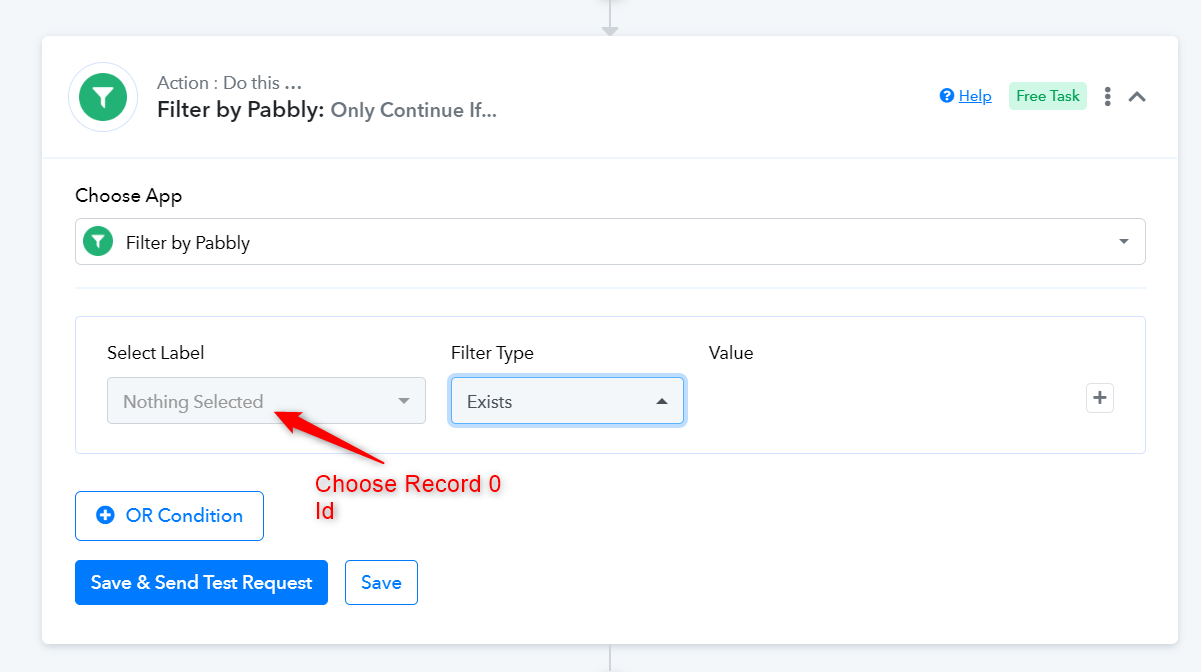
After capturing the response, you can use the 'Records 0 Id' field as the Filter Label and 'Exists' as your Filter Type. This will ensure that the next steps in your workflow are executed only if the Id exists; otherwise, the workflow will stop at the Filter step.
Hi @Graffiki,Could you please enter the data that fits the criteria and provides a response when you click on 'Save & Send Test Request'?
After capturing the response, you can use the 'Records 0 Id' field as the Filter Label and 'Exists' as your Filter Type. This will ensure that the next steps in your workflow are executed only if the Id exists; otherwise, the workflow will stop at the Filter step.
Thanks for the response :)
Is the API step, when there is no record that matches the criteria, there is no result, so step 2. API by Pabbly : GET doesn't appear in the dropdown. If the API call does return a result, then that step appears in the dropdown.
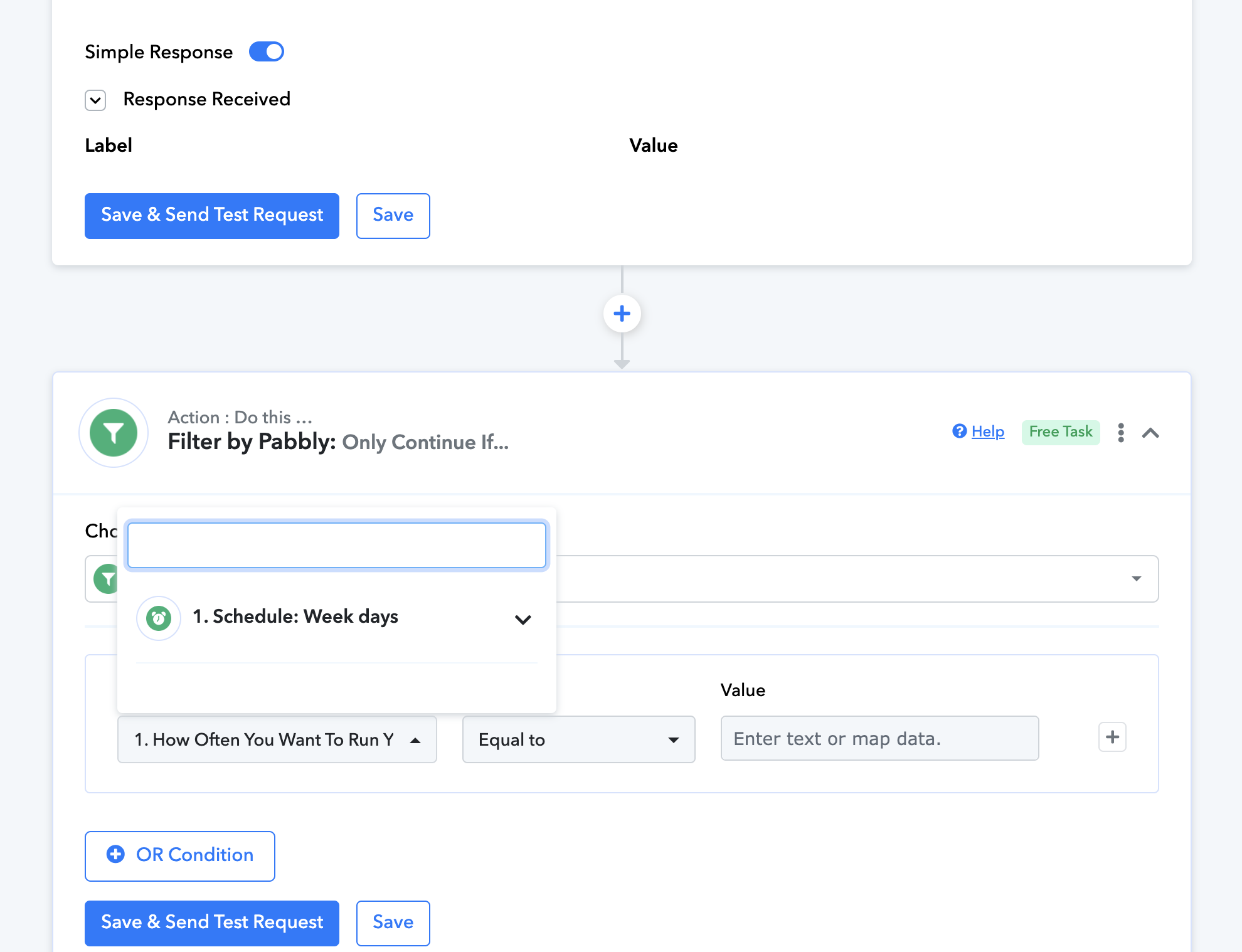
Could you please enter the data that fits the criteria and provides a response when you click on 'Save & Send Test Request'?After capturing the response, you can use the 'Records 0 Id' field as the Filter Label and 'Exists' as your Filter Type. This will ensure that the next steps in your workflow are executed only if the Id exists; otherwise, the workflow will stop at the Filter step.
As previously mentioned, in your API by Pabbly action step, input the data that yields the correct response, similar to what was shown in the screenshot you shared. Once you capture the correct response, map the 'Records 0 Id' in the Filter step.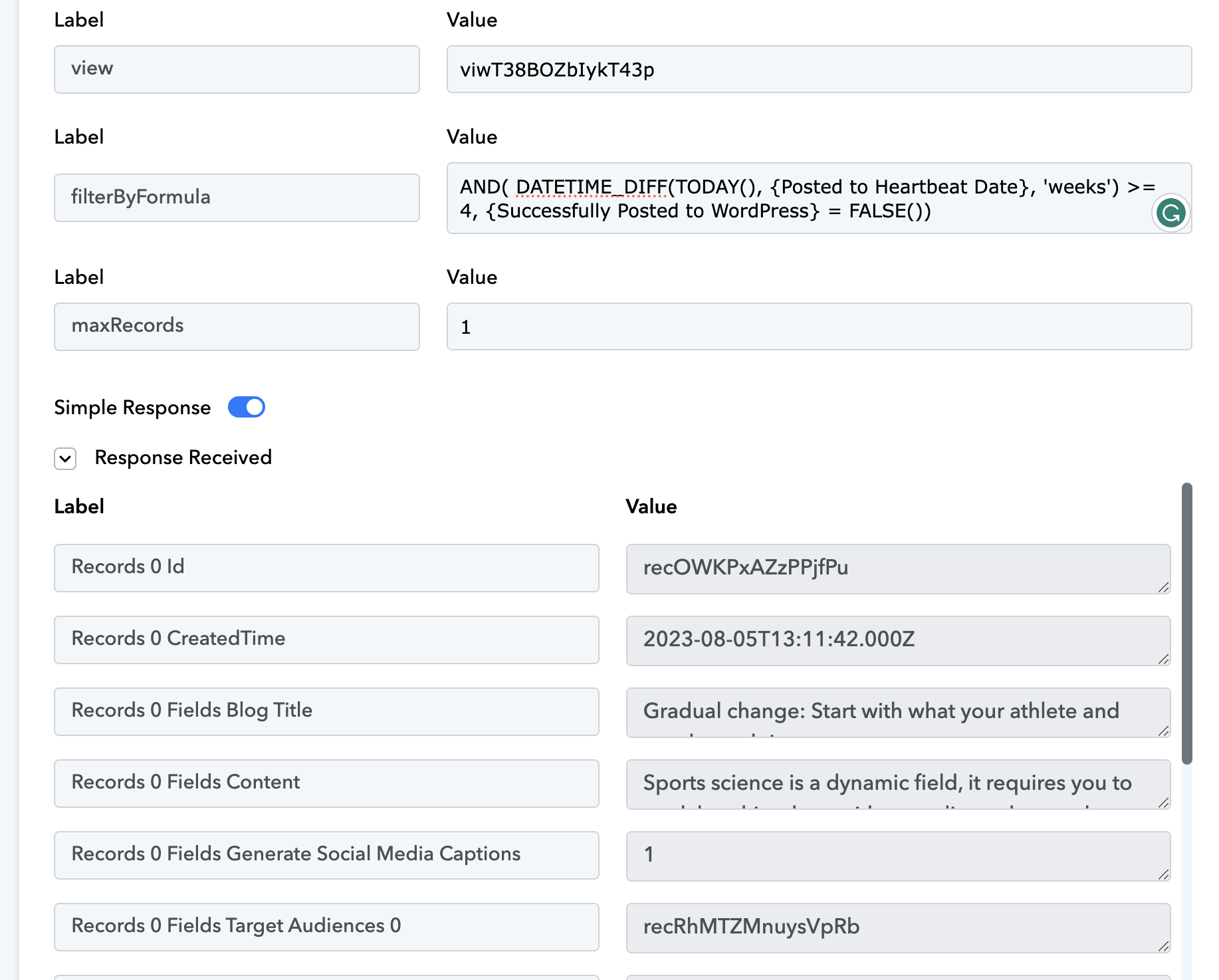
As previously mentioned, in your API by Pabbly action step, input the data that yields the correct response, similar to what was shown in the screenshot you shared. Once you capture the correct response, map the 'Records 0 Id' in the Filter step.
Ahh I understand what you mean I think. Okay thank you for your guidance ?