Automation not working I think.
Status: Open · Asked by anant yadav on · 0 views
I created this workflow, but it is not working why it is not working. It says the media URL is not properly placed which I can see on the first trigger note the Instagram trigger note the media URL is not present, so what to do in that case, I can give you the URL and work so you are well. Everything here is the workflow URL. I authorise you to make changes and tell me what is this issue and how will it be fixed?
Hello Anant!
As we checked on our end for the YouTube: Upload Video action step, we found that you have not mapped either the Google Drive File ID or a public video URL. At least one of these fields is required for the action to work.
You can either map the Google Drive File ID or provide a publicly accessible video URL. Please update the mapping accordingly, and if you still face any issues, do let us know. We'll be happy to assist you further.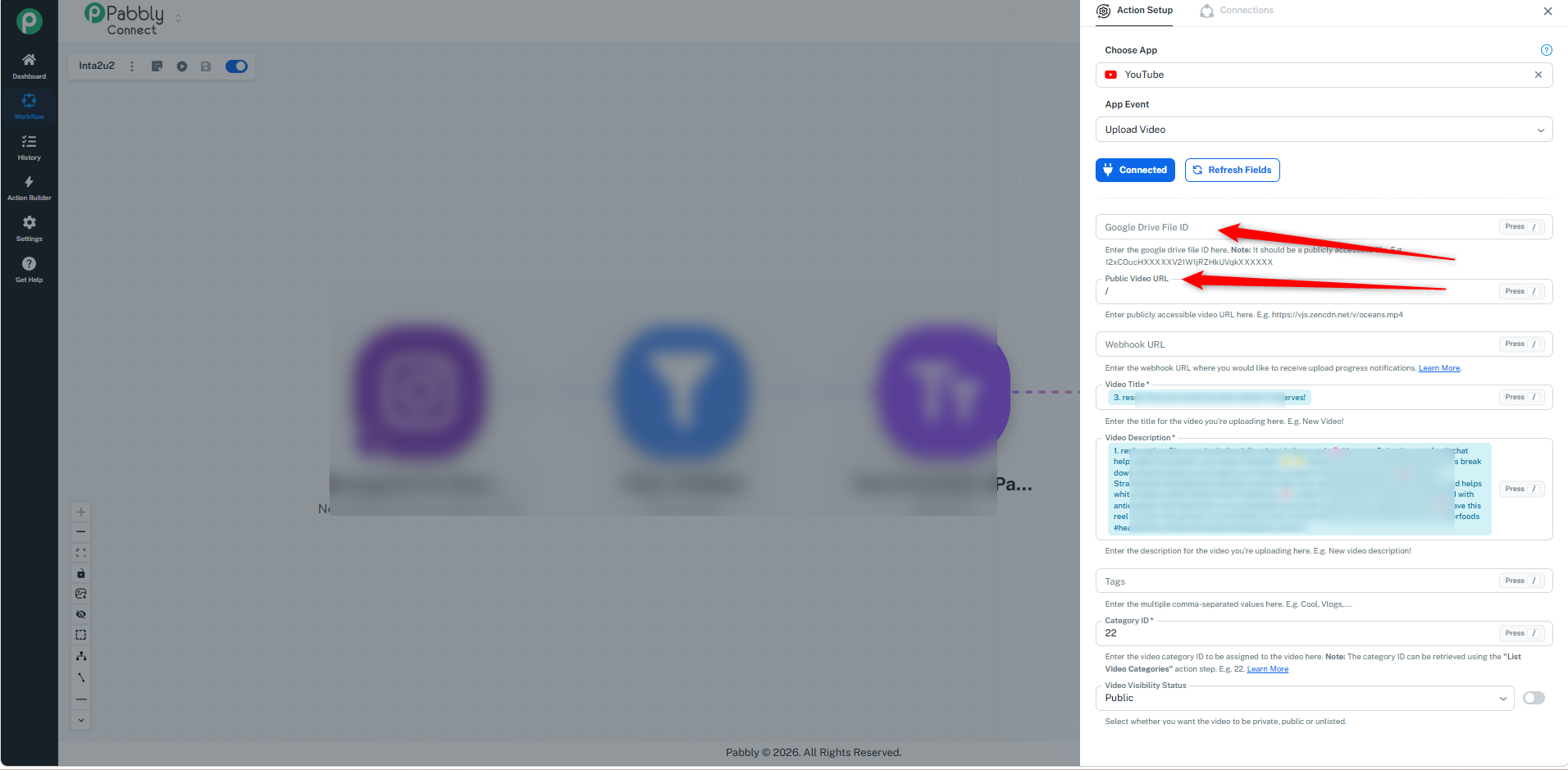
Thanks & Regards,
Soumya Tripathi
Customer Support Lead
🌐 Pabbly.com
Hi Anant,
Thank you for reaching out to Pabbly Support!
We have thoroughly analyzed your workflow [Inta2u2] and reviewed the task history payload received from Instagram. Here is a full explanation of why this error is occurring and how you can achieve your automation goal:
Why the media_url is Empty
Meta API Platform Restrictions:
When posting Reels/Videos on Instagram, Meta's API does not include direct
.mp4downloadable file links (media_url) in their webhook payloads orGet Media DetailsAPI calls. Instead, Meta only returns webpage links (permalink) and image thumbnails (thumbnail_url).YouTube Upload Requirement:
The YouTube: Upload Video action step strictly requires a direct downloadable video source link (ending in
.mp4or a direct video file stream). Passing an Instagram post webpage link (permalink) causes YouTube to fail because it cannot download an HTML webpage as a video file.
How to Resolve / Workaround This Issue
Since Meta blocks direct video file links from Reels via their standard API, here are recommended alternative setups:
Use Google Drive or Dropbox as the Source (Recommended)
Instead of posting directly to Instagram first and trying to pull the video from Instagram to YouTube:
Upload your original video file to a designated folder in Google Drive or Dropbox.
Set your Pabbly Connect trigger to Google Drive (New File in Folder).
Add Step 1: YouTube (Upload Video) using the direct file link from Google Drive.
Add Step 2: Instagram for Business (Publish Reel/Video) using the same Google Drive file link.
This guarantees both YouTube and Instagram receive a direct, high-quality video source file without API restrictions.
Let us know if you face any other issues.
Thanks & Regards,
Hrishabh
Customer Support Associate
🌐 Pabbly.com
👉 Rate your support