Coda does not seem to work
Status: Closed · Asked by smsdavis on · 0 views
I am only interested in purchasing your product if it will work with Coda as I cannot afford Zapier's pricing. However, when using your product for testing. Sometimes it works, sometimes it does not. It seems that it refuses to load ALL of the tables in a Coda doc and seems to only load a certain number of tables. So that makes it useless. HOW CAN I GET IT TO WORK WITH CODA FOR ALL TABLES IN MY DOC? I checked my doc's table name. I know the name yet in Pabbly Connect it says that table does not exist. I'm assuming it's only loading the first X of tables and that table is beyond the limit.
Hey @smsdavis
If you feel that all of your Table is not been fetched then you can simply press the "Refresh" button and then check the Table name on it.
Else you can re-connect the action step once when you want to re-configure it.
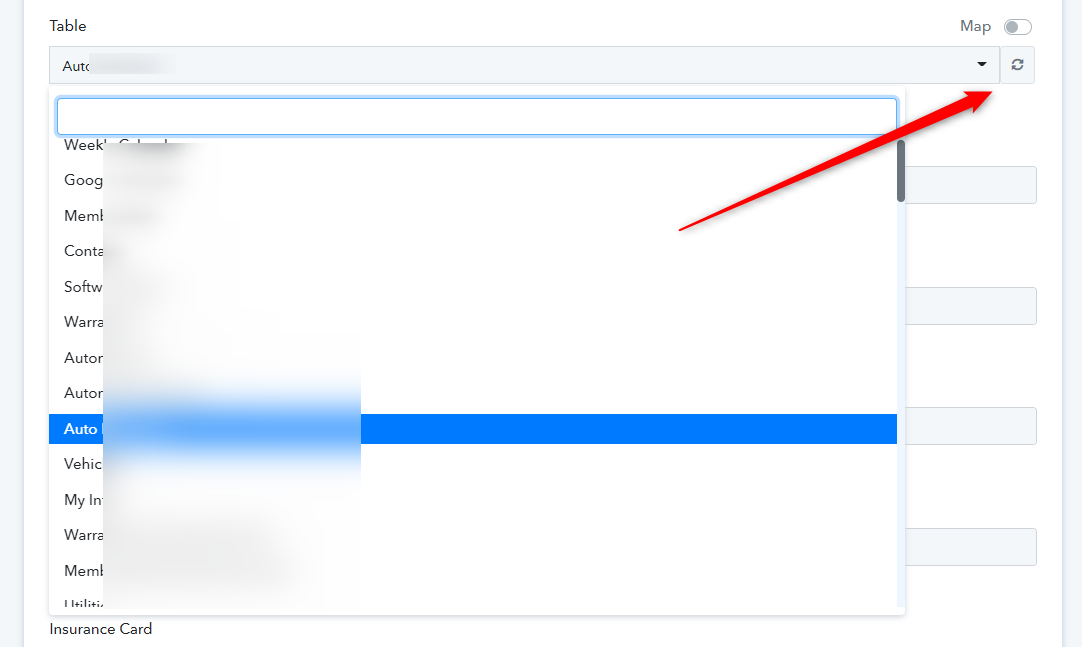
Hey @smsdavisIf you feel that all of your Table is not been fetched then you can simply press the "Refresh" button and then check the Table name on it.
ELse you can re-connect the action step once when you want to re-configure it.
I have exactly the same problem. The connection to CODA does not show all the tables.
I've clicked on the "Refresh" button, I've made the connection again with a new token and, despite everything, the tables I need still don't appear, which is frustrating because the interaction with Coda is one of the main uses I wanted to give to the application.
Hey @dimm
As we can see from your workflow, we can see all the tables in the dropdown, kindly let us know the number of tables in your Coda account.
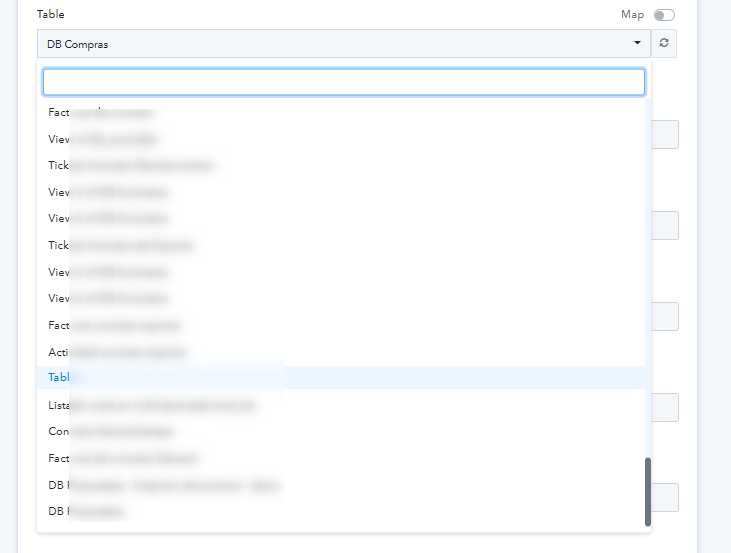
I wouldn't know.
In coda, when you link a view to an original table, a new table is created. A document in which many views are made from one or more tables can quickly increase the number of tables.
Specifically, in this case, it is the "DB Documentos" table that I need and cannot find.
Hey @dimm
Seems like the Coda application only shows 100 tables in the list from their server.
So, as a solution you can use first use the "Get a Table" action step first and then you can pass its Id in the "Create Row" action step.
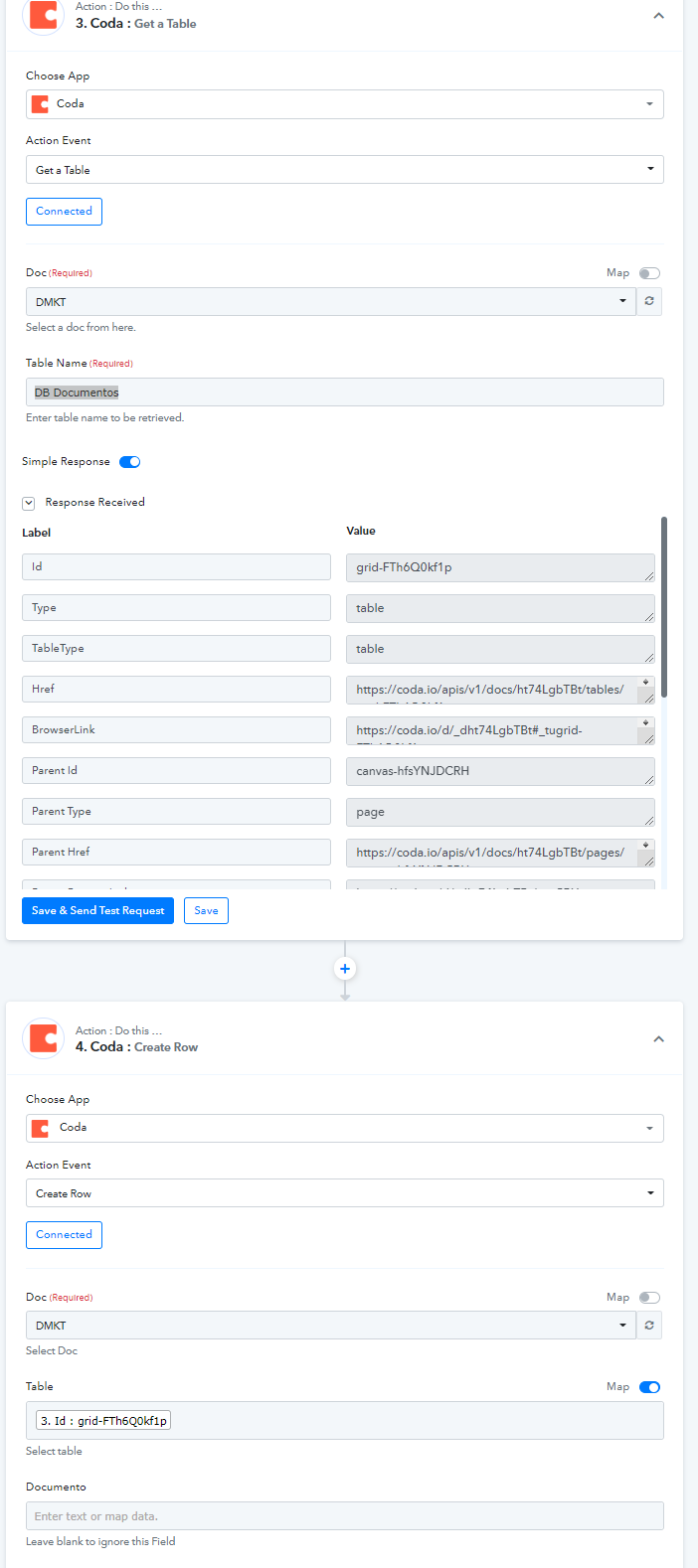
Hey @dimmSeems like the Coda application only shows 100 tables in the list from their server.
So, as a solution you can use first use the "Get a Table" action step first and then you can pass its Id in the "Create Row" action step.
Thank you very much for the answer. I guess I'll do as you say even if it means one more task consumed per action. It's a pity that no more than 100 tables are synchronized.
Thanks anyway !
You can try manually copying the Table Id from the Get A Table action step and paste the Id in the Table field. After that, you can remove the Get a Table action step.