How to Create a Private Slack Channel?
Status: Closed · Asked by Edwin on · 0 views
I want to invite new clients to newly created Slack channels as part of the onboarding.
But the channels have to be private of course.
I know I can set this to private, but that's a manual task.
How can I get this automated?
I don't see this in Pabbly when creating a new Slack channel ...
Hey @Edwin
We have added the private option in Slack's "create channel" Action.
Please check this out and let us know if that works for you!!
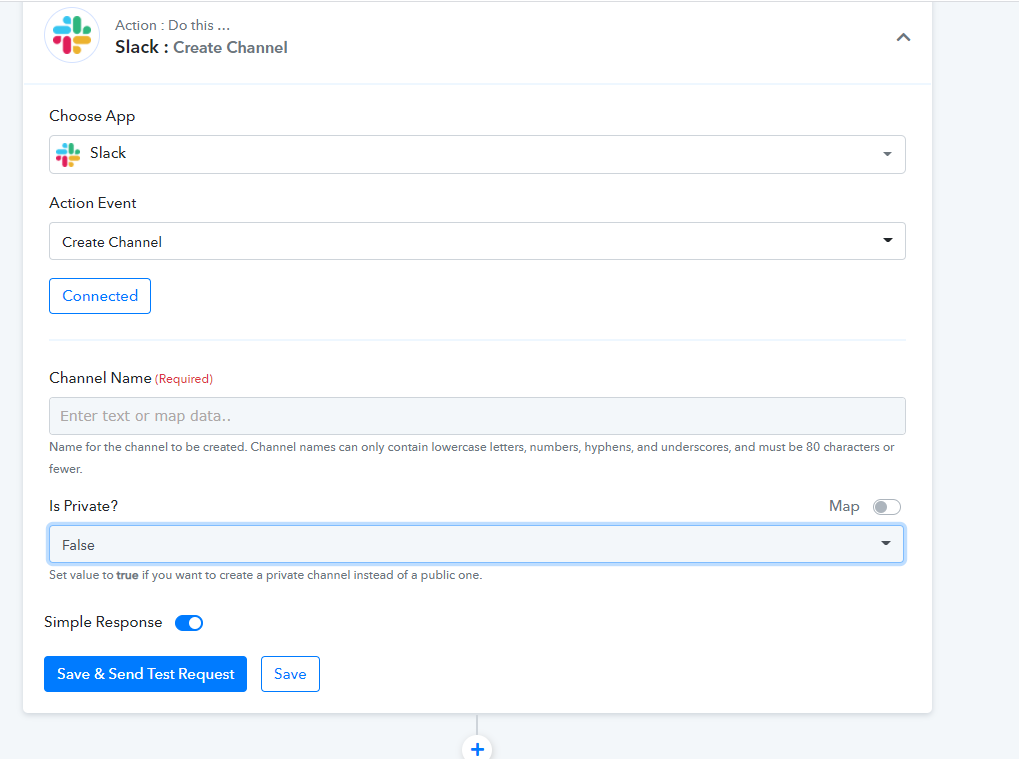
@Supreme Verma
It works perfectly, thank you!
Last question - I also have another post regarding inviting users to a Slack channel. I got a reply that this is only possible if you have a paid Slack plan.
But now that you have made it possible to create a private channel, can you also make it possible to invite members to this channel? (it's already a Pabbly action)
Or is it only possible when having a paid Slack plan?
Hey @Edwin
Could you please confirm that the field you have required right now is the team_id parameter of the Slack action?
Hey @Supreme Verma
Sorry, I don't understand your question - is it related to creating a private channel or to inviting a user?
As I now see, it's only possible to invite internal members via Pabbly: https://jumpshare.com/v/tI6LnCj4eZkbhaPOce9G
I'm not sure if the restriction of not inviting external users can be resolved on Pabbly's end?
If not, then I need to think of a workaround with the available Slack actions in Pabbly to get my external users onboard on autopilot (after the private channel has been created).
Hey @Edwin
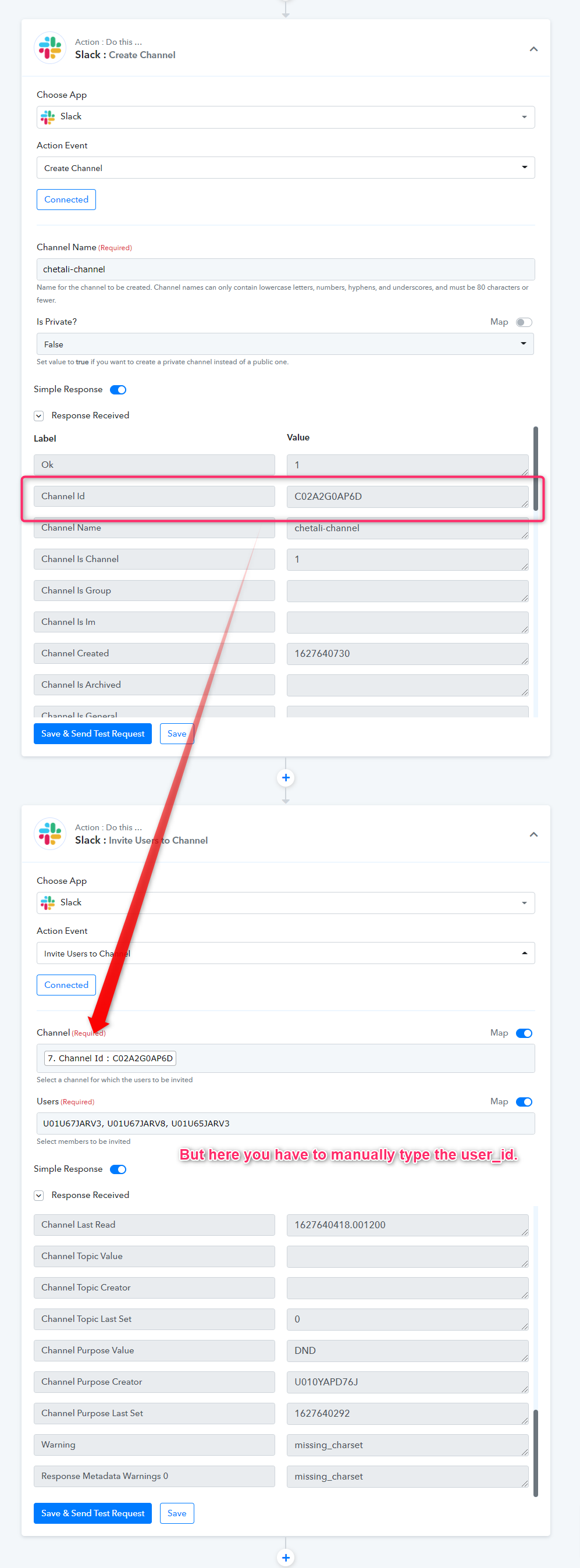
Yes, you can only add the internal members here in slack. Also to invite multiple users you need to manually type their Id can be separated by a comma.
Please check out the following screenshot -
thank you for clarifying! You can close this ticket ;)