Issues adding a Tag on Systeme connection
Status: Closed · Asked by Francisca Nunes on · 0 views
Hi!
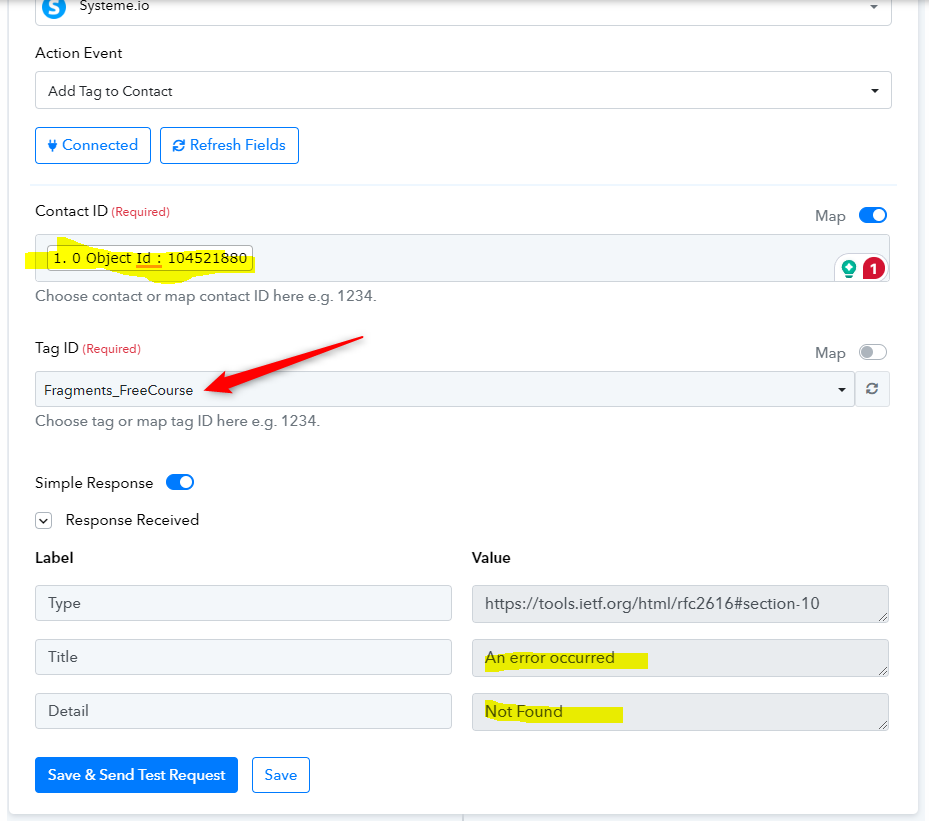
I'm new to Pabbly and made my first automation to connect a free course on Teachable to Systeme and add tags to the new subscribers.
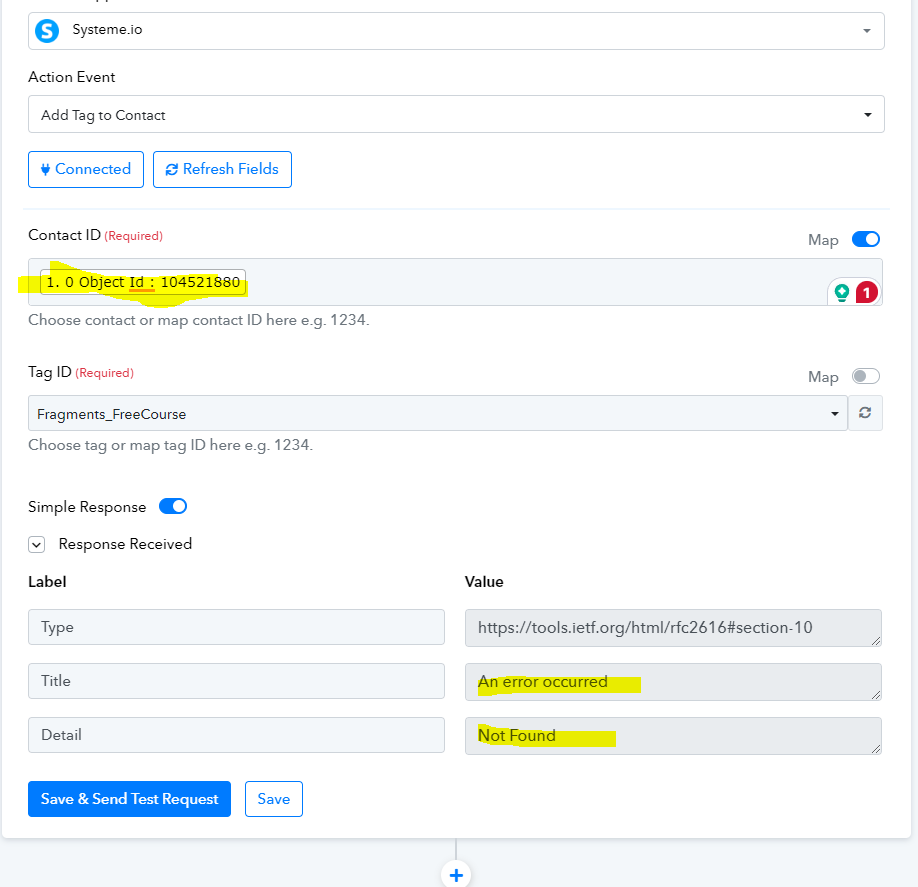
Part of the automation is going well, as the new leads are added to Systeme. However, the second part of the automation does not work. The tag is not added. I have to do it by hand on Systeme.
I sure must be doing something wrong, but I did try so many possibilities and couldn't find the solution.
Can you help me with this? Thank you
Hey @Francisca Nunes
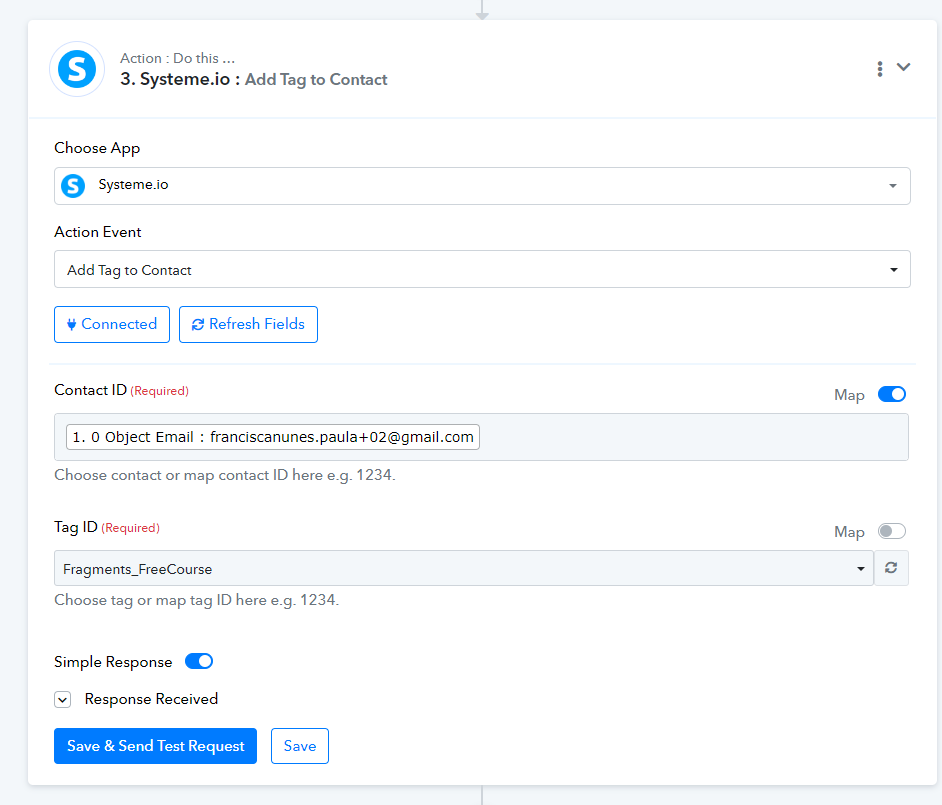
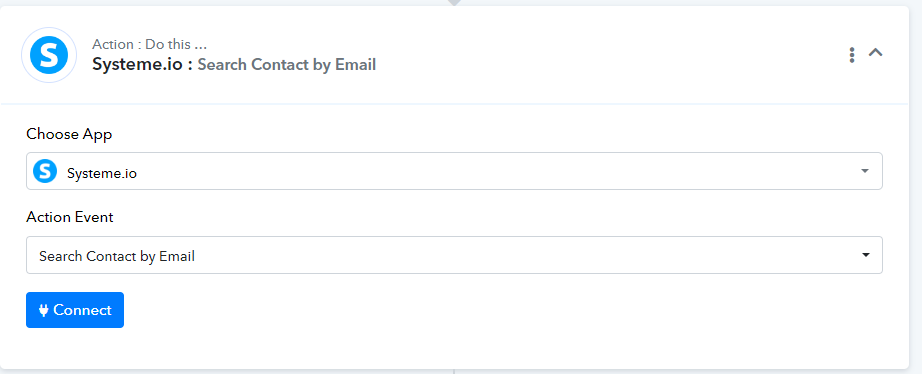
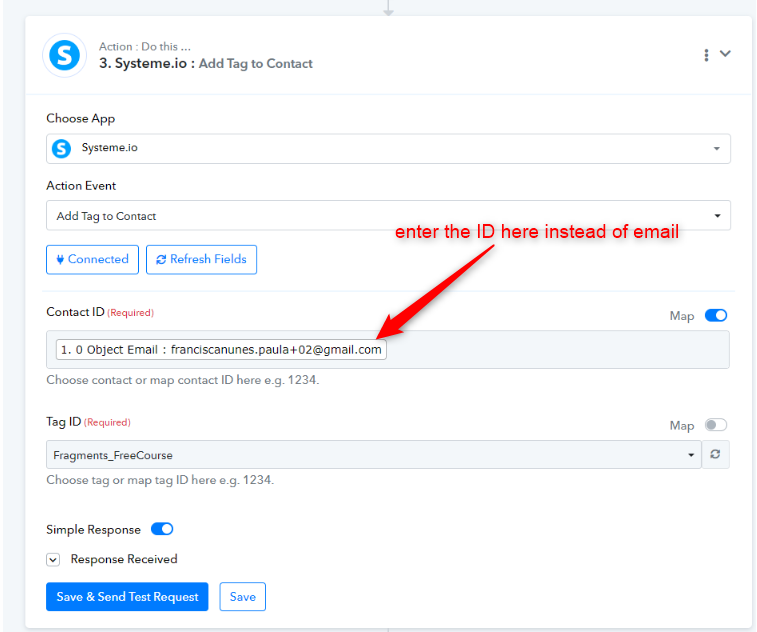
It appears that in the Contact ID field the ID should be entered in number format, not the email. You can use another step of systeme.io "Search Contact by Email" to get the Contact ID by email so that you can use that in the step mentioned.
Hi @Luv ,
Thank you for your reply. I tried what you said. but the same happened. The lead email goes to systeme, but it does not add the tag. Any other idea?? Thank you so much

Hey @Francisca Nunes
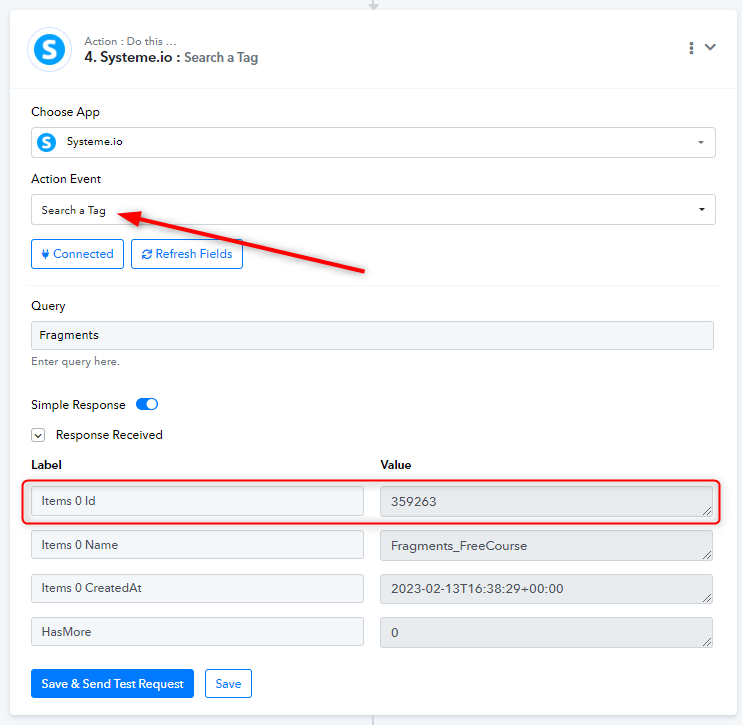
Same as the Contact ID, "Tad ID" should also be in number format. Kindly enter the ID in numbers. You can find the Tag ID by "Search ID" action step. Kindly refer to the image below for the same,
Hi Luv,
I still don't get how to set this automation. Really compless and as far as I change for different variables, never get's done. Only the last step does not work. The tag is not added as I explained before. The photo you sent me before, on my end do not have those options as you can see by the pictures. Does any other assistance we can have? The amount of time I already spent trying something would be simple, makes me just want to step back for more automation. I getting frustrated. Thank you. 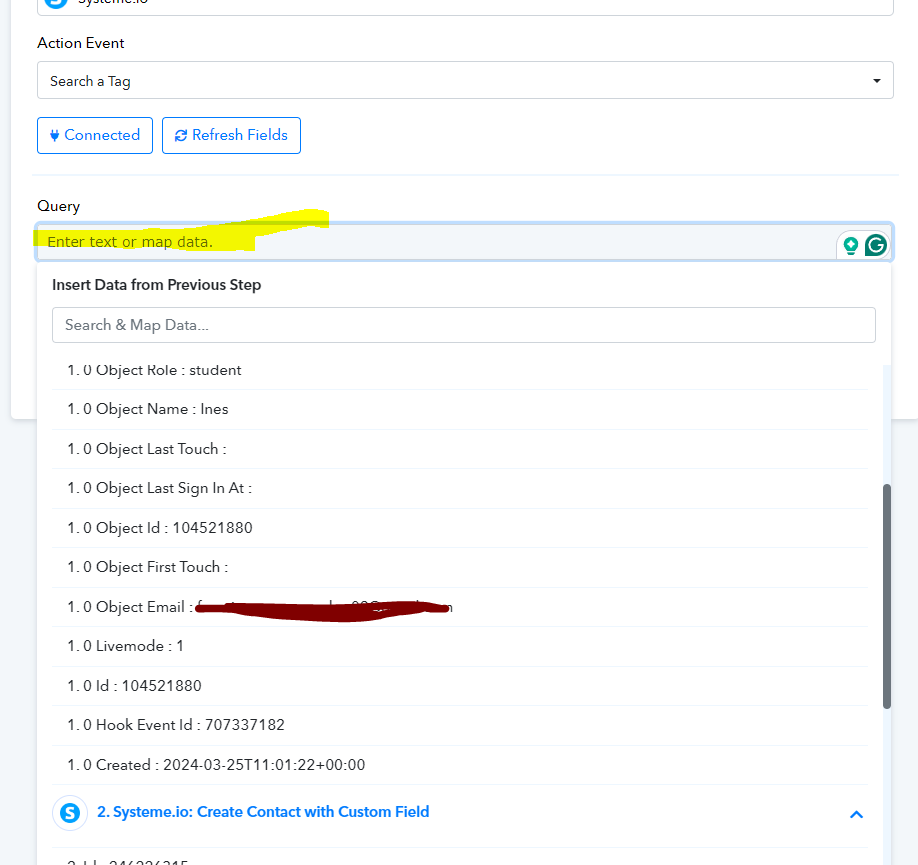
Hey @Francisca Nunes
Through the "Search a Tag" action event, you have the ability to obtain the ID of the desired tag. For example, in the previous instance, you utilized "Fragments_FreeCourse" (as depicted in the image below). Following the same process, I employed the "Fragments" keyword to locate the tag ID. You have the option to manually search for the required tag ID once you refresh the tag fields, and then you can subsequently integrate it into your workflow, as described previously.