Iterate? Pabbly and Excel Worksheets: A Mysterious Affair
Status: Open · Asked by sjl on · 0 views
Oh, the challenges of figuring out iteration with Pabbly! I had to cancel my other account (still waiting on that refund) and decided to stay with Make.com for the time being.
As I tried to understand the iteration process, I discovered that the response from Dropbox List Files wasn't as simple as it seemed. Although the values were passed not "SIMPLE RESPONS" and showed all of the values, it only printed the first value, and when I asked for help, they just wanted more money. Perhaps Pabbly requires some additional formatting step for values before iterating, but it's unclear.
I went ahead and passed some JSON to the webhook, but it only returned the first value, test1. Quite puzzling!
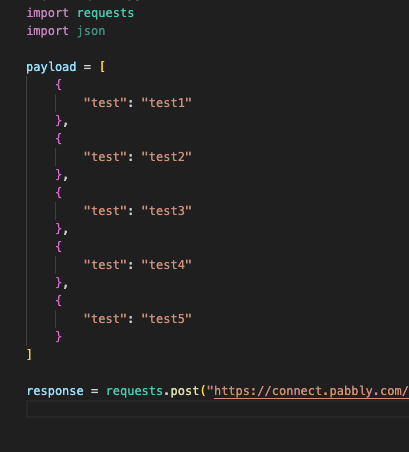
Received as following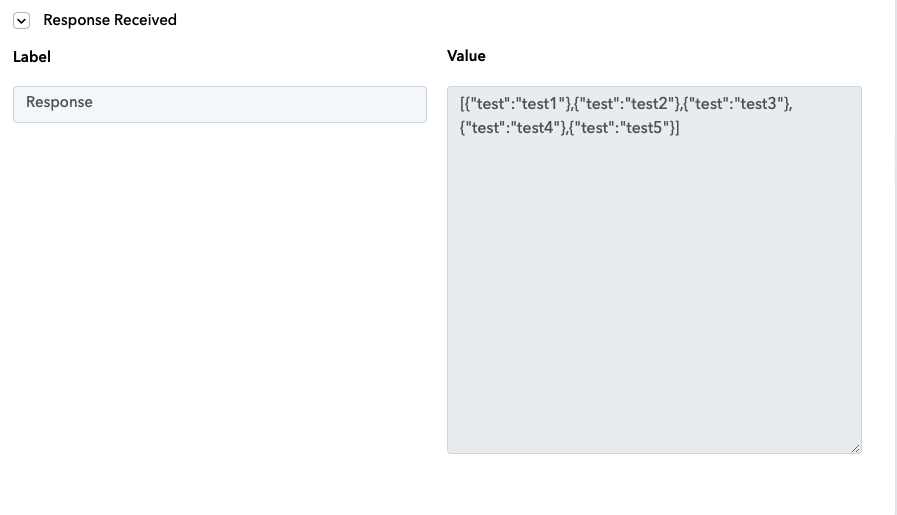
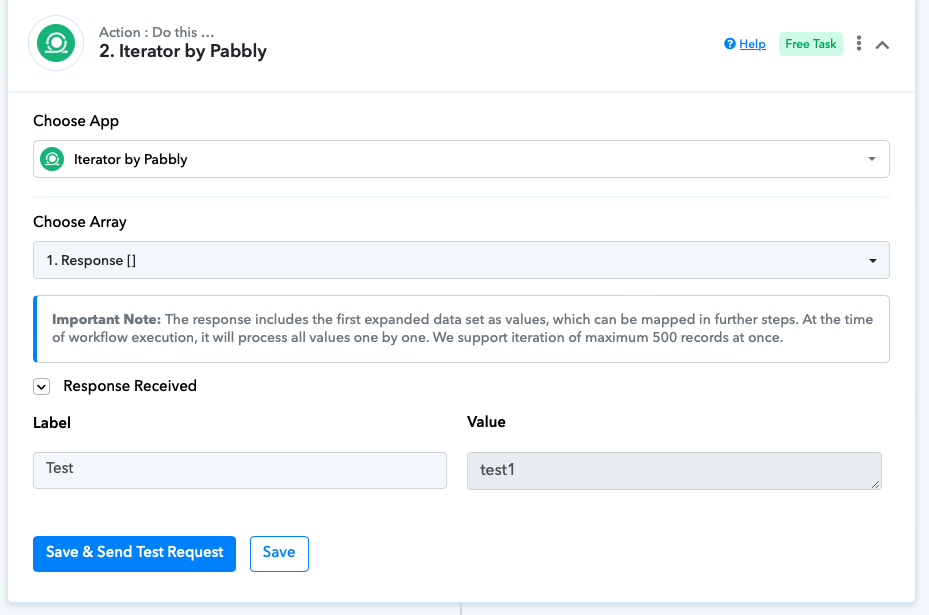
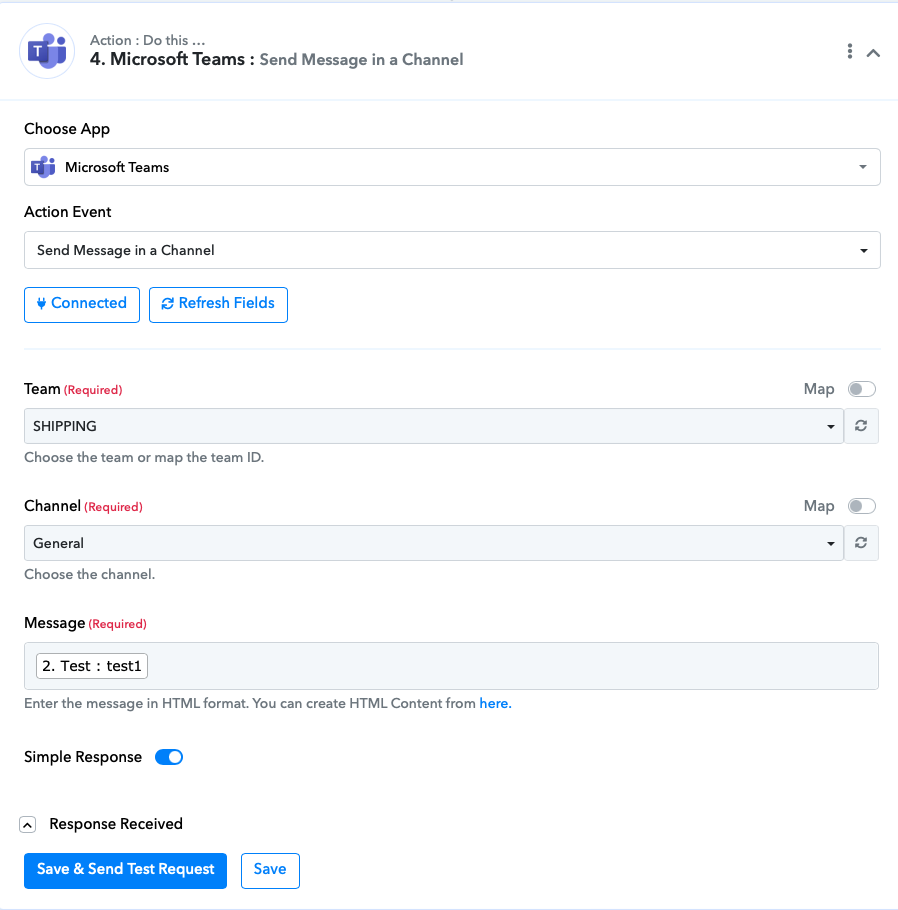
But I only receive the first value test1.
And let's talk about Excel worksheets. Pabbly seems to have a hard time detecting them. I tried reconnecting, erasing connections, and reconnecting again – all without success.
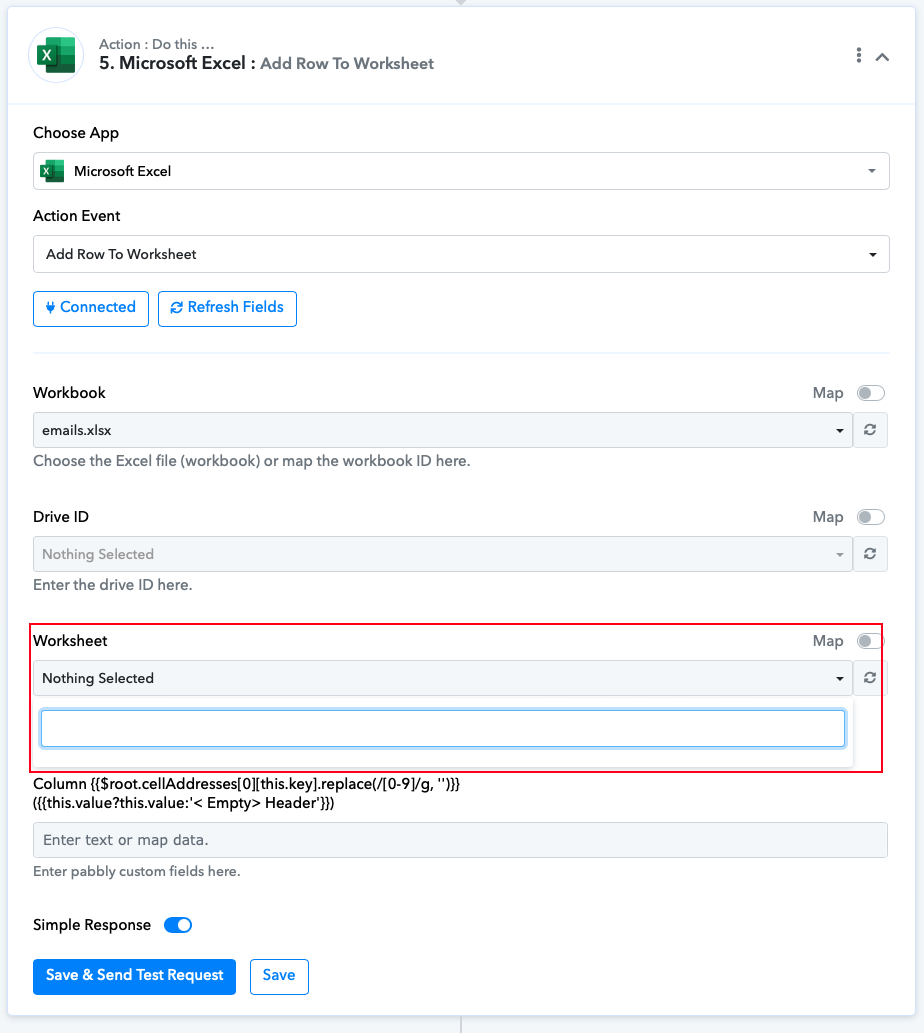
My trial has only 8 days left...
Now, I'm seeking help from those who might have encountered similar challenges with Pabbly. Any suggestions or guidance would be truly valuable.
Hi @sjl,
The iterator shows only the first value during setup, but in automation, it processes all the data captured from the trigger response one by one, sending messages to your MS Teams channel one message at a time.
For issues related to the worksheet not showing up, I would need your Workflow URL.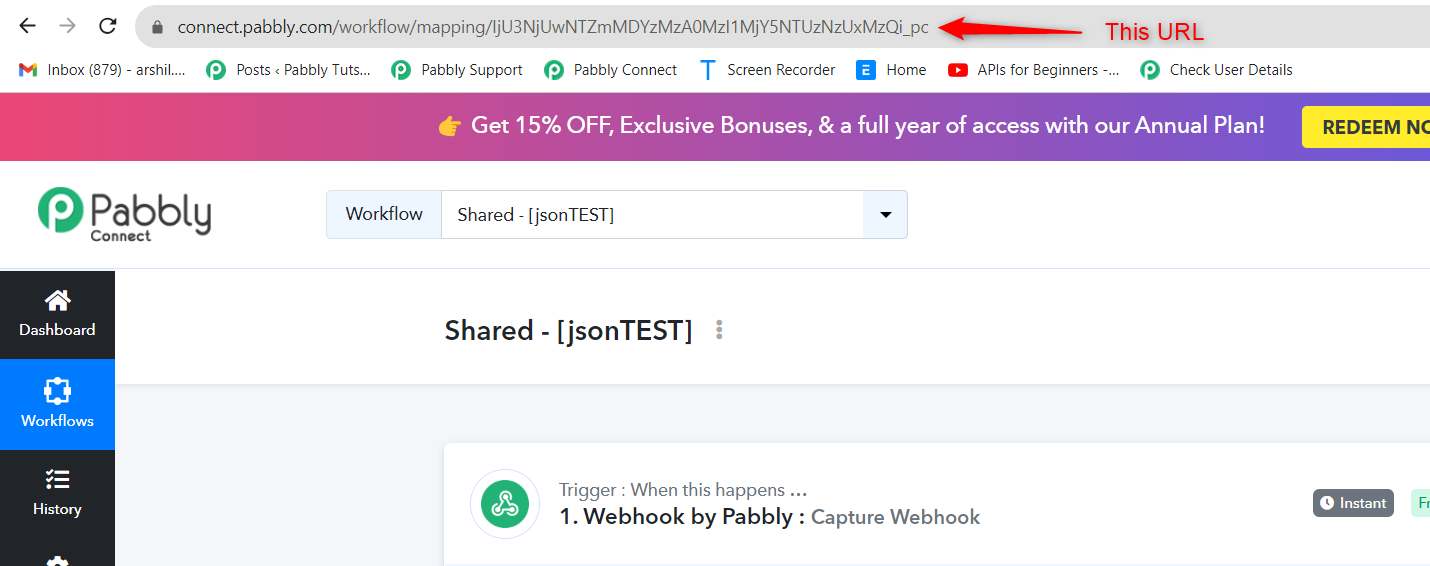
Hey Arshil, thanks for chiming in! Here's that URL you wanted: https://connect.pabbly.com/workflow/mapping/IjU3NjUwNTZmMDYzMzA0MzI1MjZlNTUzZDUxM2Ei_pc. So, I get that Pabbly's got its quirks, like only showing the first item instead of, you know, actually iterating. When you mentioned "one by one," were you hinting at adding another module between the iterator and sending messages to the team? I mean, I'm just using the team to check if it's really iterating.
Oh, and while we're at it, any idea why Pabbly's playing hide-and-seek with Excel worksheets? Just curious!
There is no need to add any steps, just map the data directly from Iterator to the next step (Send Message in a Channel)
Please log in to your Pabbly Connect and MS Excel accounts in an Incognito Tab, establish a new connection with your MS Excel account, and check whether you are getting the worksheet.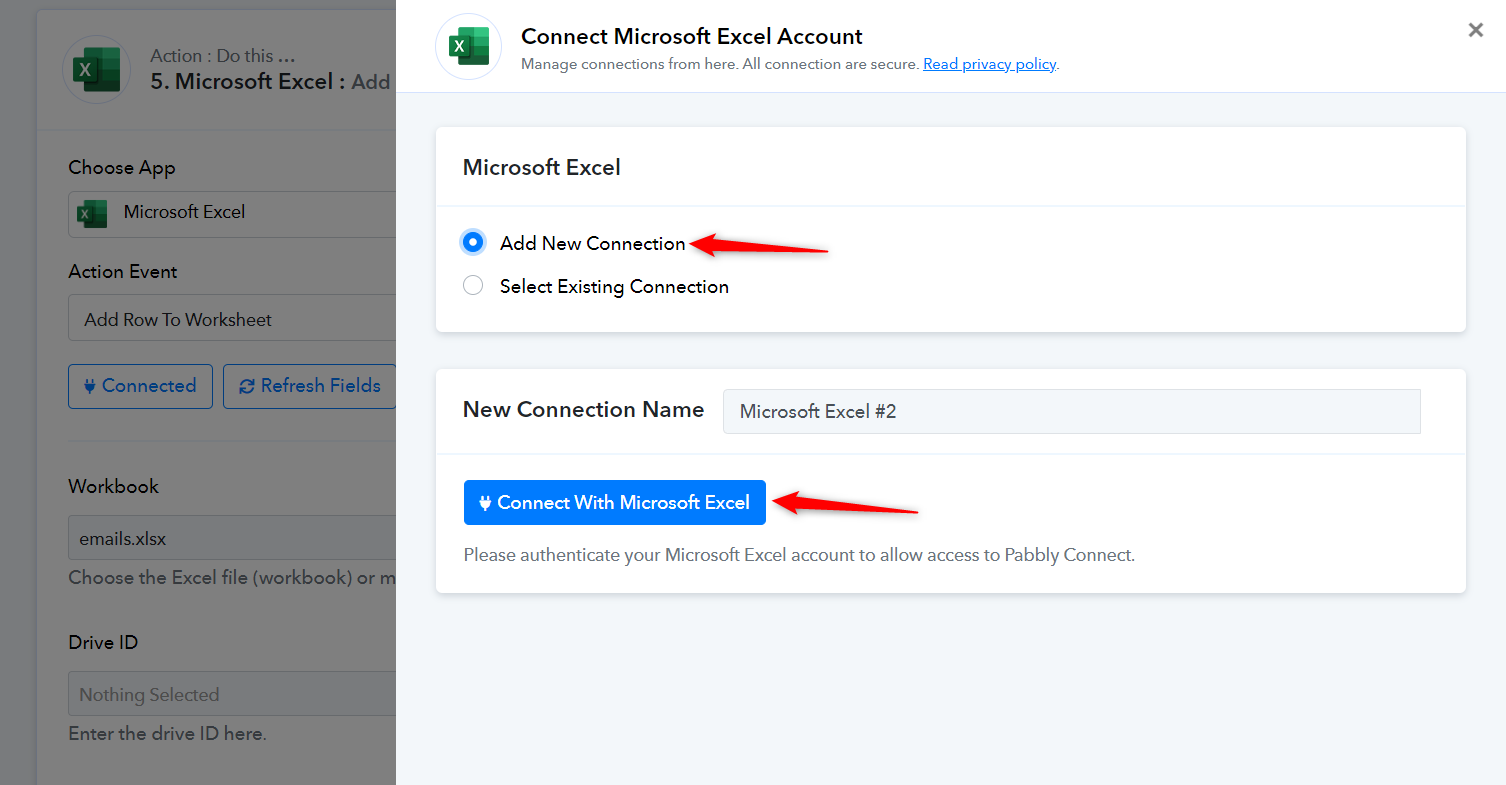
So I followed your instructions and created a new connection, but it still doesn't work. Here's the URL for your reference: https://connect.pabbly.com/workflow/mapping/IjU3NjUwNTZmMDYzMzA0MzI1MjZiNTUzNTUxMzci_pc
By the way, any news on why iterator doesn't work?
Allow me some time to discuss the issue related to MS Excel with my team. I will get back to you with an update soon.
Please check your Task History, the Iterator is working as intended.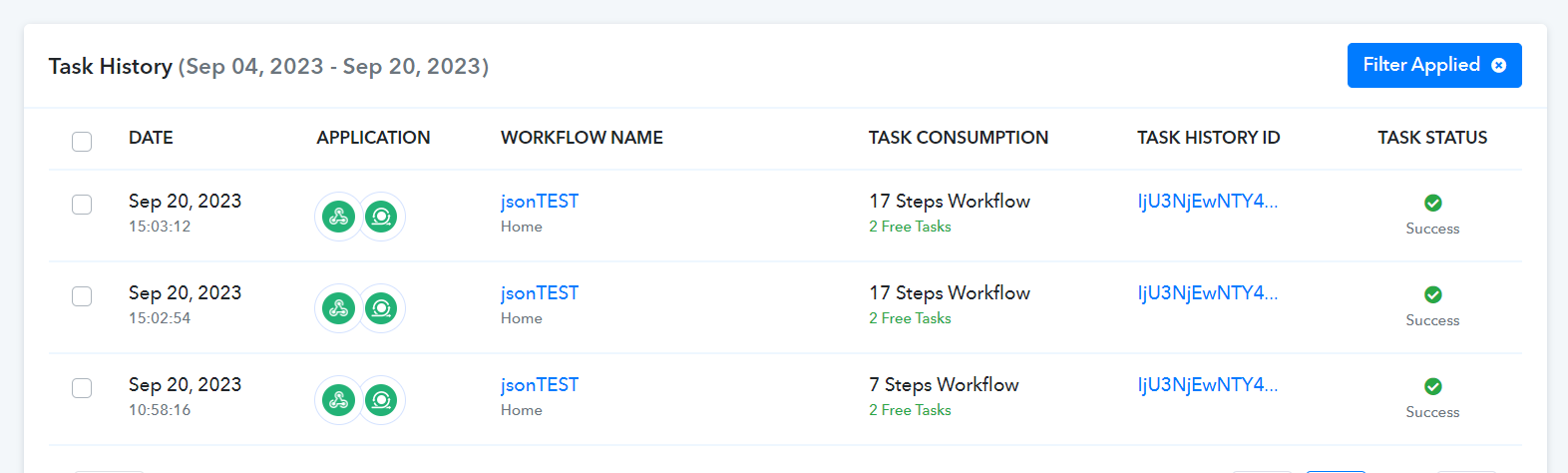
@ArshilAhmad
Yeah, please keep us updated with MS Excel with your team. And Iterator is working only fine because someone? changed the to the following.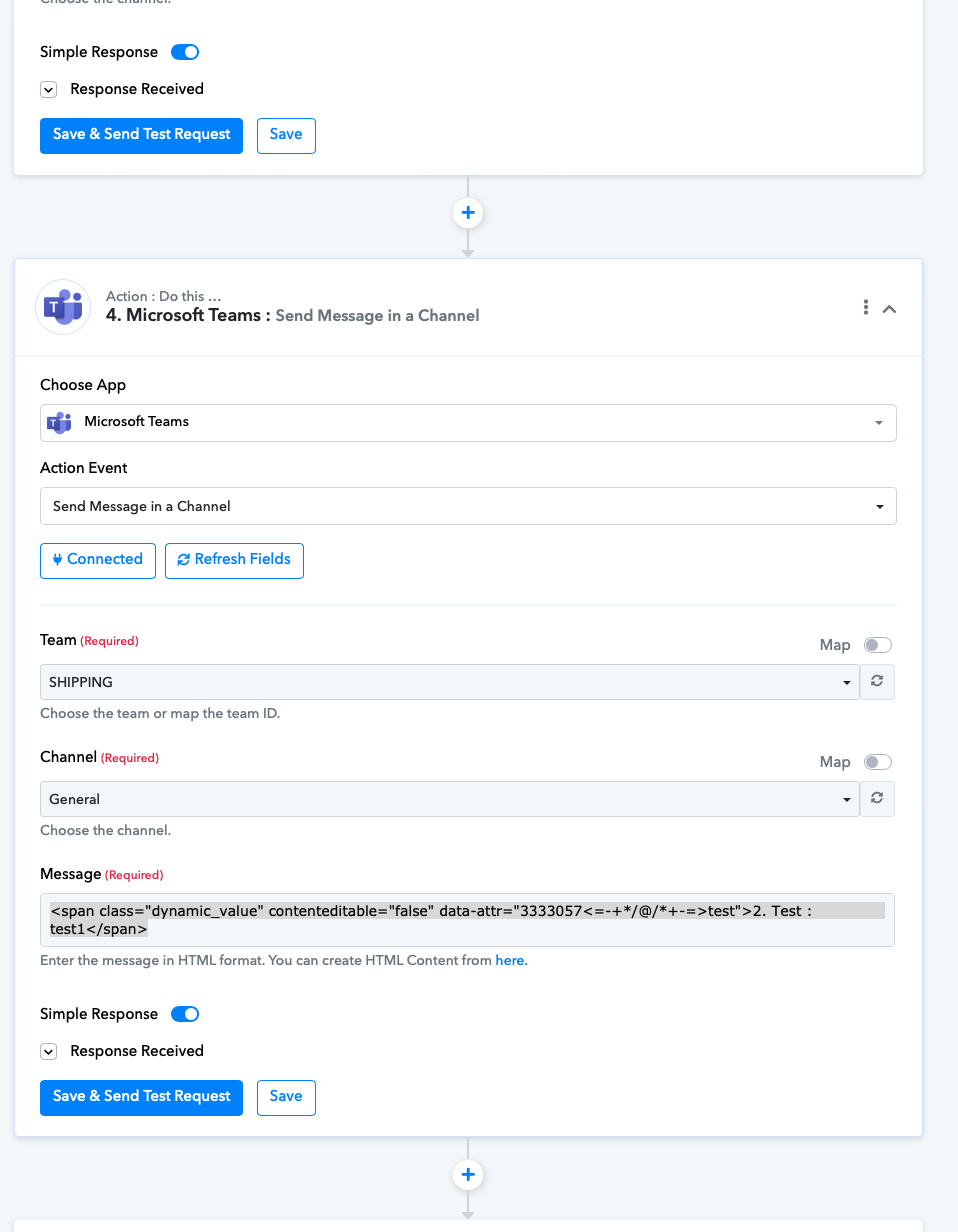
But not working when just mapped from the previous output as it should be.
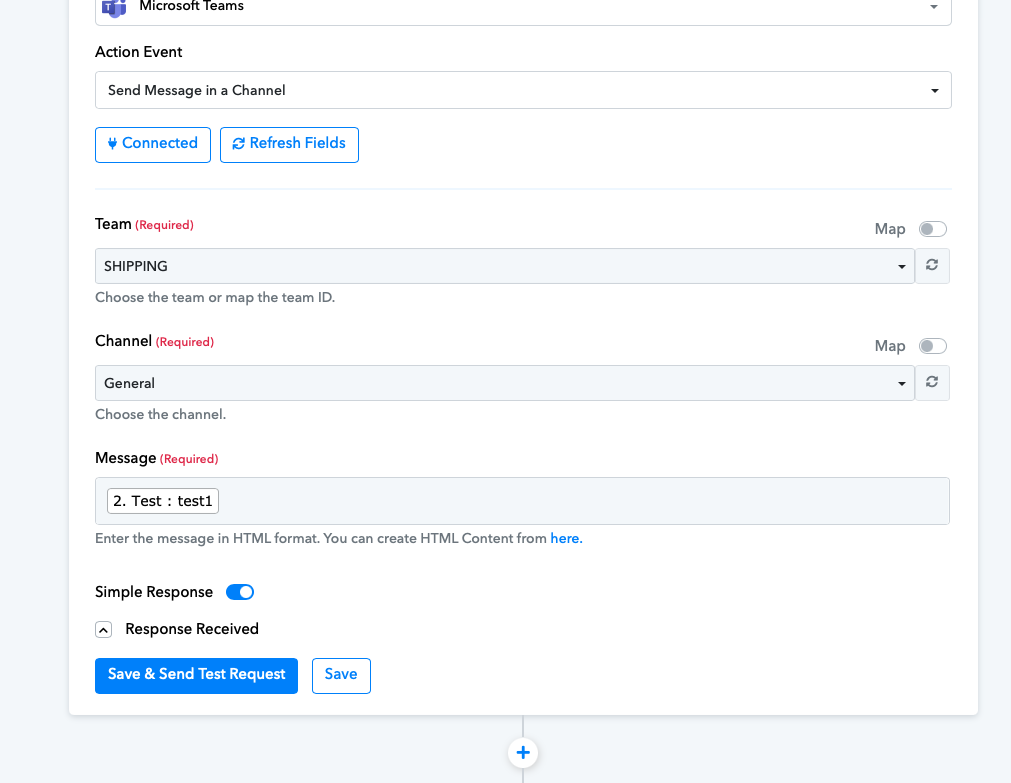
Did you change the message input?
No, I didn't make any changes to your workflow. Sometimes, mapped data starts showing up the way it's displayed in your Screenshot 1. You can refresh your browser, and it will start showing up correctly as shown in Screenshot 2.
@ArshilAhmad It seems like the iterator doesn't work when I try to run the modules manually to check but works when called by scheduled or webhook. Is there a way to fix it?
You cannot manually run the Iterator during setup. It will only run in automation (when called by a schedule or webhook).
As for the issue related to MS Excel. Our technical team has sent an email to Microsoft's team regarding this issue and we will update you as soon as we get a response from their end.
In the meantime, you can try using the 'Search File in My Drive' action event to obtain the Drive ID, and then enter that Drive ID into the 'Add Row to Worksheet' action event. This should provide you with the necessary fields.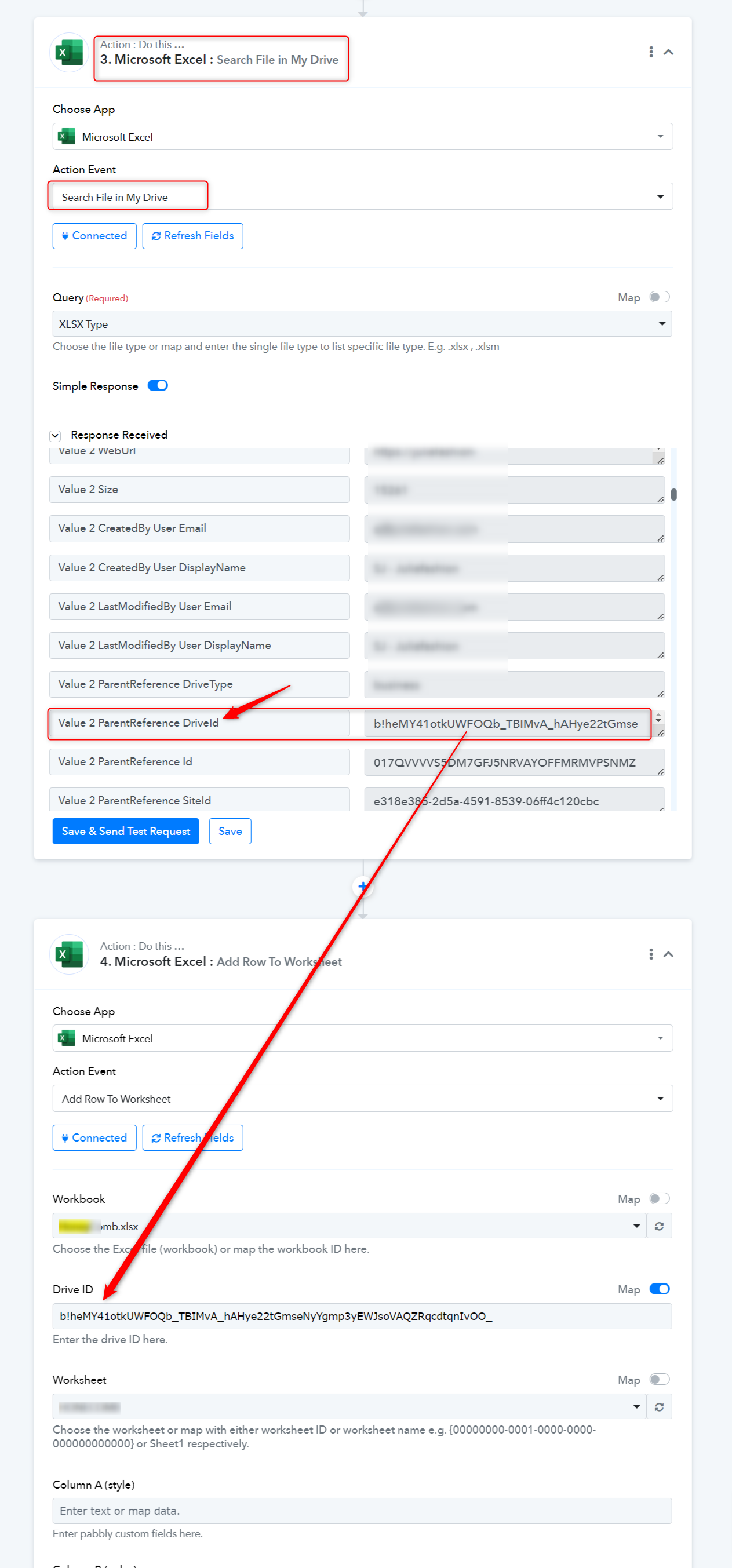
You can delete the 'Search File in My Drive' action step from your workflow once you have obtained the Drive ID.
@ArshilAhmad Thank you for your prompt reply. I will use Search My File module for now. Also, can you blur-out or erase the User Name since it shows the company name and user name? Thank you!
@ArshilAhmad
Just a quick question - if I'm looking to test the workflow to check if the iterate function and other modules are running smoothly, do I need to set a schedule and wait for the workflow to kick in? Or is there an option to manually trigger the whole workflow, and not just a single module?
Thanks for your help!
The quickest way to check the workflow will depend on the trigger you have for that specific workflow. If it's a webhook, then make a test submission. If it's an email parser, then send a dummy email. If it's a Scheduler, then set a time in the future. Currently, we don't have a dedicated option to manually trigger the entire workflow for testing.
@ArshilAhmad I trust you're doing well. Could you please provide any updates on the issue with the Excel worksheet?
Kindly allow us some time, we are currently looking into it.