Microsoft Office 365 "Send Mail" returns MailboxNotEnabledForRESTAPI despite valid Exchange Online mailbox
Status: Closed · Asked by Muskan on · 0 views
Hi Pabbly Team,
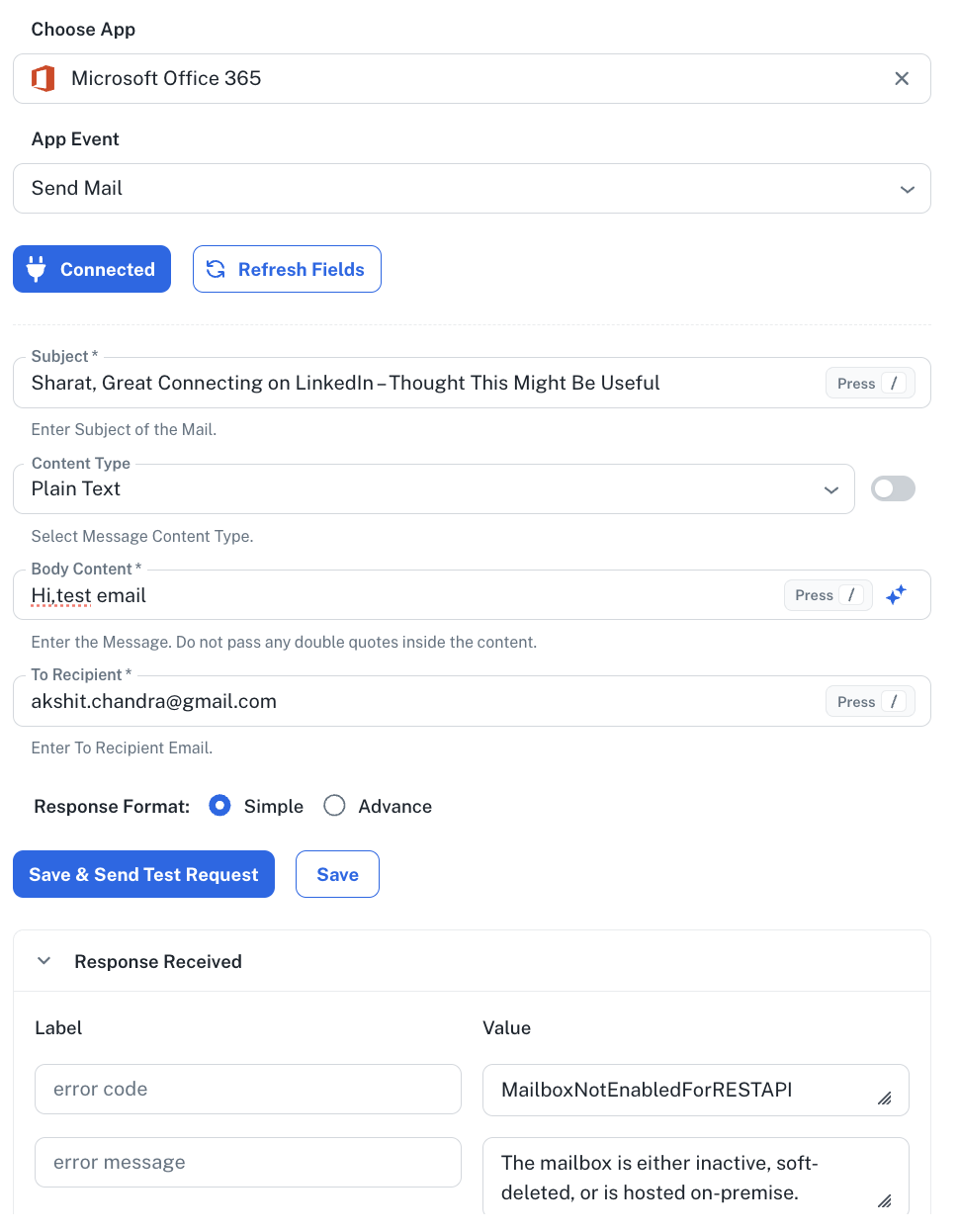
I'm trying to use the Microsoft Office 365 → Send Mail action in Pabbly Connect, but every test fails with the following error:
Error Code: MailboxNotEnabledForRESTAPI
Error Message:The mailbox is either inactive, soft-deleted, or is hosted on-premise.
My setup
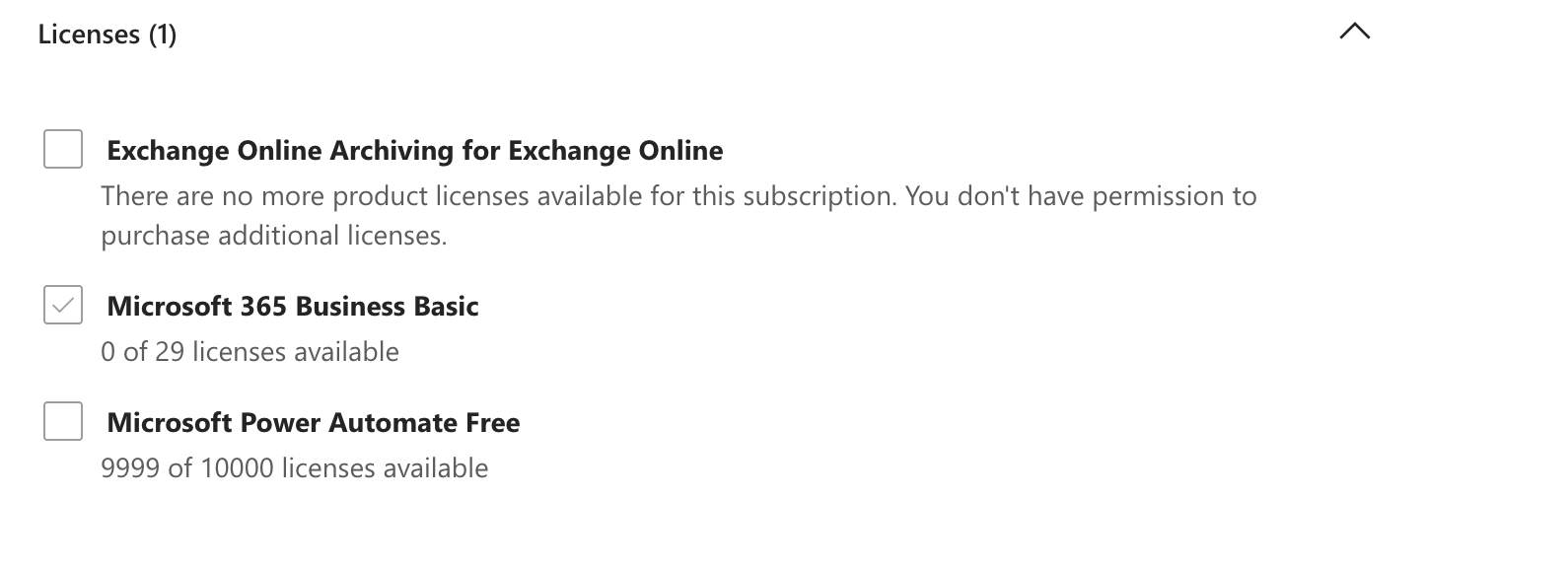
- Microsoft 365 Business Basic
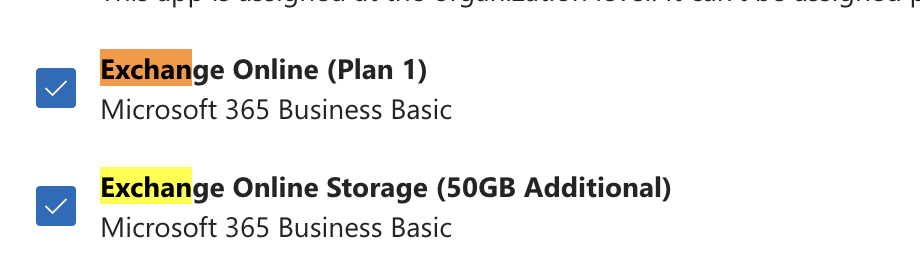
- Exchange Online (Plan 1) enabled
- Exchange Online Storage enabled
- Mailbox:
[email hidden]- Using the Microsoft Office 365 app in Pabbly Connect (not Outlook SMTP)
- Action: Send Mail
What I've already verified
✅ I can log into Outlook Web and send/receive emails normally.
✅ The mailbox is active.
✅ Microsoft 365 Business Basic license is assigned.
✅ Exchange Online (Plan 1) is enabled under the license.
✅ The Pabbly connection is created successfully and shows Connected.
✅ The error occurs only when clicking Save & Send Test Request.
Test configuration
Subject: Test email
Content Type: Plain Text
Recipient: My Gmail address
Body: Simple test message
Error received : MailboxNotEnabledForRESTAPI (The mailbox is either inactive, soft-deleted, or is hosted on-premise.)
Has anyone experienced this before, or can the Pabbly team advise what needs to be checked?
Thank you!
Hi,
Thank you for contacting us.
To ensure the required permissions are available for OneDrive-related operations, please assign the Cloud Application Administrator role to the user account by following the steps below:
Log in to the Microsoft 365 Admin Center or Azure Portal.
Navigate to Users from the left-hand menu.
Select the user account that will be used for the connection.
Open the Assigned roles section from the user's profile.
Click Add assignments.
Search for Cloud Application Administrator.
Select the role and click Add to assign it to the user.
Wait a few minutes for the permissions to propagate, then reconnect the account and test the action again.
Additionally, depending on your organization's requirements, you may also consider assigning one or more of the following roles:
SharePoint Administrator – For broader SharePoint and OneDrive administration.
Teams Administrator – For Teams-integrated OneDrive management.
User Administrator – For user management and OneDrive provisioning tasks.
Security Administrator – For security-related OneDrive configurations.
Please note that role changes may take a few minutes to become effective across Microsoft services.
Once the role has been assigned, kindly reconnect the Microsoft account in Pabbly Connect and test the workflow again. If the issue persists, please share the updated error screenshot so we can investigate further.
Thanks & Regards,
Hrishabh
Customer Support Associate
🌐 Pabbly.com
👉 Rate your support