Microsoft Teams - No Team or Channels Found
Status: Closed · Asked by Leigh Davis on · 0 views
Not sure why my previous ticket was closed. We had an issue with MS teams connection giving us a invalid_client error notification. This was fixed, but now after connecting MS Teams again, I do not have any options for the Teams or Channels. I have created 2 new connections and still does not work. Please review the loom video.
https://www.loom.com/share/8c2a942e3da248f1b5426f3b3576c518
Hello Leigh,
Thanks for contacting us.
Sorry about the previous Ticket getting closed as the system automatically closes the Tickets in 3 days if there is no reply from the user's end.
Could you please reconnect the Microsoft Teams application as a new connection and record the whole process as a screen video so that we can understand the issue in a better way? Make sure to establish the connection in the Incognito mode of the browser.
Also, can you confirm if you are establishing a connection from the Admin account or the User account under an organization for the Microsoft Suite?
Thanks & Regards,
Adeel Akhtar
🌐 Pabbly.com
Yes, please see the attached Loom video. I did this.
Hello Leigh,
Can you confirm if you are establishing a connection from the Admin account or the User account under an organization for the Microsoft Suite?
Also, the connection that you established in the shared video is while using the normal mode of the browser. Can you establish a connection in the Incognito mode of the browser?
Thanks & Regards,
Adeel Akhtar
🌐 Pabbly.com
Same result. It is setup as a user and has been given full access. Here's the loom video. https://www.loom.com/share/16a5bc0c103847d19873dfd11cadeb09
Please advise.

Hello Leigh,
The issue seems to be with the permissions. To grant a Microsoft Teams user or application admin consent to use an API connection, you must configure an App Registration within the Microsoft Entra admin center (formerly Azure Active Directory). This process registers your application, applies the necessary API permissions (like Microsoft Graph or Exchange Online), and authorizes them tenant-wide.
Step 1. App Registration
Navigate to Microsoft Entra admin center → Identity → Applications → App registrations.
Click New registration.
Provide:
Name (e.g., "Teams API Connector").
Supported account types (usually Single tenant).
Click Register.
This creates the Application (client) ID and establishes trust with Microsoft Entra ID.
Step 2: Assign API Permissions (for Microsoft Teams)
Define what data and actions the application or user is allowed to access through the Teams API connection.
From your newly created App Registration page, click API permissions under the Manage section in the left sidebar.
Click Add a permission.
Select the API you need to connect to:
Microsoft Graph → this is the primary API for Teams. It covers Teams-specific endpoints such as:
Chat.Read / Chat.ReadWrite → read or send messages in Teams chats.
Channel.ReadBasic.All / Channel.Read.All → read Teams channels.
ChannelMessage.Read.All / ChannelMessage.Send → read or send messages in Teams channels.
Team.ReadBasic.All / Team.Read.All → list or read Teams.
OnlineMeeting.Read / OnlineMeeting.ReadWrite → manage Teams meetings.
Use the APIs my organization uses tab if you need other Office 365 services alongside Teams (e.g., SharePoint for file storage).
Choose the type of permission required for your workflow:
Delegated permissions → the app runs on behalf of a signed-in Teams user. The user’s own Teams roles and policies restrict what the API can access.
Application permissions → the app runs as a background service/daemon without a signed-in user, often used for bots or automation.
Check the specific Teams-related scopes your app needs (e.g.,
Chat.Read.All,ChannelMessage.Send,OnlineMeeting.ReadWrite) and click Add permissions.
Step 3. Grant Admin Consent
Permissions remain Not granted until approved.
On the API permissions page, click Grant admin consent for [Tenant Name].
Confirm with Yes.
Status changes to Granted (green checkmark).
This applies tenant-wide, meaning all users can access the app unless restricted.
Thanks & Regards,
Adeel Akhtar
🌐 Pabbly.com
I followed those steps and tried again twice in an incognito window and it still did not work.
Hello Leigh,
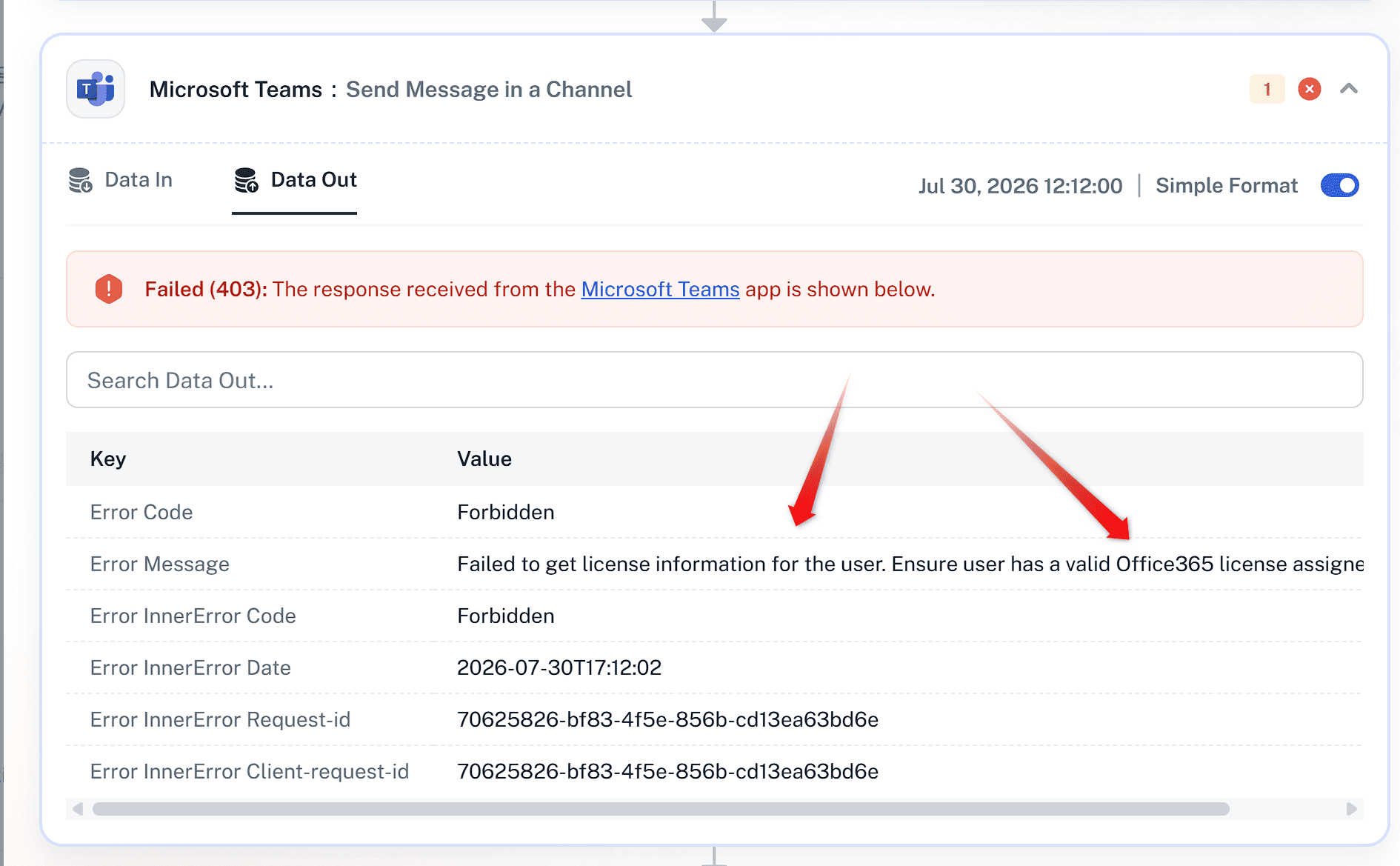
We checked your latest executions for the Microsoft Teams action in your workflow, and the response that you are getting is "Failed to get License information for the user. Ensure user has the valid Office365 License Assignment."
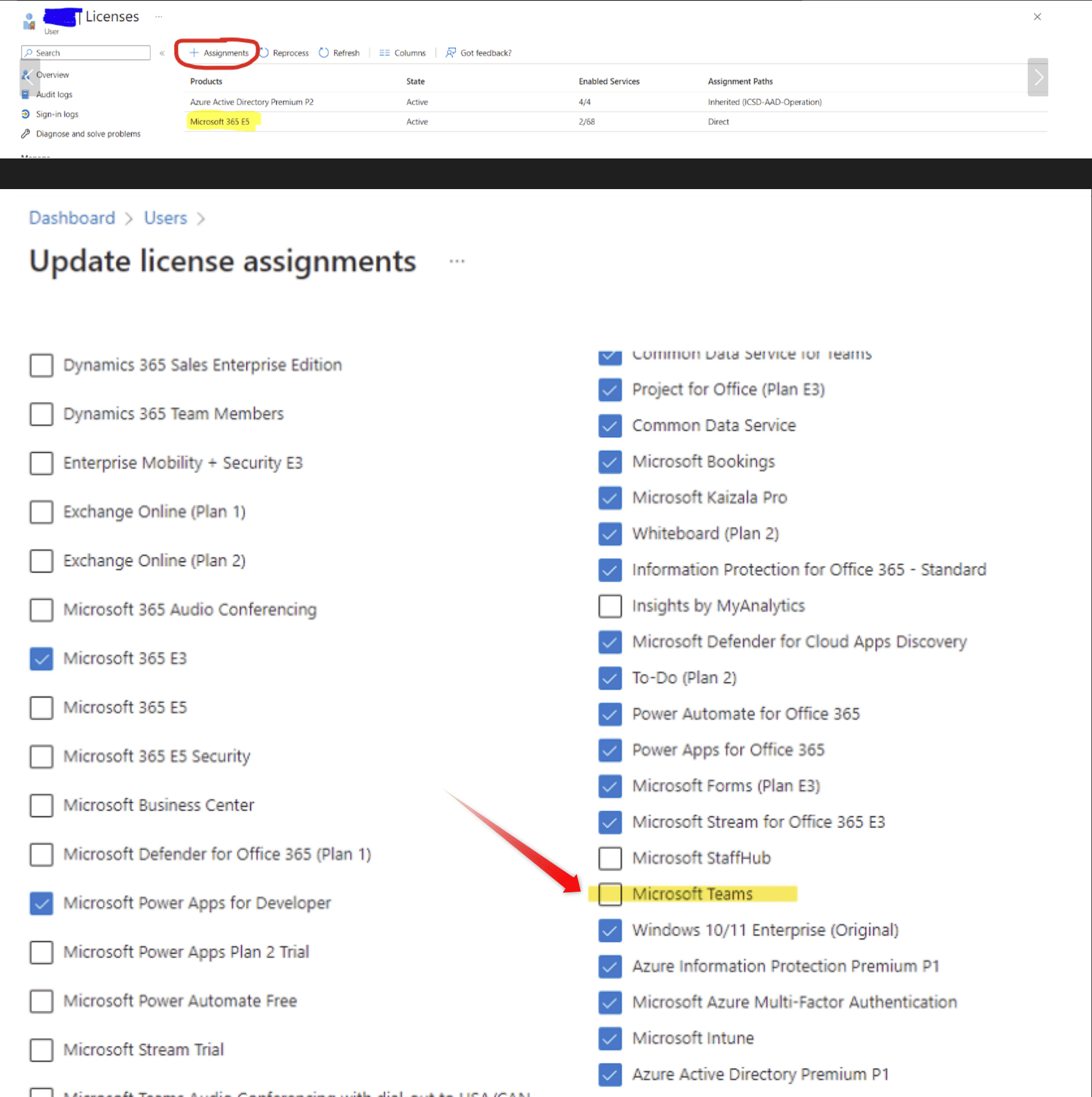
 Check Apps under E3 License. Is Microsoft Teams checked?
 Admin also needs to consent to the permissions.
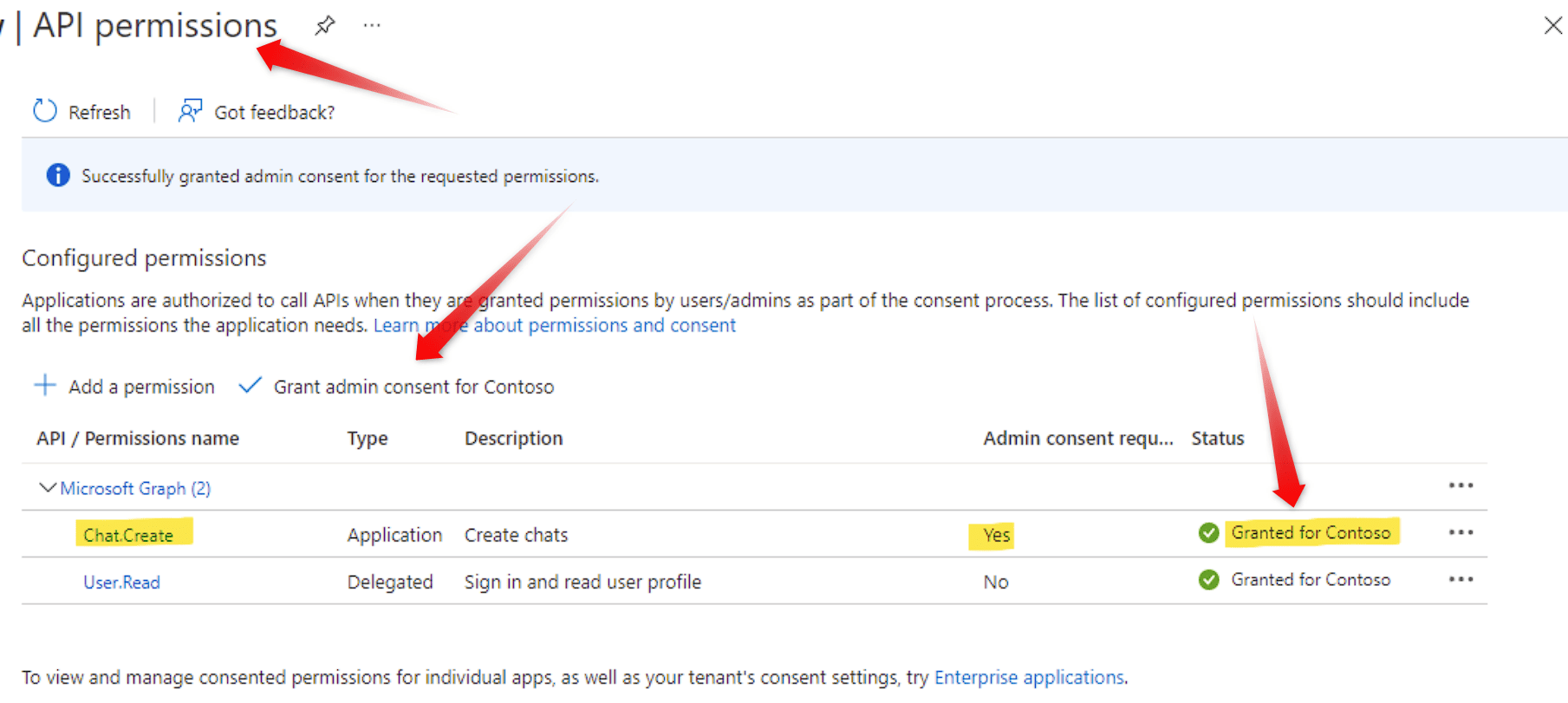 Please provide the screenshot of all the above permissions if they are correctly configured from the Admin account in a similar manner.
Thanks & Regards,
Adeel Akhtar
🌐 Pabbly.com
I see the issue now. That account does not have a business pro plan only email essentials. I will use a different user. You can close the ticket. Thanks
Hello Leigh,
Glad to hear that the issue is identified. Sure, try connecting a different user that has the active plan. We are not closing this Thread.
Thanks & Regards,
Adeel Akhtar
🌐 Pabbly.com