Need help in sending RFQ (Request for Quote) emails to manufacturers based on a product list (Tools used: Google Sheets & Office 365 for emails)
Status: Closed · Asked by yashk on · 0 views
Hello Team,
I am attempting to send an email to a list of manufacturers who supply a particular product.
Sample Google Sheets Table:
[TABLE]
[TR]
[TD]Product Name[/TD]
[TD]Manufacturer Email ID[/TD]
[/TR]
[TR]
[TD]Product A[/TD]
[TD][EMAIL][email hidden][/EMAIL][/TD]
[/TR]
[TR]
[TD]Product A[/TD]
[TD][EMAIL][email hidden][/EMAIL][/TD]
[/TR]
[TR]
[TD]Product B[/TD]
[TD][EMAIL][email hidden][/EMAIL][/TD]
[/TR]
[TR]
[TD]Product C[/TD]
[TD][EMAIL][email hidden][/EMAIL][/TD]
[/TR]
[/TABLE]
The current process is as below:
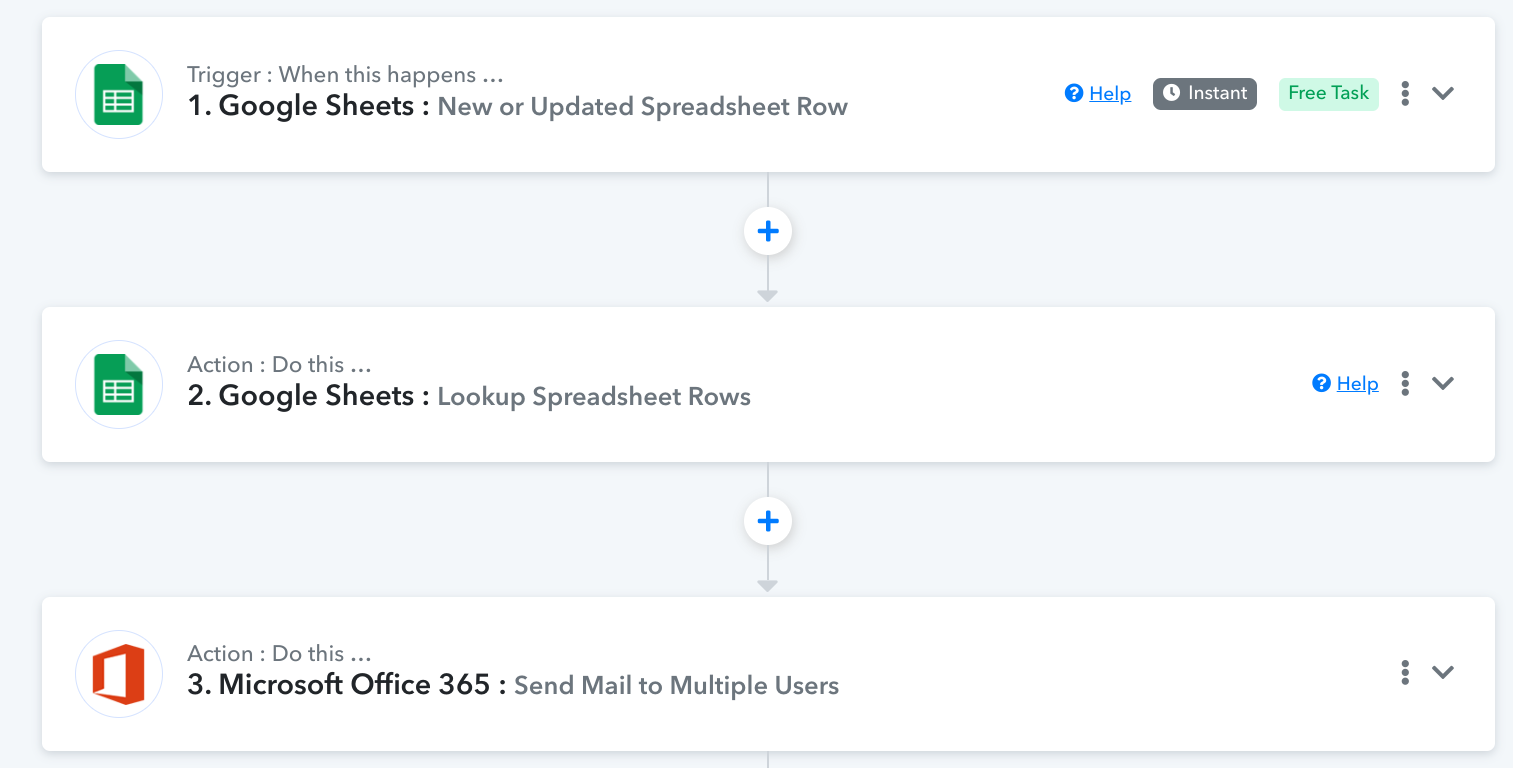
However, the challenge is the following
1) If I configure one email ID in Step 3: and if there are more suppliers for a product e.g Product A in the above table, the current flow only sends email to [EMAIL][email hidden][/EMAIL] and not to [EMAIL][email hidden][/EMAIL]. Ideally, we need it to send it to both the suppliers.
2) If I configure two email IDs in Step 3: but if there's just one supplier for a product e.g Product B in the above table, the flow would fail with an Error Code: ErrorInvalidParameter because it expects two email IDs to be returned by Step 2, but finds only one.
What do you think would be the best solution in this case? Ideally, emails should go to all the suppliers whose emails are returned in Step 2: Lookup Spreadsheet Rows.
2) If I configure two email IDs in Step 3: but if there's just one supplier for a product e.g Product B in the above table, the flow would fail with an Error Code: ErrorInvalidParameter because it expects two email IDs to be returned by Step 2, but finds only one.
We have corrected the format in the BCC recipients and it is working now.
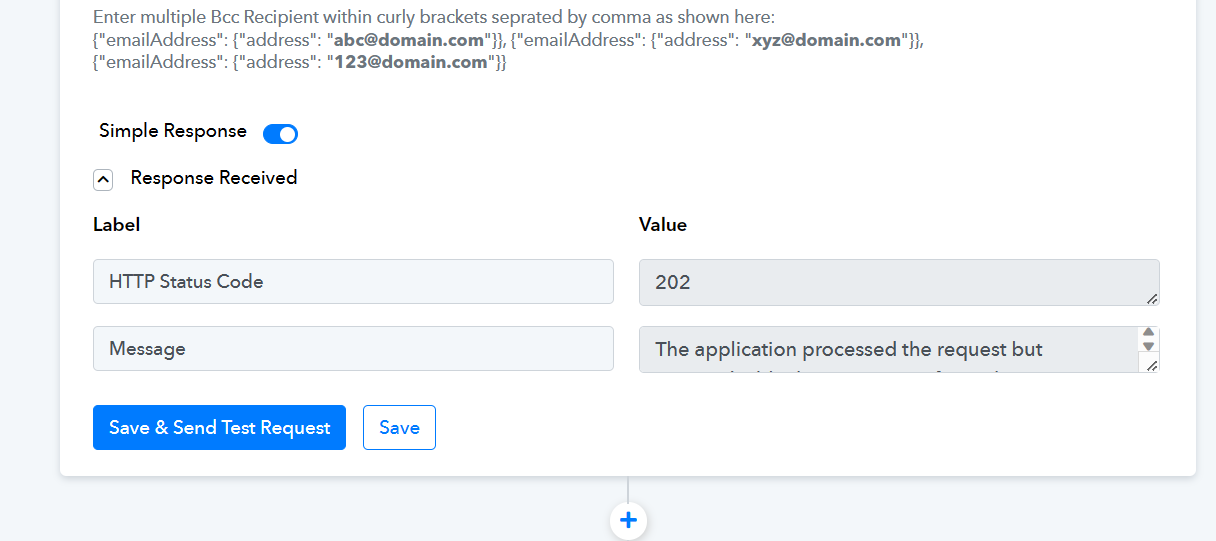
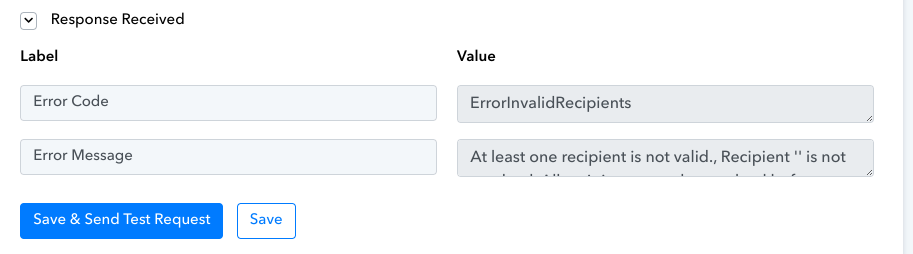
It's not working as desired. I changed the the product from "Product A" (which had two supplier emails) to "Product B" (with only 1 email) - and it failed with below error, because in BCC - three emails are configured.
Hey @yashk
Please check you are missing one email address and if you do not wish to pass any more email addresses then kindly remove its email address block.
Please try and understand the question.
[TABLE]
[TR]
[TD]Product Name[/TD]
[TD]Manufacturer Email ID[/TD]
[/TR]
[TR]
[TD]Product A[/TD]
[TD][EMAIL][email hidden][/EMAIL][/TD]
[/TR]
[TR]
[TD]Product A[/TD]
[TD][EMAIL][email hidden][/EMAIL][/TD]
[/TR]
[TR]
[TD]Product B[/TD]
[TD][EMAIL][email hidden][/EMAIL][/TD]
[/TR]
[TR]
[TD]Product C[/TD]
[TD][EMAIL][email hidden][/EMAIL][/TD]
[/TR]
[/TABLE]
This is the base table.
Step 2 is to select email IDs based on Product Name - everything is working fine till this point
Step 3 is to send email to all the matching email IDs returned from Step 2 - so it could be 1 email (if Product B is selected) or 2 emails (if Product A is selected)
I intend to set up Step 3, in a manner that it's able to send emails to all the email IDs returned from Step 2 (could be 1 or many)
Hey @yashk
Can you add the email address to your Google Sheets in this manner - {"emailAddress": {"address": "[email hidden]"}}
So, in that way, we can look for a workaround.
What is the proposed workaround?
Because even if I change email IDs in this format {"emailAddress": {"address": "[email hidden]"}} - Step 2 would still return one or more email IDs, depending on the product.
This would still not solve for ErrorInvalidRecipients .
Hey @yashk
You can refer to the following screenshot for your better understanding.


My problem statement is not understood properly. I am rewriting the desired flow and current problem here.
Desired Flow
Step 1) Google Sheet Trigger: Product name
Step 2) Lookup Spreadsheet Rows (example table below) with Product Name
Step 3) Send Email to Multiple users (i.e all Manufacturer Email IDs) which have that Product Name
[TABLE]
[TR]
[TD]Product Name[/TD]
[TD]Manufacturer Email ID[/TD]
[/TR]
[TR]
[TD]Product A[/TD]
[TD][EMAIL][email hidden][/EMAIL][/TD]
[/TR]
[TR]
[TD]Product A[/TD]
[TD][EMAIL][email hidden][/EMAIL][/TD]
[/TR]
[TR]
[TD]Product B[/TD]
[TD][EMAIL][email hidden][/EMAIL][/TD]
[/TR]
[TR]
[TD]Product C[/TD]
[TD][EMAIL][email hidden][/EMAIL][/TD]
[/TR]
[/TABLE]
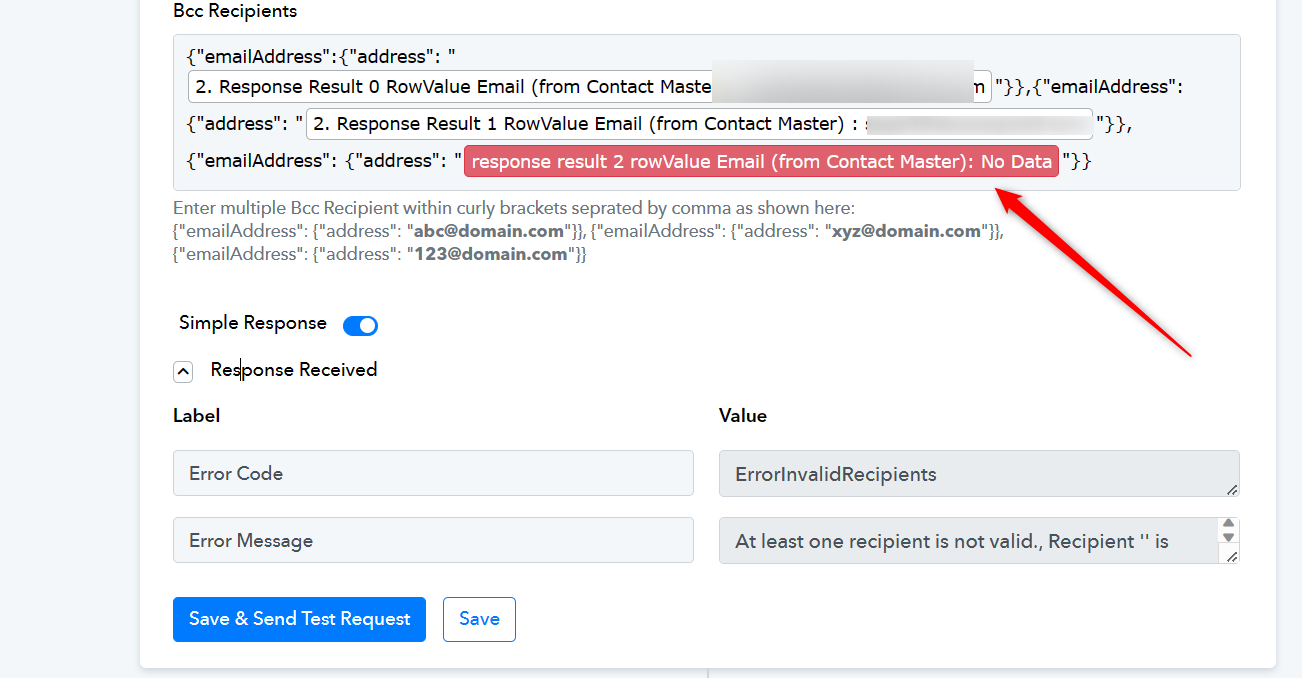
In Step 3: I have configured email IDs in the format that is recommended for Office 365 i.e {"emailAddress": {"address": "[email hidden]"}} - and because it has to take values from Step 2, it's configured as follows
{"emailAddress":{"address": "2. Response Result 0 RowValue Email (from Contact Master) :[email hidden]"}},{"emailAddress": {"address": "2. Response Result 1 RowValue Email (from Contact Master) :[email hidden]"}}
Now, this setup works fine till there are 2 Manufacturer Email IDs for a product (e.g Product A) - but when the Input in Step 1) is Product C, the flow fails in Step 3, because it expects two email IDs to be returned by Step 2, but it gets only one i.e {"emailAddress":{"address": "2. Response Result 0 RowValue Email (from Contact Master) :[email hidden]"}},{"emailAddress": {"address": "response result 2 rowValue Email (from Contact Master): No Data"}} - Causing Step 3 to fail.
We understood your concern, the workaround which we have shown is just to reduce the formatting of the email address which you need to pass in the Send Email action step of MS Office 365.
So with the help of a workaround, you will be able to dynamically pass the email addresses in the email address field according to the data retrieved from the "Lookup SpreadSheet" action step.
Thank you. This solution is perfect.