Retrieve vouchers from a list in Google Sheets
Status: Open · Asked by phil on · 0 views
When a customer buy a product by Plug and Paid, we would like to send 2 discount vouchers for the next orders.
In a Google Sheet we have different sheet's tabs, where one contains 1000 voucher codes.
Which is the best workflow to retrieve and remove 2 of these vouchers from the Google Sheet, for every order?
Do checkout this video for some ideas around setting up that automation.
Instead of webhook from ThriveCart, your webhook will be from PlugNPaid.
That could be a solution. Thanks.
Just missing a detail.
For every product there's a different amount of vouchers:
Product A -> 2 vouchers
Product B -> 3 vouchers
Product C -> 4 vouchers
As far I can see the counter solution wouldn't work, if used in a conditional workflow.
There's a way to store the number of vouchers as a variable?
Thanks
That could be a solution. Thanks.
Just missing a detail.
For every product there's a different amount of vouchers:Product A -> 2 vouchers
Product B -> 3 vouchers
Product C -> 4 vouchersAs far I can see the counter solution wouldn't work, if used in a conditional workflow.
There's a way to store the number of vouchers as a variable?Thanks
Can you please elaborate your use case with some real example?
Well, simple.
If customer buy "Product A" become, as gift, 2 voucher codes for the next order.
If customer buy "Product B" become, as gift, 3 voucher codes the next order.
If customer buy "Product C" become, as gift, 4 voucher codes the next order.
We have 1000 voucher codes already registered in the Plug and Paid cart, and we copied those codes in Google Sheets.
The codes should be automatically sent to the buyer's email.
Of course would be better if PC would read the codes directly from PlugnPaid, but I think there's no API for this.
What best I can suggest is to pick the voucher codes from your google sheet randomly on each sale, you can use Get Row(s) action of the Google Sheet app inside your workflow, also, you need to route your workflow for 3 products
Route1 - Product A
Here, you can get the random number between 1 and 1000 using Number Formatter - Spreadsheet Formula as shown here:
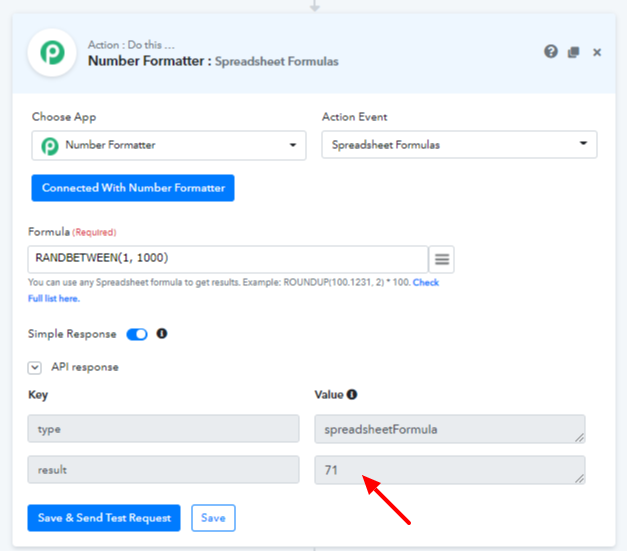
as you have 1000 vouchers in your sheet then, you can do a math operation Number Formatter - Perform Math Operation on that number and add 1 to it as shown below:
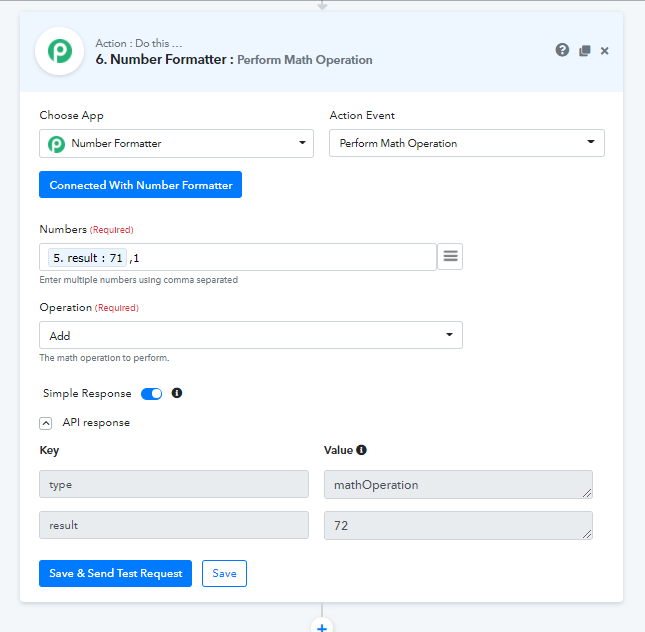
Now, use the above numbers in the Google Sheets- Get Row(s) action eg. A71:A72, this will bring you data of two consecutive rows of your sheet containing the voucher code and you can send them to the user.
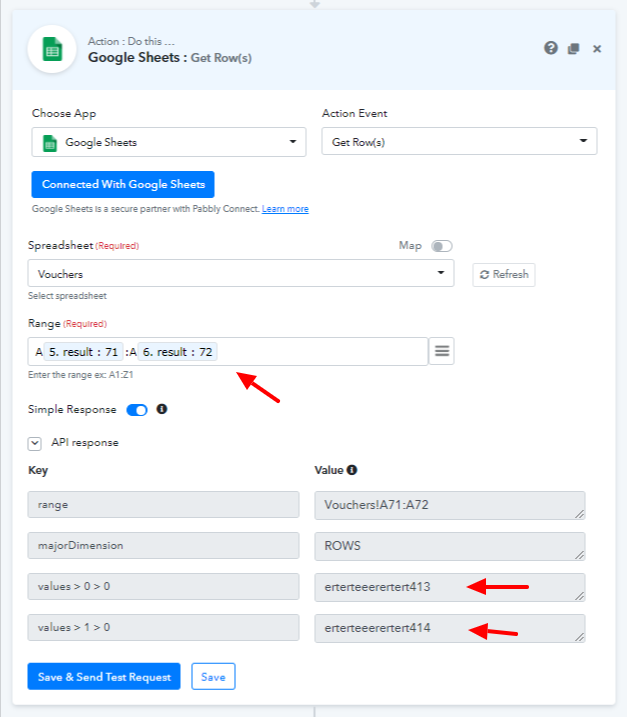
Similarly, you can do the above steps for your other products (Route 2 and Route 3) but with different math operation.
I hope the above solution helps.
You cannot pick codes randomly, as every Voucher can be used only one time
You cannot pick codes randomly, as every Voucher can be used only one time
In that case, you can make use of Number Formatter - Counter to get serialized index.