Salesforce, Wordpress, Elementor
Status: Closed · Asked by maike_mue on · 0 views
Hello! :) we use pabbly to connect wordpress and salesforce (with elementor) and transfer leads that come in via our contact form from wordpress to salesforce. we are currently doing the field mapping. we use the following code to get a info from a checkbox to salesforce: {{pc_skip_field}} but we get a error message when we try it like that, can you tell us what’s wrong with that and how we can transfer an elementor boolean field into a salesforce boolean?
thank you!
we are currently doing the field mapping. we use the following code to get a info from a checkbox to salesforce: {{pc_skip_field}} but we get a error message when we try it like that, can you tell us what’s wrong with that and how we can transfer an elementor boolean field into a salesforce boolean?
Can you please share the workflow URL once in which you have tried the same?
is that what you mean? :) https://connect.pabbly.com/workflow/mapping/IjU3NjUwNTZiMDYzZTA0MzQ1MjZhNTUzZDUxMzEi_pc
Could you please make a short screen recording showing the issue you are referring to? Based on the workflow you have shared, I was unable to find an error.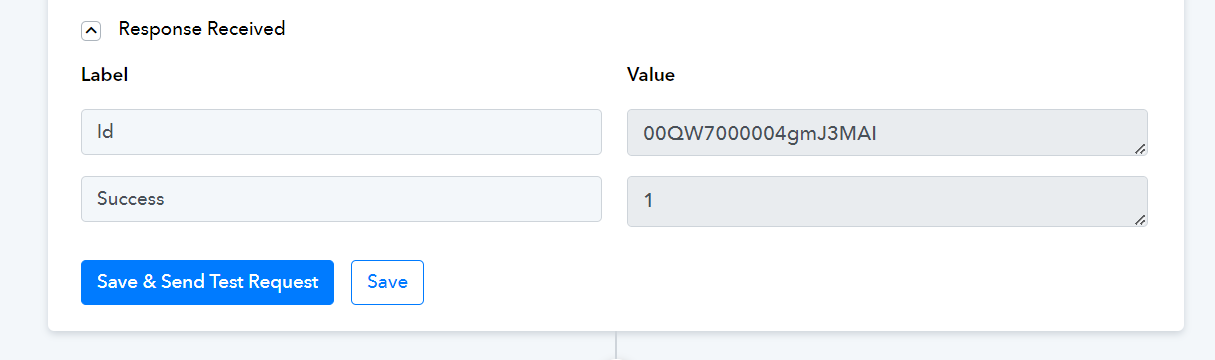
we've created this contact form on this page here https://press.studydrive.net/usecases/
after submitting we receive this response (attached screenshot)
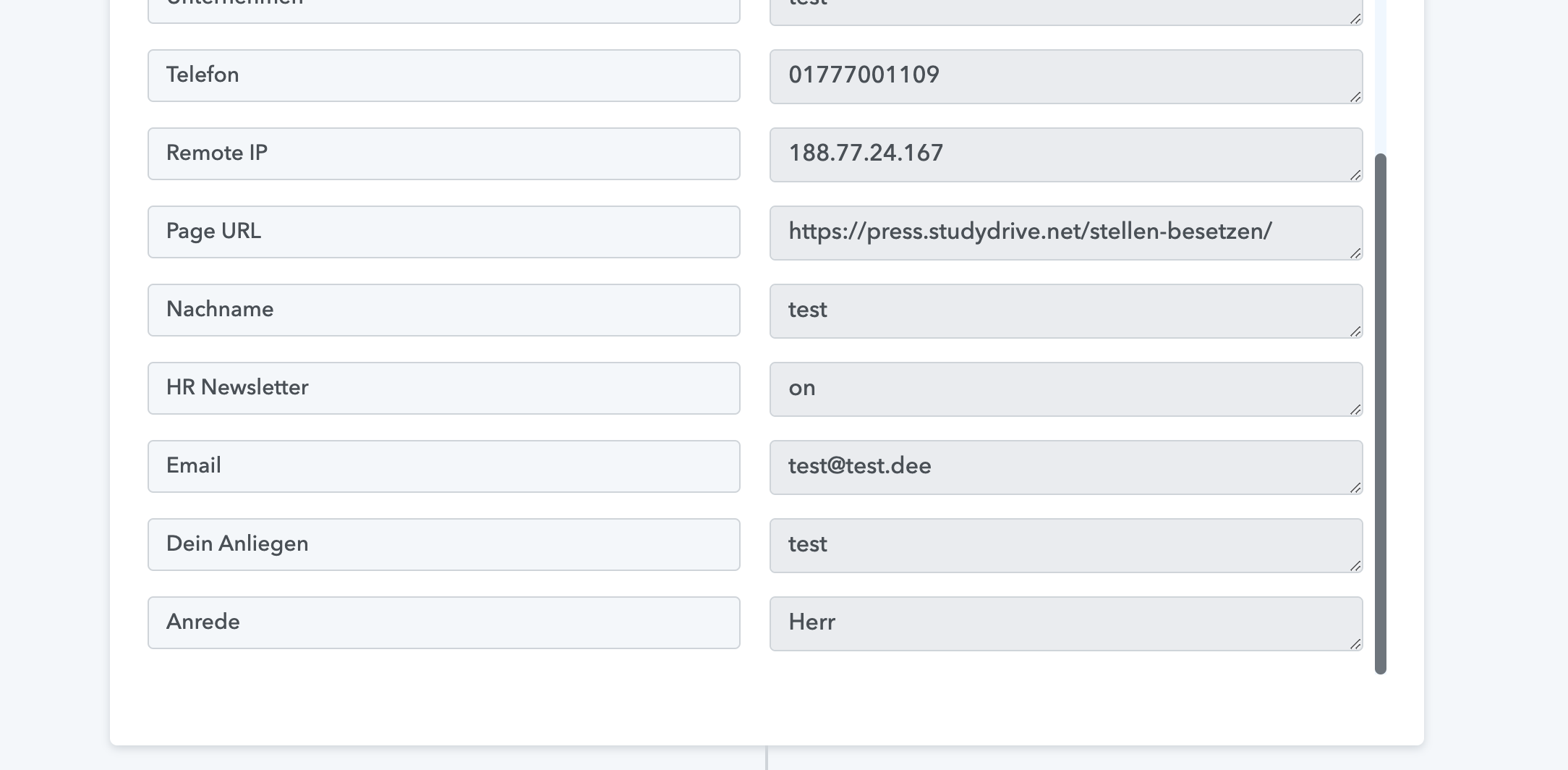
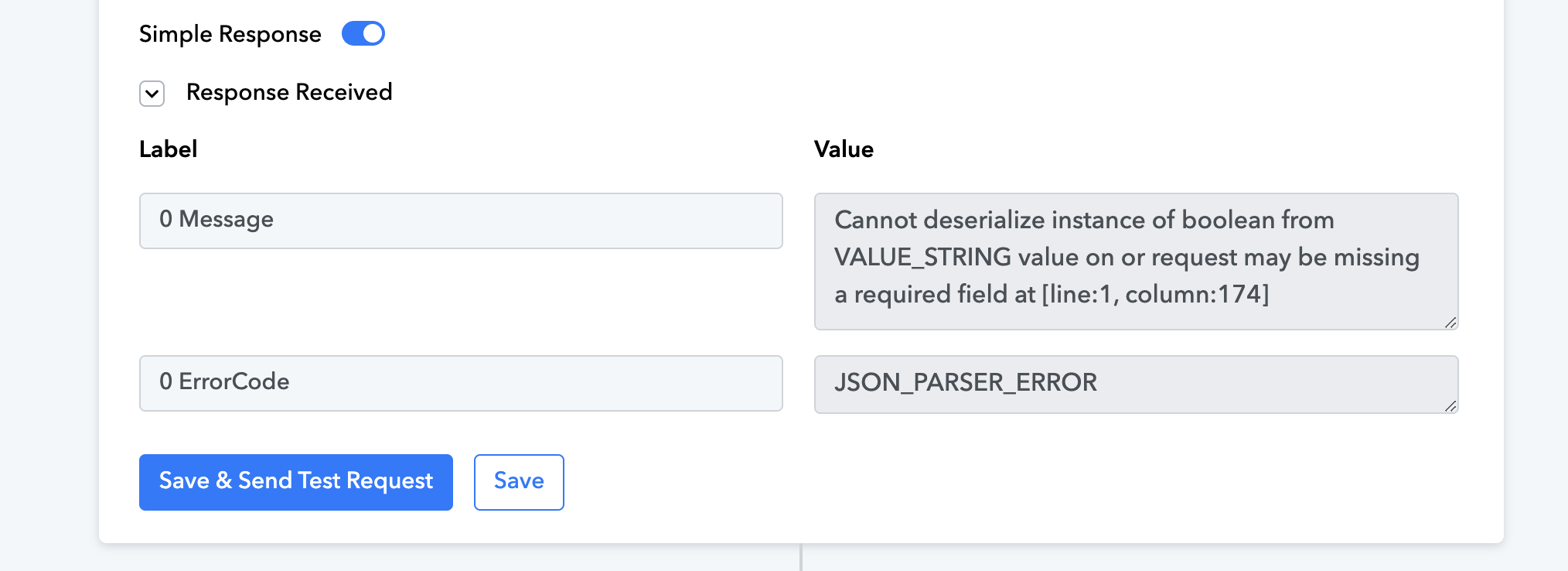
here we've "HR Newsletter" field which is "acceptance" field from elementor but it gives us on/off instead boolean value true/false which required here In the salesforce action field (attached screenshot)
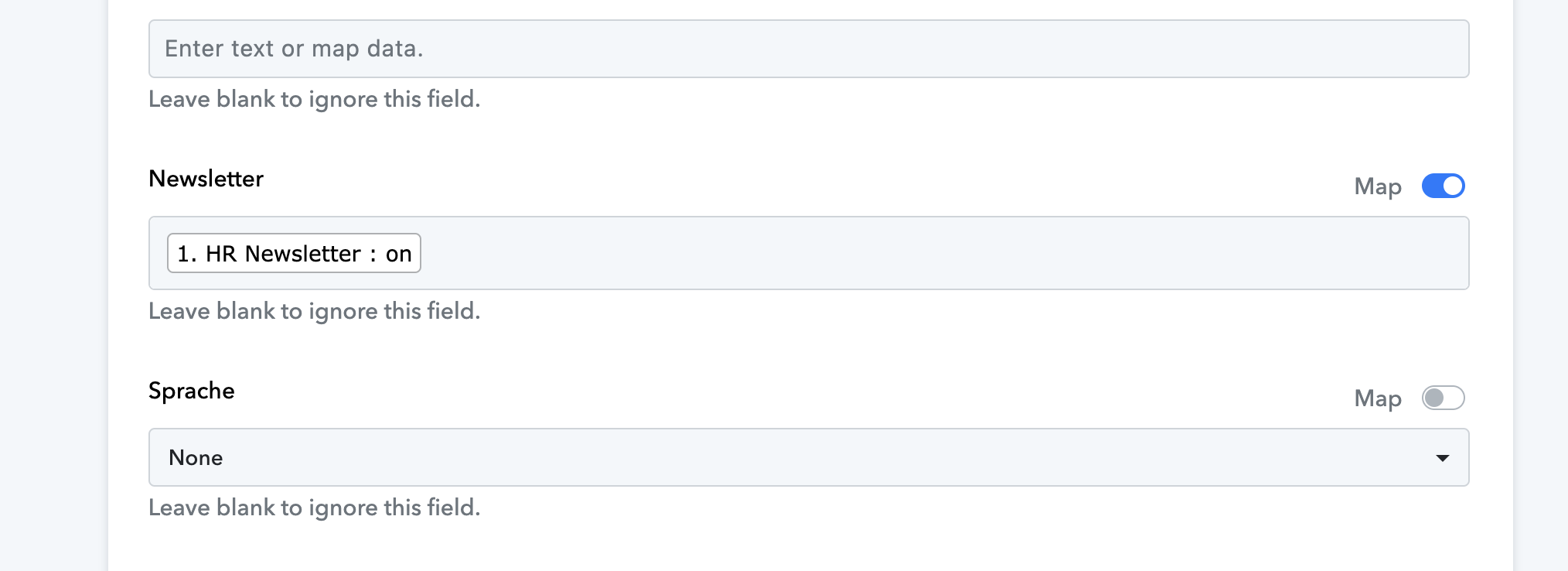
but it gives us error (attached screenshot)
How we can do it?
Also, we're willing to purchase a lifetime plan. Is there a way to schedule a call to discuss the flow and requirements we've?
Eagerly looking forward
here we've "HR Newsletter" field which is "acceptance" field from elementor but it gives us on/off instead boolean value true/false which required here In the salesforce action field (attached screenshot)
In the action step for your newsletter field, you should either pass a boolean field or map the Boolean value, such as "{{##boolean:true##}}" or "{{##boolean:false##}}", to indicate on or off.
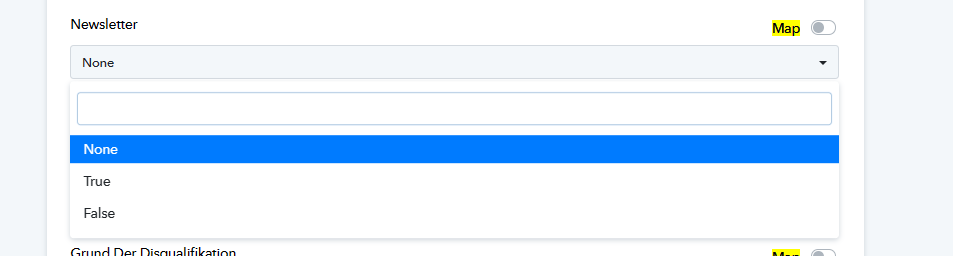
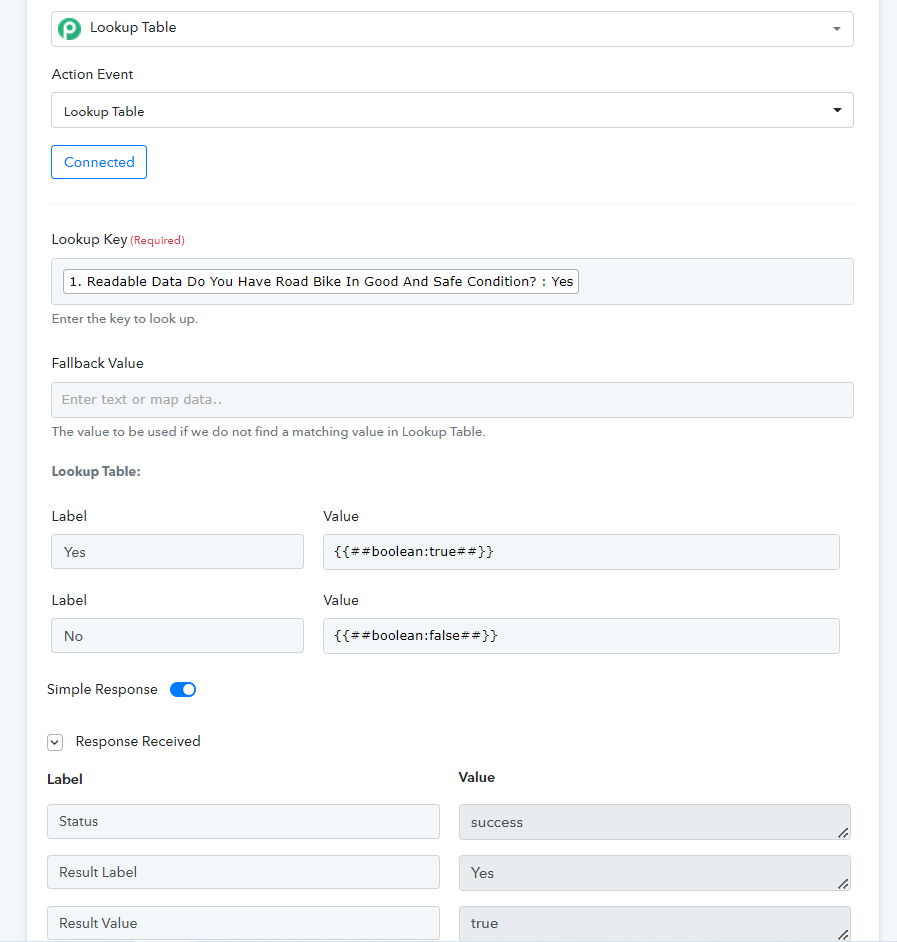
For your above concern, you might need to use the Lookup Table action step where you can assign Yes as "True" and No as "False".
However, we have already configured the action in your workflow and mapped it correctly. Please review that and try it at your end.
E.g. -
It is working with the lookup table. Now how the leads are being sorted in the right campaign?
However, we have already configured the action in your workflow and mapped it correctly. Please review that and try it at your end.E.g. -
[IMG width="450px" alt="1713514227697.png"]https://forum.pabbly.com/attachments/1713514227697-png.41118/[/IMG]
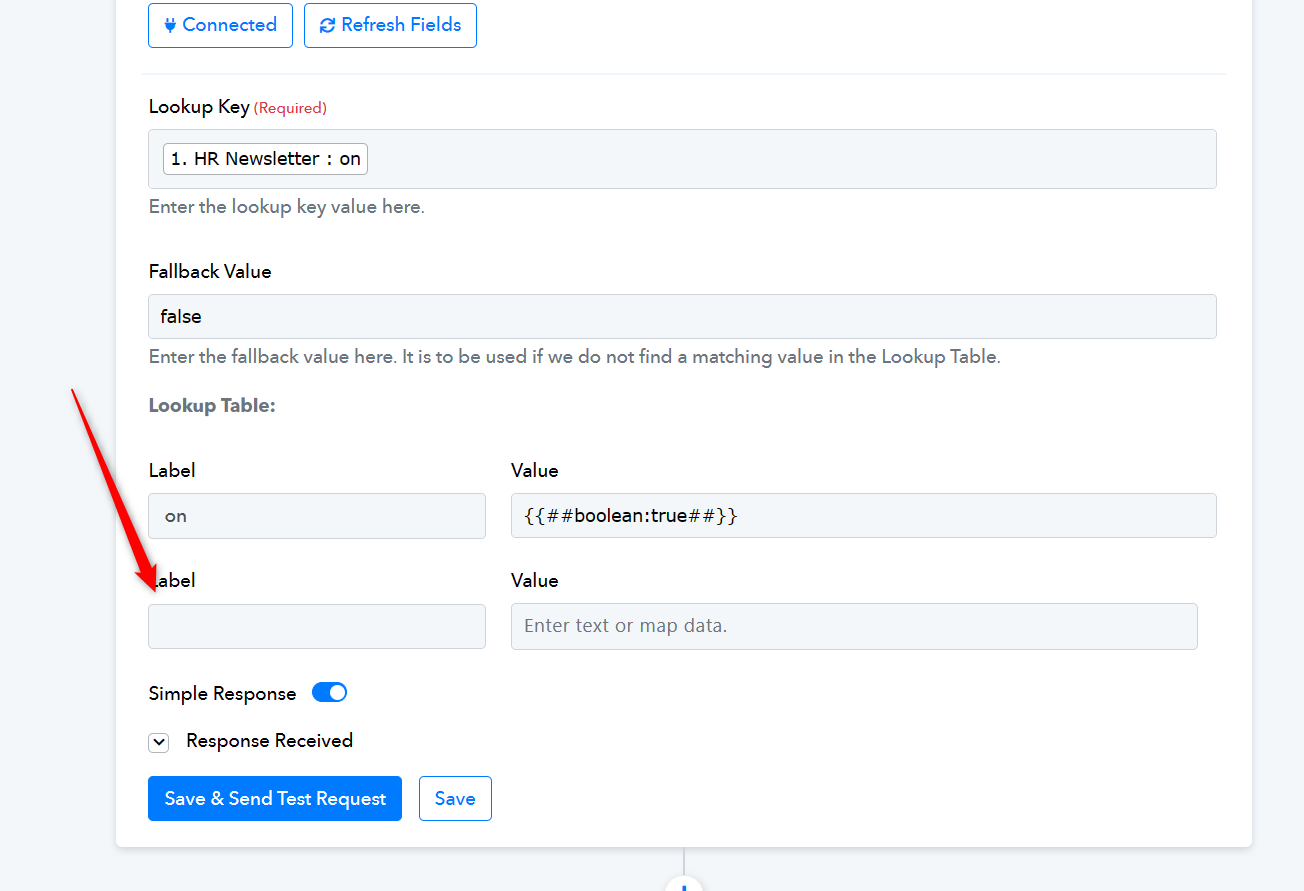
Please also select the other value if it is not 'on' is selected in the Lookup Table action step.
We have created a few workflows and one of them "webinar genz form" workflow we want to email users who submit the form. How can we do this?
Hey @dev_ritik
It appears that PEM is part of your workflow, and since PEM offers the capability to send emails, it is recommended to use the "Pabbly Email Marketing: Add Subscribers" action step.
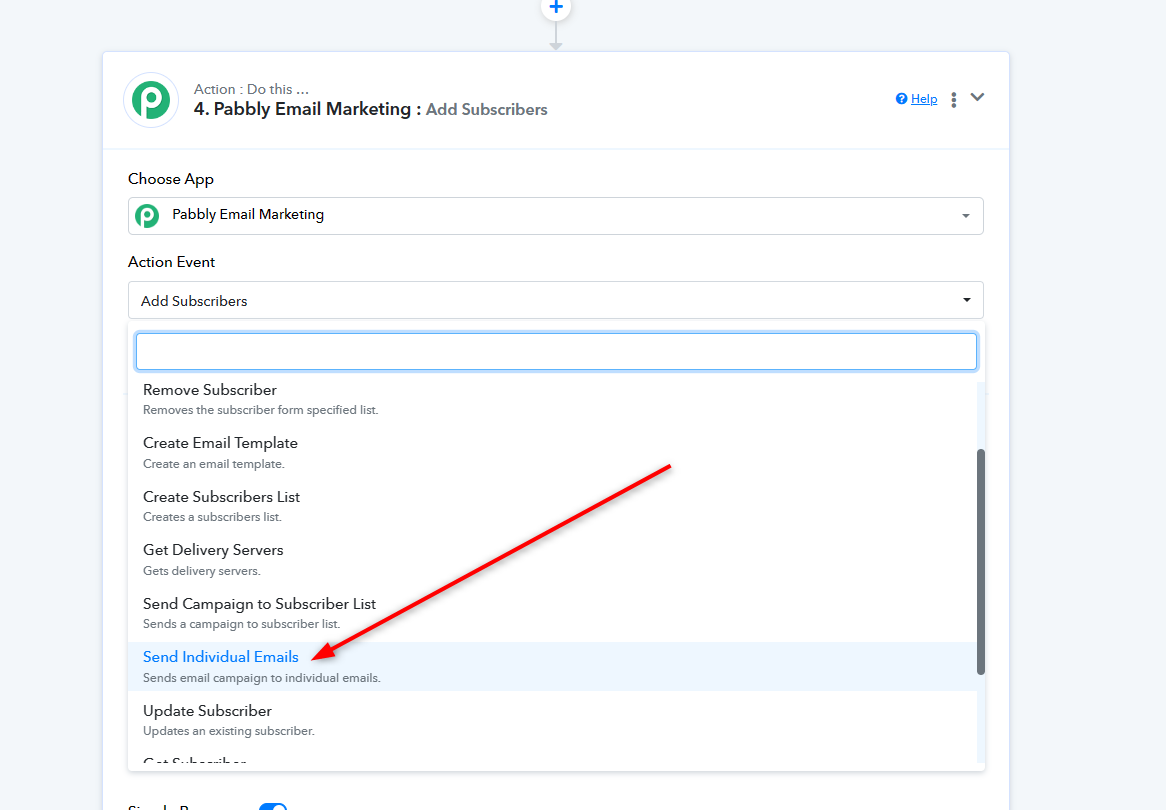
We have added "add subscribers" and did the send test request and now we have email in one of the list. but now how user will receive email automatically?
We have added "add subscribers" and did the send test request and now we have email in one of the list. but now how user will receive email automatically?
After adding leads through the "Add Subscribers" action step, including the "Send Individual Emails" action step send the email to respective leads whenever the form is filled.
It sounds like there will be two steps: one to add subscribers and another to send individual emails. Is that correct? If the "Send Individual Emails" step is intended to send emails to users, then why do we need the first step of adding subscribers?
Will the same user be added to the subscriber list multiple times if they submit the form multiple times?
For our email communication, we will use "[EMAIL][email hidden][/EMAIL]" as the sender's email address. How can we integrate this email address into PEM?
How can we modify the email information to appear like this? Here is an example of what the user will see or receive.-
From: Anja from Studydrive < [EMAIL]info@hello.studydrive.net[/EMAIL] >
Date: Thursday, May 2, 2024 at 4:52 p.m.
To: Maike Mühlbach < [EMAIL]maike@xyz.com[/EMAIL] >
Subject: Webinar Between Cancel Culture, Self-Care & Corona
Yes, that's correct. The process involves two distinct steps. First, adding subscribers to the system, and second, sending individual emails to these subscribers.
The initial step of adding subscribers is necessary to ensure that the email addresses are registered within the system and can be targeted for sending individual emails. Without adding subscribers first, there wouldn't be a recipient list to send the emails to during the "Send Individual Emails" step.
Will the same user be added to the subscriber list multiple times if they submit the form multiple times?
No, the system will reject attempts to add the same user with the same email address multiple times to the subscriber list. This prevents duplicate entries and ensures that each user is only added once, even if they submit the form multiple times.
For our email communication, we will use "[EMAIL][email hidden][/EMAIL]" as the sender's email address. How can we integrate this email address into PEM?
You'll need to add the PEM to the delivery server, then you can see it in the dropdown on your Send Individual Emails action step's dropdown.
Note - You will only see active servers on your action step. You need to choose one and enter the active sender email.
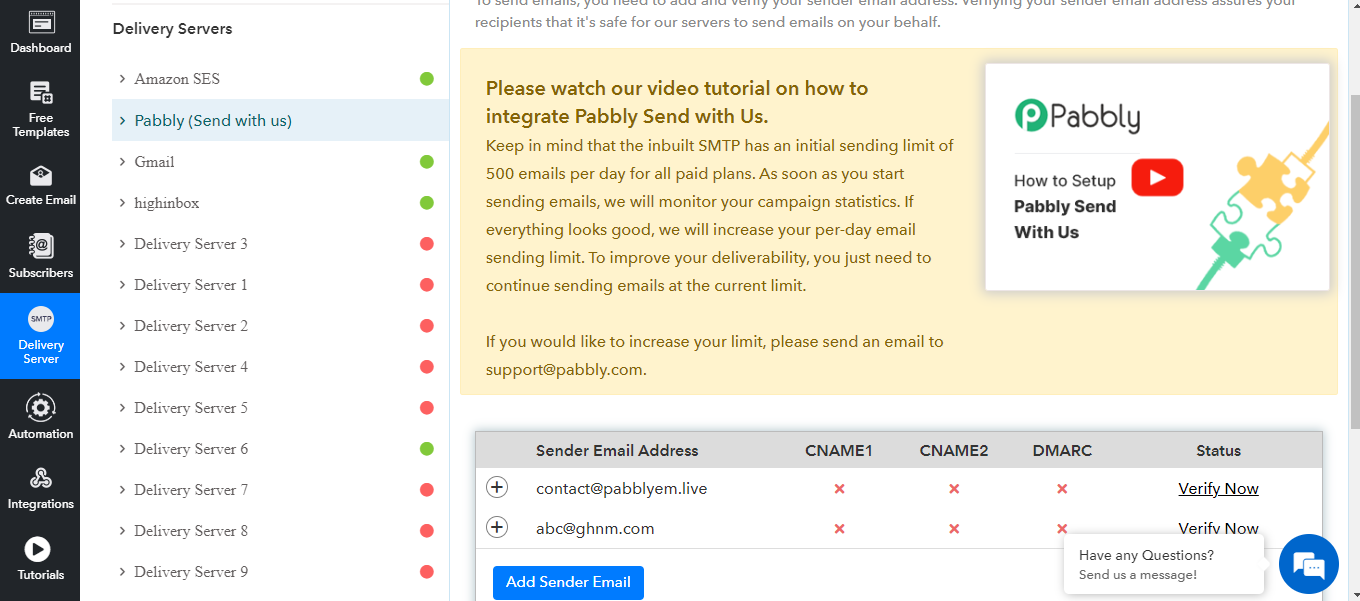
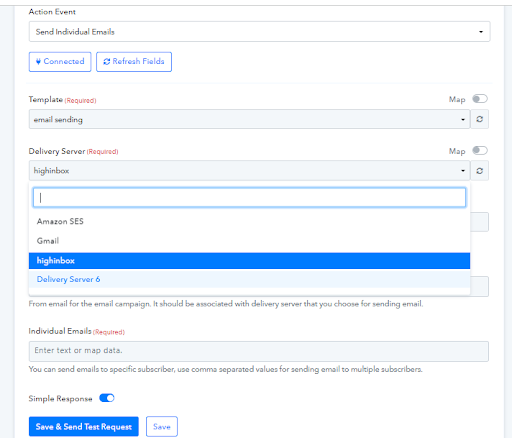
How can we modify the email information to appear like this? Here is an example of what the user will see or receive -
From: Anja from Studydrive < [EMAIL]info@hello.studydrive.net[/EMAIL] >
Date: Thursday, May 2, 2024 at 4:52 p.m.
To: Maike Mühlbach < [EMAIL]maike@xyz.com[/EMAIL] >
Subject: Webinar Between Cancel Culture, Self-Care & Corona
You can simply refer to the following video lesson on how you can send the email via the PEM action step.
We have created a pabble connection with elementor to Salesforce to MailChimp, which is working.
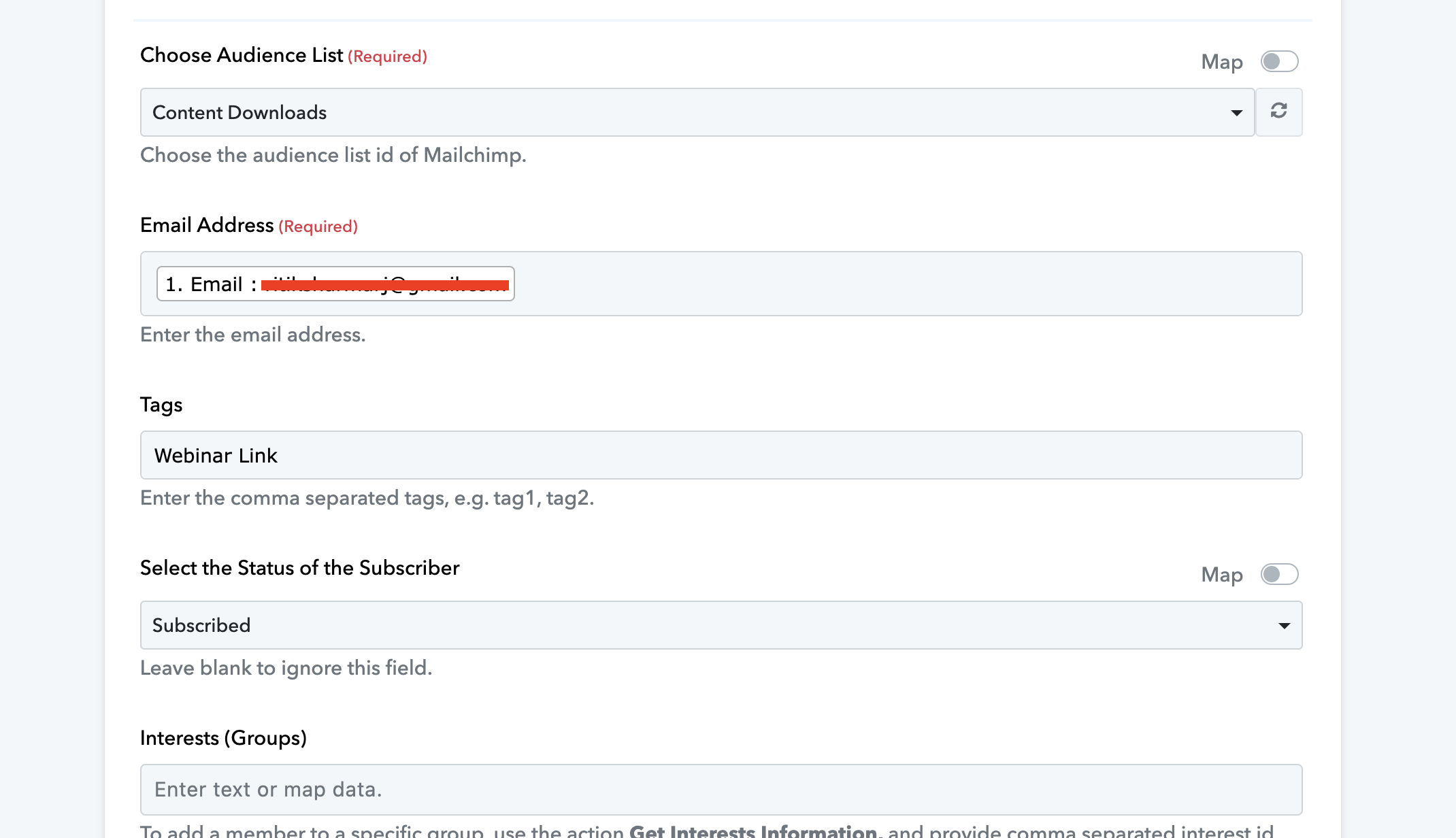
Now we have another workflow which also has the same flow elementor to salesforce to Mailchimp but this time we get an error because this time the subscriber with email address is already exists.
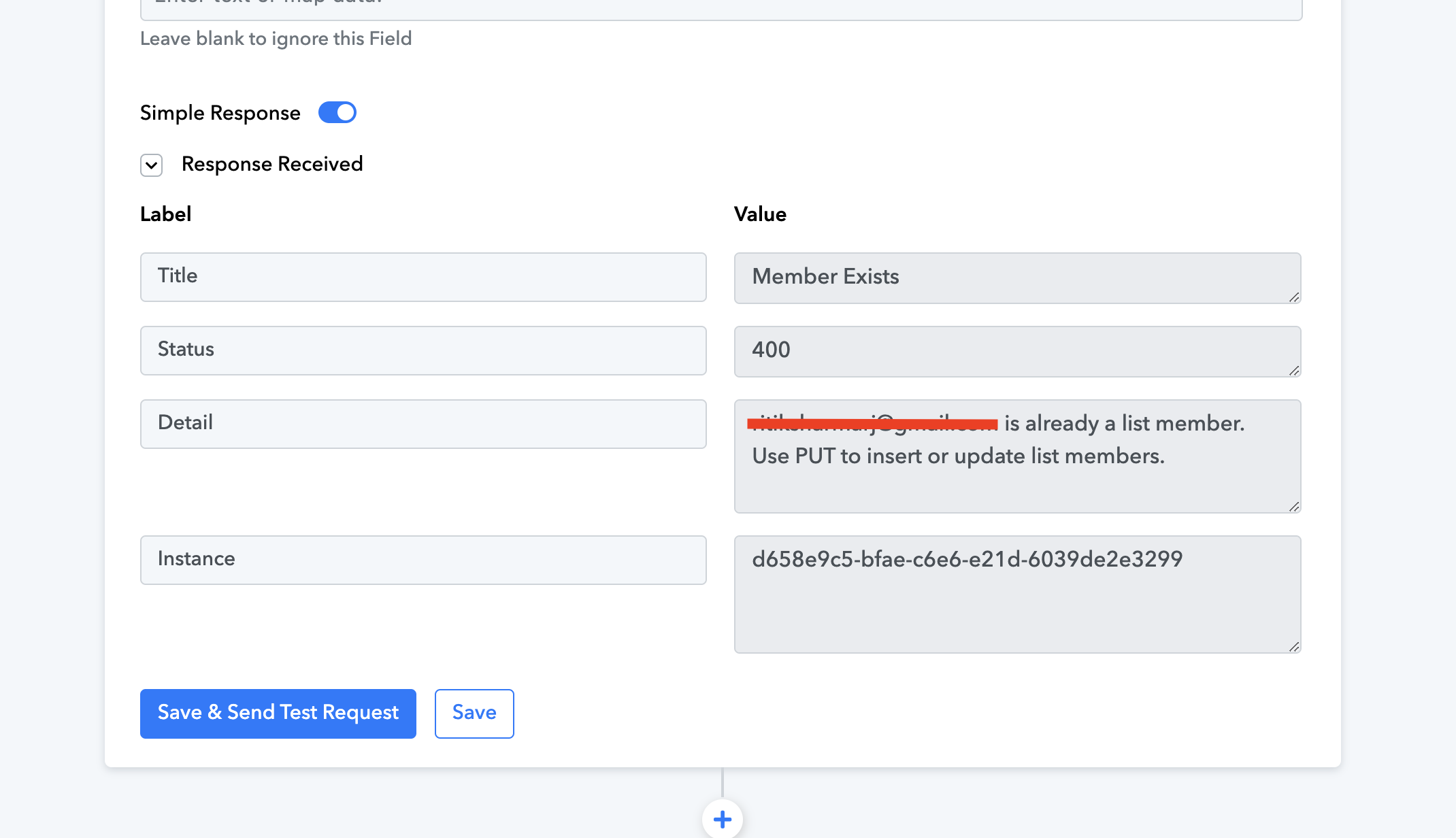
audience list: contend downloads is same for both workflow
tag is different for each workflow in the Mailchimp
we want to check if the subscriber with this email id is already exists or not if it exists then update the subscriber and if not then create the subscriber.
Or may be there is better solution.
Looking forward eagerly
we want to check if the subscriber with this email id is already exists or not if it exists then update the subscriber and if not then create the subscriber.
Can you please share the workflow URL once in which you have experienced this?
we want to check if the subscriber with this email id is already exists or not if it exists then update the subscriber and if not then create the subscriber.Or may be there is better solution.
First, use the Find Member feature to ascertain whether the member already exists in Mailchimp. Subsequently, configure the router based on the conditions: If Exists and If Does Not Exist.
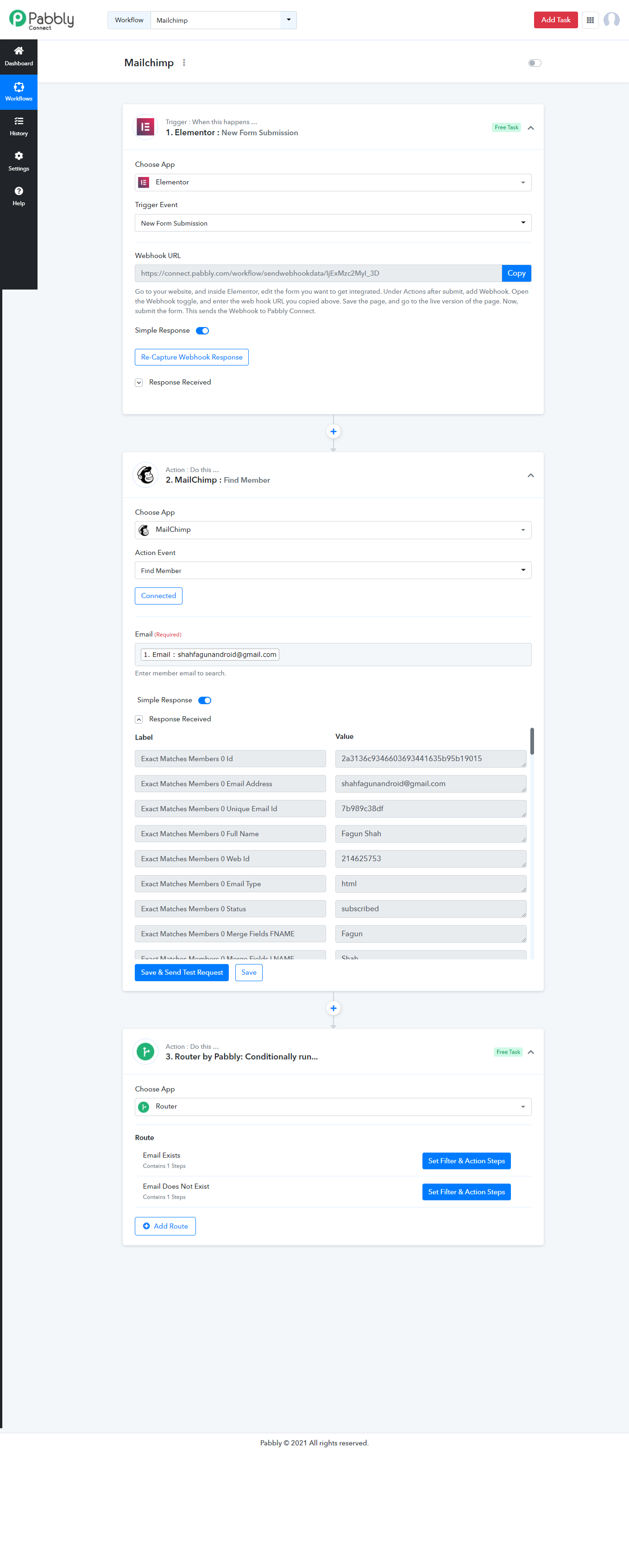
I have created a find member and router filter with email exists and doesn't exist. I tested it twice, once with an email that already exists in Mailchimp and once with an email that doesn't exist.
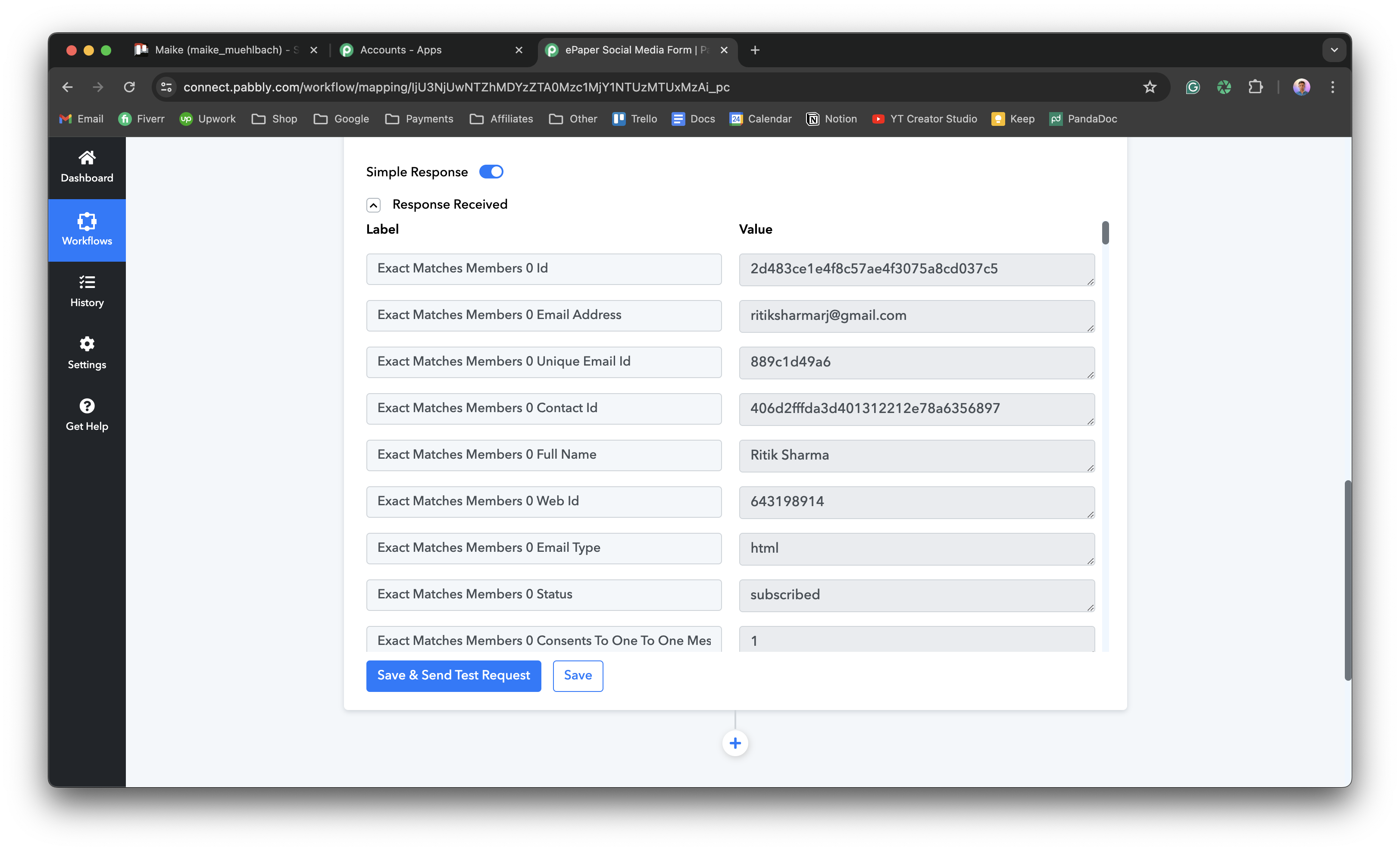
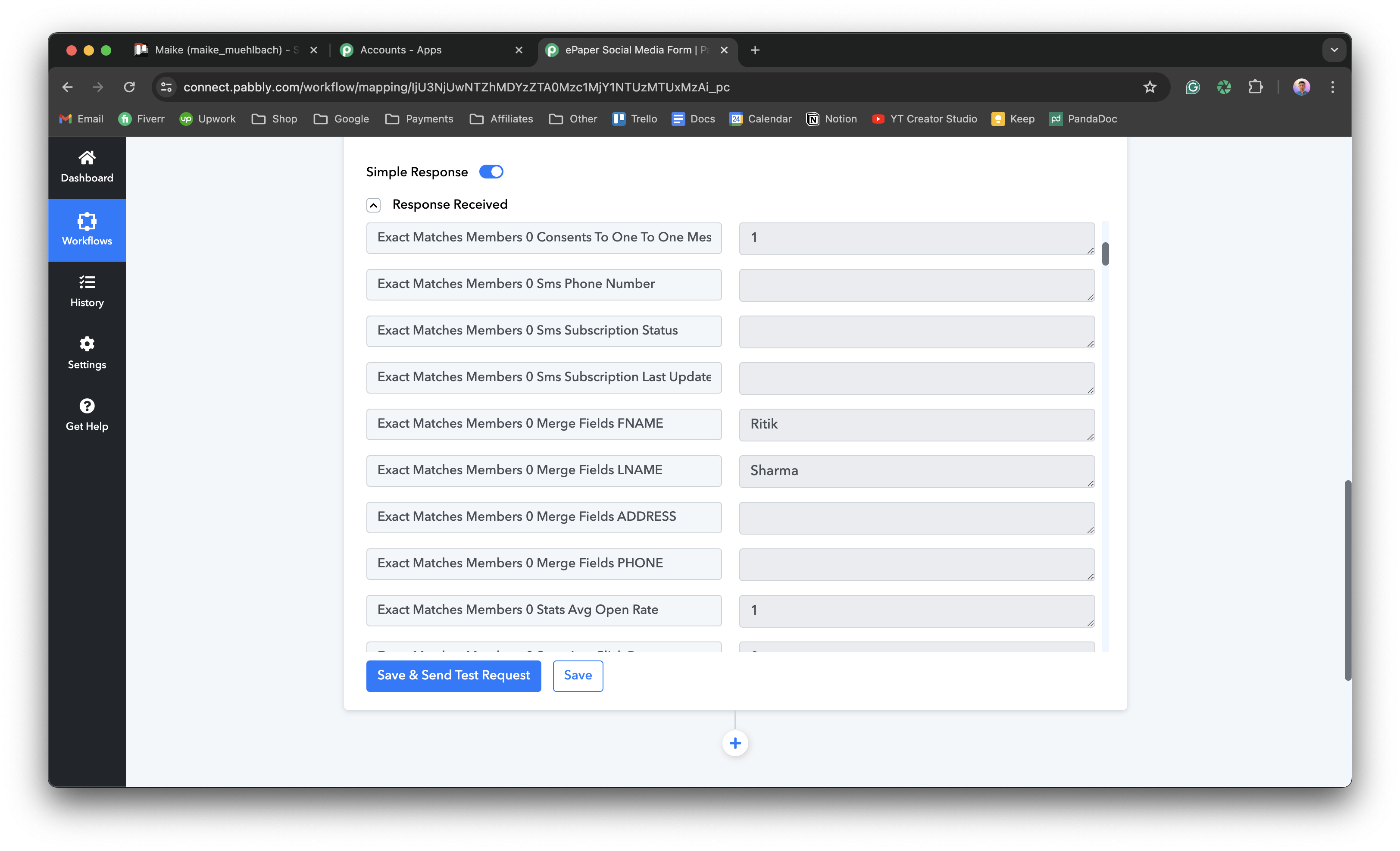
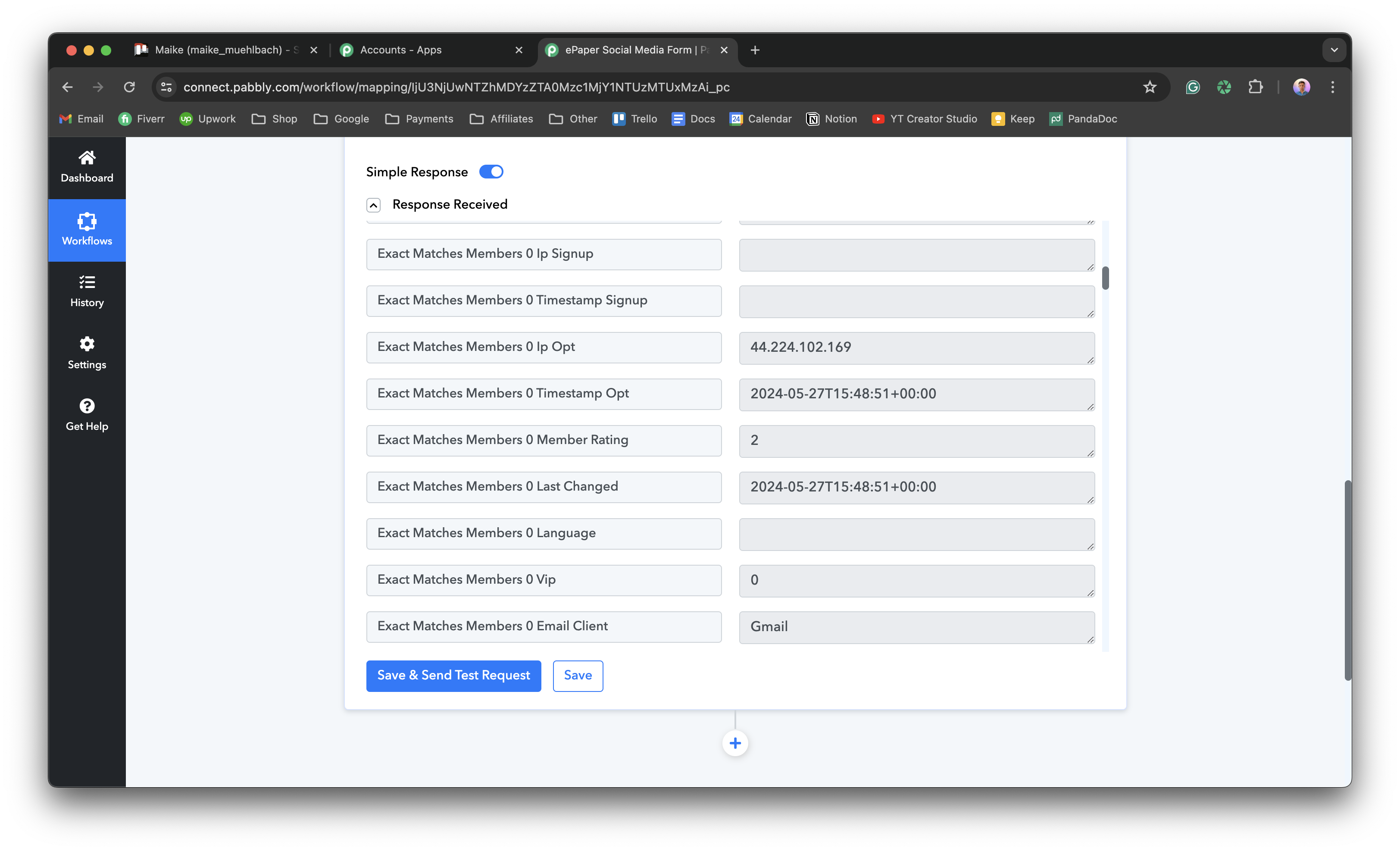
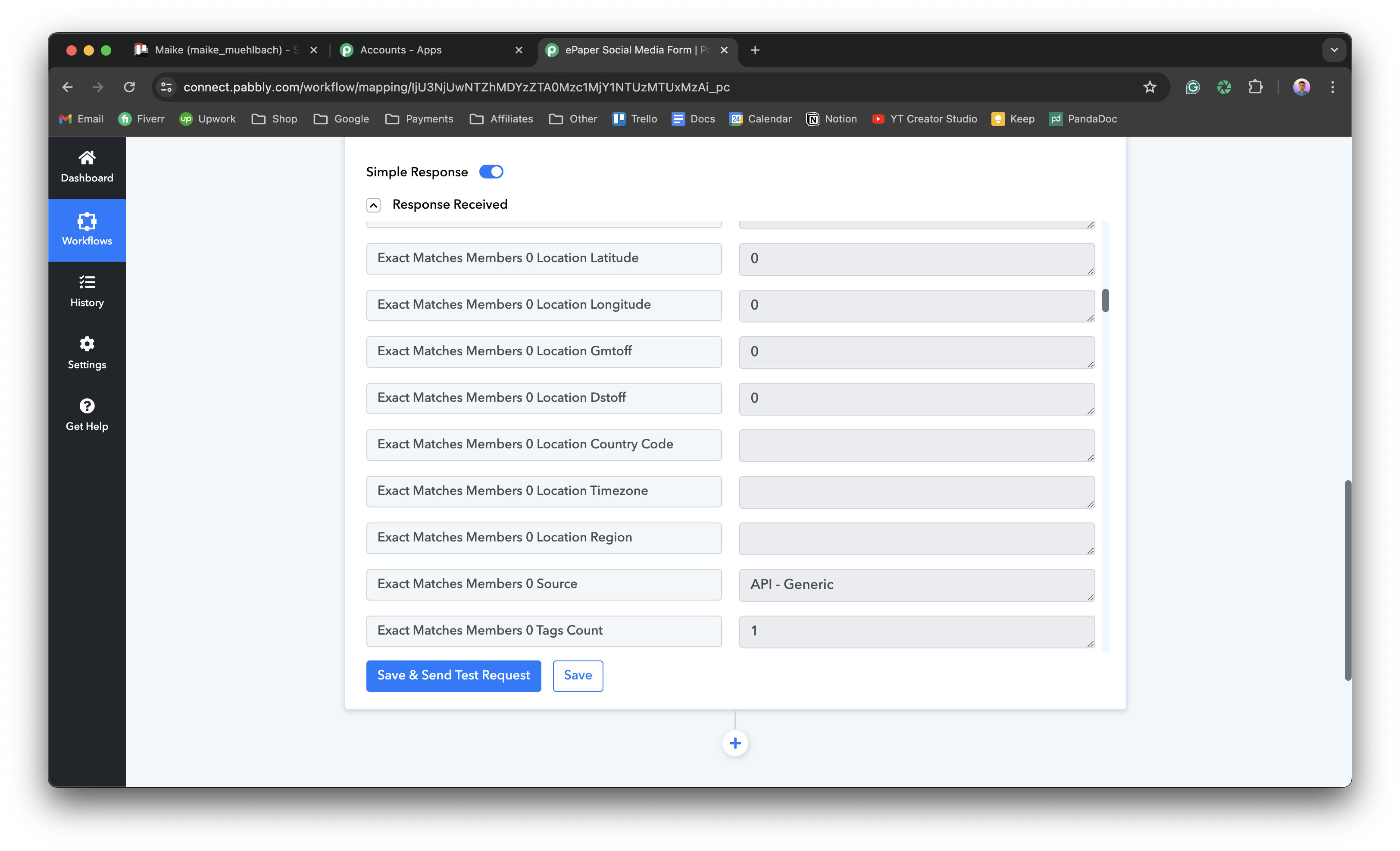
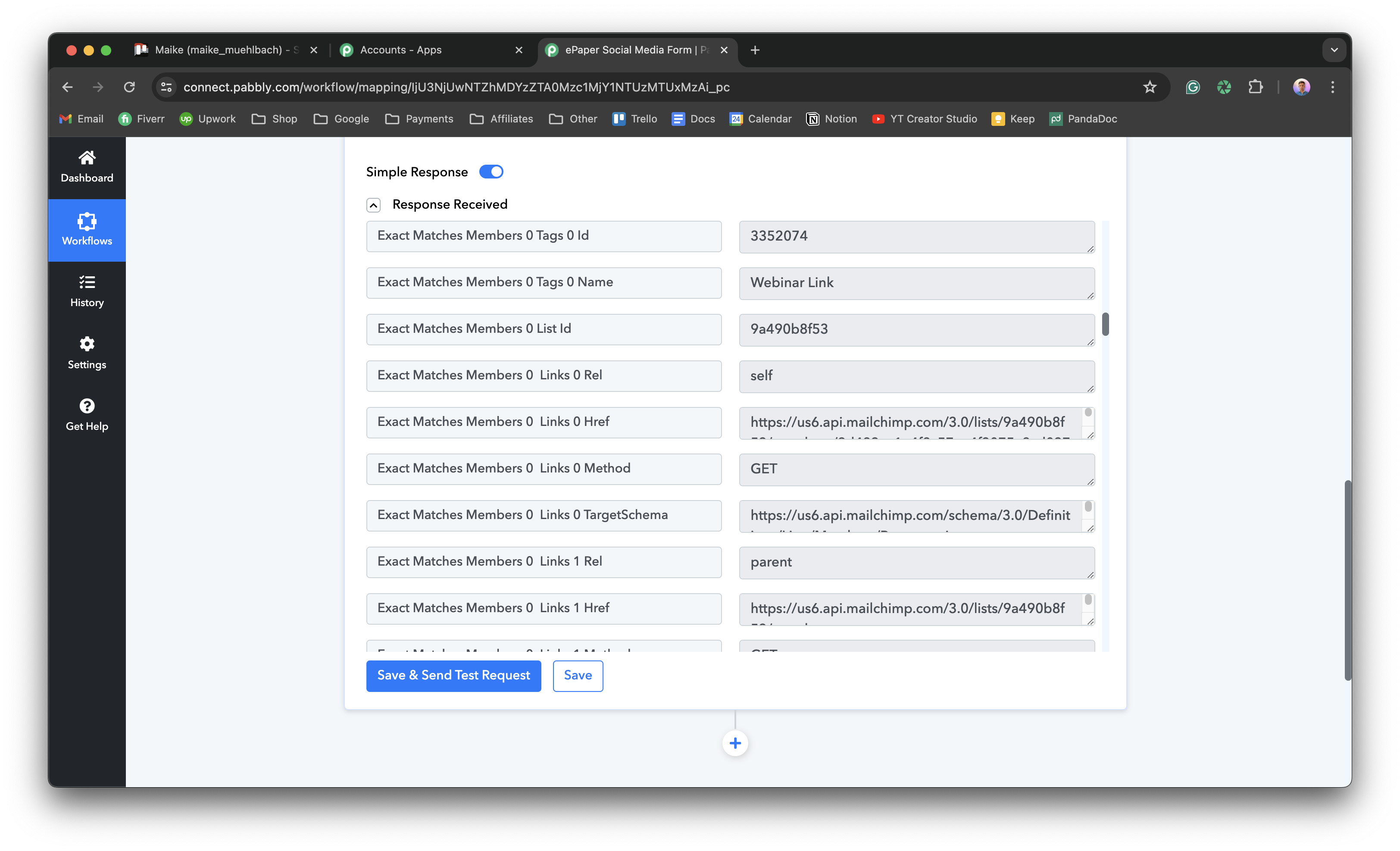
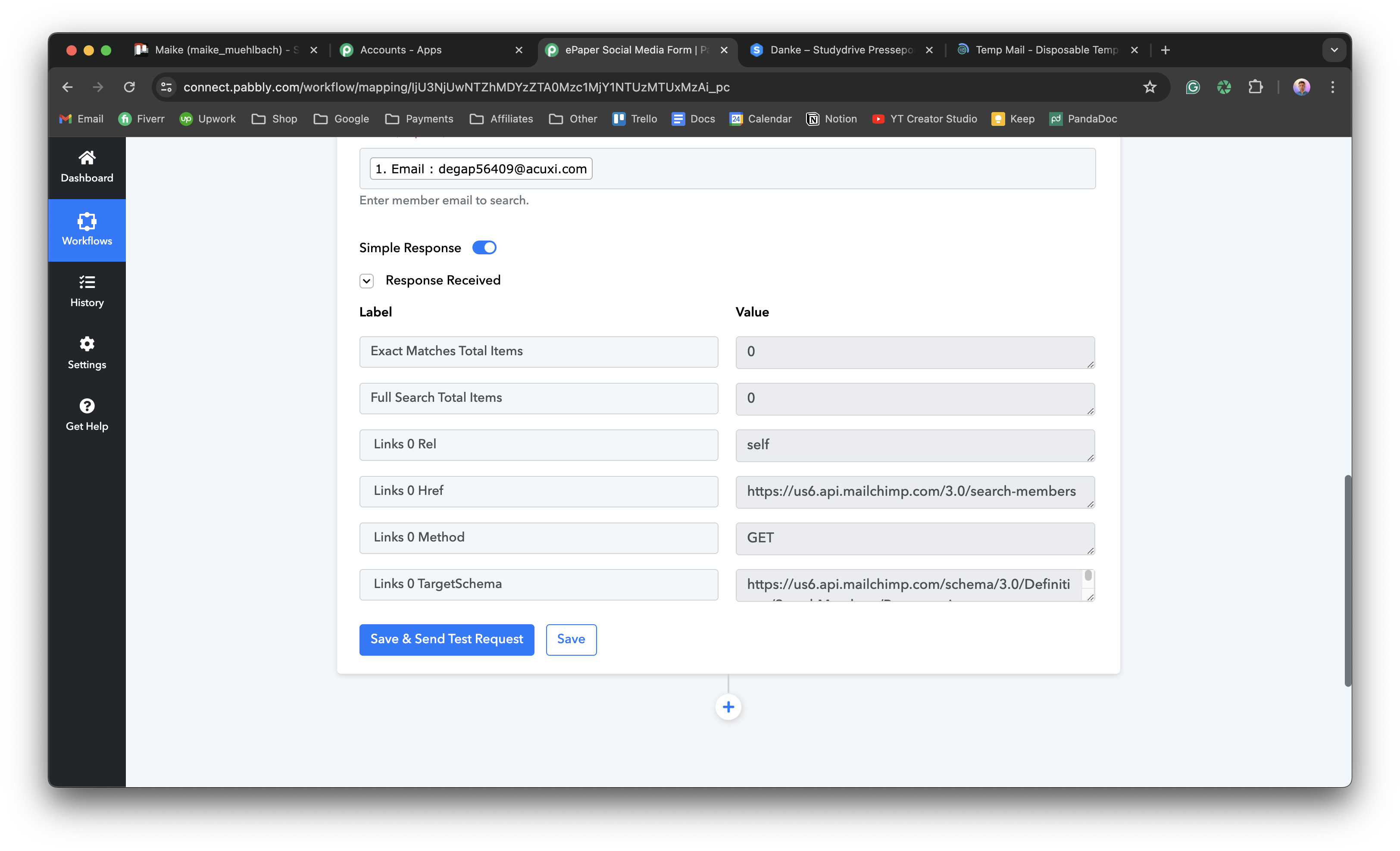
I received different responses for both cases when I used the "find member" action in Mailchimp. I have attached the images. The last image shows the response for the email "[email hidden]" when no member exists in Mailchimp, while the rest of the images show the response when the member exists.
If the email already exists, I want to update the member details in Mailchimp. Otherwise, I want to create a new member. I'm a bit confused about how to achieve this using the router.
Attachments
Hey @dev_ritik
Please refer to the video tutorial below on how to use the router, set the condition for when an email exists or does not exist, and then perform the check.
youtube.com/watch?v=R4zxsQr70Dw
(Refer to the Router action step part)
I have added "Exact Matches Members 0 Email Address" this as label and filter type exists then update the member in the Mailchimp. If it doesn't exist then add new member.
But when I am trying with new email id, I got different response in the find member which doesn't contains "Exact Matches Members 0 Email Address" this label then it is showing error.
Attachments
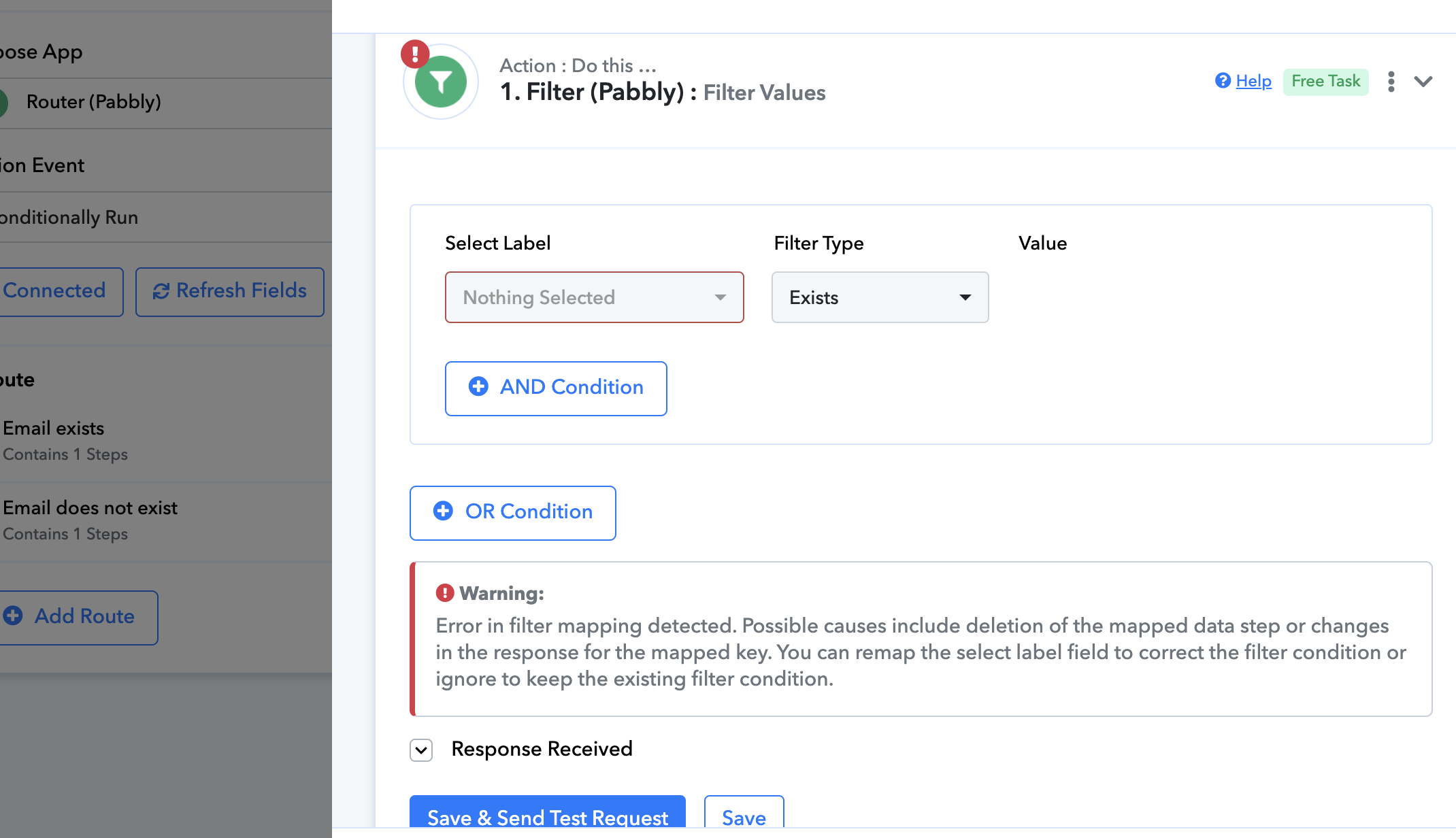
Can you please share the workflow URL where you tried this, so that we can check the filter condition?
Can you please share the workflow URL where you tried this, so that we can check the filter condition?
https://connect.pabbly.com/workflow/share/AEhXZVEGB2RXHVM5A1AGIQwYVlIGXwFgUUhSQAYJBX0GXFIHVBUAalgUWHpQMQBhXxYEblEOUDEBFQAEVAIFdlZPBwVWVVYsA04JcgFAWmkAXld_UTA#
I have corrected the filter condition and it should work accordingly.
Kindly give it a try.
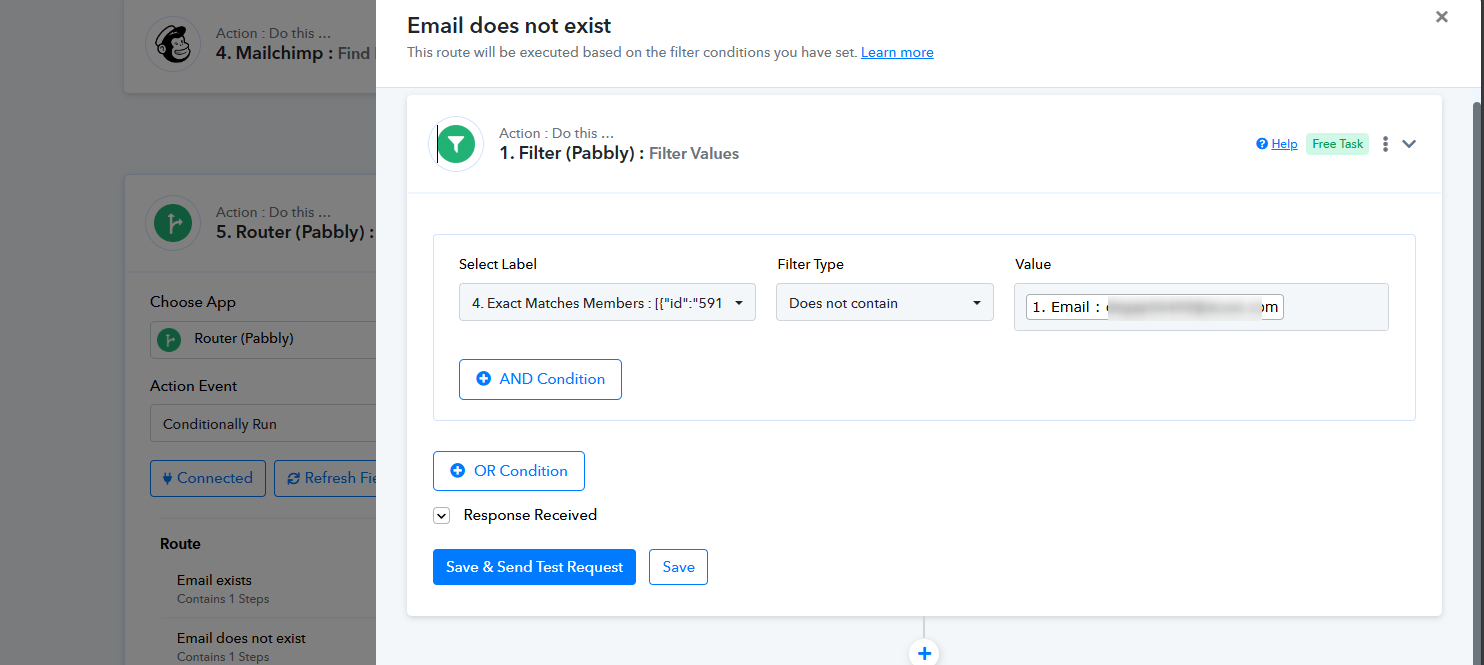
In the email exists filter, we're updating existing users. How can I get a member ID to add to the member ID field of Mailchimp or should I add the email address to the member ID field?
I have a client meeting on Monday, and I do not have access to Mailchimp to check if user data has been updated. That's why I want it to setup to work in the meeting.
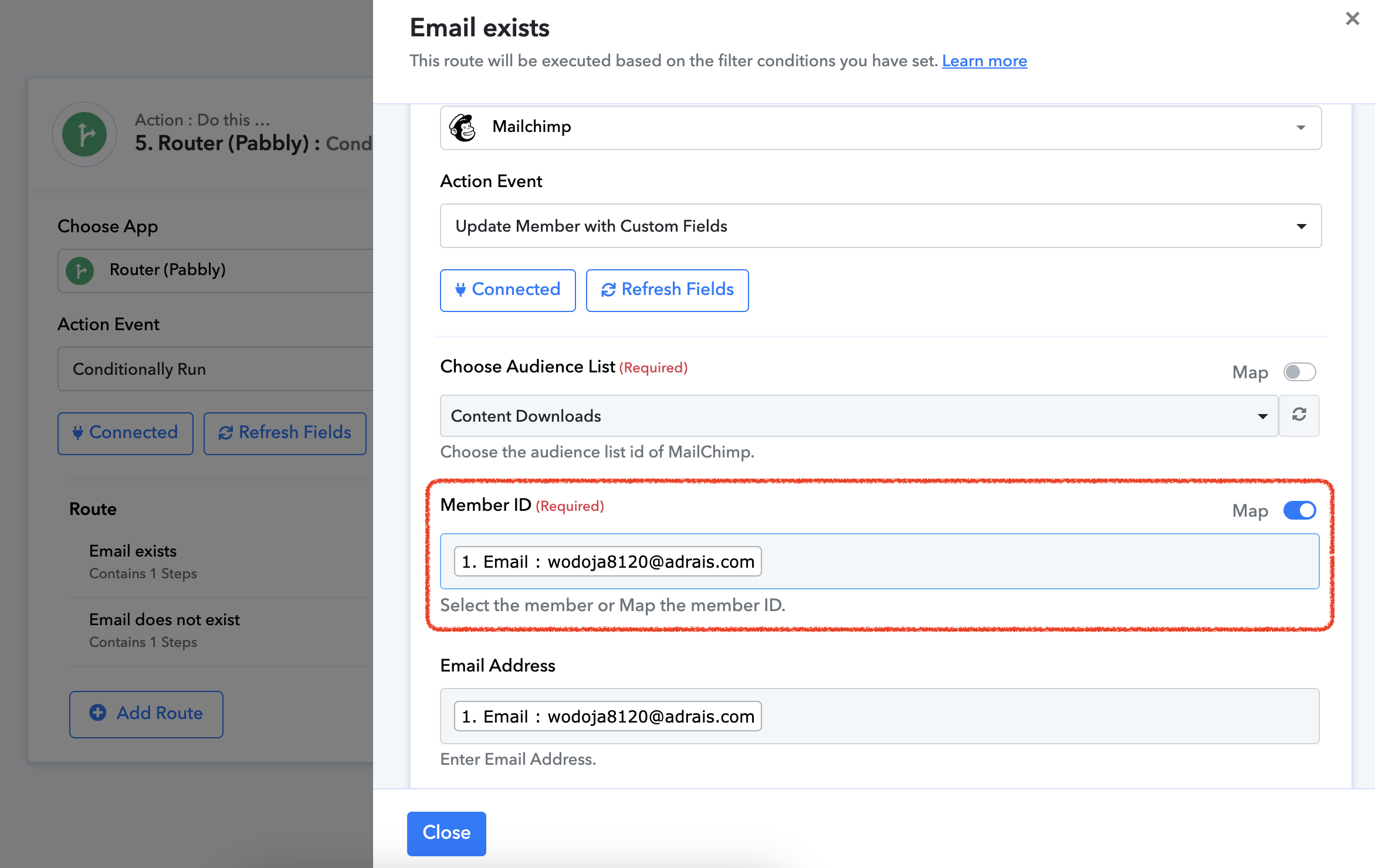
In the email exists filter, we're updating existing users. How can I get a member ID to add to the member ID field of Mailchimp or should I add the email address to the member ID field?
I have added the JSON extractor action steps, which will extract the Member ID from the Search action step. Then, that ID can be passed to the Member ID field.