Send image from telegram to LinkedIn Company Post not working!
Status: Closed · Asked by KooroshFX on · 0 views
Hello,
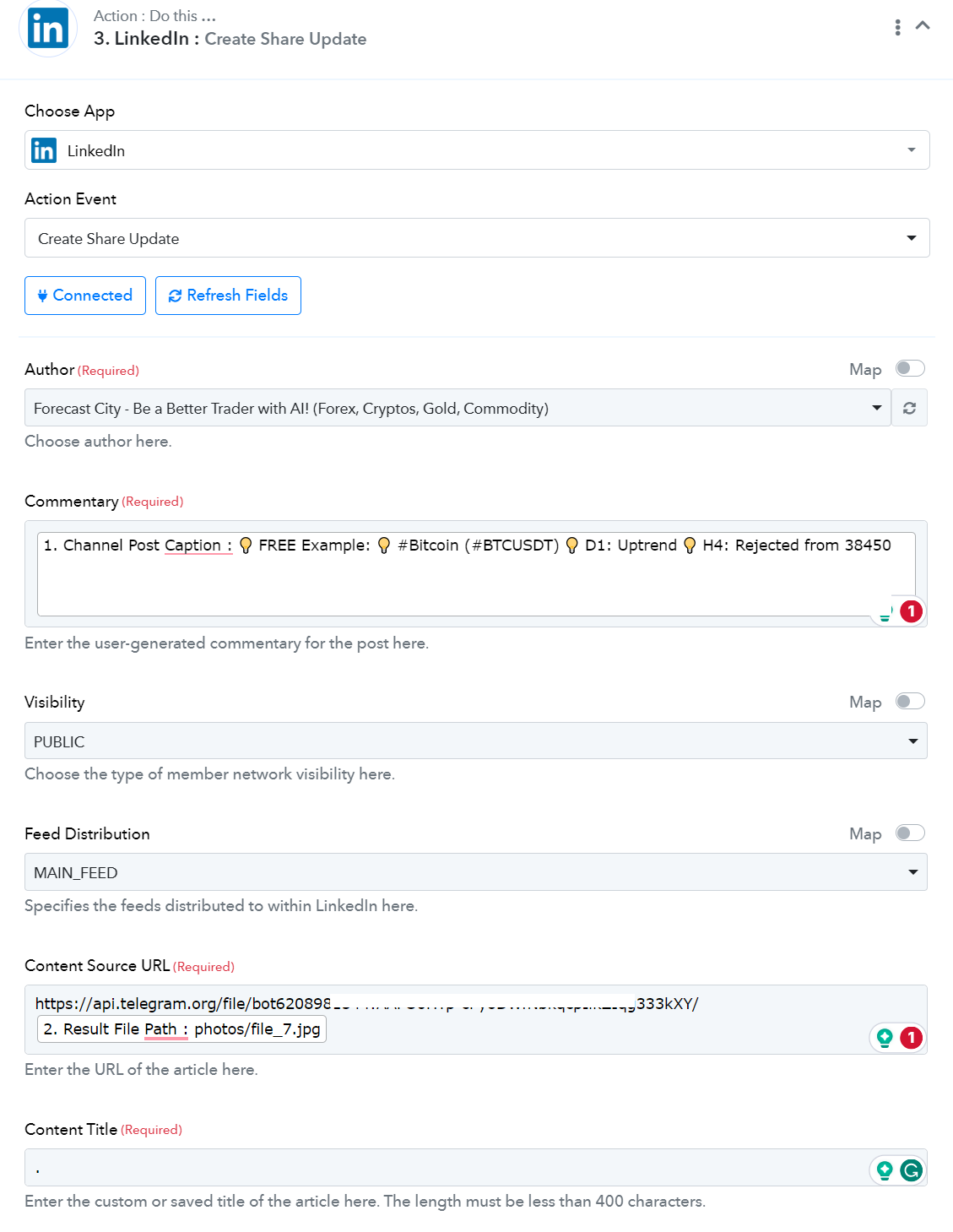
Please check why this action not working:
First I use Telegram Getfile then used it in Linked In action.
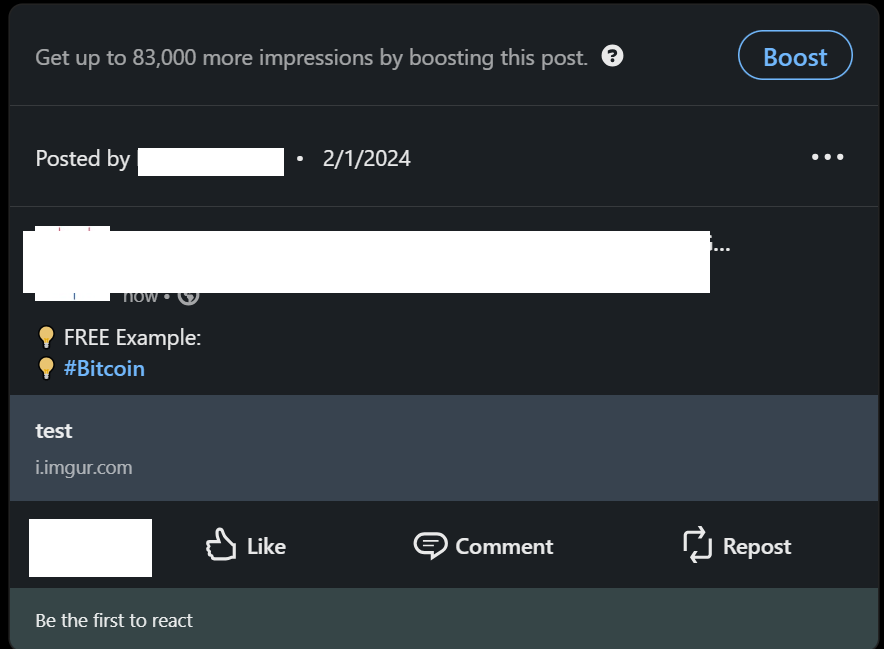
The post in Linedin do NOT show any image!
It show only a link and after click on that link browser want to save image on local computer!
Kind Regards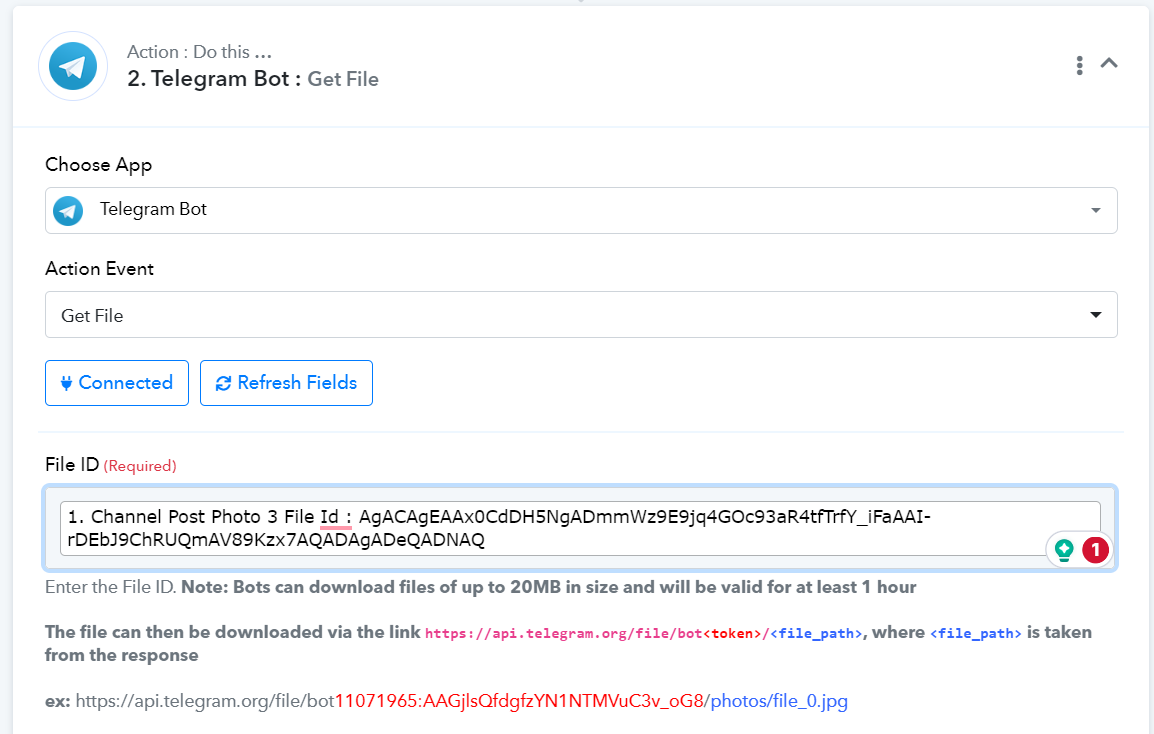
Hey @KooroshFX
Can you please share the workflow URL once, so that we can look into it?
Hey @KooroshFXCan you please share the workflow URL once, so that we can look into it?
https://connect.pabbly.com/workflow/share/CkJQYlQDBGdTGQdtBFcGIQwYCw8EXgI_VUxURlJdVi5RH1QvAUAIYghEWHpRBlMyB04GbAFdUG0OGgYCCV9SIQEYVUcEBwB6VBkDeFMSX2wKVFB4VDU#
Hey @KooroshFX
Please upload the Telegram file on Imgur. Imgur will automatically convert the direct image URL to the correct JPG file format. After that, you can easily share it on your LinkedIn account. This way, the image will display correctly and make a better impression.
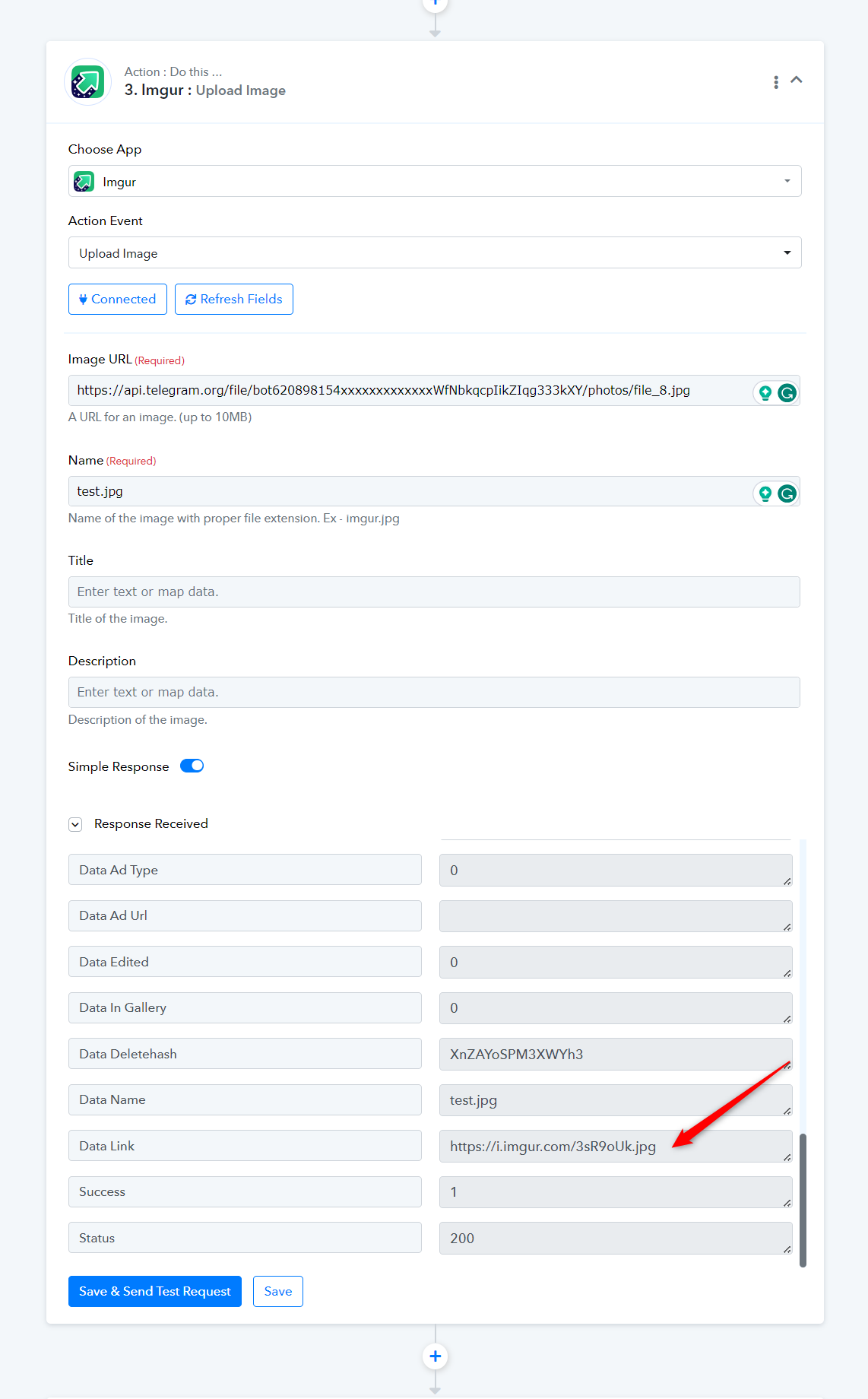
Linkedin Output -
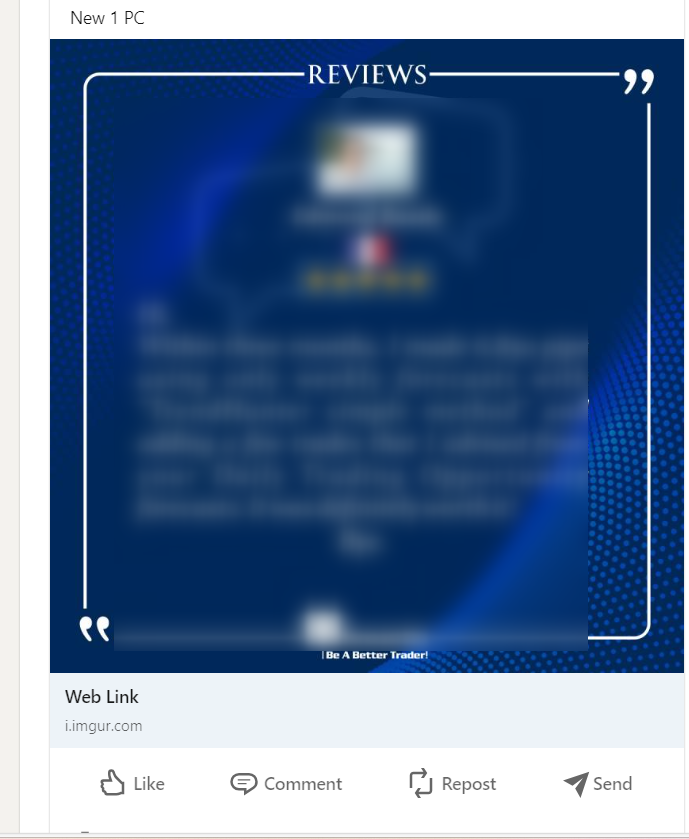
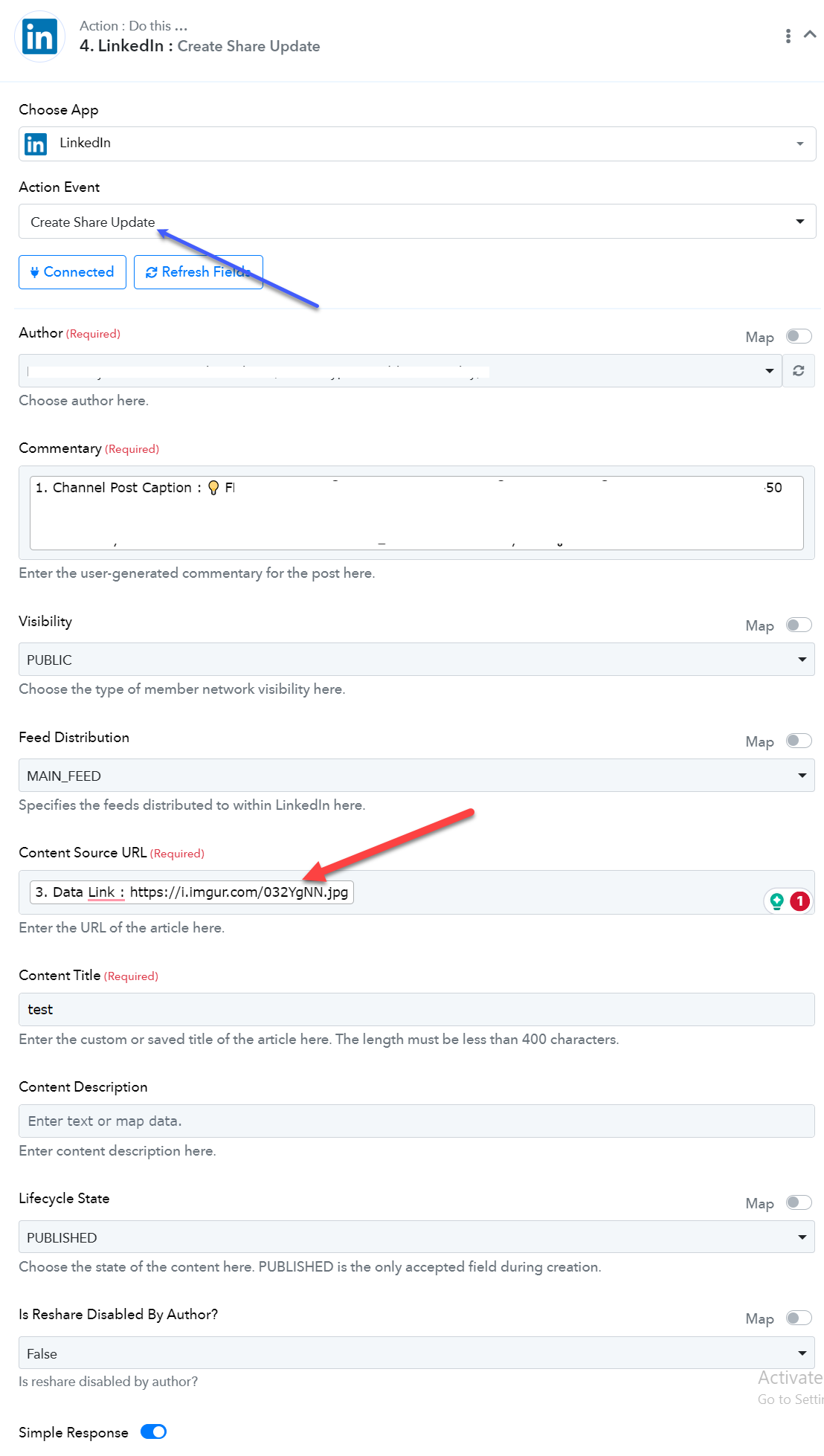
As you can see in these images, I have done it but again it is not working!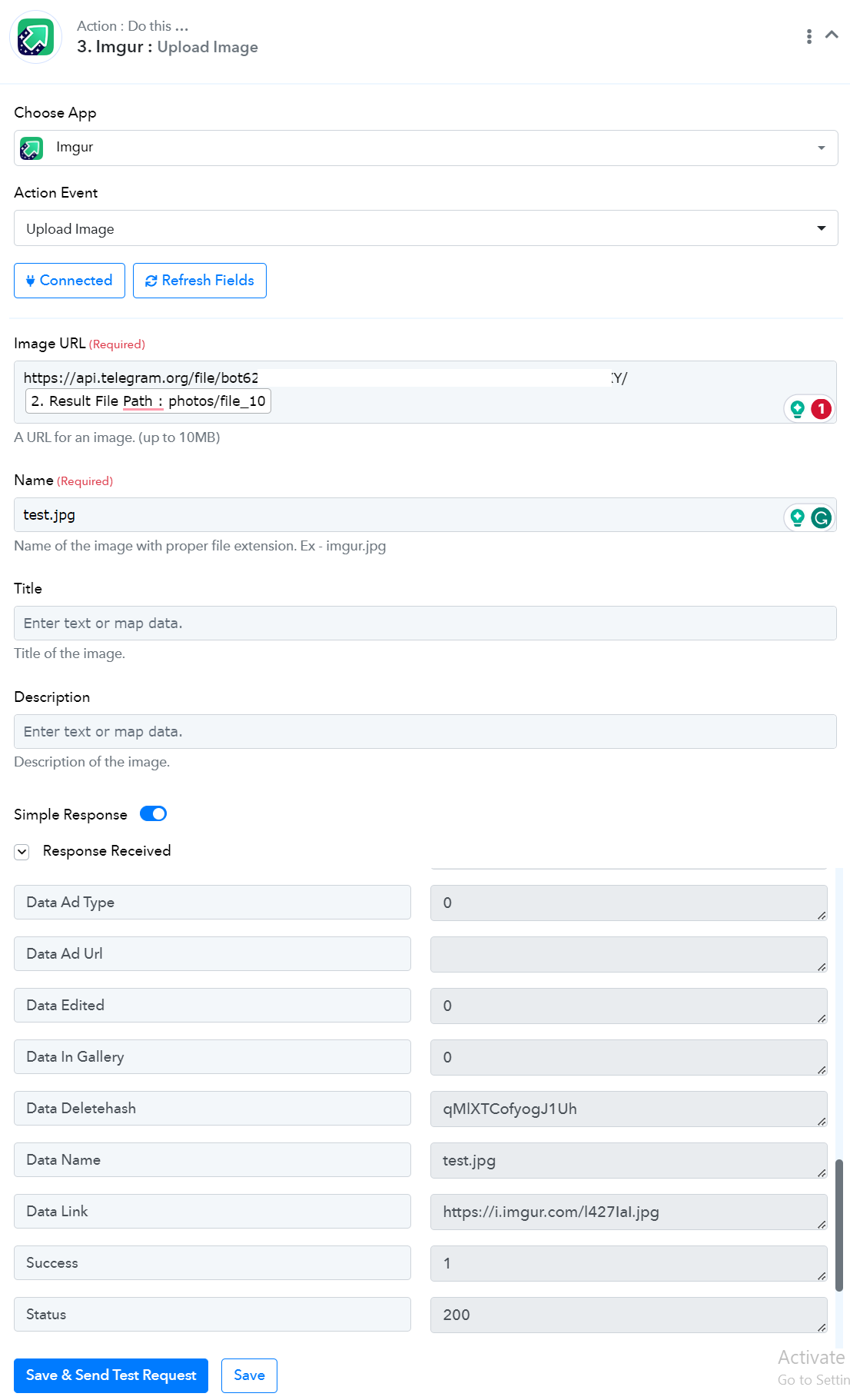
Can you please try the "LinkedIn: Share an Article or URL" action step once and then try again?
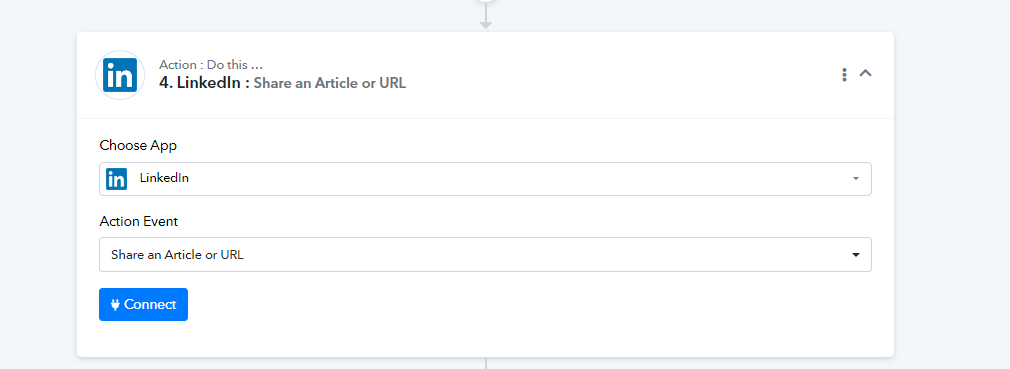
Can you please try the "LinkedIn: Share an Article or URL" action step once and then try again?
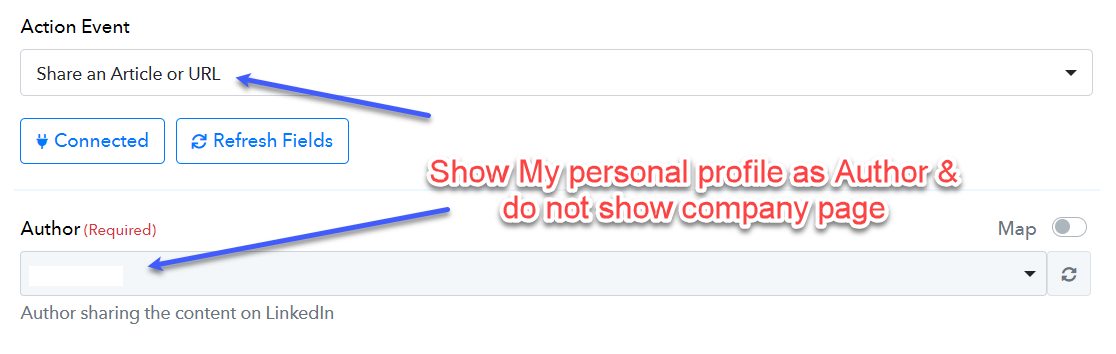
But it only posts on my personal profile and not on the company page!
Hey @KooroshFX
After checking the concern with the technical team currently the "Create Share Update" action step is only supporting the source URL of the content and not the Content - Image URL. So as a result of the action step will only show the hyperlink of the image in the post.
No, In "LinkedIn: Share an Article or URL"
if you show COMPANY NAME as an author, it will solve all problems!
Hey @KooroshFX
I am sorry to say but that would be possible to list the organization in the author profile list.
No! You did not understand it! I think you did not check it by yourself! It is NOT possible!
Because "LinkedIn: Share an Article or URL" has a bug and does NOT show "the organization name"! It only shows my Profile name!
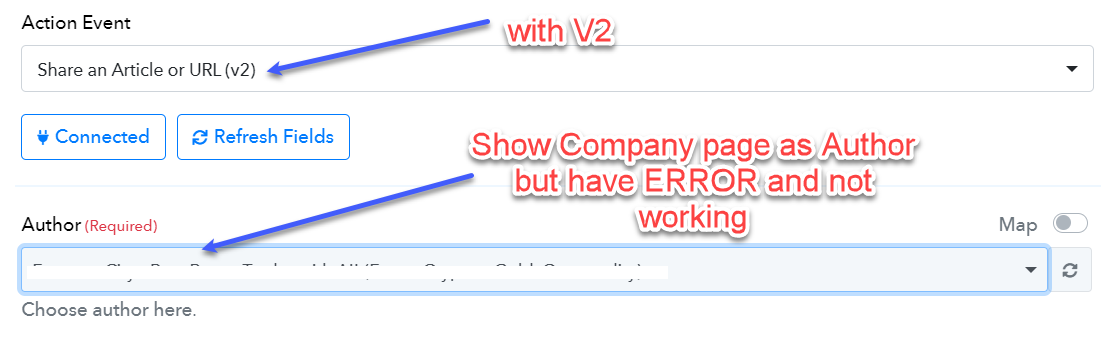
and V2 version ("LinkedIn: Share an Article or URL (V2)" ) is vice versa!
"LinkedIn: Share an Article or URL (V2)" has a bug and does NOT show my Profile name! It only shows "the organization name"
Please compare these 2 image: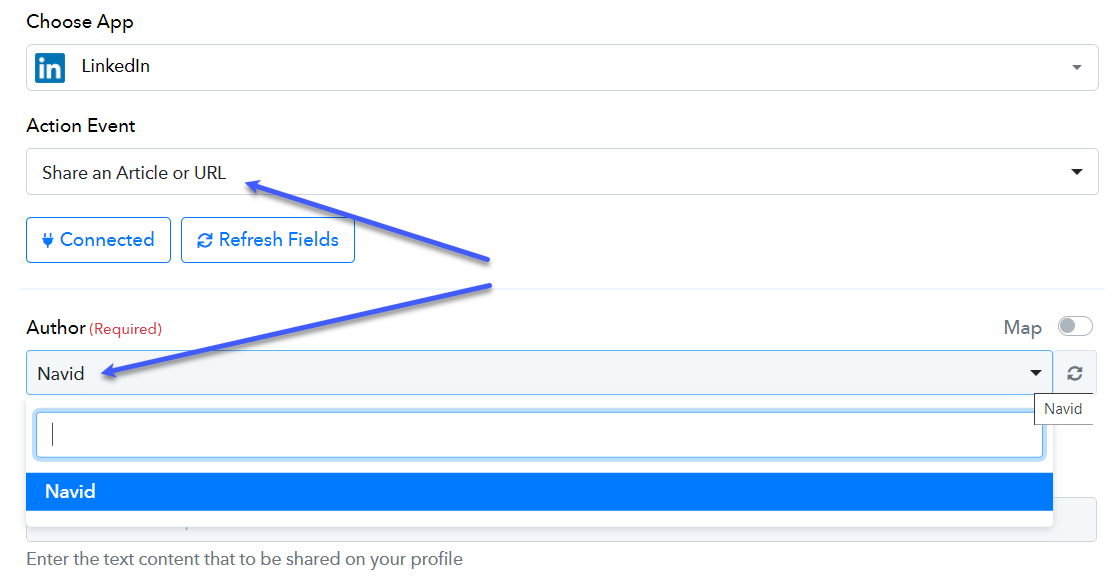
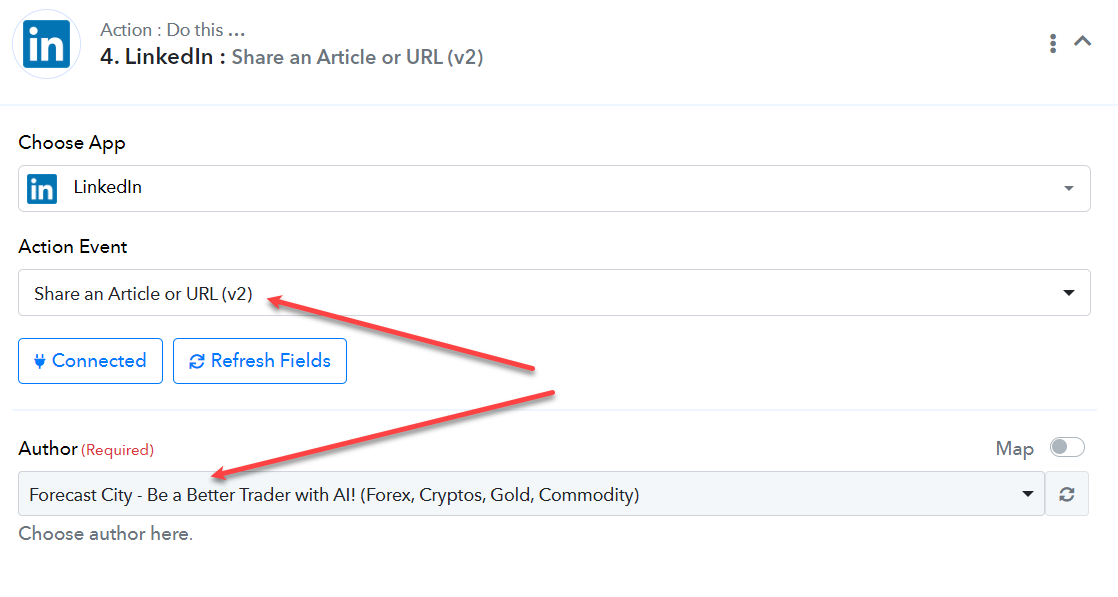
In short, if "LinkedIn: Share an Article or URL" allows me to select "the name of the organization" in addition to my profile name, all problems will be solved!
Because "LinkedIn: Share an Article or URL" shows the image on LinkedIn correctly!
We totally understand your concern but LinkedIn: Share an Article or URL (V2) will only show the organization since from API documentation of LinkedIn only lists the organization.
Further, LinkedIn Share an Article or URL shows the profiled author from your LinkedIn account whereas we cannot change the list to the organization.
In this case, then debug "Share an Article or URL (V2)" so that it also shows the image!
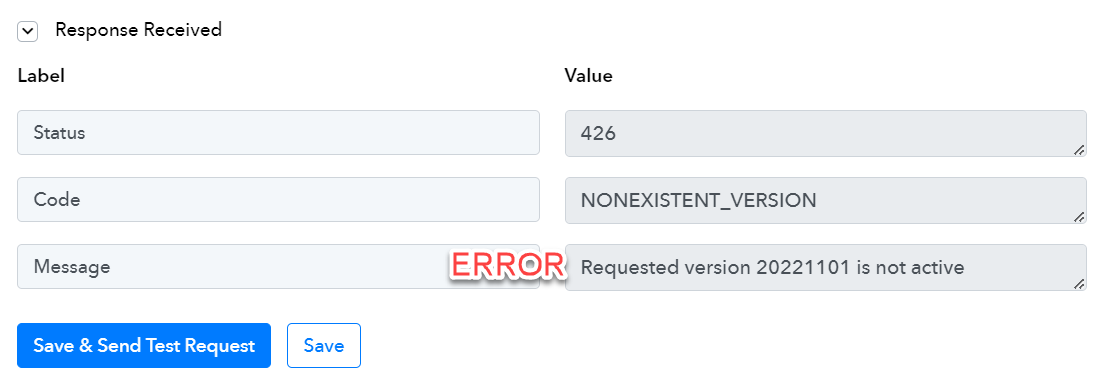
(V2) has errors and does not work at all! I have shown you the error in the picture!
"Share an Article or URL" shows the image well in the personal profile.
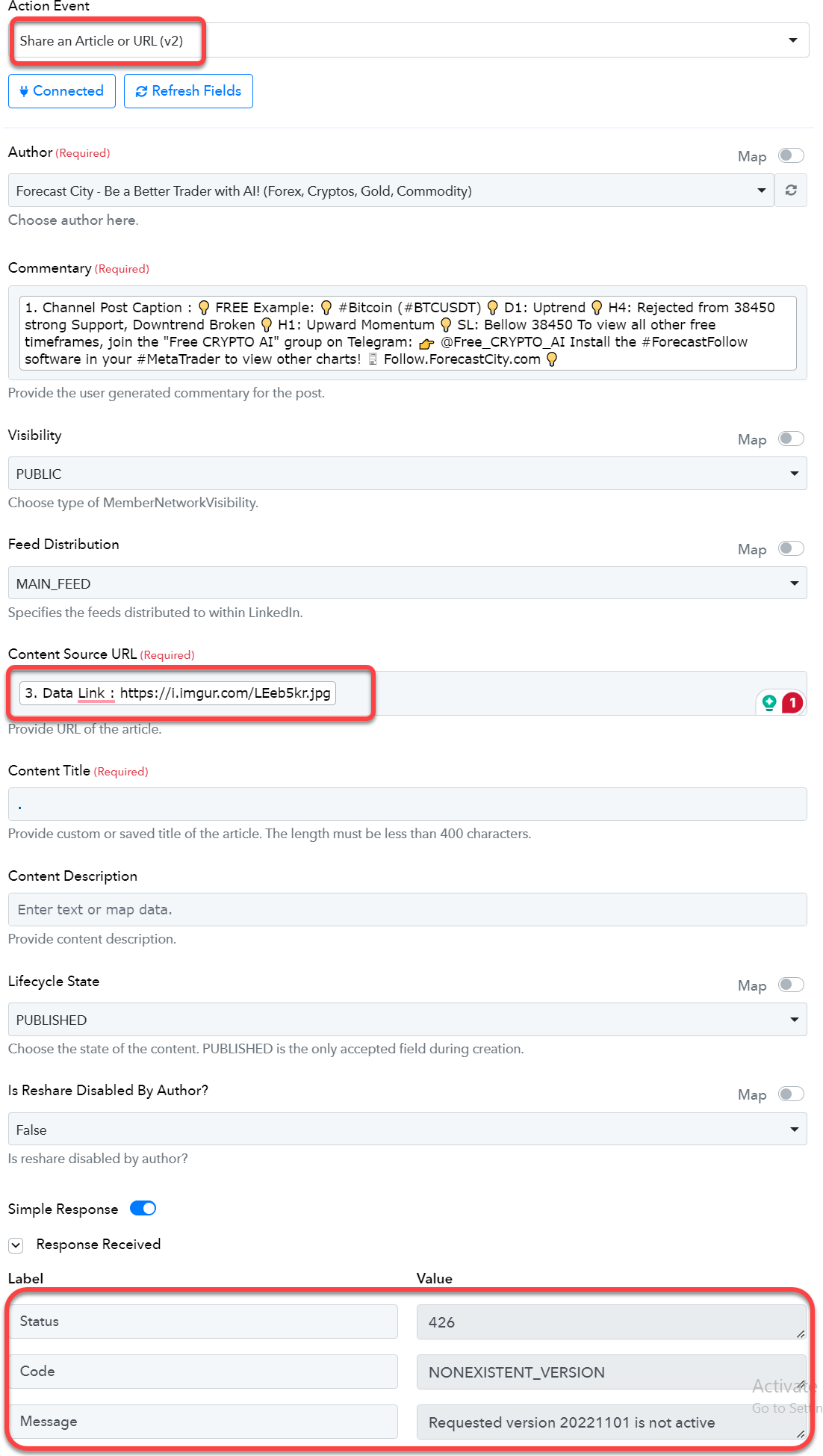
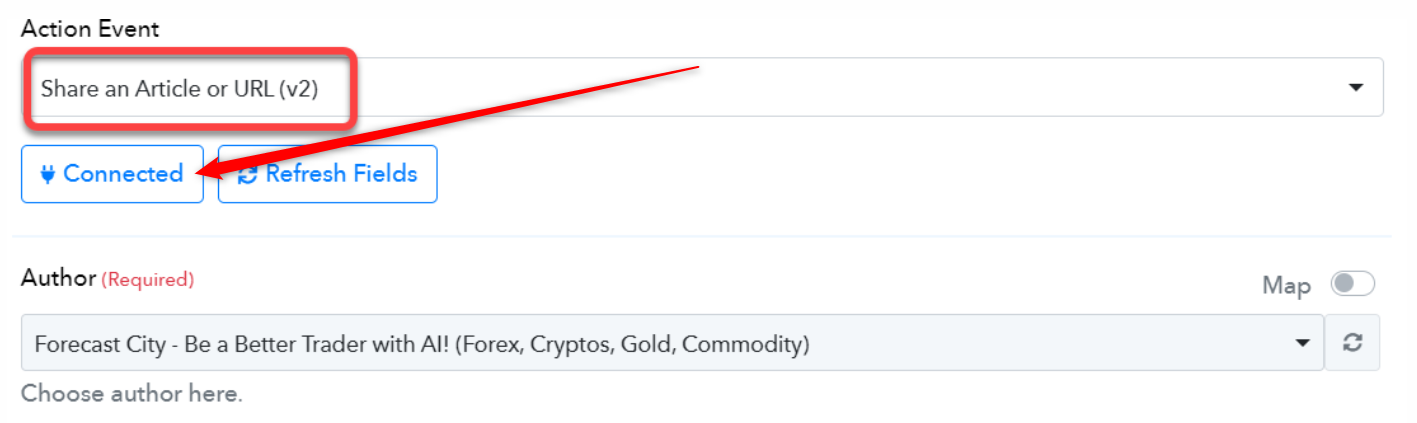
Please reconnect the action step once and then try again, since the API version of Linkedin has been updated.
Again, "Share an Article or URL (V2)" does NOT show the image!
Why does "Share an Article or URL" show the image, but (V2) does not?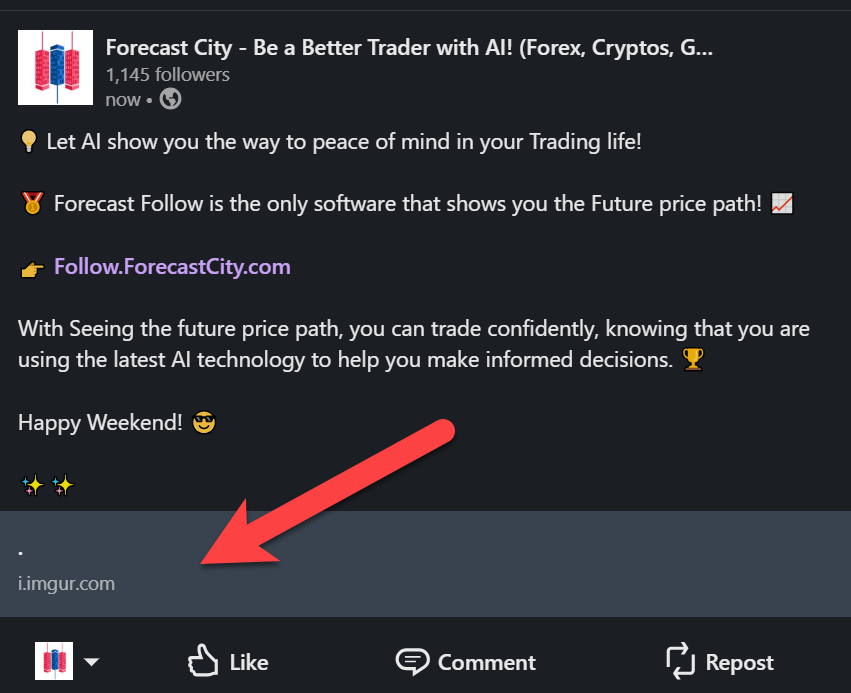

As responded earlier on LinkedIn, when you share an article or URL using the Share an Article or URL feature (V2), it will only display the organization. This is because the LinkedIn API documentation specifically lists the organization's information.
Additionally, it's important to note that when you use LinkedIn's Share an Article or URL feature, it shows the profiled author from your LinkedIn profile author, and unfortunately, there is no option to switch this to the organization.
You do not pay attention to what I say!
Or maybe English is not suitable for us and you!
Let me to clarify and short it:
V1 = Share an Article or URL
V2 = Share an Article or URL (V2)
Just as V1 shows the photo, modify V2 to show the photo too!
The "Create Share Update" action step currently supports only the source URL of the content and not the Content - -Image URL. Consequently, the V2 action step will also display only the hyperlink of the image in the post.
If in the future there any updates come to post direct image URLs to the Linkedin post, we will let you know.