Task not running automatically
Status: Closed · Asked by markmotts on · 0 views
First time using Pabbly (I was a Zapier user previously) so this might be my error...
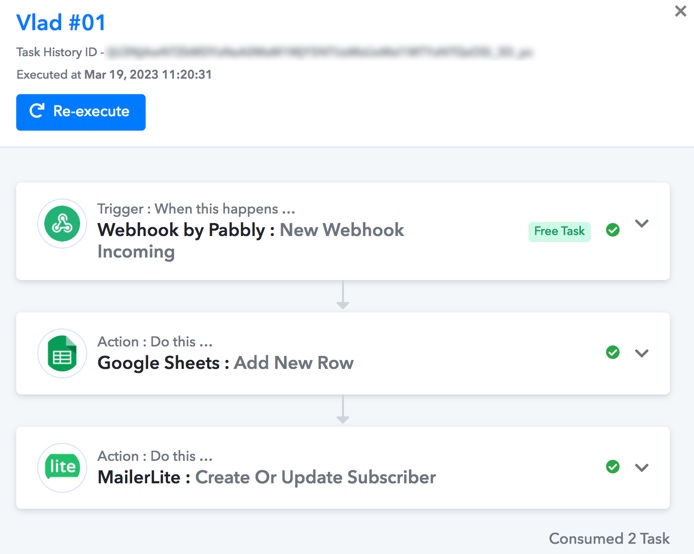
My first Task is set up and live but is not running automatically, I have to push the data through each time to each of the steps.
The history is showing the last time it ran was 5 days ago.
Please advise. Thanks.
Hey @markmotts
Kindly try recapturing the webhook response once and then try again.
You mean this? 
That is what I have to do each time to pull the data in from the webhook before doing this:
for each of the steps.
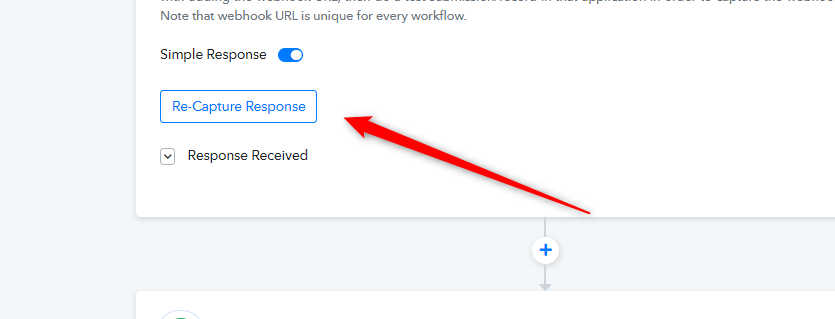
You mean this?
Yes, please re-capture the webhook response.
As I said...
That is what I have to do each time to pull the data in from the webhook before doing this:
[IMG width="211px" height="52.5091px" alt="Screen Shot 2023-03-24 at 14.04.13.png"]https://forum.pabbly.com/attachments/screen-shot-2023-03-24-at-14-04-13-png.23593/[/IMG]
for each of the steps.
Hi
Any update on this please?
I am still having to check whether any new Responses have come through and then push them through the Workflow manually.
Thanks.
Hey @markmotts
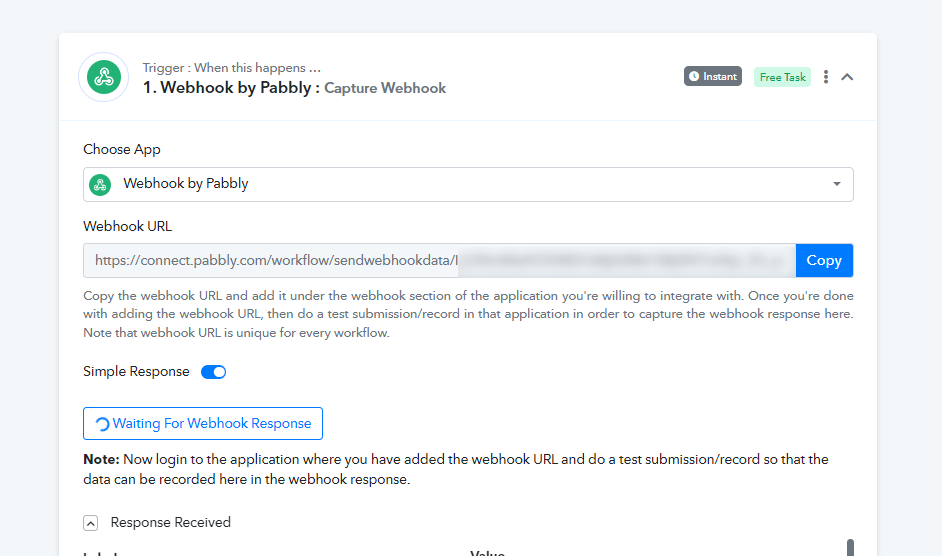
As we can see from your workflow, you haven't captured the webhook yet and once you capture the webhook response after configuring the webhook URL in your triggering application from the data is coming then you wouldn't be required to press "Save & Send Test Request" again and again.
Thanks for your reply.
As I say, I used to be a Zapier user so understand the process involved.
In this case, I have followed all the instructions shown in the screen shot you provided so what else is involved in order to "capture the webhook"?
Back to you. Thanks.
Hey @markmotts
In this case, I have followed all the instructions shown in the screen shot you provided so what else is involved in order to "capture the webhook"?
Once you configure the webhook URL in your triggering application, please create a test submission of the event to which you want to capture the response.
You may refer to the following video tutorial on how you can capture the webhook response -
We are just going over and over the same ground here.
I have done all that already: https://somup.com/c0euiuyRrV
Here is a live demo: https://somup.com/c0eu6nyRz4
Thanks.
I have done all that already: https://somup.com/c0euiuyRrV
Since you are using the "Webhook By Pabbly" trigger event which only captures the data from the application once send by it.
So, as per your shared video, it seems like from triggering the application you haven't gotten a response from it.
Here is a live demo: https://somup.com/c0eu6nyRz4
With this video, we can see that you correctly captured the webhook response, so try adding a lead/test submission from the application and checking again.
Once your trigger event is correctly configured and the data from the triggering application is obtained, the rest of the action step will follow the action step, so there is no need to manually press the "Save & Send Test Request" button.
Sorry, but how many times do I have to say, the rest of the steps are NOT happening automatically.
You saw that in the video, a new lead came in but it only got as far as the webhook.
I have been saying the same thing in every message since Friday and still keep recommending adding a lead/test submission.
Do one of your programmers need to get involved?
UPDATE: Workflow #1 - Actually worked this last time, it all flowed through and all the steps were completed.
Let's see what happens next time.