WPForms to Google Shared Drive
Status: Open · Asked by Michael DeLong on · 0 views
I'm trying to create a new folder in a Google Shared Drive when a new form entry is received in a WPForms form via Webhooks Addon. I want the name of the folder to be the value of one of my form fields.
I'm the action item for Create Folder on Google Shared Drive, I'm not able to map the form fields; none are found.
Completely brand new to this platform. No idea what I'm doing. Any help is appreciated!
Hi @madmoneymike5,
Please enable this workflow, click on 'Capture Webhook Response,' and make a dummy form submission. Once done, your submitted details will be visible under the trigger response.
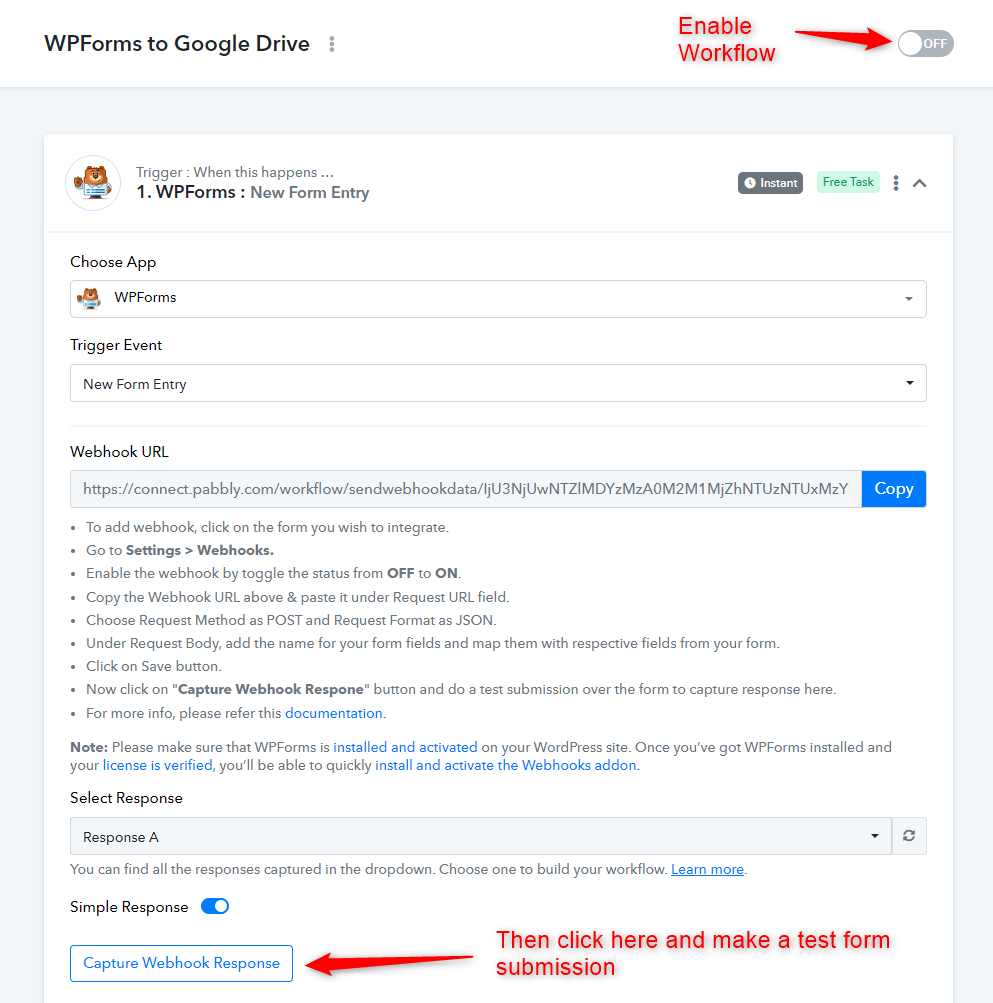
Once you have captured the response, please let me know the field based on which you would like to name the folder you will create in the Google Drive action step.
I had already done that part actually. I see a Response A listed. The field I'm looking for is called "MC#". I want to make the folder based on that field, and then, once that folder is created, I want to upload certain files into it that were uploaded via the form. However, I also want to rename the files to a specific/standard format. For example, one file will need to be named "Authority - " + {MC#}. Others will follow a similar format. Thank you for your help! ?
The use case you are describing is possible, but first, you need to follow the steps I suggest above to capture the form response. Please let me know once you have captured another response from WPForms.
As mentioned in my response above, I actually already did the steps you outlined above before my original post.
I am aware that you have already captured a response before, but currently, for some reason, it's not visible in your trigger response.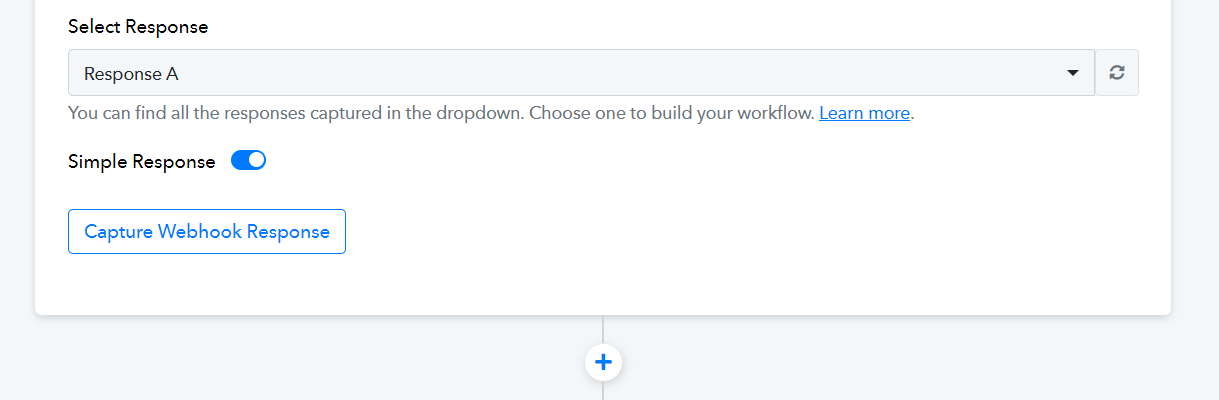
Please skip to the 5:05 mark in the video shared below, where you can see how a trigger response looks. Although the application is different from the one you are using in the trigger step, the response will appear in a similar manner once you have followed the steps I suggest above.
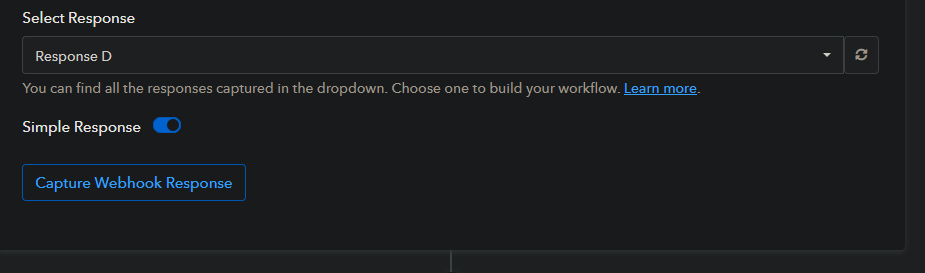
I must be doing something wrong because no matter how many "Capture Webhook Response" I do, the response comes back blank...
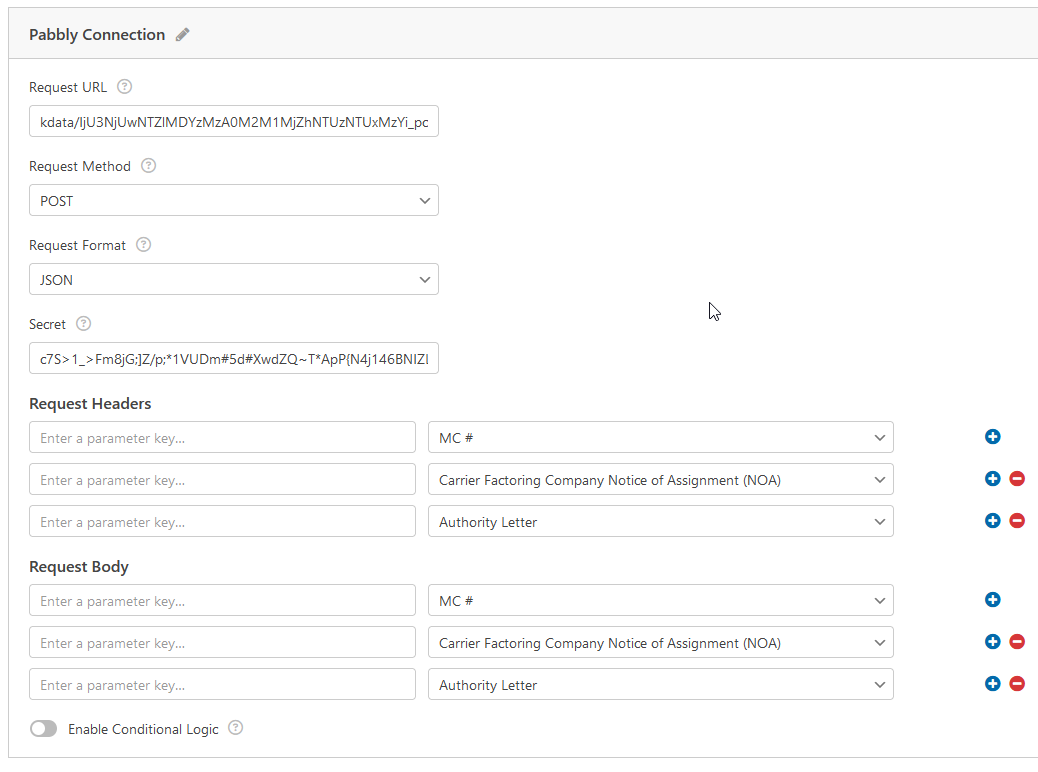
I've tried the below 1) blank (no request headers or body), 2) with just Header and just Body, and now 3) with both Header and Body fields selected. Still nothing shows in the response above.
Please disable this workflow and create a new one from scratch (without cloning).
In the new workflow, to set up WPForms as your trigger application, follow the instructions given in the help text below. Also, make sure that you have installed and activated WPForms on your WordPress site.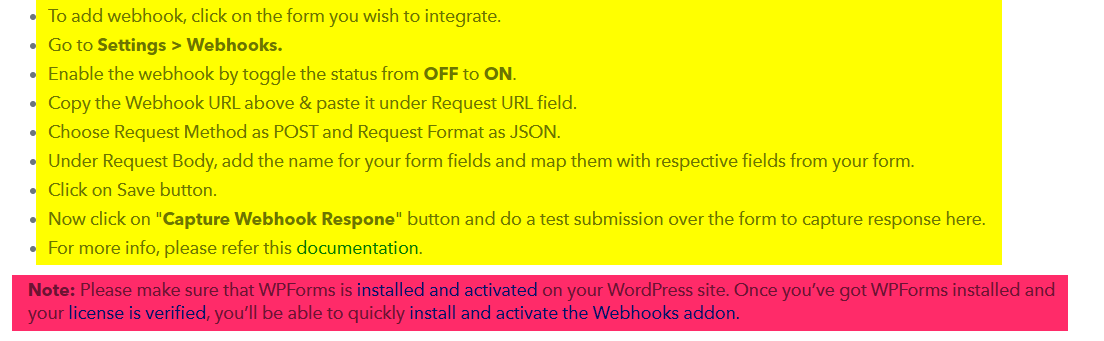
My mistake. I didn't put anything in the left boxes that say "Enter Parameter Key." I incorrectly assumed you'd just pull the name of the fields from WPForms. It's all working now. Thank you!