

• Instructions to Ask a Question

    For any assistance, please click the "Ask a Question" button and select the Pabbly product for which you require support.

    We offer seven comprehensive applications designed to help you efficiently manage and grow your business:

    Our support team endeavors to respond within 24 business hours (Monday to Friday, 10:00 AM to 6:00 PM IST). We appreciate your understanding and patience.

    🖤 BLACK FRIDAY DEALS ARE NOW LIVE! 🖤

    🔥 Enjoy an exclusive 10% discount on our LTD Plan — first-time ever offer!

    🚀 Unlock the Pabbly Plus Unlimited Yearly Plan and get unlimited access to every Pabbly application at a truly unbeatable Black Friday price.

    👉 Grab the Black Friday Offer

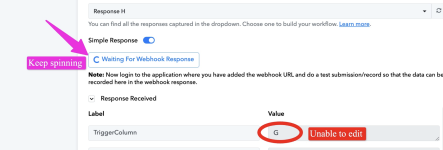
Unable to edit trigger column

TER

Member
Your Workflow URL
https://connect.pabbly.com/workflow/sendwebhookdata/IjU3NjYwNTZhMDYzNzA0MzU1MjZlNTUzYzUxMzIi_pc
Consent to Access & Modify
I authorize Pabbly Support to log in to my account and make changes to the specified workflow for troubleshooting.

Attachments

  • Screenshot 2025-11-21 at 1.33.59 PM.png
    Screenshot 2025-11-21 at 1.33.59 PM.png
    479.9 KB · Views: 10

Preeti Paryani

Well-known member
Staff member
Hello @TER,

If you wish to change the trigger column to B, you will need to update it directly from your Google Sheet settings. Please follow the steps below:

  1. Open your Google Sheet.
  2. Navigate to Extensions → Pabbly Connect Webhooks.
  3. Select Initial Setup.
  4. Change the Trigger Column from G to B.
  5. Click Submit and then send a test from the sheet.
Once the test is submitted, it will be delivered to your workflow, and the “Waiting for Webhook Response” message will no longer appear.

Please try this and let us know if you encounter any difficulties. We will be happy to assist further.
 
Top