

After authorizing your Facebook Lead Ads account, you would be required to click on Save & Send Test Request button as shown below. Make sure your LeadGen form is live before making a sample submission -
Here's the complete checklist a user must follow to successfully retrieve leads — in order. At the end, I've included all common errors and fixes.
The account must:
A. Verify Email or Phone Number
The user must confirm:
A. Check if the Facebook Page Exists
If the link opens the “Discover Pages” section instead of showing your own Pages, this is normal in Facebook’s new interface. In that case:

C. Check if the Lead Form Belongs to This Page
How to check their role:
Required permissions they must accept:
How to Check:
A. Check Facebook Business Integrations
B. Check CRM Lead Access for the Facebook Page
Even if the app permissions are enabled, Facebook may still block lead delivery if the CRM does not have lead access for the Page.
How to Check:
How to Test:
Error: "User does not have permission" → Their Page role is too low (Moderator or below). Ask the Page Admin to upgrade them to Admin or Editor.
Error: App not receiving leads from their Page but works for others → The app is not installed/subscribed to their specific Page. They need to reconnect through your app and select their Page during login.
Error: Permission dialog didn't show all options / they clicked Skip → They must go to https://www.facebook.com/settings?tab=business_tools, remove your app, then log in again through your app and grant all permissions.
Error: Leads from test tool work but real leads don't arrive → Their real Lead Ad is paused, the date range has ended, or the budget ran out. Check Ad Manager.
Error: "This content isn't available" or Page not showing in app → Their Page may be unpublished or restricted by Facebook. Go to Page Settings → check for any policy violations or restrictions.
Error: Ad Account disabled → Facebook may have disabled their Ad Account due to payment failure or policy violation. They need to resolve it at https://adsmanager.facebook.com/ before any leads can flow.
Error: Leads visible in Ads Manager but not in your app → The app's Page subscription is missing the leadgen field for their Page. They need to reconnect the Page through your app.
Here's the complete checklist a user must follow to successfully retrieve leads — in order. At the end, I've included all common errors and fixes.
Overview
- Facebook Account Verification
- Facebook Business Page Checks
- Facebook Page Access Verification
- Facebook App Access Verification
- CRM Lead Access Verification
- Ad Account & Lead Ad Status
- Facebook Lead Ads Test Verification
What the User Must Have & Check (In Order)
STEP 1 — Check Facebook Account Type
The user must have a real personal Facebook account (not a fake or test account).The account must:
- Have a verified email address or phone number
- Be in good standing (not restricted, disabled, or banned)
- Be the same Facebook account that manages the Facebook Page used for Lead Ads
- Open Facebook
- Click your profile picture (top right)
- Go to Settings & Privacy → Settings
A. Verify Email or Phone Number
- Go to Accounts Center → Personal Details → Contact Info
- Make sure at least one email address or phone number is added
- If you do NOT see buttons like “Confirm”, “Verify Now”, or any warning message, it means the contact info is already verified
- Open this link:
https://www.facebook.com/account_status - You should see:
- “Your account looks good”
- “Page has no issues
- Check:
- Your personal Facebook account should not show any restriction or warning
- Your Facebook Pages should show “Page has no issues”
- There should be no disabled feature, policy violation, or restriction message
- If everything shows “No issues” or “Looks good”, the account is in good standing.
A personal account with no Page attached = cannot retrieve leads at all
STEP 2 — Check Facebook Business Page
Lead Ads only work with Facebook Pages, not personal profiles.The user must confirm:
- They have a Facebook Page
- The Lead Ad form was created on that Page
- The Page is published and has no restrictions
A. Check if the Facebook Page Exists
- Open this link:
https://www.facebook.com/pages/?category=your_pages - Confirm your Facebook Pages are listed there
If the link opens the “Discover Pages” section instead of showing your own Pages, this is normal in Facebook’s new interface. In that case:
- Click your profile picture (top right)
- Open “See all profiles”
- Confirm your Facebook Pages are listed there
- Switch to your Facebook Page profile
- Open:
https://www.facebook.com/professional_dashboard
- Check the “Page status” section on the right side
- Confirm:
- The Page opens normally
- It shows “Page has no issues”
- There is no unpublished, disabled, restricted, or policy violation warning
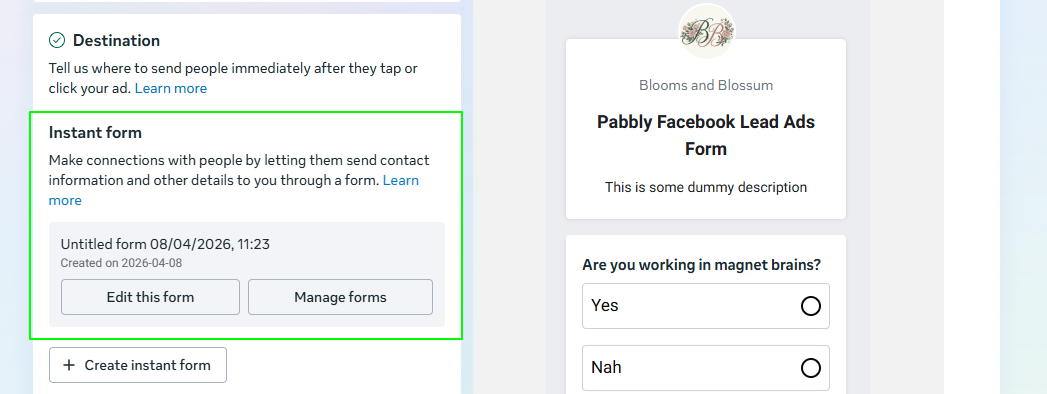
C. Check if the Lead Form Belongs to This Page
- Open Meta Ads Manager:
https://adsmanager.facebook.com/ - Go to:
Campaigns → Ad Sets → Ads - Click on your Lead Ad name
- Click the “Edit” button from the top menu
- A settings panel will open on the right side
- Scroll down until you find:
“Instant Form”
or
“Lead Method” - Confirm:
- The Instant Form name is visible
- The correct Facebook Page is selected
- The form belongs to the same Facebook Page used for Lead Ads
STEP 3 — Check Your Role on the Facebook Page
This is the most common reason users can't get leads.| Page Role | Can Retrieve Leads? |
|---|---|
| Admin |  Yes — full access Yes — full access |
| Editor | Yes |
| Moderator | No |
| Advertiser | No |
| Analyst | No |
How to check their role:
- Switch to your Facebook Page profile
- Open:
https://www.facebook.com/settings/?tab=profile_access - Under “People with full control”, find your Facebook account
- Confirm:
- Your account is listed there
- It shows “Full control”
- Make sure your account is NOT listed under:
- “People with partial access”
- Community managers
- Limited access sections
If your account does not have “Full control”, ask the Page Admin to grant full Facebook access permissions.
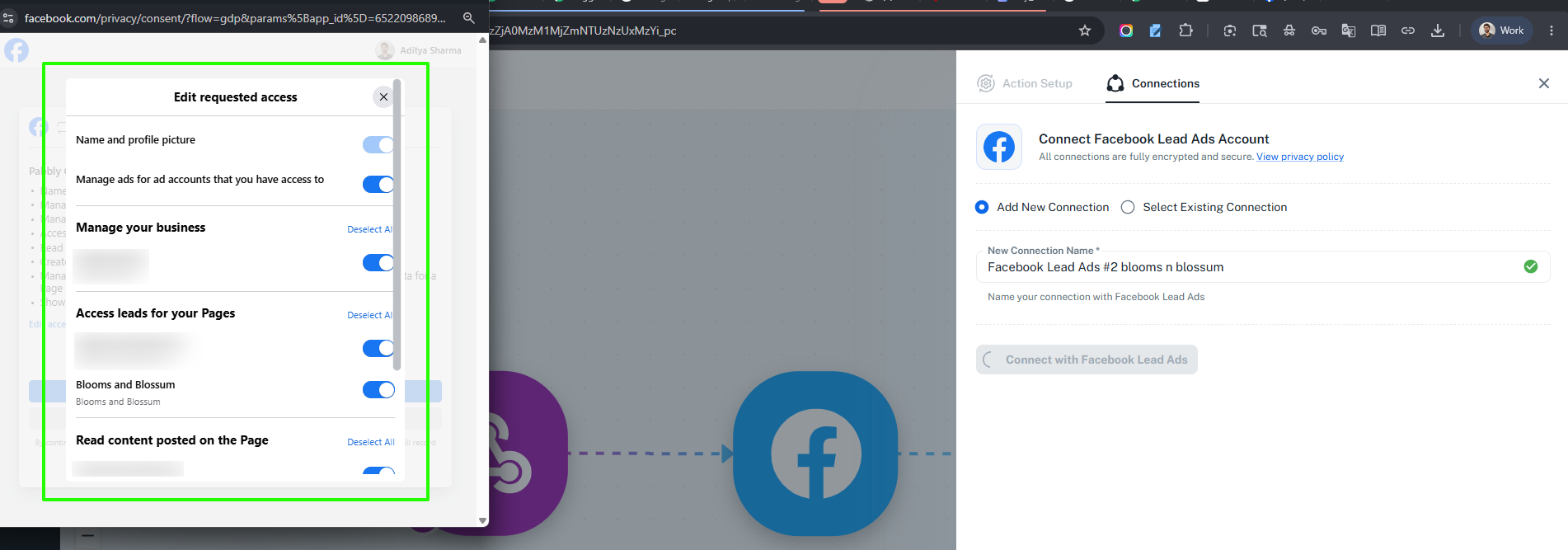
STEP 4 — All Permissions Must Be Granted During Login
When the user logs into the app via Facebook Login in Pabbly Connect, a permission dialog appears. They must not skip or deny any permission.Required permissions they must accept:
- leads_retrieval
- pages_show_list
- pages_manage_ads
- pages_read_engagement
- ads_management
If any are missing → they must disconnect the app and reconnect, granting all permissions this time.
STEP 5 — Check if the App Has Access to Your Facebook Page
The app must be connected to the correct Facebook Page to receive leads.How to Check:
A. Check Facebook Business Integrations
- Switch to your personal Facebook account profile
- Open this link:
https://www.facebook.com/settings?tab=business_tools - If the page does not open correctly:
- Go to Settings & Privacy → Settings
- Search for:
“Business Integrations”
- Open “Business Integrations”
- Find “Pabbly Connect” in the list of connected apps
- Click “View and edit”
- Confirm:
- “Pabbly Connect” is active
- Required permissions are enabled
- “Access leads for your Pages” permission is enabled
- Scroll through the permissions section and make sure all required permissions are turned ON
- If “Pabbly Connect” is missing or permissions are disabled:
- Remove the app from Facebook Business Integrations
- Reconnect/login again through Pabbly Connect
- Grant all requested permissions during login
B. Check CRM Lead Access for the Facebook Page
Even if the app permissions are enabled, Facebook may still block lead delivery if the CRM does not have lead access for the Page.
- Switch to your Facebook Page profile
- Open Meta Business Settings:
https://business.facebook.com/settings/ - In the left sidebar, go to:
Integrations → Lead Access - Select your Facebook Page from the list
- Open the “CRMs” tab
- Under “CRMs with leads access”, confirm:
- “Pabbly Connect” is listed
- It has lead access enabled for the selected Page
- If “Pabbly Connect” is NOT listed:
- Click “Assign CRM”
- Select “Pabbly Connect”
- Grant lead access permissions
- After assigning the CRM, save the changes and reconnect the Facebook account inside Pabbly Connect Application
STEP 6 — Check Ad Account and Lead Ad Status
The Facebook Ad Account and Lead Ad must be active for leads to be delivered.How to Check:
- Open Meta Ads Manager:
https://adsmanager.facebook.com/ - Confirm:
- The correct Ad Account is selected
- The Ad Account is active
- There are no billing, payment, or policy restriction warnings
- Go to:
Campaigns → Ad Sets → Ads - Check the “Delivery” status of your Campaign, Ad Set, and Ad
- Confirm:
- The Campaign is active
- The Ad Set is active
- The Ad is active
- The delivery status is not paused, rejected, or ended
- Click “Edit” on the Lead Ad
- Scroll down and confirm:
- The Instant Form is not archived
- Campaign start/end dates are valid
- Budget is available
STEP 7 — Test Lead Delivery Using Facebook Lead Ads Testing Tool
This step confirms whether Facebook is successfully sending leads to Pabbly Connect.How to Test:
- Open your Pabbly Connect workflow
- Select trigger and Click:
“Save & Send Test Request”
- Wait until you see:
“Waiting for Webhook Response” - Now open Facebook Lead Ads Testing Tool:
 Tool - https://developers.facebook.com/tools/lead-ads-testing
Guide - How to use the Facebook testing tool guide Link
Note: Please follow the guide properly; otherwise, Facebook may not send the test lead data. - Select:
- Your Facebook Page
- Your Instant Form / Lead Form
- Click:
“Create Lead” - Submit the sample test lead form
- Return to your Pabbly Connect workflow
- Confirm:
- The webhook response is received
- Lead data appears in the workflow response
- Test lead data is captured successfully
- Make sure the Lead Form is live before testing
- Test leads do NOT contain Ad ID or Ad Set ID values, just leadgen_id, page_id, form_id.
- If your Page is not visible in the dropdown:
- Use the “Map” option
- Enter your Facebook Page ID manually
- If the test lead is received successfully → the Facebook setup is correct
- If the test lead is NOT received → review all previous steps again, especially:
- Page access
- CRM lead access
- Facebook permissions
- Ad account status
If the test lead arrives
Common Errors & Fixes
Error: "User does not have permission" → Their Page role is too low (Moderator or below). Ask the Page Admin to upgrade them to Admin or Editor.
Error: App not receiving leads from their Page but works for others → The app is not installed/subscribed to their specific Page. They need to reconnect through your app and select their Page during login.
Error: Permission dialog didn't show all options / they clicked Skip → They must go to https://www.facebook.com/settings?tab=business_tools, remove your app, then log in again through your app and grant all permissions.
Error: Leads from test tool work but real leads don't arrive → Their real Lead Ad is paused, the date range has ended, or the budget ran out. Check Ad Manager.
Error: "This content isn't available" or Page not showing in app → Their Page may be unpublished or restricted by Facebook. Go to Page Settings → check for any policy violations or restrictions.
Error: Ad Account disabled → Facebook may have disabled their Ad Account due to payment failure or policy violation. They need to resolve it at https://adsmanager.facebook.com/ before any leads can flow.
Error: Leads visible in Ads Manager but not in your app → The app's Page subscription is missing the leadgen field for their Page. They need to reconnect the Page through your app.
 FAQ
FAQ
1. Where can I find my Facebook Page ID?
- Open your Facebook Page
- The Page ID is usually available in:
- About section
- Page settings
- Or inside the Page URL in some cases
2. Why are some fields missing in test lead or organic lead responses?
Facebook test leads and organic leads may NOT contain:- Ad ID
- Ad Set ID
- Campaign ID
- Campaign Name
- Ad Name
- Ad Set Name
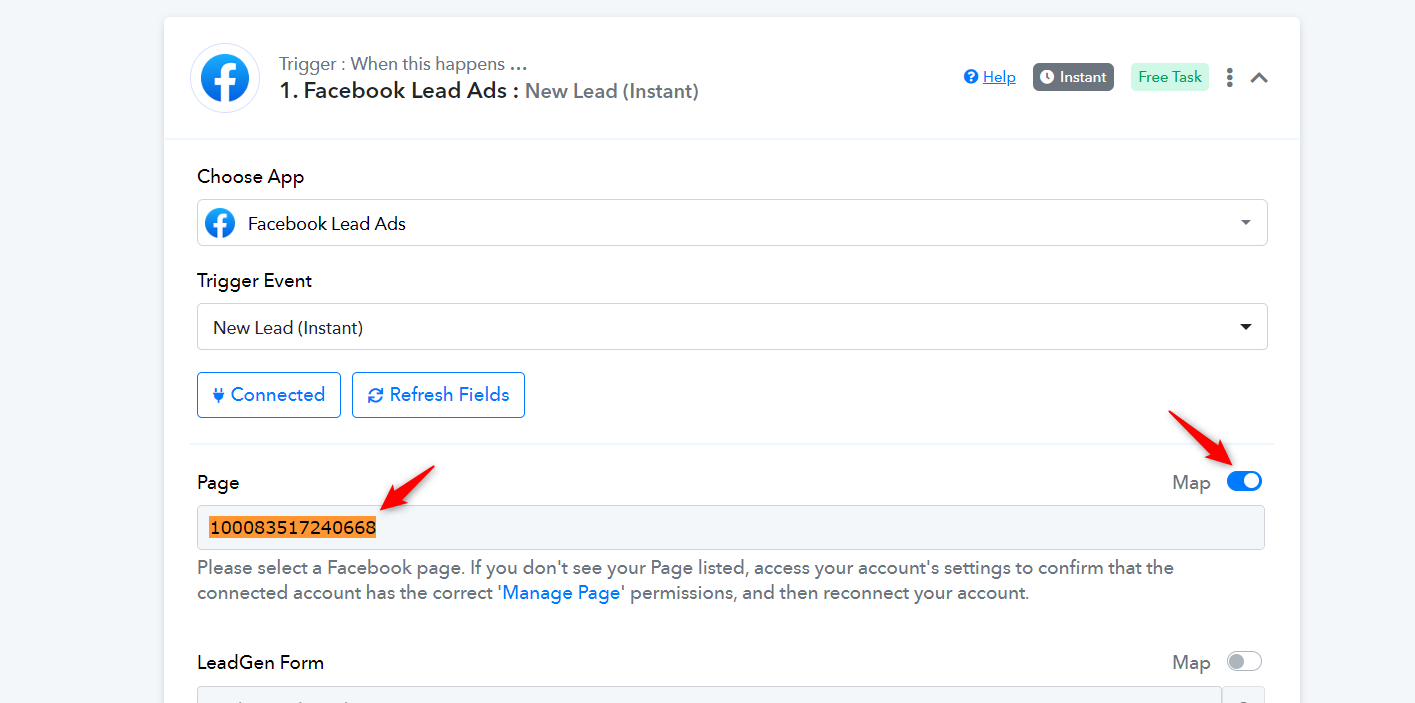
3. My Page is not visible in the dropdown in the Pabbly Connect trigger
- Use the “Map” option
- Enter your Facebook Page ID manually
- Why do I need to delete old test leads before testing again?
- If a Facebook test lead already exists, Facebook may not send the same test lead again
- Delete the old test lead first
- Then create a fresh test lead before testing again
END
Last edited by a moderator:


