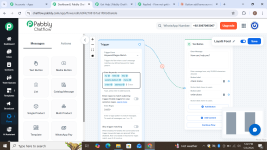
Replied Flow is not Connecting, showing Cross sign

Grant Account Access for Support
  1. I authorize the Pabbly Support Team to access my account for troubleshooting purposes.
WhatsApp Number
+923067095007
Email Address
[email protected]
Hi i am just creating my first flow but its not working like its shows cross on my connection. Kindly help me to troubleshoot this issue so i can make this app in production.
 

Attachments

  • Screenshot (76).png
    Screenshot (76).png
    462.6 KB · Views: 41

ArshilAhmad

Well-known member
Staff member
Hi @Farooq Shahzad,

The cross sign does not indicate that there is no connection between the two nodes. The nodes shown in your screenshot are already connected. If you click on the cross sign, the nodes will be disconnected, it is simply a button to quickly remove the connection between them.

Thanks & Regards,
Arshil Ahmad
Customer Support Associate
🌐 Pabbly.com
 

Preeti Paryani

Well-known member
Staff member
Hi @Farooq Shahzad,

We tested saving your flow on our end, and it was saved successfully.

The “Invalid Flow” error you’re encountering could be due to a browser cache issue. We recommend clearing your browser cache, making a small change to the flow, and then trying to save it again.

1777875213871.png


Please try this and let us know how it goes.
 
Hi @Farooq Shahzad,

We tested saving your flow on our end, and it was saved successfully.

The “Invalid Flow” error you’re encountering could be due to a browser cache issue. We recommend clearing your browser cache, making a small change to the flow, and then trying to save it again.

View attachment 66979

Please try this and let us know how it goes.

Hi @Farooq Shahzad,

We tested saving your flow on our end, and it was saved successfully.

The “Invalid Flow” error you’re encountering could be due to a browser cache issue. We recommend clearing your browser cache, making a small change to the flow, and then trying to save it again.

View attachment 66979

Please try this and let us know how it goes.
Thank you so much issue resolved. I want to sell multiple chatbot to multiple clients how much credit I get.
 

Preeti Paryani

Well-known member
Staff member
Hi @Farooq Shahzad,

Thanks for confirming that the issue is now resolved.

Regarding the credit requirement, it mainly depends on the number of outgoing messages your chatbots or flows will send. Based on your expected usage and client requirements, you can choose a suitable plan accordingly.

If you'd like, you can share your approximate monthly message/credit requirements with us, and we’ll help suggest the most suitable plan for your use case.
 
Hi @Farooq Shahzad,

Thanks for confirming that the issue is now resolved.

Regarding the credit requirement, it mainly depends on the number of outgoing messages your chatbots or flows will send. Based on your expected usage and client requirements, you can choose a suitable plan accordingly.

If you'd like, you can share your approximate monthly message/credit requirements with us, and we’ll help suggest the most suitable plan for your use case.
Hi Preeti,

Thanks for the clarification.

At the moment, I’m still in the learning and testing phase, so my message usage is quite low. However, I’m planning to use it for client projects soon, especially for chatbot flows like event bookings and customer inquiries.

I’ll share a more accurate estimate of monthly message/credit requirements once I start working with real clients. Meanwhile, if you can suggest a suitable starter plan for testing and small-scale usage, that would be helpful.

Thanks again for your support.
 

ArshilAhmad

Well-known member
Staff member
Currently, our yearly plans start with 10,000 credits/month and scale up based on usage requirements:

• 10,000 credits/month → Ideal for testing, learning, and small-scale client projects
• 20,000 credits/month → Suitable for growing usage, multiple clients, and moderate automation
• Unlimited plan → Best suited for high-volume usage, broadcasts, and large-scale automation requirements

Since you are currently in the learning and testing phase with relatively low usage, we would recommend starting with the 10,000 credits yearly plan. It should be a great fit for testing, learning the platform, and handling initial client projects such as event booking and customer inquiry chatbot flows.

However, if you do not require a yearly plan at the moment, you can also continue using the free plan while you explore and test the platform.

The core features remain largely the same across all plans, including chatbot builder, shared inbox, broadcasts, API access, workflows, AI assistants, custom fields, and team collaboration features. The primary difference between the plans is the number of outgoing message credits included each month.

Once you begin working with real clients and have a clearer understanding of your monthly message requirements, you can always upgrade to a higher plan later if needed.

Thanks & Regards,
Arshil Ahmad
Customer Support Associate
🌐 Pabbly.com
 
Currently, our yearly plans start with 10,000 credits/month and scale up based on usage requirements:

• 10,000 credits/month → Ideal for testing, learning, and small-scale client projects
• 20,000 credits/month → Suitable for growing usage, multiple clients, and moderate automation
• Unlimited plan → Best suited for high-volume usage, broadcasts, and large-scale automation requirements

Since you are currently in the learning and testing phase with relatively low usage, we would recommend starting with the 10,000 credits yearly plan. It should be a great fit for testing, learning the platform, and handling initial client projects such as event booking and customer inquiry chatbot flows.

However, if you do not require a yearly plan at the moment, you can also continue using the free plan while you explore and test the platform.

The core features remain largely the same across all plans, including chatbot builder, shared inbox, broadcasts, API access, workflows, AI assistants, custom fields, and team collaboration features. The primary difference between the plans is the number of outgoing message credits included each month.

Once you begin working with real clients and have a clearer understanding of your monthly message requirements, you can always upgrade to a higher plan later if needed.

Thanks & Regards,
Arshil Ahmad
Customer Support Associate
🌐 Pabbly.com
Hi Arshil,

Thank you for the detailed explanation and recommendation.

The 10,000 credits plan sounds suitable for my future client projects. For now, I’ll continue exploring and testing the platform on the free plan so I can better understand my actual monthly requirements.

Once I start working with real clients and my usage increases, I’ll definitely consider upgrading to the yearly plan.

Thanks again for your guidance and support.
 
Currently, our yearly plans start with 10,000 credits/month and scale up based on usage requirements:

• 10,000 credits/month → Ideal for testing, learning, and small-scale client projects
• 20,000 credits/month → Suitable for growing usage, multiple clients, and moderate automation
• Unlimited plan → Best suited for high-volume usage, broadcasts, and large-scale automation requirements

Since you are currently in the learning and testing phase with relatively low usage, we would recommend starting with the 10,000 credits yearly plan. It should be a great fit for testing, learning the platform, and handling initial client projects such as event booking and customer inquiry chatbot flows.

However, if you do not require a yearly plan at the moment, you can also continue using the free plan while you explore and test the platform.

The core features remain largely the same across all plans, including chatbot builder, shared inbox, broadcasts, API access, workflows, AI assistants, custom fields, and team collaboration features. The primary difference between the plans is the number of outgoing message credits included each month.

Once you begin working with real clients and have a clearer understanding of your monthly message requirements, you can always upgrade to a higher plan later if needed.

Thanks & Regards,
Arshil Ahmad
Customer Support Associate
🌐 Pabbly.com
Hi Arshil,

I have a small concern regarding the credit usage. If 10,000 credits can be consumed by just one active restaurant client, then handling multiple client projects may become difficult.

I also noticed that during my testing phase, around 100 credits were used within just 3–4 days. That’s why I’m wondering: if a restaurant owner receives around 100–200 messages daily, the credits may finish very quickly.

Could you kindly guide me on the best ways to minimize credit usage and optimize chatbot flows so that more contacts and conversations can be handled with lower credit consumption?

Thanks.
 

Preeti Paryani

Well-known member
Staff member
Hi @Farooq Shahzad,

Thank you for sharing your concern.

Credit consumption in Chatflow occurs whenever an outgoing message is sent, whether the message is sent manually via the inbox or automatically through chatbot flows. In general, each outgoing message consumes one credit.

To optimize credit usage and handle multiple client projects more efficiently, you can consider the following:

  • Design chatbot flows carefully to avoid unnecessary or repeated messages.
  • Minimize extra follow-up messages wherever possible.
  • Use targeted automation so only relevant responses are triggered.
  • Assign separate WhatsApp numbers to different clients/restaurants. This helps you manage and distribute credit usage more effectively per client. Learn more about it here.

    1778147104634.png
Additionally, we offer multiple plans based on usage requirements. For higher-volume businesses such as restaurants handling large numbers of daily conversations, you may consider the Unlimited yearly plan. This plan provides an initial allocation of 1 lakh credits, and once 80% of the credits are exhausted, they can be reset once within a day, making it suitable for managing high-message-volume use cases.

1778147051111.png


Please let us know if you would like more details regarding the available plans or best practices for optimizing chatbot flows.
 
Hi @Farooq Shahzad,

Thank you for sharing your concern.

Credit consumption in Chatflow occurs whenever an outgoing message is sent, whether the message is sent manually via the inbox or automatically through chatbot flows. In general, each outgoing message consumes one credit.

To optimize credit usage and handle multiple client projects more efficiently, you can consider the following:

  • Design chatbot flows carefully to avoid unnecessary or repeated messages.
  • Minimize extra follow-up messages wherever possible.
  • Use targeted automation so only relevant responses are triggered.
  • Assign separate WhatsApp numbers to different clients/restaurants. This helps you manage and distribute credit usage more effectively per client. Learn more about it here.

    View attachment 67056
Additionally, we offer multiple plans based on usage requirements. For higher-volume businesses such as restaurants handling large numbers of daily conversations, you may consider the Unlimited yearly plan. This plan provides an initial allocation of 1 lakh credits, and once 80% of the credits are exhausted, they can be reset once within a day, making it suitable for managing high-message-volume use cases.

View attachment 67055

Please let us know if you would like more details regarding the available plans or best practices for optimizing chatbot flows.
Hi Preeti,
I would also appreciate it if you could share some best practices for optimizing chatbot flows and reducing unnecessary credit consumption. Since I plan to use this for restaurant and event booking clients in the future, I want to design the flows in the most efficient way possible.
I also have another question. If in the future I want to connect multiple WhatsApp numbers, for example 50 WhatsApp numbers for different clients, would I need to purchase a separate API for each WhatsApp number?
Also, are these APIs purchased from a third-party platform, or are they provided directly by Pabbly/Chatflow?
Thanks again for your support.
 

ArshilAhmad

Well-known member
Staff member
To optimize chatbot flows and reduce unnecessary credit consumption, we would recommend the following best practices:
  • Keep the flow structure simple and avoid unnecessary loops or repeated message steps.
  • Use buttons, quick replies, and list messages wherever possible instead of open-ended AI conversations, as they consume fewer credits.
  • Add proper filters and conditions to ensure messages are only triggered when required.
  • Store user responses in custom fields so the bot does not need to ask the same questions repeatedly.
  • Use AI steps only where genuinely needed, such as handling dynamic queries, while keeping standard booking flows rule-based.


Regarding multiple WhatsApp numbers, each WhatsApp number needs to have its own WhatsApp Business API onboarding/setup on Meta’s side. However, you do not need to purchase separate Pabbly Chatflow accounts for each number.

So, in your example, if you manage 50 client WhatsApp numbers:

  • You can connect all 50 numbers inside one Pabbly Chatflow account.
  • Pabbly Chatflow itself does not charge extra per connected number.
  • Each number must still be individually connected to the WhatsApp Business Platform (Cloud API).
  • You can manage all numbers, inboxes, chatbots, broadcasts, and automations centrally from one dashboard.

Thanks & Regards,
Arshil Ahmad
Customer Support Associate
🌐 Pabbly.com
 
To optimize chatbot flows and reduce unnecessary credit consumption, we would recommend the following best practices:
  • Keep the flow structure simple and avoid unnecessary loops or repeated message steps.
  • Use buttons, quick replies, and list messages wherever possible instead of open-ended AI conversations, as they consume fewer credits.
  • Add proper filters and conditions to ensure messages are only triggered when required.
  • Store user responses in custom fields so the bot does not need to ask the same questions repeatedly.
  • Use AI steps only where genuinely needed, such as handling dynamic queries, while keeping standard booking flows rule-based.


Regarding multiple WhatsApp numbers, each WhatsApp number needs to have its own WhatsApp Business API onboarding/setup on Meta’s side. However, you do not need to purchase separate Pabbly Chatflow accounts for each number.

So, in your example, if you manage 50 client WhatsApp numbers:

  • You can connect all 50 numbers inside one Pabbly Chatflow account.
  • Pabbly Chatflow itself does not charge extra per connected number.
  • Each number must still be individually connected to the WhatsApp Business Platform (Cloud API).
  • You can manage all numbers, inboxes, chatbots, broadcasts, and automations centrally from one dashboard.

Thanks & Regards,
Arshil Ahmad
Customer Support Associate
🌐 Pabbly.com
Hi Arshil,

Thank you for the clarification. I have two more questions regarding the WhatsApp API setup.

First, how will I know from where and how to connect the API for each WhatsApp number? Is the API connection/setup done directly through Pabbly Chatflow, or does it need to be connected separately through Meta/Facebook Developer settings?

Second, when adding a client’s WhatsApp number, does every client need to have their own Facebook Business Portfolio/Business Manager account created first? Or can I simply take access to the client’s existing Facebook page and connect their WhatsApp number from there?

Thanks again for your guidance.
 

ArshilAhmad

Well-known member
Staff member
The WhatsApp API connection setup is done directly from within Pabbly Chatflow itself. During the connection process, you will be redirected to Meta, where you simply log in with the relevant Facebook account and grant the required permissions. So, you generally do not need to manually configure anything inside Facebook Developer settings unless you are using a completely custom Meta app setup.
For most users, the process is straightforward:
  • Open Pabbly Chatflow
  • Click to add/connect a WhatsApp number
  • Log in via Meta/Facebook
  • Select the Business Portfolio and WhatsApp account
  • Complete OTP verification for the number
  • The number gets connected to Chatflow
Watch the videos shared below:

Embedded signup method

There is also a Manual Token Method

Regarding client accounts, ideally each client should have their own Meta Business Portfolio (Business Manager) because WhatsApp Business API numbers are officially tied to a business entity on Meta’s side.
However, you do not necessarily need to create a new Business Manager from scratch for every client if they already have one. In most cases:
  • The client can simply add you as a partner/employee/admin to their existing Facebook Business Portfolio.
  • You can then connect and manage their WhatsApp number through their existing setup.
  • Access to just the Facebook Page alone may not always be sufficient because WhatsApp API permissions are usually managed at the Business Portfolio level, not only the page level.
Thanks & Regards,
Arshil Ahmad
Customer Support Associate
🌐 Pabbly.com
 
The WhatsApp API connection setup is done directly from within Pabbly Chatflow itself. During the connection process, you will be redirected to Meta, where you simply log in with the relevant Facebook account and grant the required permissions. So, you generally do not need to manually configure anything inside Facebook Developer settings unless you are using a completely custom Meta app setup.
For most users, the process is straightforward:
  • Open Pabbly Chatflow
  • Click to add/connect a WhatsApp number
  • Log in via Meta/Facebook
  • Select the Business Portfolio and WhatsApp account
  • Complete OTP verification for the number
  • The number gets connected to Chatflow
Watch the videos shared below:

Embedded signup method

There is also a Manual Token Method

Regarding client accounts, ideally each client should have their own Meta Business Portfolio (Business Manager) because WhatsApp Business API numbers are officially tied to a business entity on Meta’s side.
However, you do not necessarily need to create a new Business Manager from scratch for every client if they already have one. In most cases:
  • The client can simply add you as a partner/employee/admin to their existing Facebook Business Portfolio.
  • You can then connect and manage their WhatsApp number through their existing setup.
  • Access to just the Facebook Page alone may not always be sufficient because WhatsApp API permissions are usually managed at the Business Portfolio level, not only the page level.
Thanks & Regards,
Arshil Ahmad
Customer Support Associate
🌐 Pabbly.com
Hi Arshil,

I’m facing another issue regarding Meta Developer access. When I open the Meta Developer page, it shows the message: “You don’t have access. This feature isn’t available to you yet.”

I’ve attached the screenshot for reference.

Could you please guide me on why this happens and how I can get access to the Meta Developer dashboard? Is there any specific requirement, verification, or setup needed from my side?

Any solution or guidance would be really helpful.

Thanks.
 

Attachments

  • Screenshot_20260508-092458.jpg
    Screenshot_20260508-092458.jpg
    371 KB · Views: 14

Preeti Paryani

Well-known member
Staff member
Hi Farooq,

It seems that the particular Meta Business account you are trying to access is either not owned by you or your profile does not currently have the required permissions to access it. Because of this, Meta is showing the message: “You don’t have access. This feature isn’t available to you yet.”

Could you please confirm the following:
  • Is this your own Meta Business account or your client’s account?
  • Do you currently have admin access to that Business Portfolio?
  • Has the client added your Facebook profile with the required permissions?
In most cases, this issue occurs when the logged-in Facebook account lacks sufficient access to the Meta Business Portfolio or Developer account.

Please confirm the above so we can guide you further accordingly.
 
Hi Farooq,

It seems that the particular Meta Business account you are trying to access is either not owned by you or your profile does not currently have the required permissions to access it. Because of this, Meta is showing the message: “You don’t have access. This feature isn’t available to you yet.”

Could you please confirm the following:
  • Is this your own Meta Business account or your client’s account?
  • Do you currently have admin access to that Business Portfolio?
  • Has the client added your Facebook profile with the required permissions?
In most cases, this issue occurs when the logged-in Facebook account lacks sufficient access to the Meta Business Portfolio or Developer account.

Please confirm the above so we can guide you further accordingly.
Hi Preeti,

Thank you for your response. Please find my answers below:

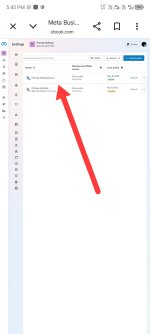
1. This is my own Meta Business Account, not a client's account.

2. Yes, I have Full Admin (Full Control) access to this Business Portfolio. I can see my name "Farooq Shahzad (you)" listed with "Full Control - Everything" permissions and the status is Active as of May 8, 2026.

3. Since this is my own account, there is no client involved.

Despite having full admin access, I am still seeing the message: "You don't have access. This feature isn't available to you yet." on the specific feature I am trying to use in Pabbly.

Kindly look into this issue and guide me on how to resolve it.

Thanks & Regards,
Farooq Shahzad
 

Attachments

  • 1778244689807.jpg
    1778244689807.jpg
    285.5 KB · Views: 22

ArshilAhmad

Well-known member
Staff member
Thank you for the clarification and for sharing the screenshot. Since this is your own Meta Business Portfolio and your profile already has “Full Control - Everything” access, the issue is likely not related to Business Manager permissions.

In such cases, the error “You don't have access. This feature isn't available to you yet.” usually occurs due to one of the following reasons on Meta’s side:

  1. Meta Developer account is not created yet
    Even if you have a Meta Business account, you must separately register as a Meta Developer using your Facebook profile.
You can create/check it here:
Meta for Developers

After opening the page:

  • Log in with the same Facebook profile
  • Accept the Developer Terms & Policies
  • Complete phone/email verification if prompted
  1. Developer account requires verification
    Meta may restrict Developer dashboard access until:
  • Your Facebook account is verified
  • Two-factor authentication (2FA) is enabled
  • Your account passes META integrity checks
You can enable 2FA here:
Facebook Security Settings

  1. Business verification is pending/incomplete
    Some WhatsApp and Developer features require Business Verification inside Meta Business Settings.
You can check the verification status here:
Meta Business Settings

Look for:

  • Business Verification status
  • Legal business details
  • Domain verification (if required)
  1. New Meta accounts may have temporary restrictions
    If the Business Portfolio or Facebook profile was created recently, Meta sometimes delays access to Developer products for security reasons. In such cases, waiting 24–72 hours after enabling 2FA and completing profile verification often resolves the issue automatically.
  2. Browser/session-related issue
    Please also try:
  • Opening the Developer dashboard in Incognito mode
  • Clearing browser cache/cookies
  • Trying from desktop browser instead of mobile
  • Logging out and logging back into Facebook
Also ensure that you are logged into the exact Facebook profile that owns the Business Portfolio.

Thanks & Regards,
Arshil Ahmad
Customer Support Associate
🌐 Pabbly.com
 
Top