

Guide for Creating Connection with Google Workspace Admin (Developer)
This documentation provides a detailed, step-by-step guide to create a connection between Google Workspace Admin (Developer) and Pabbly Connect. Following these steps will enable seamless management of users, groups, roles, and directory settings.
Authentication Steps:
Follow these steps to obtain the necessary Client ID and Client Secret from Google Cloud Console
Obtain Client ID and Client Secret:
- Sign in to the Google Cloud Platform using your Google credentials.
- Now create a new project or select an existing project as shown below
- Navigate to "APIs & Services" and select "Library."
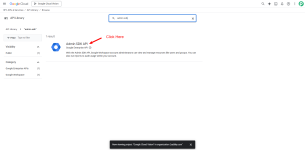
- Search for and enable the following required APIs: Admin SDK
- As you type, the desired service option should display. Click on the API or service you wish to connect with Pabbly Connect.
- Click the "ENABLE" button to enable the selected API. After enabling it will look like this:
- Open the OAuth consent screen settings.
- Choose the "External" option, add test users, and click "CREATE."
- Fill in the required fields as follows, and then click the "Save" button.
- Application name: Enter the name of the application requesting consent.
- Scopes for Google APIs: Click "Add Scope" to open the dialog and add the required scopes.
SERVICE/API REQUIRED SCOPES
Service/API Scope Description Admin SDK Full user management Admin SDK Manage groups & memberships
Note: There is no need to submit your consent screen and application for verification by Google. Simply click the "Save" button after filling in the required fields on the same page. - Proceed to "Credentials." Click "+CREATE CREDENTIALS" and select "OAuth Client ID."
- Fill in the necessary fields as follows and then click "CREATE".
Application type: Web application
Name: e.g. Pabbly Connect
Authorized redirect URIs: https://connect.pabbly.com/callback-url (Copy the provided URL and insert it into the designated section as specified.). - Copy your Client ID and Client Secret values and store them in a safe place.
- Make sure you're enabling the Google Cloud Billing.
Integration Steps:
1. Select "Google Workspace Admin (Developer)" Action:
- Within Pabbly Connect, navigate to the action step as the action you wish to perform.
2. Configure the Connection:
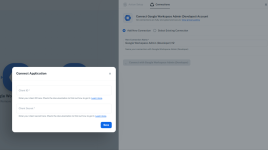
- To establish a connection, select "Add New Connection" and log in to your Google Cloud Platform account. If you already have an existing connection, you can opt for "Select Existing Connection" instead.
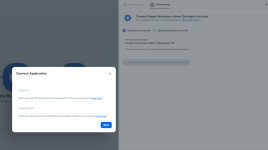
- Now Enter the "Client ID" and "Client Secret" to set up the connection.
Attachments
Last edited by a moderator:


