
Need Help Integrating Razorpay Payment Success Notification with WhatsApp API

I am trying to set up an automation where a WhatsApp notification is sent to users after they successfully complete a payment through Razorpay.
Here is my current setup:
  • Razorpay is successfully connected.
  • I have configured the required filters.
  • I am using a third-party WhatsApp API platform (not AiSensy or WATI).
  • My WhatsApp API platform is not directly available in Pabbly’s native integrations.
I am facing the following issues:
  1. I am unsure how to properly connect my custom WhatsApp API with Pabbly to send payment success notifications.
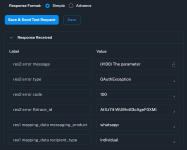
  2. I tried connecting through WhatsApp Cloud API and selected “Send Template Message (New)”, but while saving and testing, I receive this error:
    (#100) The parameter template['components'][0]['type'] is required.
Because of this error, I am unable to send the template message.
Could you please guide me on:
  • How to connect a custom WhatsApp API (which is not directly listed in Pabbly)?
  • How to properly configure the template message to avoid the components[type] error?
  • What exact structure is required in the template section?
I would really appreciate step-by-step guidance to complete this setup successfully.
 

Attachments

  • Screenshot 2026-02-27 113330.png
    Screenshot 2026-02-27 113330.png
    96.8 KB · Views: 7

Preeti Paryani

Well-known member
Staff member
Hi @wonderworlddm,

Thank you for reaching out.

To help you better with this setup, could you please share the following details:

  1. Workflow URL of the Pabbly Connect workflow where you are facing this issue.
  2. The email address associated with your Pabbly account.

Once we have these details, we will review your setup and guide you further on connecting your custom WhatsApp API and resolving the template message error.
 

Preeti Paryani

Well-known member
Staff member
Hey @wonderworlddm,

We have made the necessary changes in the action. However, it appears that your connection has expired, possibly because a temporary access token was used during the connection process.

We recommend that you regenerate the access token (preferably a permanent token, or a new temporary token if needed), reconnect the account, and then execute the action again.
1772189073257.png


Please refer to the attached images to review the changes that were made.

1772189095021.png


1772189105890.png


Let us know how it goes after reconnecting.
 
Top