

What is the Test Workflow button?
The Test workflow feature enables users to re-execute their configured workflow triggers with editable sample data directly from the workflow canvas. This feature eliminates the need to generate new external events (like sending a new webhook or waiting for a schedule) when users want to test their workflow logic with modified data.Using this feature, users can quickly test their workflow with sample data, modify input fields, and verify how the workflow behaves without waiting for real data from the source application.
Supported Trigger Modules
The Test Workflow feature is available for the following trigger modules in Pabbly Connect:- Descriptive Webhooks
- POST Webhooks
- Polling Triggers
- Schedule (Pabbly)
- Email Parser
Adding Test Data for Webhook Triggers
For triggers such as Descriptive Webhooks and POST Webhooks, you can manually add test data when using the Test Workflow option.
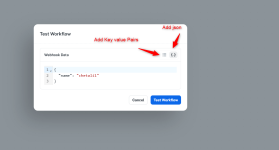
In the Webhook Data section, you can provide the input data in two ways:
- Add Key-Value Pairs – Use the key-value option to add fields and their values manually.
- Add JSON – Use the JSON option {} to add raw JSON data for testing.
1. Descriptive Webhooks:
For Descriptive Webhooks, the Test Trigger button remains disabled until the first payload is received.- The workflow must capture the first webhook payload from the source application.
- Once the payload is captured, the Test Trigger button becomes active.
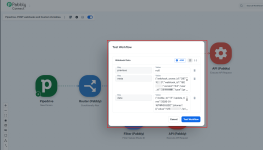
- Clicking the Test Workflow button opens a data editor pop-up.
- Users can modify the captured payload and test the workflow again.
- This ensures that the system has a reference payload structure before allowing test executions.
2. POST Webhooks:
For POST Webhooks, the Test Trigger feature becomes available once the system captures a trigger response.- Click Save & Send Test Request.
- Once the webhook response is captured, the system stores the payload.
- Clicking Test Workflow opens a pop-up containing the captured data.
- Users can edit the payload values before executing the workflow.
- Users can test different payload variations without sending multiple webhook requests from the source application.
3. Polling Triggers:
For Polling Triggers, the Test Trigger feature allows users to test workflows using the most recently polled data.- Clicking the Test workflow button directly executes the workflow.
- The workflow runs using the most recent successfully polled data.
- Authentication is re-validated during the test execution.
- Authentication is re-validated during test execution.
- For the Polling Triggers, when you use the “Test Workflow” option, only the most recent data from the source application will be fetched and displayed. No data input is required during testing.
- Users can test workflow logic without waiting for the next polling cycle.
4. Schedule (Pabbly):
For Schedule triggers, the Test Trigger behaves differently because schedules do not capture payload data.- The Test workflow button executes the workflow immediately.
- No pop-up is displayed, and no editable data fields are available.
- The workflow runs using the current timestamp.
- Allows instant execution of scheduled workflows for testing purposes.
5. Email Parser:
For Email Parser triggers, the Test Trigger works similarly to webhook triggers.- The Test workflow button remains disabled until the first email payload is received.
- Once a payload is captured:
- Clicking Test Trigger opens a data editor pop-up.
- The pop-up displays editable key-value pairs from the received payload.
- Users can modify the data and execute the workflow again.
- Allows testing the workflow logic without sending additional emails.
Benefits of the Test Workflow Feature:
The Test Trigger feature provides several advantages for workflow testing:- Faster testing without waiting for real events.
- Ability to edit and test sample data.
- Eliminates the need to send multiple webhook or email triggers.
- Helps validate workflow logic quickly.
- Simplifies debugging and troubleshooting.
- With the Test workflow feature, users can efficiently test and validate workflows directly from the canvas, making the workflow-building process faster and more reliable.
Note: For triggers such as Descriptive Webhooks, POST Webhooks, Polling Triggers, and Email Parser, a Response dropdown is available. The response selected in this dropdown will be used as the test data when running the Test Workflow option. To test the workflow with the most recent data, ensure that the latest response is selected in the dropdown.
Successful Integration:
Use the Test Workflow feature to quickly re-execute your workflow trigger using editable sample data without waiting for new events. It helps you test, validate, and troubleshoot your workflow logic directly from the workflow canvas.
If you encounter any issues or require additional assistance, feel free to contact our support team for help. ([email protected])
Happy integrating!
Attachments
Last edited:


