URGENT HELP WITH A PROBLEM IN GOOGLE SHEETS UPDATE COLUMN STEP
Status: Closed · Asked by Esteban Espinoza on · 0 views
Hello Esteban,
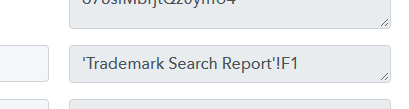
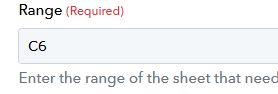
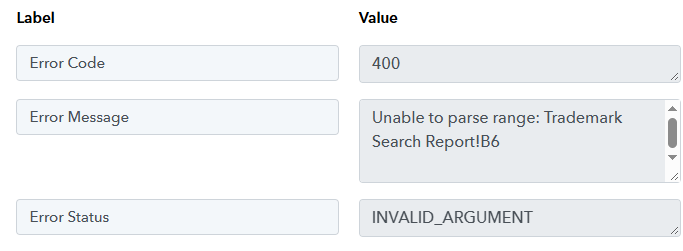
Thanks for the details and screenshots. The behavior you're seeing — where you intend to update cell C6 or B6 but the Update Row step reports that a different cell (like F1) was updated, or the wrong columns are mapped — is typically caused by merged header cells in your Google Sheet.
Pabbly Connect's Google Sheets integration requires that each column has exactly one, unmerged header cell in the first row. When headers are merged across multiple cells, the field mapping in the Update Row step can fail to detect the correct columns and update the wrong cell.
To fix this:
1. Open the target Google Sheet and unmerge any merged cells in the header row (row 1).
2. Ensure each column has a single, unique header in row 1.
3. Re-open your Pabbly Connect workflow, refresh/re-save the Google Sheets step, and re-map the fields.
4. Run a test again to confirm the correct cell is updated.
If the issue still persists after unmerging the headers, please reply with the workflow URL and the exact step name so we can verify it on our end.