display name does not exist problem
Status: Open · Asked by OnEasy Consultants on · 0 views
Hello,
Thank you for reaching out and for sharing these details.
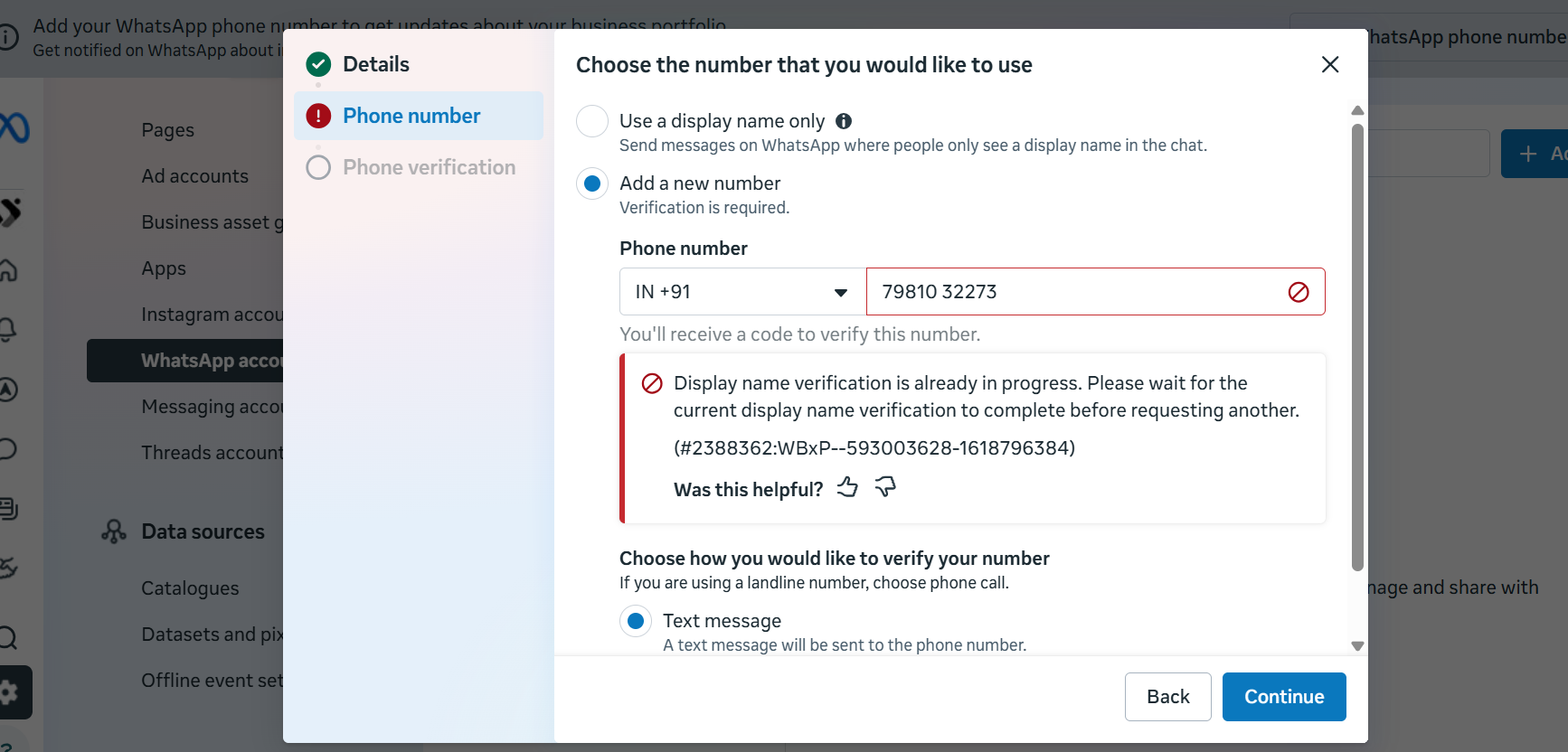
Please note that the "Does Not Exist" status next to your number refers to the display name status, which is managed entirely in your WhatsApp Business Account (WABA) on Meta — not in Pabbly. Your number remains fully connected, and sending/receiving messages is not blocked by this status.
A few important points:
1. Display name approval is handled entirely by Meta. Pabbly has no control over the review outcome or timeline, and we cannot check, accelerate, or escalate Meta's review from our end.
2. The "Display name verification is already in progress" message indicates Meta is currently reviewing your submission. Meta typically takes 24-48 hours, though it can sometimes take longer.
3. To improve approval chances, ensure the display name closely matches your registered brand/website, and that your website is fully functional and live. You can review Meta's official guidelines here: https://docs.pabbly.com/s/f3b40ae7-4846-4110-8cf3-cdd0cf3467c2/doc/display-name-guidelines-for-the-whatsapp-business-platform-4ajzte7Xhy
4. If the name remains pending well beyond 48 hours or keeps getting rejected after following the guidelines, you may try submitting a name that aligns even more closely with your registered brand.
If you have already waited beyond this window, please let us know and we will have our team look into the specific status with you.
Thank you for the details. The display name for +91 79810 32273 was submitted around Oct 12, 2026, so it has been well beyond 48 hours, and Meta still says "Display name verification is already in progress" when I try again. Please have your team look into the specific status as you offered.
Also, my test message from the dashboard to 6300286742 was not delivered. Could you check the delivery status or error code for that message?
Hello Akhil,
We accessed your WhatsApp number in Pabbly Chatflow and checked the available actions. We found the following errors:
Subscribe: “Couldn't subscribe the WhatsApp number — WhatsApp API error 400: API access blocked.”
Sync WhatsApp Number: “Couldn't sync the business details. Chatflow no longer has permission to manage this number on Meta.”
These errors indicate that Pabbly Chatflow currently lacks the required permission to manage your WhatsApp number on Meta.
Please follow these steps to update your permanent access token:
Step 1: Generate a permanent access token in Meta
Open Meta Business Settings.
Navigate to Users → System Users.
Create or select an Admin system user.
Click Add Assets and assign the relevant Meta app with the required permissions.
Click Generate New Token and select your WhatsApp app.
Set the token expiration to Never if that option is available.
Select the permissions, then update.
Generate the token and copy it securely.
Step 2: Update the token in Pabbly Chatflow
Open your Pabbly Chatflow dashboard.
Locate your connected WhatsApp number.
Click the three-dot menu on the right and select Update Token.
Paste the new access token and verify the WhatsApp Business Account ID and Phone Number ID.
Click Update.
Step 3: Retry the WhatsApp number actions
After updating the token, try these actions in order:
Subscribe to the WhatsApp number.
Sync the WhatsApp number.
Register the WhatsApp number, if prompted or required.
Please try these steps and let us know whether the actions complete successfully or if you encounter another error.
Refer:
Hello Akhil,
We recommend reconnecting the WhatsApp number using the WhatsApp Connect method as well, without deleting the number:
Go to WhatsApp Connect.
Click Next → Next → Next
Grant all the required permissions when prompted
Complete the process to re-register the number
This should restore the necessary permissions and resolve the issue.
Please do not delete the WhatsApp number from Pabbly Chatflow. You only need to reconnect the number by completing the connection steps again and granting the required permissions.
We hope this clarifies the situation. Please try the above steps, and if the issue persists, do let us know. We’ll be happy to assist you further.