

This documentation provides a comprehensive, step-by-step guide to understanding the Amazone Seller Central setup process. For example purposes, we have chosen "Amazone Seller Central" as our focus application.
Follow these steps to build the app integration of other Amazon app services.
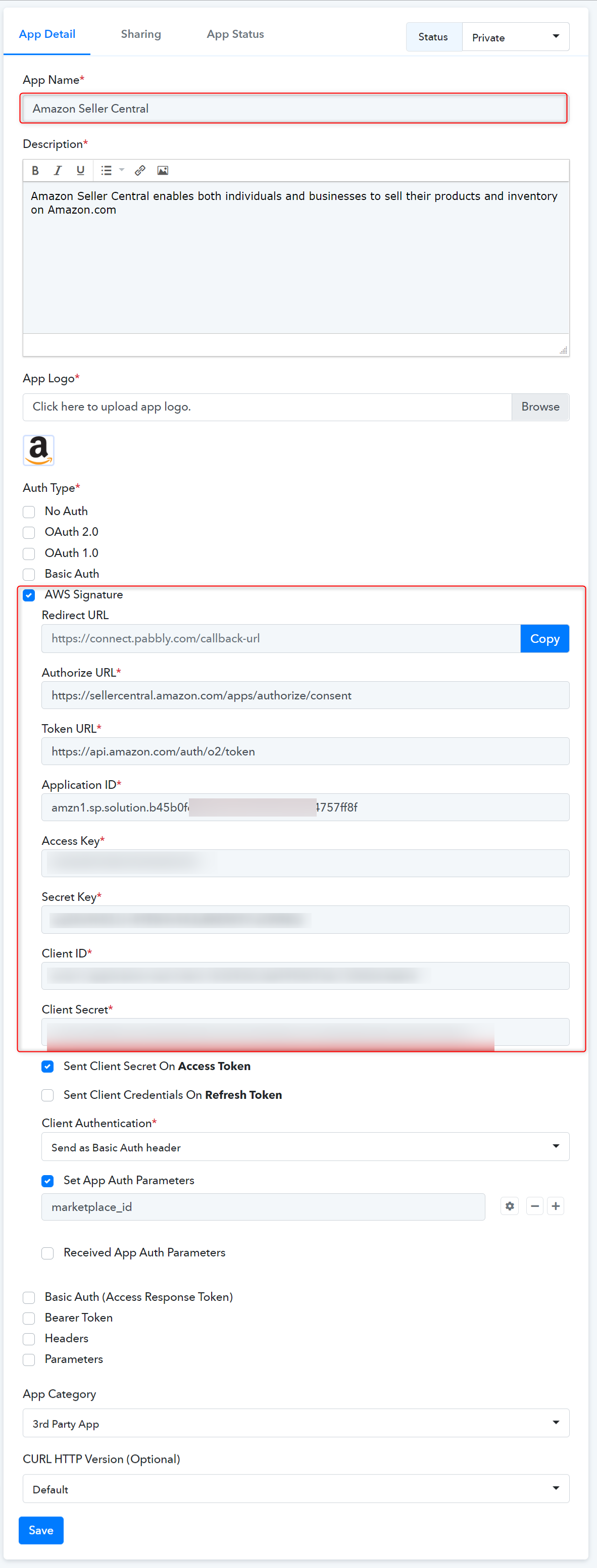
 We followed the Amazon Seller Central API docs for selecting the Auth type as AWS Signature. Learn more
To get the above details such as Client ID, Client secret, Access Key, and Secret Key, you need to register the app in the Amazon developer portal.
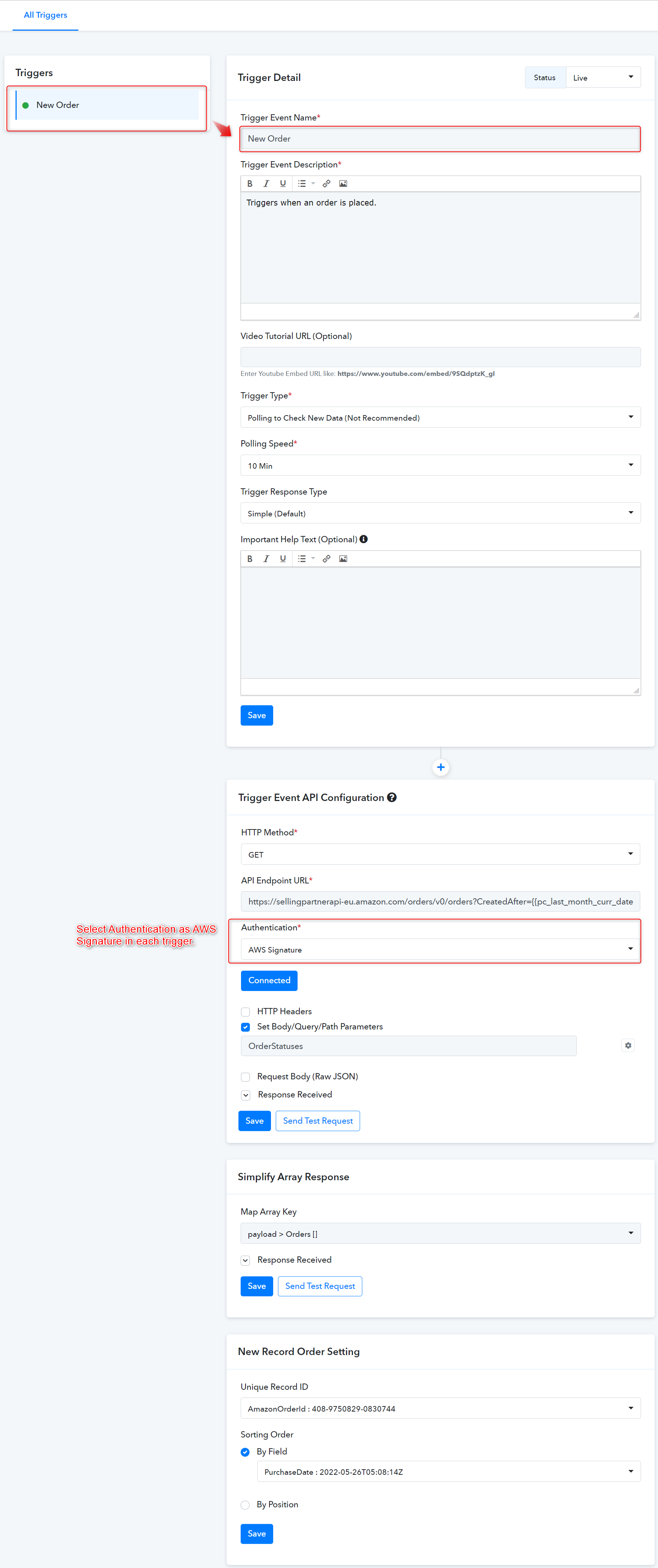
In this type of integration, you need to configure Get API similar to Post webhook trigger integration to fetch new data in a specific interval.
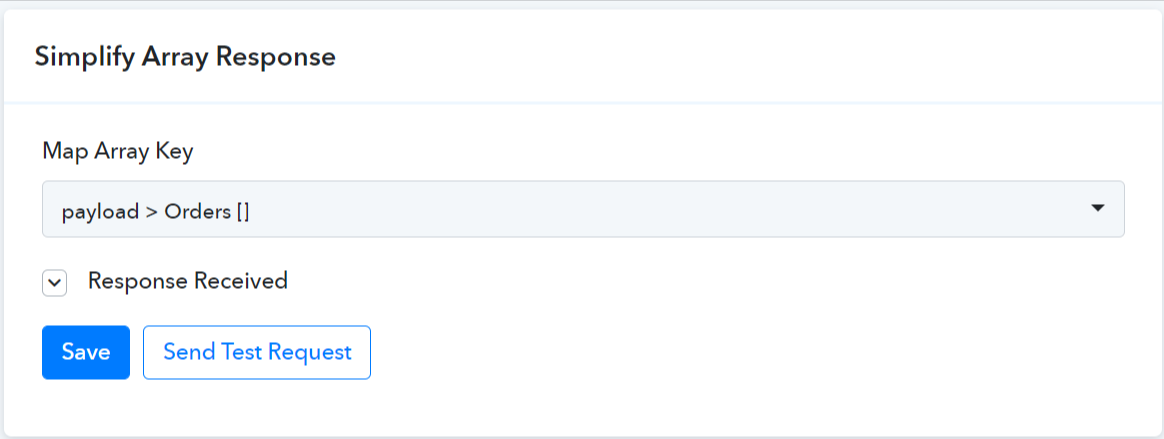
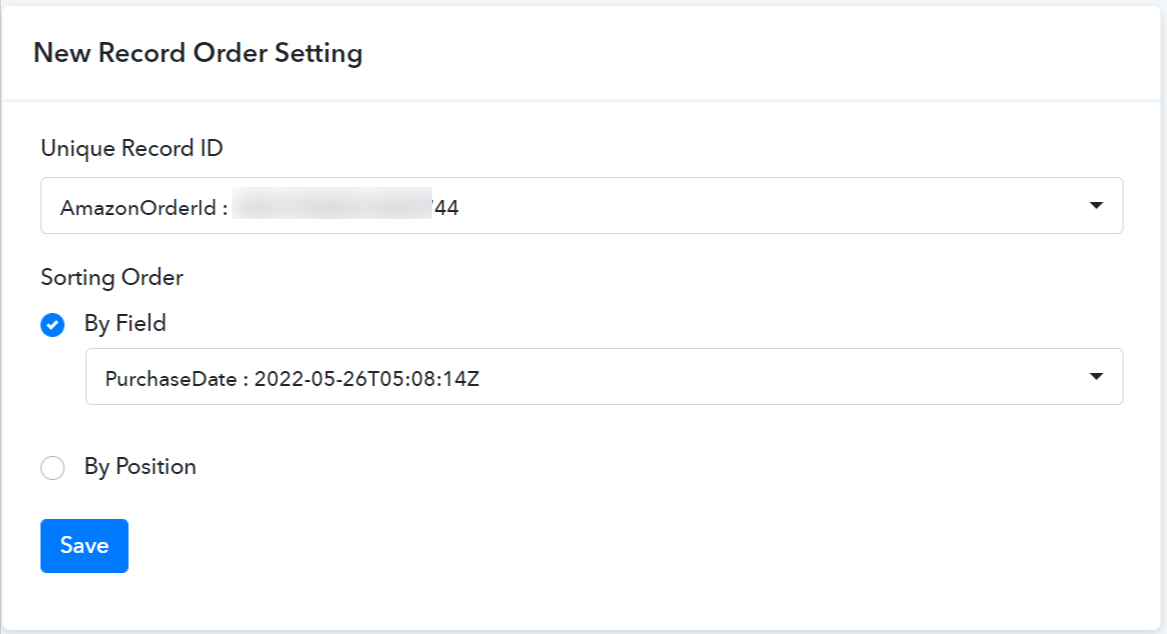
The New Record Order Setting section as shown below allows you to tell Pabbly Connect about how it can recognize the fetched record is new.
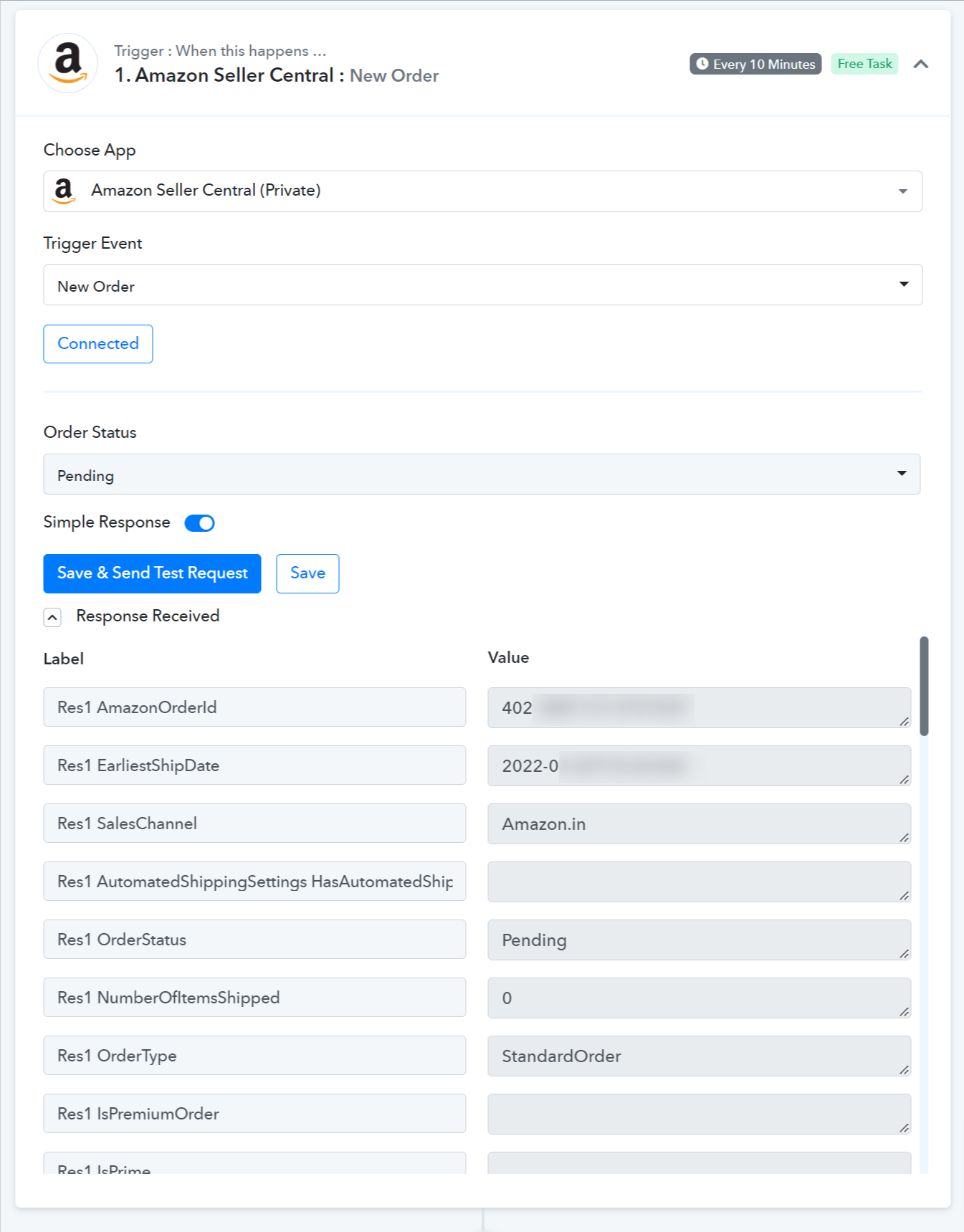
Trigger Frontend View:
Type - Get
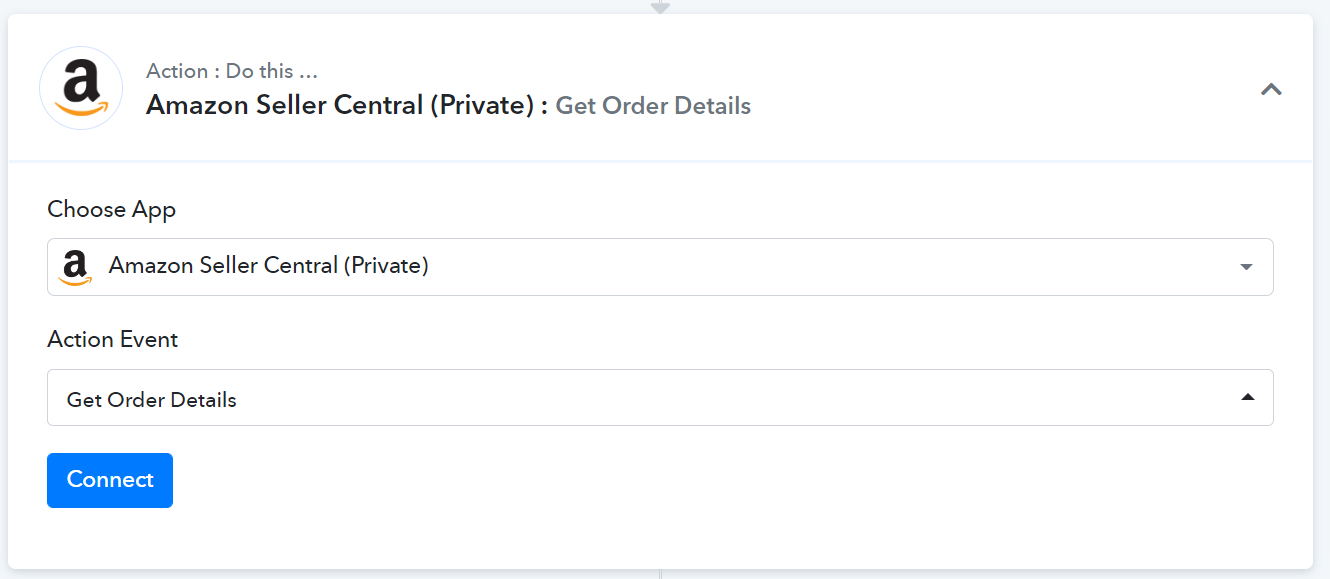
Action Frontend View:
For further details, refer to this guide for creating new actions and triggers in your application. Learn more
Refer to the video below for instructions on creating your app with a similar authentication type: Learn more
Follow these steps to build the app integration of other Amazon app services.
- App Details and Auth Configuration:
We followed the Amazon Seller Central API docs for selecting the Auth type as AWS Signature. Learn more To get the above details such as Client ID, Client secret, Access Key, and Secret Key, you need to register the app in the Amazon developer portal.- Authorize URL - Enter your app Authorize URL to retrieve the authorization code here e.g. https://www.facebook.com/v10.0/dialog/oauth
- Token URL - Enter your app Token URL to exchange the authorization code for an access token here e.g. https://graph.facebook.com/v10.0/oauth/access_token
- Application ID - Enter the Application ID generated for your developer app in the AWS developer area.
- Access Key - Enter the access key generated while creating the user from the AWS console.
- Secret Key - Enter the secret key generated while creating the user from the AWS console.
- Client ID - Enter your app Client ID.
- Client Secret - Enter your app Client Secret.
- How to Configure Triggers Event:
In this type of integration, you need to configure Get API similar to Post webhook trigger integration to fetch new data in a specific interval.
- In the above screenshot, we set the parameter as "OrderStatuses" to add a multi-select dynamic dropdown.
- Set the Request Body JSON.
- Save and Send the test request and fetch the response.
The New Record Order Setting section as shown below allows you to tell Pabbly Connect about how it can recognize the fetched record is new.
- Unique Record ID: Choose a unique record ID from the received response of the above step that uniquely identifies the new record.
- Sorting Order: Since the fetched records may be single or a bunch so, it is important to identify the record as new it may be based on any specific field of the new data like date value. Based on its value, the system compares the old data with this one and processes it for triggering if it finds any difference.
Trigger Frontend View:
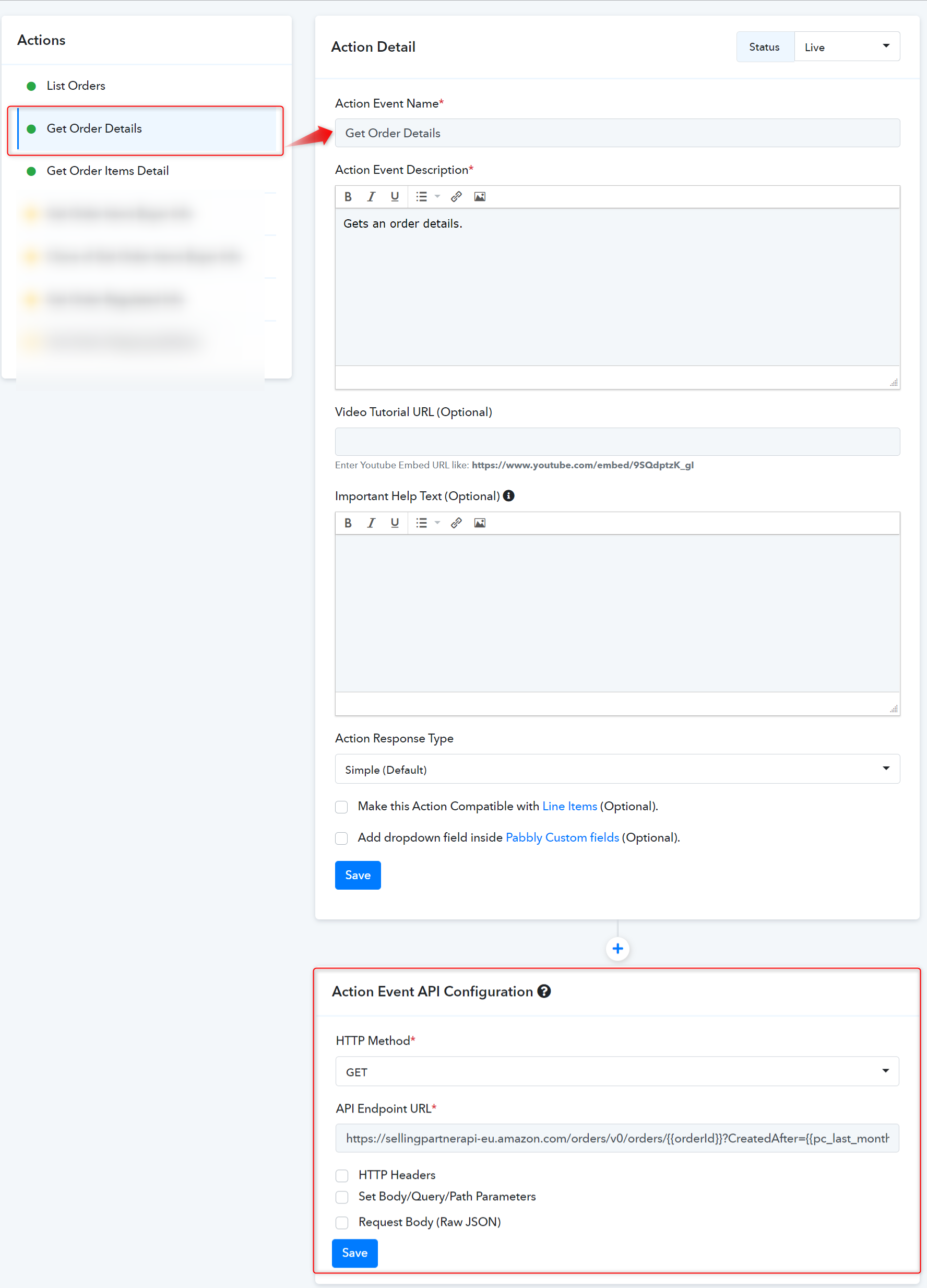
- How to Configure Action Event:
Type - Get
Action Frontend View:
For further details, refer to this guide for creating new actions and triggers in your application. Learn moreRefer to the video below for instructions on creating your app with a similar authentication type: Learn more
Last edited by a moderator:

