hypethatup
Member
- Consent to Access & Modify
- I authorize Pabbly Support to log in to my account and make changes to the specified workflow for troubleshooting.
In Pabbly Connect, I'm using 'Facebook Lead Ad' under trigger to fetch Facebook Leads and in Action, I'm using Telegram Bot to send the leads to Telegram Group. (Facebook Leads --> Telegram Group)
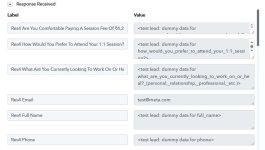
Since few days, Facebook has stopped/disabled its 'Preview Form' option in Lead Ads Testing Tool (https://developers.facebook.com/tools/lead-ads-testing), the only way to create a test lead is by using their default button of 'Create Lead', which sends dummy lead that has <test> attribute. (See the attached screenshot)
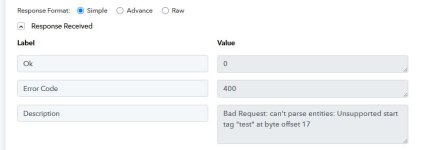
This dummy lead has dummy data like <test lead: dummy data for full_name>, <test lead: dummy data for phone> which is creating an Error Code 400 and says 'Bad Request: can't parse entities: Unsupported start tag "test" at byte offset 17' (See the attached screenshot)
How to solve this error? (Also, this issue is because Telegram doesn't support <test> attribute, I tried same forwarding leads to Google Sheets and that works. This is only because Telegram API doesn't support <test> as a valid HTML tag. Also, I don't want to implement any text formatter as the real leads will not have <test> tag, it is only for our testing that the workflow is working properly, and leads are received on Telegram.)
Since few days, Facebook has stopped/disabled its 'Preview Form' option in Lead Ads Testing Tool (https://developers.facebook.com/tools/lead-ads-testing), the only way to create a test lead is by using their default button of 'Create Lead', which sends dummy lead that has <test> attribute. (See the attached screenshot)
This dummy lead has dummy data like <test lead: dummy data for full_name>, <test lead: dummy data for phone> which is creating an Error Code 400 and says 'Bad Request: can't parse entities: Unsupported start tag "test" at byte offset 17' (See the attached screenshot)
How to solve this error? (Also, this issue is because Telegram doesn't support <test> attribute, I tried same forwarding leads to Google Sheets and that works. This is only because Telegram API doesn't support <test> as a valid HTML tag. Also, I don't want to implement any text formatter as the real leads will not have <test> tag, it is only for our testing that the workflow is working properly, and leads are received on Telegram.)