TEMPLATE chat flow automation
Status: Closed · Asked by Moiz Rumalwala on · 0 views
Hello Moiz,
Thank you for reaching out.
The issue you are experiencing with your chatflow not advancing is likely because the "Subscribe" API feature has not been triggered. To enable this functionality and allow the chatflow to progress automatically, you will need to be on a paid Pabbly Chatflow plan.
You can view our pricing options and upgrade your account here: https://www.pabbly.com/chatflow/#pricing
Once you have upgraded to a qualifying plan, the Subscribe API feature will be enabled, allowing your chatflow to transition correctly to the next questions.
Aditya Chourey
Customer Support Associate
🌐 Pabbly.com
👉 Rate your support
Black Friday Early Access

But the free trial plan has 100 credits. cant i use it for my testing? This problem also occurs in the test message in broadcast.
Also, how can i collect the data of chat flow survery in excel sheet as this is for an event RSVP
Hello Moiz,
We have checked your chatflow from our end and identified that you are using the incorrect trigger configuration. The trigger currently selected does not include buttons, which is why the chatflow is not proceeding to the next question when a user selects an answer.
We have attached a screenshot showing the correct trigger configuration. Please make the necessary changes to your chatflow as per the attached screenshot and test it again. You can also use the free trial credits for testing.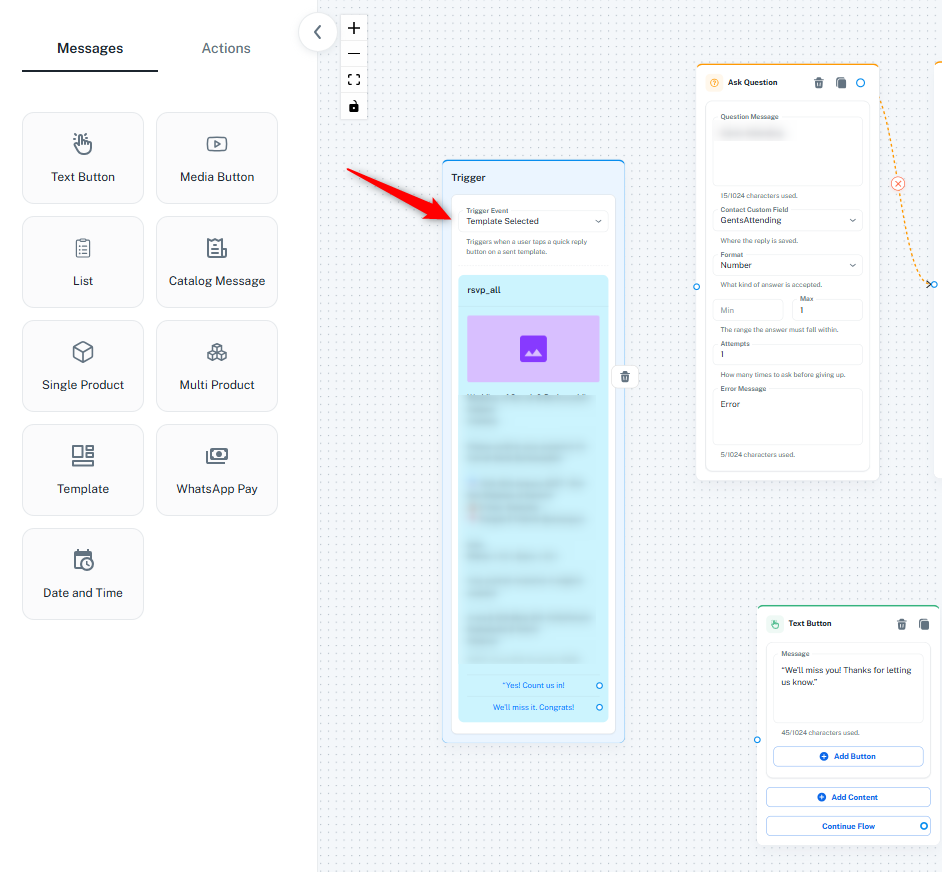
Regarding collecting Chatflow survey responses in Google Sheets:
You can achieve this using the Pabbly Connect integration. Please follow these steps:
Configure the API Request in Chatflow:
Add the API Request action at the appropriate point in your flow.
Configure it to send the collected survey responses and other required details.
Set the request method and payload according to the data you want to capture.
Configure Pabbly Connect:
Log in to your Pabbly Connect account.
Create a new workflow.
Select Webhook by Pabbly as the trigger application and copy the generated webhook URL.
Connect Chatflow with Pabbly Connect:
Paste the copied webhook URL into the API Request configuration in Chatflow.
Map the required survey response fields in the request payload.
Submit a test response from your Chatflow to capture the sample data in Pabbly Connect.
Send Data to Google Sheets:
Add Google Sheets as the action application in Pabbly Connect.
Select the required spreadsheet and worksheet.
Map the captured Chatflow response fields to their respective Google Sheets columns.
Video Tutorial:
Please refer to the following video tutorial for guidance on configuring the webhook and sending data to Google Sheets using Pabbly Connect:
https://youtu.be/3TQaz3tQf-k?si=4-d7XVsKZKJhdYxf
Once configured, whenever a user completes the RSVP survey, their responses will automatically be sent to your Google Sheet.
Aditya Chourey
Customer Support Associate
🌐 Pabbly.com
👉 Rate your support
Black Friday Early Access
Hello. Thank you. the chatflow is working now. But i do not understand the steps in connecting the responses to google sheets or excel sheets. Can you please assist in this.
Thank you.
Hello Moiz,
Thank you for the confirmation. Glad to know that your chatflow is now working correctly.
Regarding collecting the Chatflow survey responses in Sheets, you can achieve this using Pabbly Connect. Please follow the steps below:
Step 1: Configure the API Request in Chatflow
Add the API Request action at the appropriate point in your chatflow.
Configure it to send the collected survey responses and other required details.
Set the request method and payload according to the data you want to capture.
For a better understanding, please refer to this video tutorial:
Watch: How to Add an API Request in Pabbly Chatflow
Step 2: Configure Pabbly Connect
Log in to your Pabbly Connect account.
Create a new workflow.
Select Webhook by Pabbly as the trigger application.
Copy the generated webhook URL.
Step 3: Connect Chatflow with Pabbly Connect
Paste the copied webhook URL into the API Request configuration in Chatflow.
Map the required survey response fields in the request payload.
Submit a test response through your Chatflow to capture the sample data in Pabbly Connect.
Step 4: Send Responses to Sheets
Add Sheets as the action application in Pabbly Connect.
Select the required spreadsheet and worksheet.
Map the captured Chatflow response fields to their respective Sheets columns.
Once configured, whenever a user submits the RSVP survey, their responses will automatically be added to your Google Sheet.
For guidance on configuring the Pabbly Connect workflow, please refer to this video:
Watch: How to Configure Webhook and Google Sheets in Pabbly Connect
Please follow both video tutorials to complete the integration.
Aditya Chourey
Customer Support Associate
🌐 Pabbly.com
👉 Rate your support
Black Friday Early Access
I connected to the google sheets, but i am unable to map the data in API in the chat flow.also i would like to know how can i get the responses from the recepients without them having to fill their names & mobile numbers as i want it to reflect in the google sheets against their responses

do not follow the chat flow trial2
Hello Moiz,
To help you map the data correctly, please follow these steps to configure the integration between Chatflow and Pabbly Connect:
1. In Pabbly Chatflow (The Sender):
- In your flow, add the API Request action at the step where you want to send the data.
- Set the Method to POST.
- In the URL field, paste the Webhook URL you generated in Pabbly Connect.
- Under JSON Payload, you need to define the keys and map your survey variables. For example, if you are asking for "RSVP Status," set the key as rsvp_status and select the corresponding variable from the chatflow response.
2. In Pabbly Connect (The Receiver):
- Ensure the trigger is set to Webhook by Pabbly.
- After you save the API Request in Chatflow, go to your live chatflow and trigger it by answering the questions.
- Pabbly Connect will then capture the response data, and you will see the fields (like your survey answers) appear in the response window.
- Once captured, add Google Sheets as your Action step and map those specific fields into your columns.
Regarding your request to collect responses without names/mobile numbers:
Yes, this is possible. You do not need to force the user to provide personal details if you don't want to. Simply map only the survey question variables (e.g., "Answer 1," "Answer 2") in your API Request payload. As long as you map those specific variables in Pabbly Connect, they will be sent to your sheet even without the name or phone number.
Please let me know if you get stuck at a specific step in the mapping process!
Aditya Chourey
Customer Support Associate
🌐 Pabbly.com
👉 Rate your support
Black Friday Early Access
now i receive this error

Hello,
The issue has been resolved from our end. We have tested the broadcast successfully, and the test message is now being sent successfully. Please find the attached screenshot for your reference.
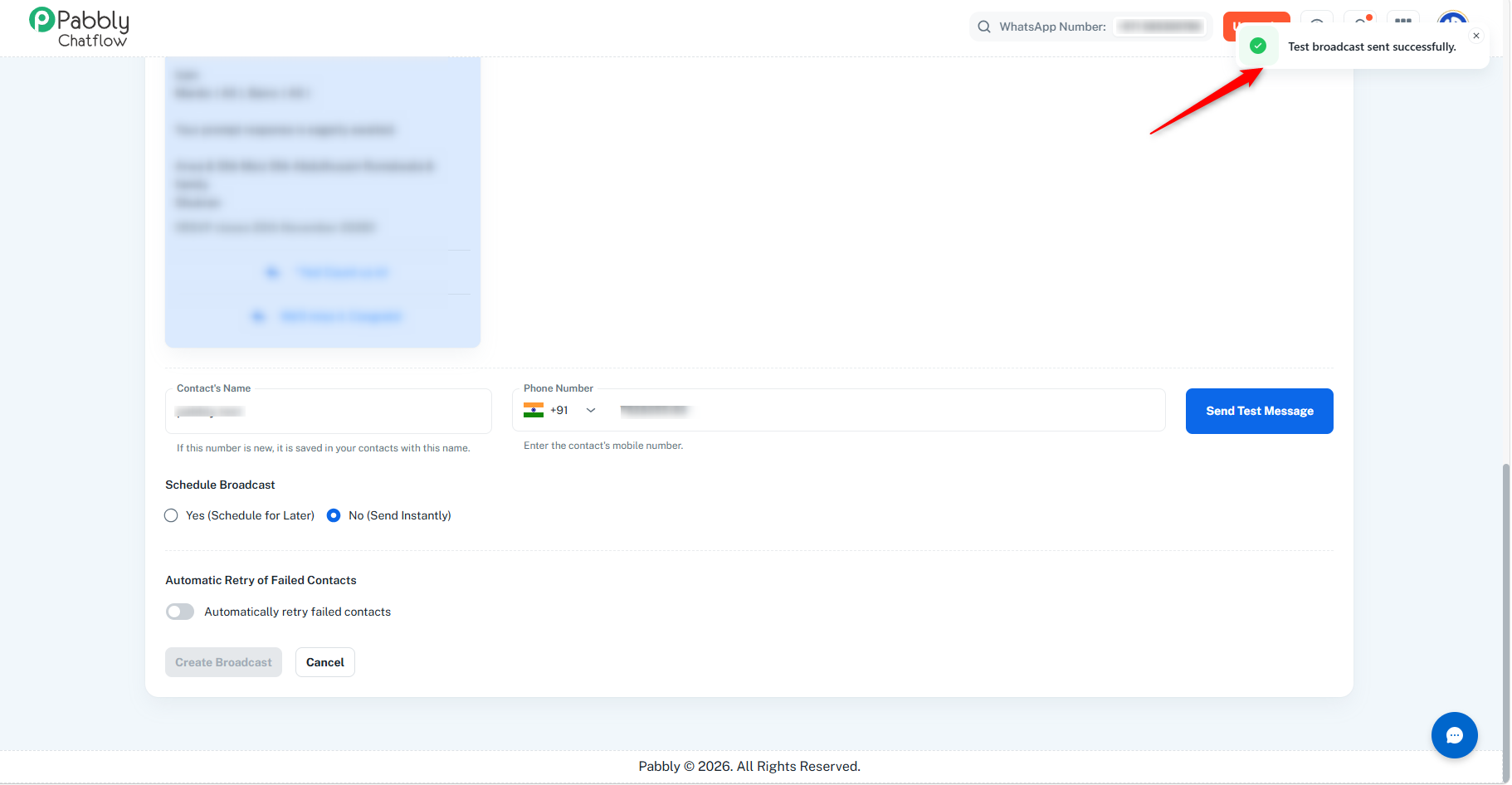
Kindly try creating your broadcast now. It should work as expected.
Also, we kindly request you not to share any personal or sensitive details on the public support forum. Please hide or remove such details to protect your privacy.
Aditya Chourey
Customer Support Associate
🌐 Pabbly.com
👉 Rate your support
Black Friday Early Access
Under JSON Payload, how do i define the keys and map survey variables.
Hi Moiz,
To pass the survey responses dynamically through the JSON Payload, please follow these steps:
Open your Chatflow and navigate to the API Request action.
Select POST as the request method.
Under the JSON Payload section, define the keys for the survey fields you want to capture.
Map the corresponding survey variables as values.
Example:
{
"name": "$name",
"email": "$email",
"rsvp_status": "$rsvp_status"
}
Here, name, email, and rsvp_status are JSON keys, while the values represent the corresponding dynamic survey variables. Replace these with your actual variable names.
Alternatively, if you don't want to use a JSON Payload, you can directly add the details you want to share under the Params section. Add the required parameter names and map their corresponding survey variables as values.
Once configured, save the action and submit a test survey response to verify that the data is received correctly in Pabbly Connect.
You can also refer to this tutorial for guidance:
https://www.youtube.com/watch?v=TMu35XAOK0A&t=538s
Aditya Chourey
Customer Support Associate
🌐 Pabbly.com
👉 Rate your support
Black Friday Early Access
the webhook fields are not mapping with the pabbly connect workflow
Hello Moiz,
Thank you for reaching out.
To better understand your issue and your specific use case, we would like to schedule a meeting with you. You can pick a convenient time slot using the following link:
👉 Schedule a Support meeting: https://www.draftmeet.com/book/lnk_31235f2e874094b15d717f1186f17103
Once scheduled, we’ll discuss your workflow in detail and provide guidance to resolve the issue efficiently.
Looking forward to speaking with you.
Aditya Chourey
Customer Support Associate
🌐 Pabbly.com
👉 Rate your support
Black Friday Early Access
Hello Moiz,
I am following up to check if you have had a chance to book a time slot for our support meeting.
We haven't received a booking confirmation yet, and I would like to help you resolve the mapping issue as soon as possible. Please use the link below to select a time that works best for you:
👉 Schedule a Support meeting: https://www.draftmeet.com/book/lnk_31235f2e874094b15d717f1186f17103
Once scheduled, we can walk through your workflow together and ensure everything is set up correctly. Looking forward to hearing from you.
Hi,
We’re following up on our previous email regarding your query. As we haven’t received a response, this will be our last follow-up, and the ticket will be closed automatically.
If you still need assistance, you can email us again at support@pabbly.com to raise your concern.