Urgent: Need Support With WhatsApp Document Template & Automation Setup
Status: Open · Asked by Anjali koli on · 0 views
Hi Pabbly Support Team,
I need urgent assistance with my Pabbly Chatflow WhatsApp setup.
I am currently setting up an automation where, once someone books a call through Calendly, they should automatically receive:
A WhatsApp call confirmation message
Our ClimbnRise company profile PDF
A client review video
My WhatsApp number connected with Chatflow is +91 9225162801.
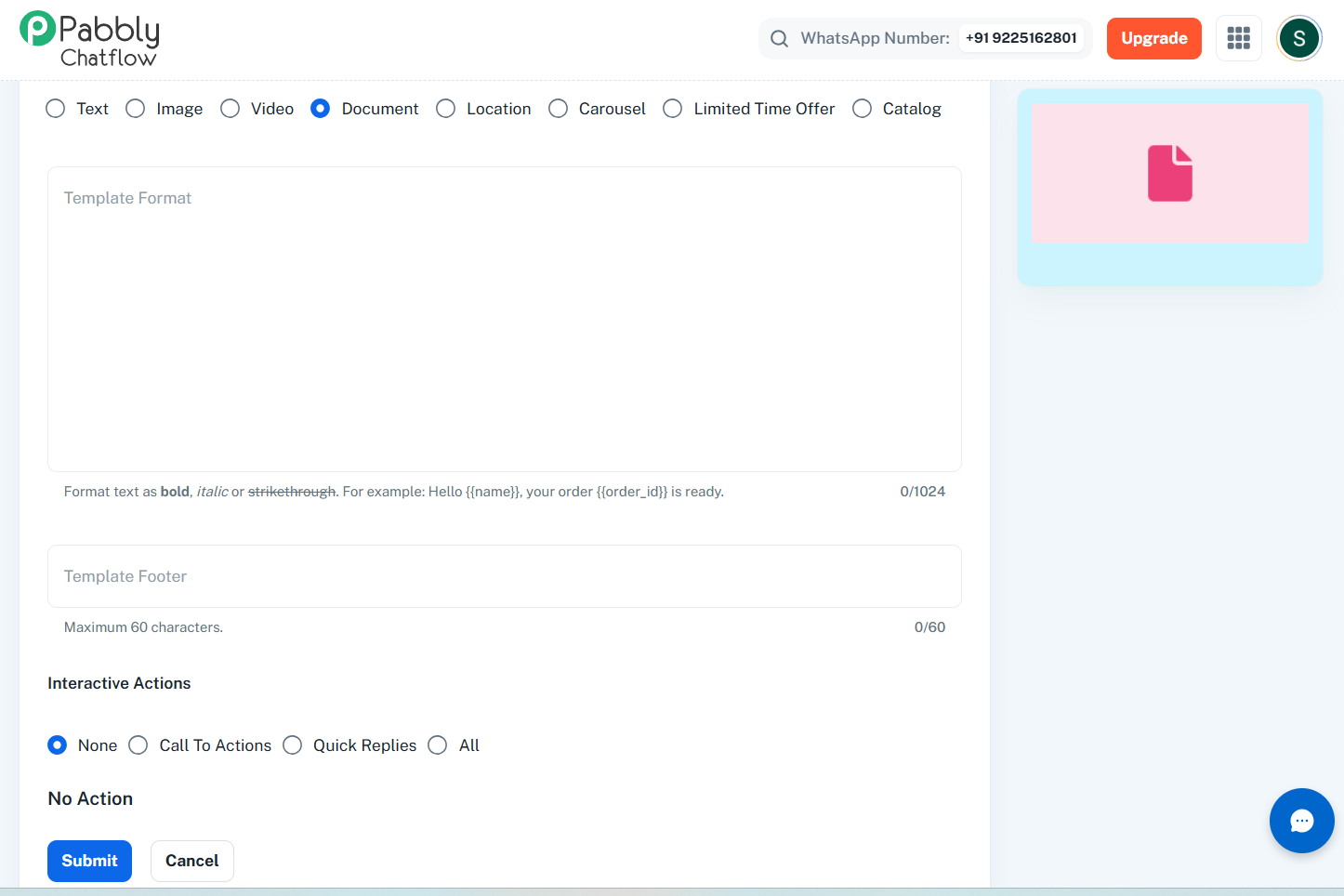
At the moment, I am facing an issue while creating a Document Template in Pabbly Chatflow. I have selected “Document” as the template type, but I cannot see any option to upload or attach the PDF while creating the template.
I also want to make sure the complete Calendly → Pabbly Connect → Pabbly Chatflow automation is configured correctly so that the PDF and video are automatically sent to every person who books a call.
Could your team please:
Check my setup/account from your backend
Confirm whether the WhatsApp number and Chatflow connection are configured correctly
Guide me on exactly where the PDF and video need to be uploaded/mapped
Help me resolve any issue that may be preventing the setup from working correctly
This is urgent as I need to complete and activate this automation today.
If anyone from your support team is available today, I would really appreciate a Google Meet session so we can resolve this quickly.
If a meeting is not possible, please guide me through the required steps over chat/message and check the issue from your backend wherever possible.
Please help me get this resolved today.
Regards,
Sidharth Parmar
Founder & CEO
ClimbnRise Digital Marketing Pvt. Ltd.
Hello Sidharth,
When creating a WhatsApp template in Pabbly Chatflow, you only need to configure and fill in the required details of the template. You do not need to upload the actual PDF, document, or other media while creating the template.
The actual document or media is selected when you send the template message.
If you are sending the template directly through the Pabbly Chatflow Inbox, you will get the option to select or attach the relevant document or media at the time of sending the message.
Alternatively, if you are sending the template through Pabbly Connect, the respective field for the media type will be available in the Pabbly Chatflow action step. You can provide the publicly accessible URL of the PDF or other media in that field.
Once the template is created and approved, you can proceed with configuring the Calendly → Pabbly Connect → Pabbly Chatflow automation accordingly.