This documentation offers a comprehensive, step-by-step guide to integrating your Google Sheets account with Pabbly Connect. By following these instructions, you can effortlessly establish a seamless connection between the two platforms.
How to authorize Google Sheets (Developers) in Pabbly Connect?
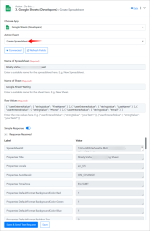
Within Pabbly Connect, navigate to the action step and choose "Google Sheets (Developers)" as the action you wish to perform. Select an action event, such as "Add New Row".
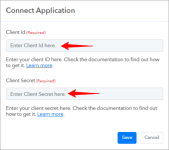
Click on the "Connect" button, choose the "Add New Connection" radio button, and click on the "Connect With Google Sheets Personal Oauth" button.
Enter the "Client ID" and "Client Secret" to establish a new connection.
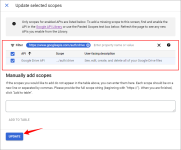
Create and Configure a Google Cloud Console project for Google Sheets
To connect to Pabbly Connect using your own client credentials, you can create and configure a project in the Google Cloud Console.
Create a Google Cloud Console project for Google Sheets
Create a new spreadsheet and navigate to the "Extensions", move to the "Add-ons" option, and then click on "Get add-ons".
Search for and install the Pabbly Connect Webhooks add-on and refresh the page.
Again, go to "Extensions" and select Pabbly Connect Webhooks. Choose "Initial Setup" and enter the provided Webhook URL and trigger column.
Click "Send Test" to verify the webhook response and then click on the "Submit" button to save the Initial setup.
Access Pabbly Connect webhook from the sheet menu under extensions and choose the event for sending webhook data. That's it. You have successfully set up the webhook in your Google Sheets as a trigger.
Ensure the trigger column is adjusted to capture new or updated rows.
If you are manually making the change in the Spreadsheet, the updated data will be sent immediately to Pabbly Connect. Ensure enabling the Send on Event option in the addon.
If the change is made through an external platform besides Google Forms in the Spreadsheet, the trigger will be sent once every hour. Ensure you enable the Send on Schedule option in the addon.
Click on "Capture Webhook Response" and submit a test form to ensure the new response is captured correctly.
Google Sheets (Developers): Add New Row(Action Event)
Please follow the steps below to add a new row in your sheet for the above-mentioned action event:
Use Case: To add a new row in your sheet in your Google Sheets account.
Select "Add New Row" as an action event, connect your Google Sheets account, choose the connection type (either new connection or existing connection), and click the "Save" button (For help with authorization, check out the "How to authorize Google Sheets in Pabbly Connect?" section.)
Select "Spreadsheet" and "Sheet" and enter the details that are required to add a new row.
Google Sheets (Developers): Add New Row(Shared Drive)(Action Event)
Please follow the steps below to add a new row in your sheet in the shared drive for the above-mentioned action event:
Use Case: To add a new row in your sheet in the shared drive to your Google Sheets account.
Select "Add New Row(Shared Drive)" as an action event, connect your Google Sheets account, choose the connection type (either new connection or existing connection), and click the "Save" button (For help with authorization, check out the "How to authorize Google Sheets in Pabbly Connect?" section.)
Select "Shared Drive", "Spreadsheet" and "Sheet" and enter the details that are required to add a new row.
Google Sheets (Developers): Add Multiple Rows(Action Event)
Please follow the steps below to add multiple rows at a time in your sheet for the above-mentioned action event:
Use Case: To add multiple rows at a time in your sheet to your Google Sheets account.
Select "Add Multiple Rows" as an action event, connect your Google Sheets account, choose the connection type (either new connection or existing connection), and click the "Save" button (For help with authorization, check out the "How to authorize Google Sheets in Pabbly Connect?" section.)
Select "Spreadsheet" and "Sheet" and enter the details with comma-separated that are required to add the rows.
Google Sheets (Developers): Append Values(Action Event)
Please follow the steps below to add the column values in your sheet for the above-mentioned action event:
Use Case: To add the column values in your sheet to your Google Sheets account.
Select "Append Values" as an action event, connect your Google Sheets account, choose the connection type (either new connection or existing connection), and click the "Save" button (For help with authorization, check out the "How to authorize Google Sheets in Pabbly Connect?" section.)
Select "Spreadsheet" and "Sheet" and enter the details with comma-separated that are required to add the column values.
Google Sheets (Developers): Create Sheet(Action Event)
Please follow the steps below to create a new sheet inside your spreadsheet for the above-mentioned action event:
Use Case: To create a new sheet inside your spreadsheet for your Google Sheets account.
Select "Create Sheet" as an action event, connect your Google Sheets account, choose the connection type (either new connection or existing connection), and click the "Save" button (For help with authorization, check out the "How to authorize Google Sheets in Pabbly Connect?" section.)
Select "Spreadsheet" and enter the name of the new Sheet.
Google Sheets (Developers): Create a Spreadsheet(Action Event)
Please follow the steps below to create a new spreadsheet for the above-mentioned action event:
Use Case: To create a new spreadsheet for your Google Sheets account.
Select "Create a Spreadsheet" as an action event, connect your Google Sheets account, choose the connection type (either new connection or existing connection), and click the "Save" button (For help with authorization, check out the "How to authorize Google Sheets in Pabbly Connect?" section.)
Enter the name of the spreadsheet, and sheet, and also enter the row values.
Google Sheets (Developers): Copy a Spreadsheet(Action Event)
Please follow the steps below to create a new sheet by copying an existing sheet from a spreadsheet for the above-mentioned action event:
Use Case: To create a new sheet by copying an existing sheet from a spreadsheet for your Google Sheets account.
Select "Copy a Spreadsheet" as an action event, connect your Google Sheets account, choose the connection type (either new connection or existing connection), and click the "Save" button (For help with authorization, check out the "How to authorize Google Sheets in Pabbly Connect?" section.)
Select the "Spreadsheet", "Sheet" and "Destination Spreadsheet" values.
Google Sheets (Developers): Copy Sheet Data(Action Event)
Please follow the steps below to copy data from the source range to the destination range for the above-mentioned action event:
Use Case: To copy data from the source range to the destination range for your Google Sheets account.
Select "Copy a Spreadsheet" as an action event, connect your Google Sheets account, choose the connection type (either new connection or existing connection), and click the "Save" button (For help with authorization, check out the "How to authorize Google Sheets in Pabbly Connect?" section.)
Select the "Spreadsheet", and "Source SheetID" and enter the required values.
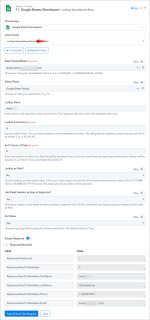
Google Sheets (Developers): Lookup Spreadsheet Rows(Action Event)
Please follow the steps below to get the specific column values by using the lookup value for the above-mentioned action event:
Use Case: To get the specific column values by using the lookup value for your Google Sheets account.
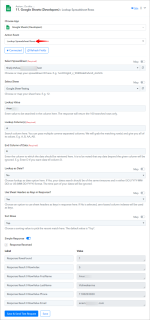
Select "Lookup Spreadsheet RowsV2" as an action event, connect your Google Sheets account, choose the connection type (either new connection or existing connection), and click the "Save" button (For help with authorization, check out the "How to authorize Google Sheets in Pabbly Connect?" section.)
Select the "Spreadsheet", and "Sheet" and enter the required values.
Google Sheets (Developers): Get Row(s)(Action Event)
Please follow the steps below to get the specific row(s) from the sheet based on the specified range for the above-mentioned action event:
Use Case: To get the specific row(s) from the sheet based on the specified range for your Google Sheets account.
Select "Get Row(s)" as an action event, connect your Google Sheets account, choose the connection type (either new connection or existing connection), and click the "Save" button (For help with authorization, check out the "How to authorize Google Sheets in Pabbly Connect?" section.)
Select the "Spreadsheet", and "Sheet" and enter the range value.
Google Sheets (Developers): List Sheets(Action Event)
Please follow the steps below to get a list of all sheets in a spreadsheet for the above-mentioned action event:
Use Case: To get a list of all sheets in a spreadsheet for your Google Sheets account.
Select "List Sheets" as an action event, connect your Google Sheets account, choose the connection type (either new connection or existing connection), and click the "Save" button (For help with authorization, check out the "How to authorize Google Sheets in Pabbly Connect?" section.)
Select the "Spreadsheet" and click on "Save and Send Test Request".
Google Sheets (Developers): Search a Spreadsheet(Action Event)
Please follow the steps below to search a specific spreadsheet for the above-mentioned action event:
Use Case: To search a specific spreadsheet for your Google Sheets account.
Select "Seach a Spreadsheet" as an action event, connect your Google Sheets account, choose the connection type (either new connection or existing connection), and click the "Save" button (For help with authorization, check out the "How to authorize Google Sheets in Pabbly Connect?" section.)
Enter the spreadsheet name and choose the "Match Option".
Google Sheets (Developers): Update Row(Action Event)
Please follow the steps below to update a row in a specific sheet for the above-mentioned action event:
Use Case: To update a row in a specific sheet in the spreadsheet for your Google Sheets account.
Select "Update Row" as an action event, connect your Google Sheets account, choose the connection type (either new connection or existing connection), and click the "Save" button (For help with authorization, check out the "How to authorize Google Sheets in Pabbly Connect?" section.)
Select the "Spreadsheet", and "Sheet", and enter the row index value along with other required field values.
Google Sheets (Developers): Update Row(Shared Drive)(Action Event)
Please follow the steps below to update a row in a specific sheet of shared drive for the above-mentioned action event:
Use Case: To update a row in a specific sheet in the spreadsheet of shared drive for your Google Sheets account.
Select "Update a Row" as an action event, connect your Google Sheets account, choose the connection type (either new connection or existing connection), and click the "Save" button (For help with authorization, check out the "How to authorize Google Sheets in Pabbly Connect?" section.)
Select the "Shared Drive ID", "Spreadsheet", and "Sheet", and enter the row index value along with other required field values.
Google Sheets (Developers): Update Row Values(Action Event)
Please follow the steps below to update the values of a row using its range for the above-mentioned action event:
Use Case: To update the values of a row using its range for your Google Sheets account.
Select "Update a Row" as an action event, connect your Google Sheets account, choose the connection type (either new connection or existing connection), and click the "Save" button (For help with authorization, check out the "How to authorize Google Sheets in Pabbly Connect?" section.)
Select the "Spreadsheet", and "Sheet", and enter the range and values.
Google Sheets (Developers): Update Cell Value(Action Event)
Please follow the steps below to update the cell values for the above-mentioned action event:
Use Case: To update the cell values for your Google Sheets account.
Select "Update Cell Value" as an action event, connect your Google Sheets account, choose the connection type (either new connection or existing connection), and click the "Save" button (For help with authorization, check out the "How to authorize Google Sheets in Pabbly Connect?" section.)
Select the "Spreadsheet", and "Sheet", and enter the range and values.
Google Sheets (Developers): Update Range Value(Action Event)
Please follow the steps below to update the values for a specific range for the above-mentioned action event:
Use Case: To update the values for a specific range for your Google Sheets account.
Select "Update Cell Value" as an action event, connect your Google Sheets account, choose the connection type (either new connection or existing connection), and click the "Save" button (For help with authorization, check out the "How to authorize Google Sheets in Pabbly Connect?" section.)
Select the "Spreadsheet", and "Sheet", and enter the range and values.
Google Sheets (Developers): Delete Row(s)(Action Event)
Please follow the steps below to delete a row from a specified sheet for the above-mentioned action event:
Use Case: To delete a row from a specified sheet for your Google Sheets account.
Select "Delete Row(s)" as an action event, connect your Google Sheets account, choose the connection type (either new connection or existing connection), and click the "Save" button (For help with authorization, check out the "How to authorize Google Sheets in Pabbly Connect?" section.)
Select the "Spreadsheet", and "Sheet", and enter the "Start Row Number" and "End Row Number" values.
Google Sheets (Developers): Delete a Sheet(Action Event)
Please follow the steps below to delete a specified sheet for the above-mentioned action event:
Use Case: To delete a specified sheet for your Google Sheets account.
Select "Delete a Sheet" as an action event, connect your Google Sheets account, choose the connection type (either new connection or existing connection), and click the "Save" button (For help with authorization, check out the "How to authorize Google Sheets in Pabbly Connect?" section.)
Google Sheets (Developers): Delete Values(Action Event)
Please follow the steps below to delete a specific value in a row for the above-mentioned action event:
Use Case: To delete a specific value in a row for your Google Sheets account.
Select "Delete a Sheet" as an action event, connect your Google Sheets account, choose the connection type (either new connection or existing connection), and click the "Save" button (For help with authorization, check out the "How to authorize Google Sheets in Pabbly Connect?" section.)
Select the "Spreadsheet", and "Sheet" and enter the "Range" value.
Upon completing the above steps, your Google Sheets (Developers) account will now be successfully integrated with Pabbly Connect. You can utilize different actions and triggers according to your purpose. With this integration, you can automate processes through Pabbly Connect, improving your workflow and enhancing your productivity.
If you encounter any issues or require further assistance, feel free to reach out to our support team for help. ([email protected])
This site uses cookies to help personalise content, tailor your experience and to keep you logged in if you register.
By continuing to use this site, you are consenting to our use of cookies.