
D
Deleted member 6149
Guest
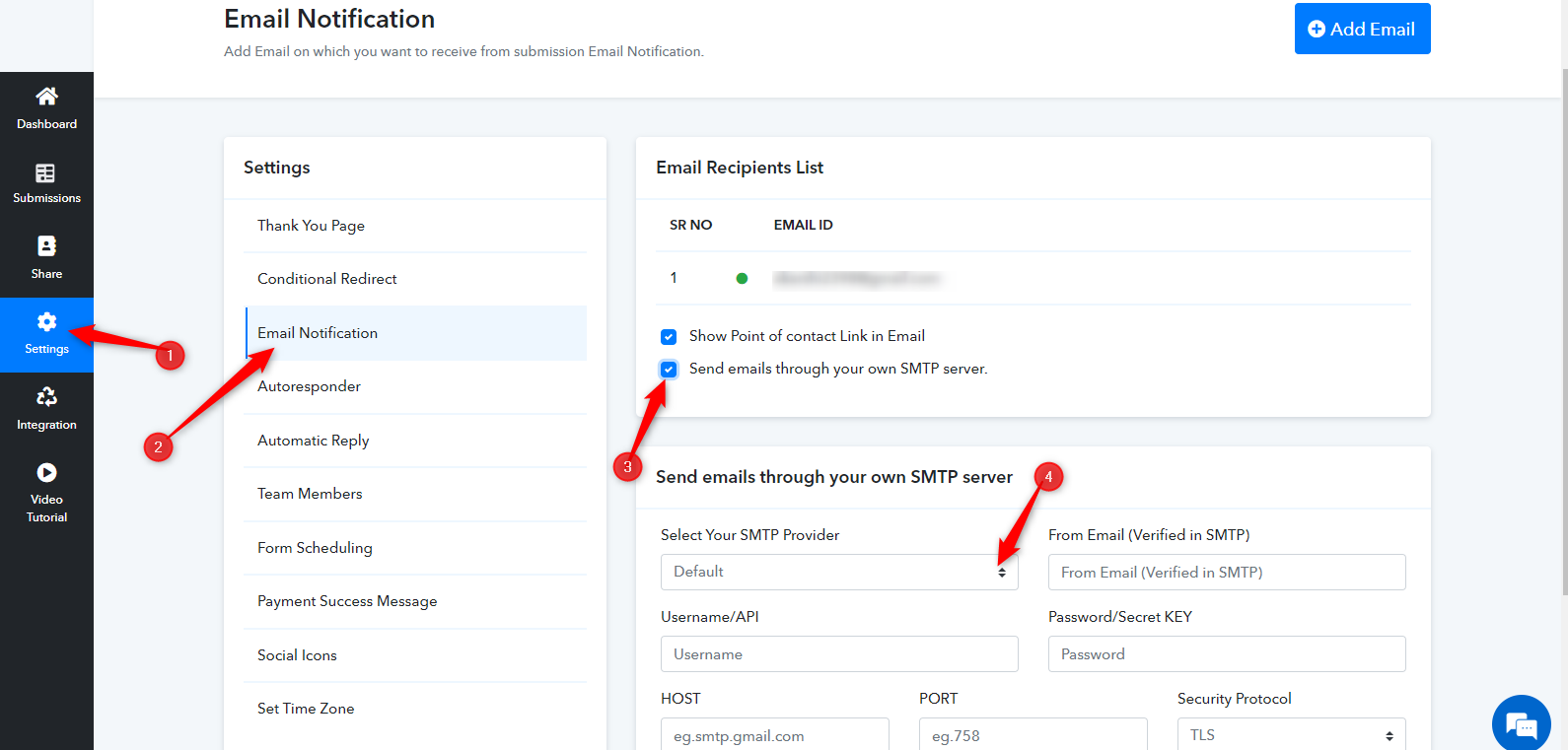
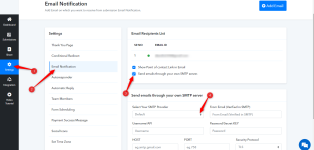
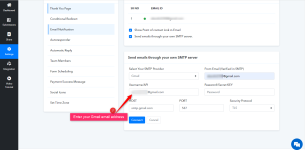
For adding Gmail as your SMTP server to send email notifications to your form submitters, follow the following steps:
Step 1: Go to Settings
Step 2: Click on “Email Notification”
Step 3: Click on “Send emails through your own SMTP server”
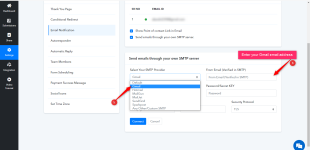
Step 4: Click on the drop-down of “ Select your SMTP Provider”.
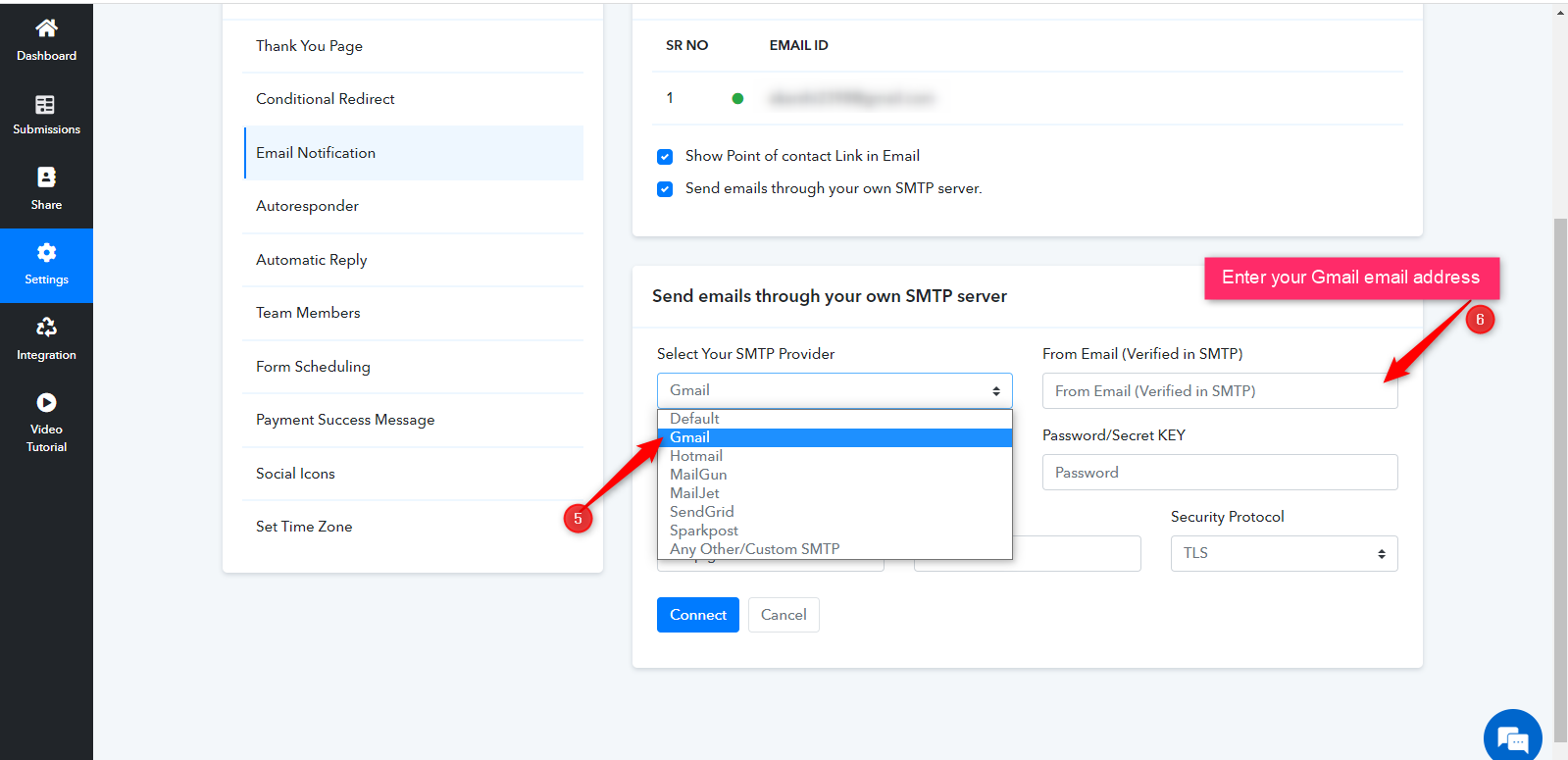
Step 5: Select Gmail from drop-down.
Step 6: Enter your Gmail email address in “From Email (Verified in SMTP)”
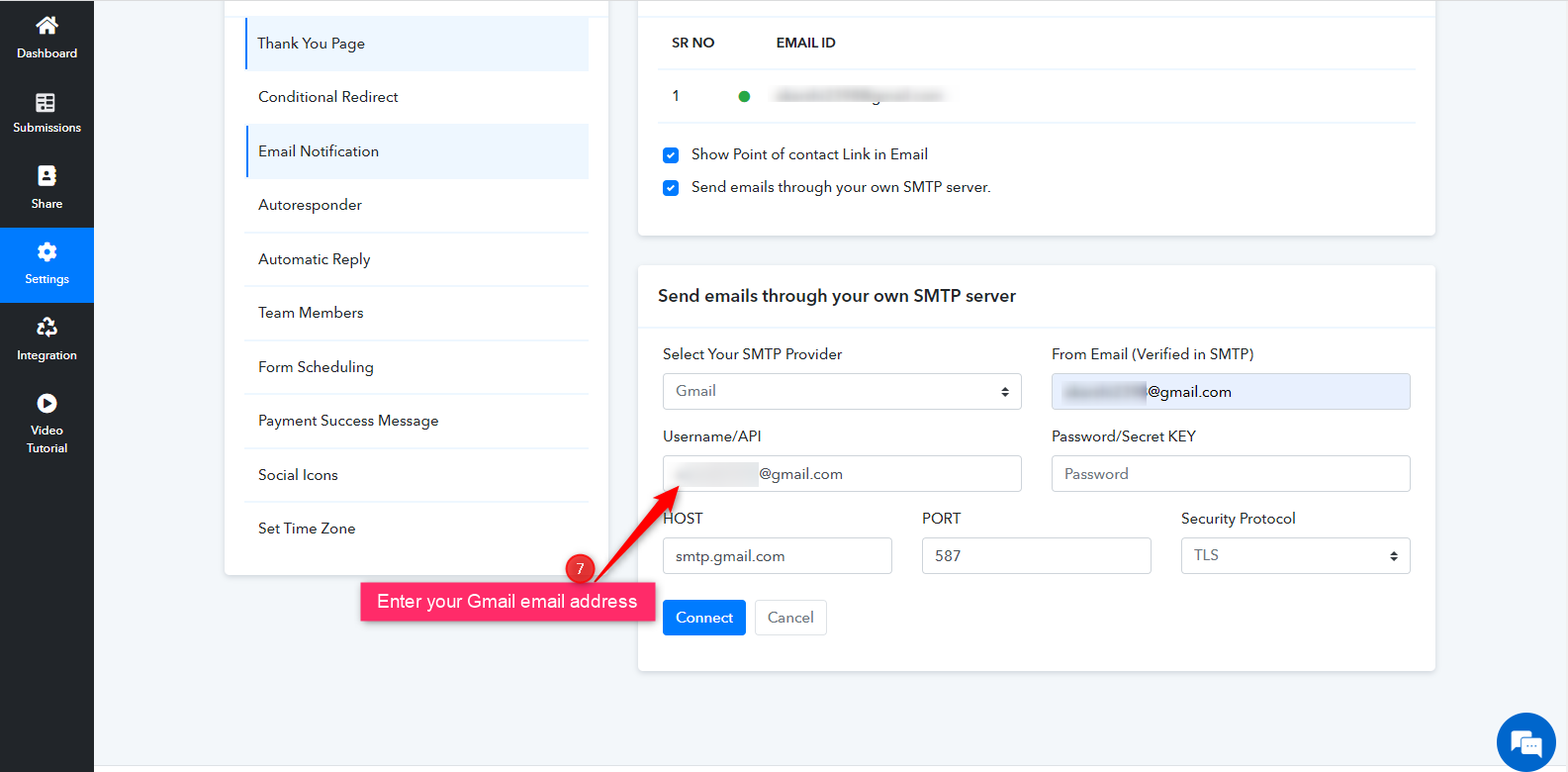
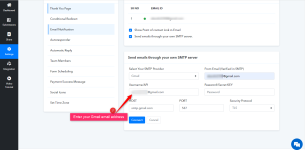
Step 7: Enter your Gmail email address in “Username/API”
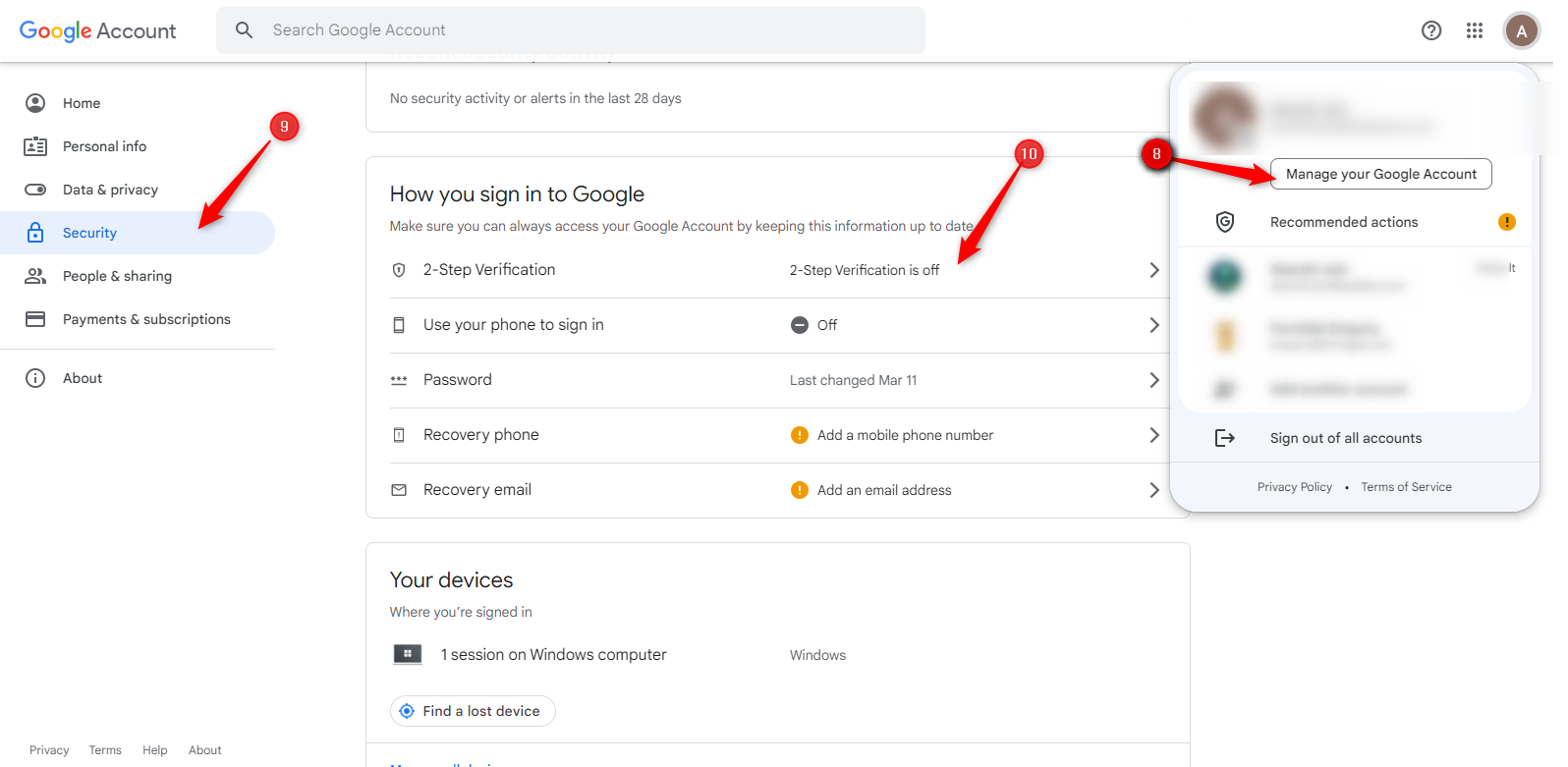
For generating the Password/Secret Key login to your Gmail account and follow the given steps:
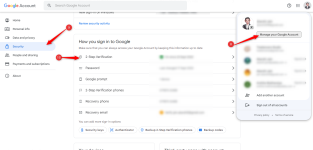
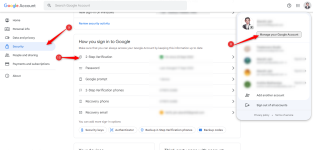
Step 8: Go to “Manage your Google Account”
Step 9: Click on “Security”
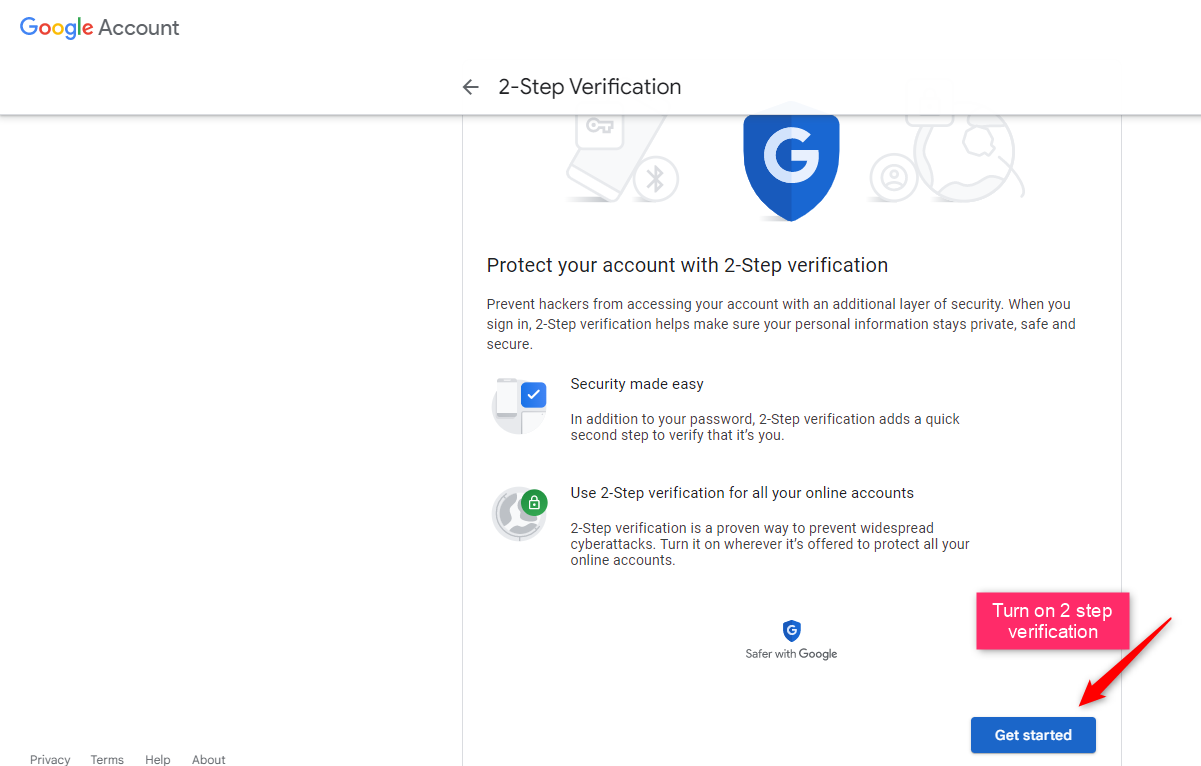
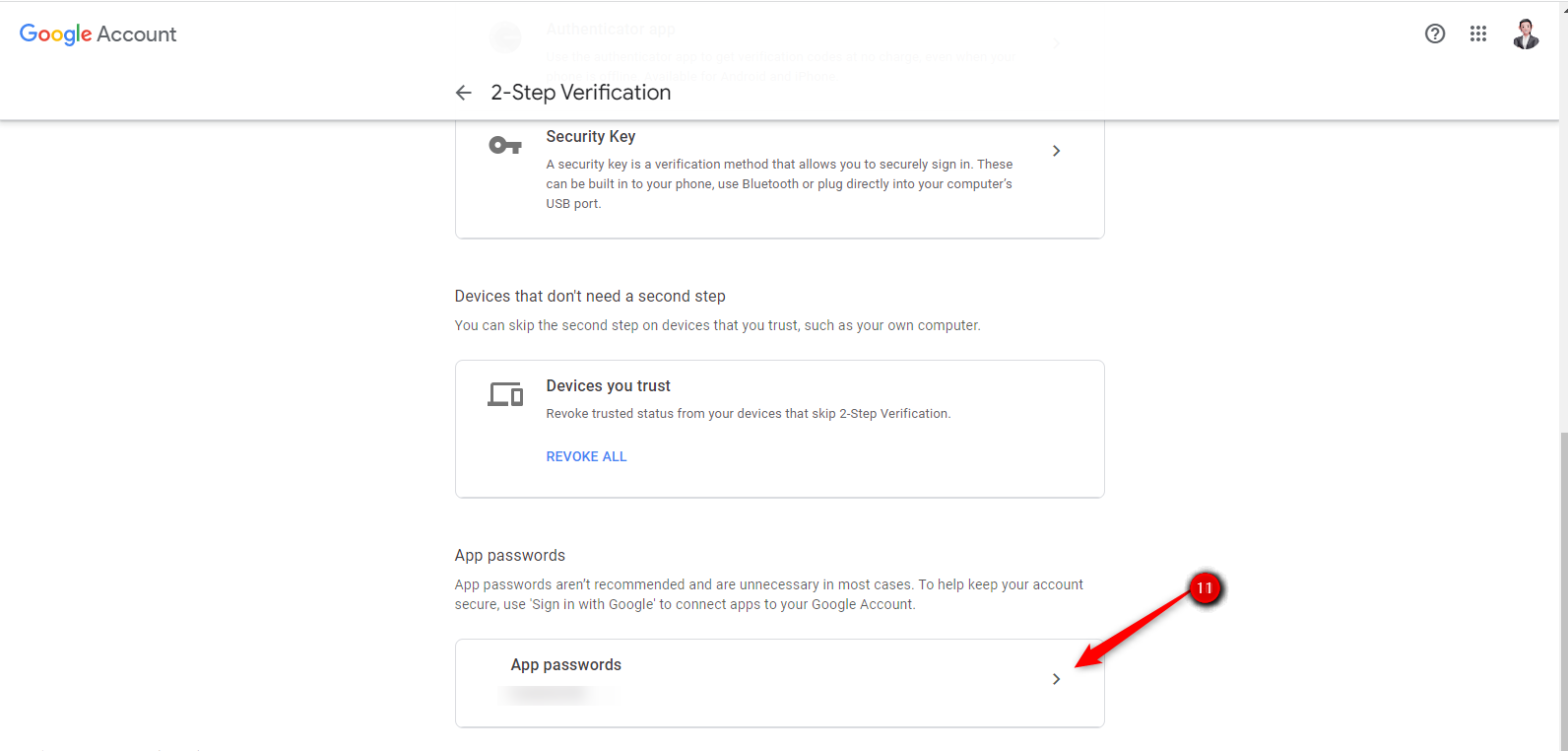
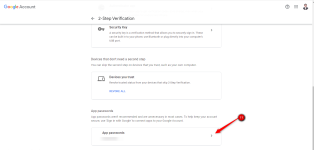
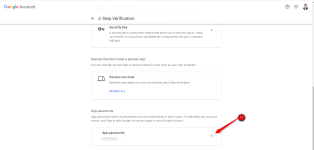
Step 11: Once your 2 step verification is on, scroll down the page and click on “App passwords”
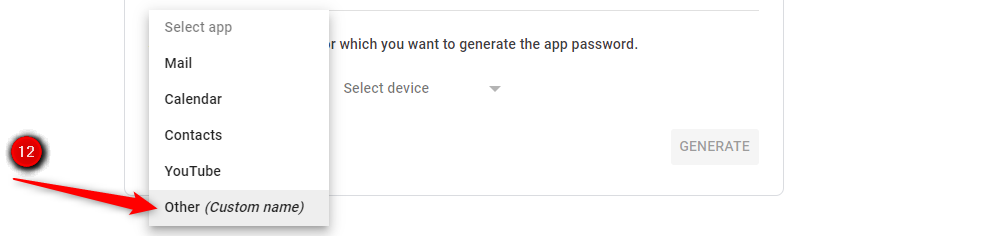
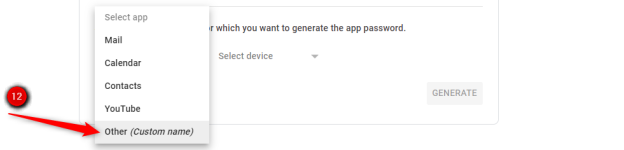
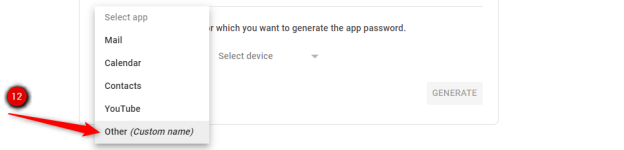
Step 12: Click on Other (Custom name)
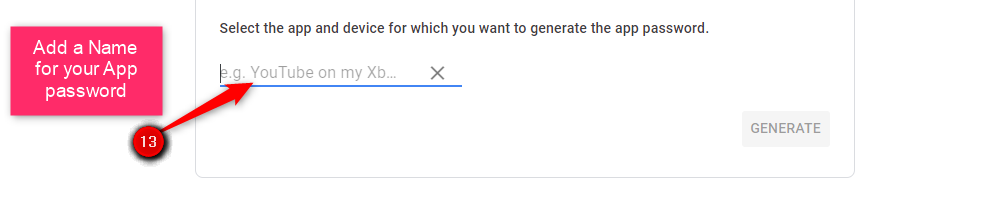
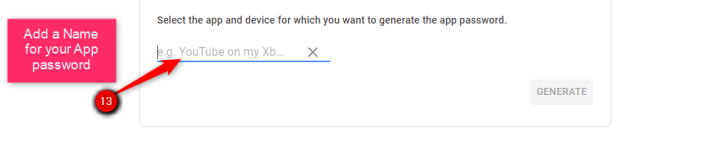
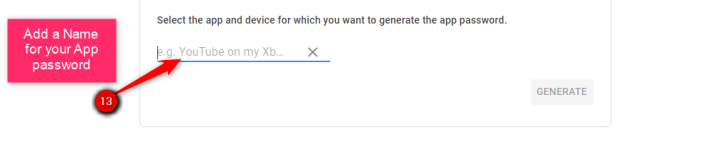
Step 13: Add a name to your app for generating app password
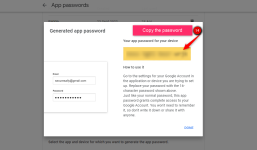
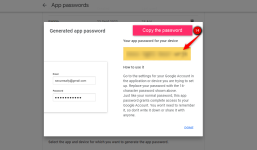
Step 14: Copy the 16 digit app password from the yellow box.
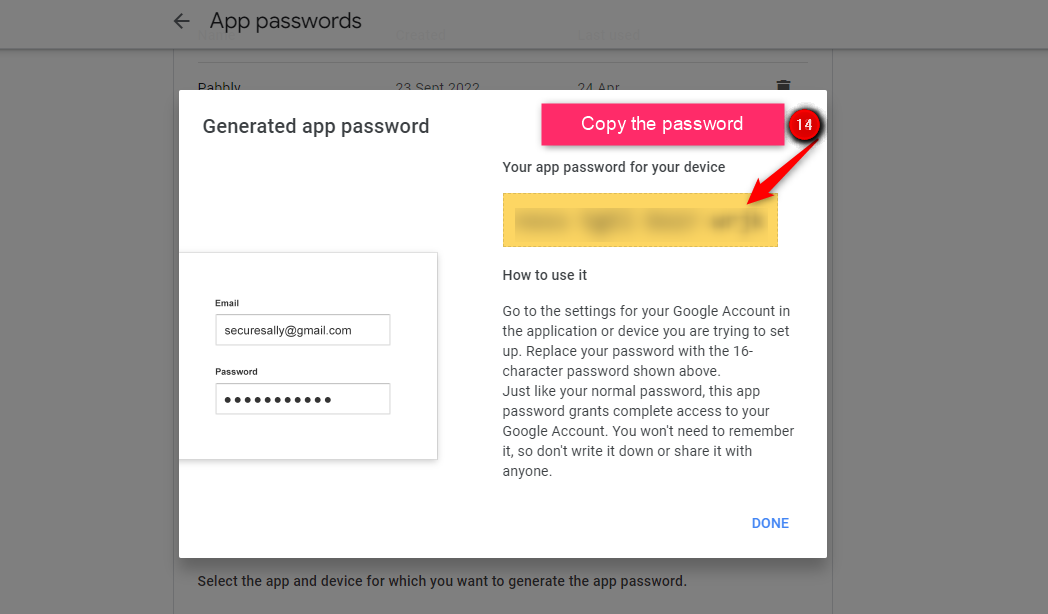
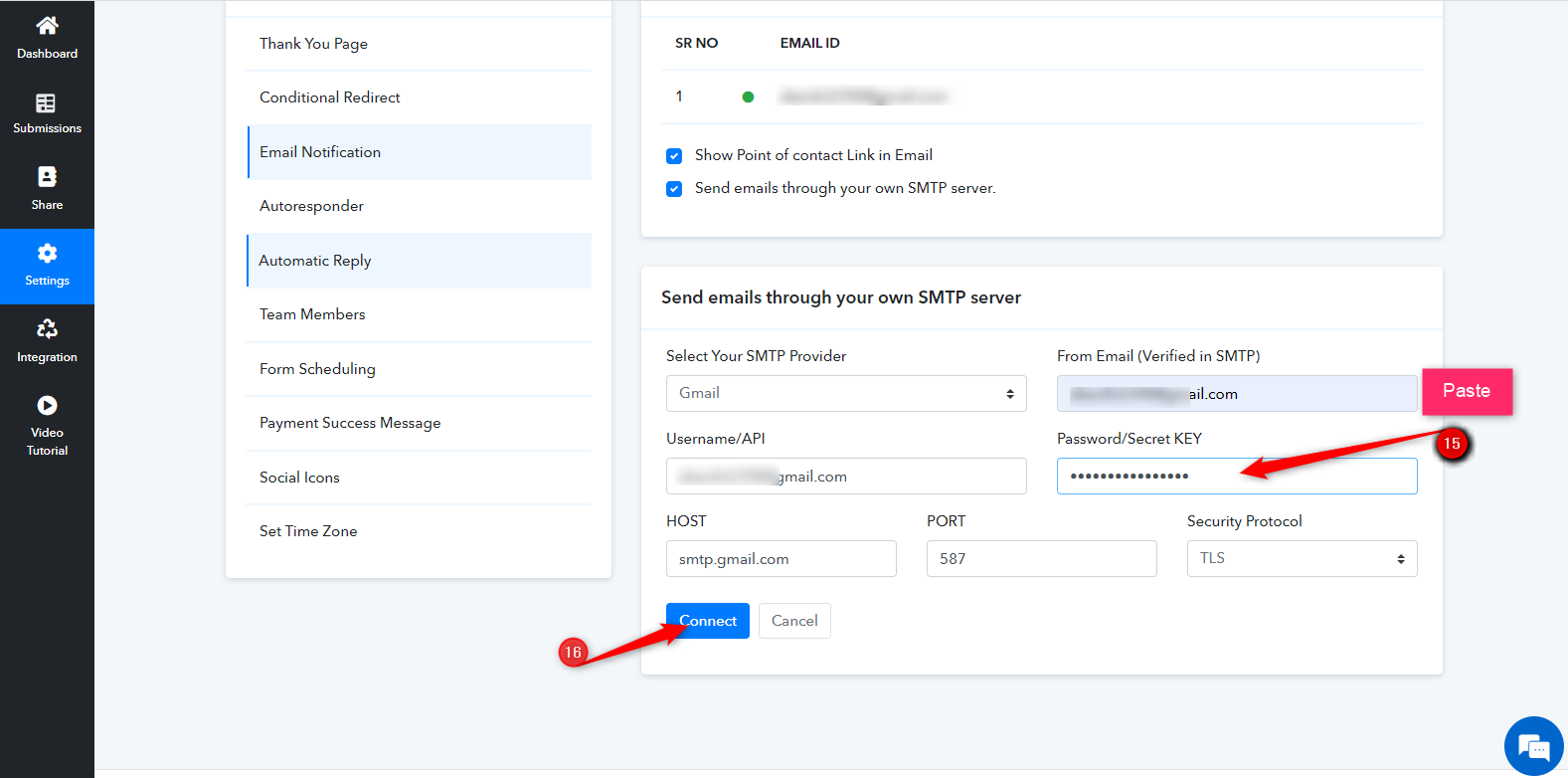
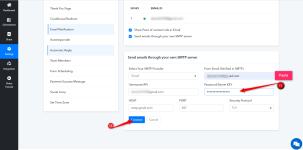
Step 15: Paste it in Pabbly Form Builder “Password/Secret Key”
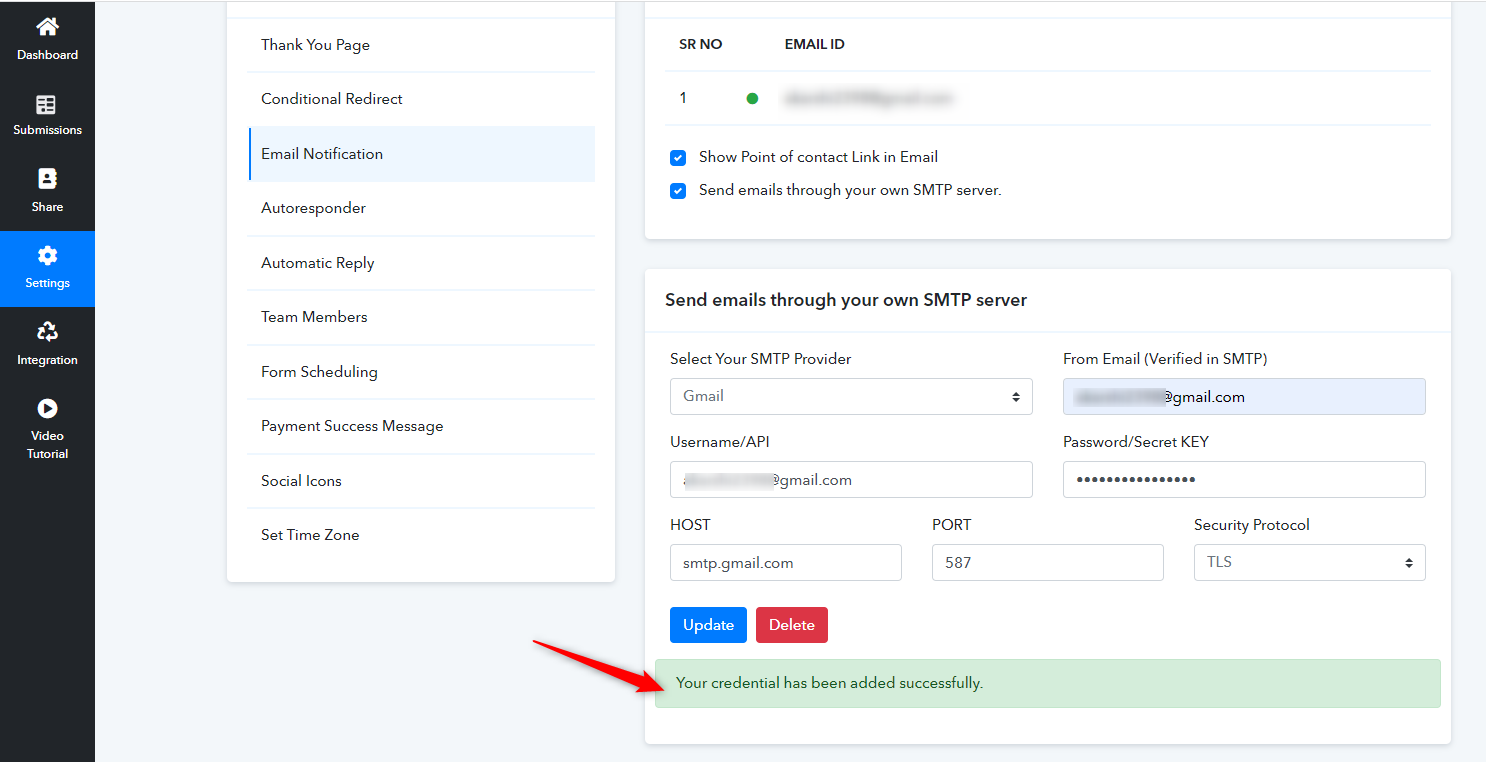
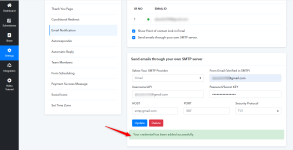
Step 16: Click on “Connect”
I hope this was helpful. In case if you have any queries feel free to reach out to us at [email protected]
Step 1: Go to Settings
Step 2: Click on “Email Notification”
Step 3: Click on “Send emails through your own SMTP server”
Step 4: Click on the drop-down of “ Select your SMTP Provider”.
Step 5: Select Gmail from drop-down.
Step 6: Enter your Gmail email address in “From Email (Verified in SMTP)”
Step 7: Enter your Gmail email address in “Username/API”
For generating the Password/Secret Key login to your Gmail account and follow the given steps:
Step 8: Go to “Manage your Google Account”
Step 9: Click on “Security”
Step 11: Once your 2 step verification is on, scroll down the page and click on “App passwords”
Step 12: Click on Other (Custom name)
Step 13: Add a name to your app for generating app password
Step 14: Copy the 16 digit app password from the yellow box.
Step 15: Paste it in Pabbly Form Builder “Password/Secret Key”
Step 16: Click on “Connect”
I hope this was helpful. In case if you have any queries feel free to reach out to us at [email protected]
Attachments
-
 1682657643856.png94.4 KB · Views: 402
 -
 1682657677114.png94.4 KB · Views: 443
 -
 1682658012767.png81.8 KB · Views: 411
 -
 1682658062876.png216.8 KB · Views: 395
 -
 1682658083279.png74.7 KB · Views: 437
 -
 1682658191572.png72.7 KB · Views: 387
 -
 1682658210518.png22.8 KB · Views: 397
 -
 1682658230757.png19.8 KB · Views: 367
 -
 1682658255749.png72.6 KB · Views: 417
 -
 1682658316720.png74.7 KB · Views: 439
 -
 1682658819979.png216.8 KB · Views: 420
 -
 1682658832866.png72.7 KB · Views: 400
 -
 1682658854632.png22.8 KB · Views: 394
 -
 1682658871958.png19.8 KB · Views: 388
 -
 1682658887739.png72.6 KB · Views: 420
 -
 1682658903650.png83.2 KB · Views: 402
 -
 1682658934249.png65.8 KB · Views: 376
Last edited by a moderator:


