How to get "Structured AI Output" to multiple rows in a Google sheet?

Status: Closed · Asked by Bjarne Eldhuset on · 0 views

Bjarne Eldhuset — Question ·
I'm using the ChatGPT structured AI Output to generate 25 rows of data with 15 columns with a json_schema response format.
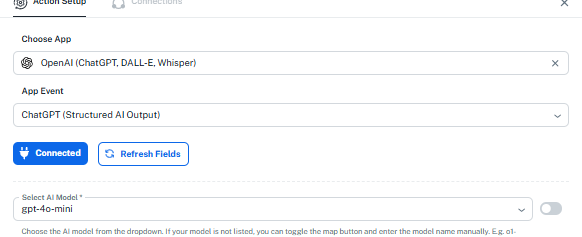
image.png
The output is awesome, but it is in "Simple" the output data is spread out in 375 fields, or in "Advanced", everything in 1 field. 

How do I get this into Google Sheets as 25 rows, without having to map 375 fields manually? The json shcema has all the column headings from my sheet.


Pabbly Support — Reply ·

Hello Bjarne,

Thanks for reaching out. To loop a structured JSON array AI output into separate rows in Google Sheets, the key is to have the data in a proper JSON array so it can be processed one item at a time.

Here’s the approach:

  1. Make sure the ChatGPT step returns your 25 records as a single JSON array of objects, with each object containing the 15 column values. Your JSON schema should define an array of items rather than 375 individual fields.

  2. Add an Iterator step after the ChatGPT action and point it to that array. The Iterator will loop through each item, so you don't have to map 375 fields manually—you only need to map one item's fields once.

  3. Add a Google Sheets "Add New Row" action after the Iterator and map the data from the Iterator to the Google Sheets action step. The Iterator will run this step once per record, creating 25 rows.

Thanks & Regards,
Arshil Ahmad
🌐 Pabbly.com

Back to all forum threads · Log in to reply