LinkedIn step not showing my company pages

Status: Open Β· Asked by Terapeut Online on Β· 0 views

Terapeut Online β€” Question Β·
I've used this a couple of years ago and now when I add it to a new workflow, the connection as such works but no company pages are displayed in the dropdown. Refreshing doesn't help. Any idea why?
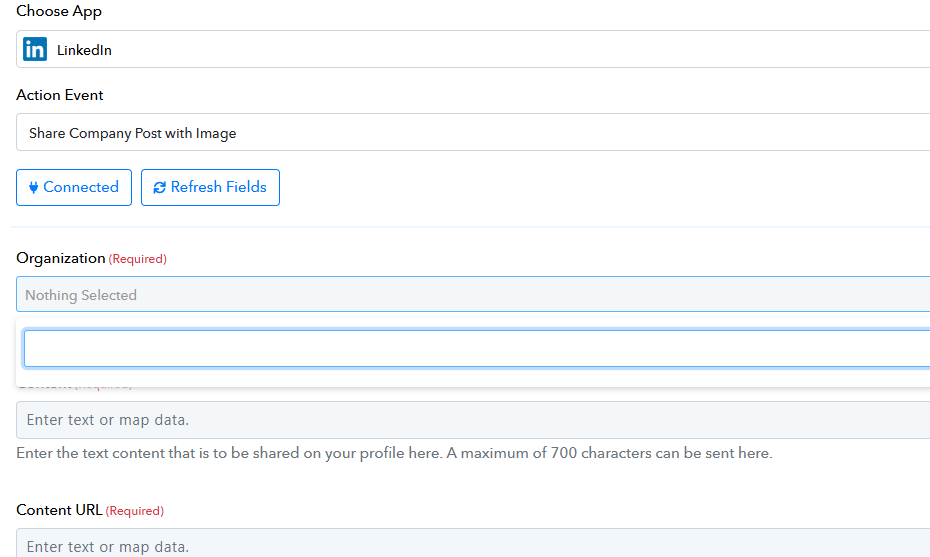
image.png
Pabbly Support β€” Reply Β·

Hello,

Thank you for sharing the details.

Since the LinkedIn connection is being established successfully but the Company Pages are not appearing in the dropdown, please create a new LinkedIn connection in Pabbly Connect and try again.

After creating the new connection, please refresh the LinkedIn step and check whether your Company Pages are now listed.

If the pages are still not appearing, then share the workflow URL/name with us. So we can investigate the issue further.

Thanks & Regards,
Naman Bansod
Customer Support Specialist
🌐 Pabbly.com
πŸ‘‰ Rate your support
Terapeut Online β€” Reply Β·

Hi, yes, tried that - both created new connection and refreshed. Nothing helped. I shared the workflow in the original post. Is this reply public or ist it safe to share it again here? The LinkedIn step is in the PHOTO branch after the router.

Pabbly Support β€” Reply Β·

Hello,

Thank you for the update.

We checked the screenshot you shared, but we do not see a recently created LinkedIn connection there. Please also check the connection creation date shown in your account screenshot.

image.pngAs suggested earlier, please create a new LinkedIn connection and then refresh the LinkedIn step in the workflow.

This will help us verify the issue with the latest connection.

Once you have created the new connection, please let us know so we can proceed with the investigation.

Thanks & Regards,
Naman Bansod
Customer Support Specialist
🌐 Pabbly.com
πŸ‘‰ Rate your support
Terapeut Online β€” Reply Β·

I had a new connection, then deleted it. Created a new one again now. Same result.

image.png

Pabbly Support β€” Reply Β·

Hello,

Could you please confirm the following:

  1. Is the LinkedIn account connected in Pabbly your Owner/Admin account?

  2. Are you using a LinkedIn Company Page/Organization account or your personal LinkedIn account?

Once you confirm these details, we’ll guide you accordingly.

Thanks & Regards,
Naman Bansod
Customer Support Specialist
🌐 Pabbly.com
πŸ‘‰ Rate your support
Terapeut Online β€” Reply Β·
  1. Yes

  2. What's the difference? I only have one LinkedIn-account [email hidden] and from that account on LinkedIn I handle all my company pages. Furthermore, whe I create a new connection to LinkedIn in PC, it automatically logs me in to LinkedIn instead of asking me for login details.

Terapeut Online β€” Reply Β·

Solved it. I was being automatically logged in with the wrong acount.

Terapeut Online β€” Reply Β·

And now getting error below. I've used Pabbly file uploader and put the result in the image URL field in the LinkedIn step.

ERROR :: /specificContent/com.linkedin.ugc.ShareContent/media/0/media :: Urns with empty entityKey are not allowed. Urn: urn:li:digitalmediaAsset:: urn:li:digitalmediaAsset:

Pabbly Support β€” Reply Β·

Hello Lars,

Glad to hear you resolved the login issue!

Regarding the LinkedIn error (Urns with empty entityKey are not allowed), this occurs when LinkedIn is unable to download or parse the image file from the provided URL.

Please check the following in your workflow:

  1. Map the Direct File URL: Ensure you are mapping the File URL / Download Link key from the Pabbly File Uploader step (which ends directly with an image extension like .jpg or .png), rather than a viewer or landing page link.

  2. Direct Browser Test: Paste the mapped image URL directly into an incognito browser tab. If it opens/downloads the raw image directly without redirecting to a preview page, LinkedIn will be able to process it correctly.

  3. Supported Image File: Confirm the file is a standard image format (.png, .jpg, .jpeg).

Please re-map the direct image URL, re-test the step, and let us know if the issue persists!

Thanks & Regards,
Hrishabh
Customer Support Associate
🌐 Pabbly.com
πŸ‘‰ Rate your support

Terapeut Online β€” Reply Β·

I did all of this. And this is in the LinkedIn step of the PHOTO branch in the workflow.

Pabbly Support β€” Reply Β·

Hello Lars,

Thank you for your patience!

We reviewed your workflow (LUMEN - Publish Approved Content) and found that the issue was due to using the Share Company Post with Image action event, which expects a pre-registered media URN rather than a raw image URL.

We have added the new the LinkedIn step in the Photo route to use LinkedIn: Share Text with Image instead and tested the execution. The step ran successfully with a 200/201 status code, and your post with the image has been published to LinkedIn.

Please check your LinkedIn feed to verify the published post, and let us know if you need any further assistance!

Thanks & Regards,
Hrishabh
Customer Support Associate
🌐 Pabbly.com
πŸ‘‰ Rate your support

Back to all forum threads Β· Log in to reply