Sudden Removal of Upload File to Google Drive

Status: Closed Β· Asked by IChild Company on Β· 0 views

IChild Company β€” Question Β·
Dear Support!

We are very disappointed that your team have updated the Google Drive Upload File flow as Legacy WITHOUT any prior notification and it has caused MAJOR DISRUPTION to our operations! 

This is not PROFESSIONAL at all!
Major Disruption.png
Pabbly Support β€” Reply Β·

Hi,

Thank you for updating the Google Drive action in the workflow.

We have checked the latest execution and found that the new Google Drive β†’ Upload a File action is failing while trying to download the PDF from the Google Docs export URL.

The error received is:

sourceUrl does not support byte-range downloads. The server must support Range requests (HTTP 206).

We have escalated this to our concerned technical team to check the compatibility of the new Upload a File action with the Google Docs PDF export URL being used in your workflow.

We will review this with the team and get back to you with an update once we have more information.

We apologize for the inconvenience caused and appreciate your patience while we investigate this.

Thanks & Regards,
Hrishabh
Customer Support Associate
🌐 Pabbly.com
πŸ‘‰ Rate your support

IChild Company β€” Reply Β·

Another BIg Issue! This is really major disruption!

Flow: 1.0 YES Create Receipt & Send Alert

Error 2.png


Task ID: IjU3NjYwNTZjMDYzZjA0MzA1MjZiNTUzMDUxM2E1MTYyNTQzMzBmMzIi_pc

IChild Company β€” Reply Β·

Pabbly Support:
Hi,Thank you for updating the Google Drive action in the workflow.We have checked the latest execution and found that the new Google Drive β†’ Upload a File action is failing while trying to download the PDF from the Google Docs export URL.The error received is:sourceUrl does not support byte-range do

We will request your team to compensate on all the credits we have used due to this major disruption. Look at our history, so many errors!

IChild Company β€” Reply Β·
image.png

Pabbly Support β€” Reply Β·

Hi,

Thank you for reaching out and sharing the additional details.

Our technical team is currently investigating the root cause regarding the compatibility issue with the Google Drive β†’ Upload a File action step and Google Docs PDF export links across your workflows.

Regarding the task credits consumed due to these recurring step errors, we will check this internally with our operations team to review your task history and arrange an appropriate credit restoration once the technical issue is completely resolved.

We sincerely appreciate your patience while our core engineering team works on resolving this.

Thanks & Regards,
Hrishabh
Customer Support Associate
🌐 Pabbly.com
πŸ‘‰ Rate your support

IChild Company β€” Reply Β·

This is a bad upgrade. How can we wait up to 8 minutes just to wait for Google Drive to upload a file?

New Upload Drive has a lot of issue. How can we delay for 8 minutes.png

IChild Company β€” Reply Β·
New Upload Drive has a lot of issue. How can we delay for 8 minutes 2.png

Pabbly Support β€” Reply Β·

Hi,

Thank you for reaching out and sharing your feedback regarding the updated Google Drive file upload method.

We have upgraded the underlying architecture of this action to support larger files and longer processing times seamlessly without timing out or failing mid-transfer.

Because larger media files require background processing on Google Drive's servers, the initial response provides a requestId. The delay step (and subsequent status check) ensures Pabbly Connect waits for Google Drive to completely process and finish writing the file before downstream action steps try to access or pass its URL.

The 8-minute delay recommended in the documentation is the maximum buffer suggested for handling large files; for smaller files, the actual processing on Google Drive completes much faster.

We understand your concern regarding execution speed, and our core technical team is continuously optimizing this action to minimize processing wait times while maintaining stability for large file uploads.

Please let us know if you need any assistance optimizing your workflow steps!

Thanks & Regards,
Hrishabh
Customer Support Associate
🌐 Pabbly.com
πŸ‘‰ Rate your support

IChild Company β€” Reply Β·

Pabbly Support:
Hi,Thank you for reaching out and sharing your feedback regarding the updated Google Drive file upload method.We have upgraded the underlying architecture of this action to support larger files and longer processing times seamlessly without timing out or failing mid-transfer.Because larger media fil

YOur team updates are unwarranted and not well plan! Why do you break something that is working for the past 5 years??

If your team wanted to support larger files, that you should offer Upload Big Files Beta while keeping the existing Upload file Flow.

YOur team unprofessionalism is affecting our 100s of clients!

When can do the export function back? All our documents breaks and we are losing customers!

Pabbly COnnect Convert to PDF

https://docs.google.com/document/d/{GoogleFileID}/export?format=pdf


Task ID: IjU3NjYwNTZjMDYzZjA0MzA1MjY0NTUzMDUxM2E1MTZiNTQzNTBmMzMi_pc

Script Error from Legacy File Upload.png

IChild Company β€” Reply Β·

We have reverted back to this legacy and it is getting worst

image.png

Pabbly Support β€” Reply Β·

Hi,

Thank you for your response.

Please don't worry β€” our engineering team is actively checking the Google Drive β†’ Upload a File step, including the compatibility with Google Docs PDF export URLs and the behavior with legacy actions.

We are currently working on a resolution to ensure your document creation workflows process smoothly without errors. We will update you as soon as our technical team finishes reviewing this.

Thank you for your patience and understanding.

Thanks & Regards,
Hrishabh
Customer Support Associate
🌐 Pabbly.com
πŸ‘‰ Rate your support

IChild Company β€” Reply Β·

When can this be resolve? We need this updates asap!

Pabbly Support β€” Reply Β·

Hi,

Thank you for your response.

We completely understand the urgency of this for your business and operations. Since our technical team is actively analyzing the underlying issue with the Google Drive step and the PDF export URL behavior, we are unable to provide an exact ETA at this moment.

Rest assured, our engineering team is actively working on it to provide a resolution as quickly as possible. We will update you as soon as we have concrete news from them.

Thank you for your patience and understanding.

Thanks & Regards,
Hrishabh
Customer Support Associate
🌐 Pabbly.com
πŸ‘‰ Rate your support

IChild Company β€” Reply Β·

Is there alternative method to convert Google Doc into PDF in Pabbly?

IChild Company β€” Reply Β·
Error Again.png

IChild Company β€” Reply Β·
Pdf.co Convert.png

IChild Company β€” Reply Β·

Hi Any Updates??? Very Urgent!

IChild Company β€” Reply Β·

Hi Any updates???

chetali parve β€” Reply Β·

The team is working on it, and we will resolve the issue as soon as possible. We’ll keep you updated and inform you as soon as it is resolved.

Pabbly Support β€” Reply Β·

Hi,

Thank you for your patience while our technical team worked on this.

We are pleased to inform you that the issue regarding the Google Drive β†’ Upload a File step and Google Docs PDF export compatibility has been resolved.

Please re-test your workflow execution now and let us know if everything is running smoothly on your end.

Thanks & Regards,
Hrishabh
Customer Support Associate
🌐 Pabbly.com
πŸ‘‰ Rate your support

IChild Company β€” Reply Β·

Pabbly Support:
Hi,Thank you for your patience while our technical team worked on this.We are pleased to inform you that the issue regarding the Google Drive β†’ Upload a File step and Google Docs PDF export compatibility has been resolved.Please re-test your workflow execution now and let us know if everything is ru

Thanks let us check and revert.

Is the legacy action back into action? I suggest your team set a difference in Big files and small! We have 100s of flow that is using the "Legacy" action. You cannot just change suddenly and leave us in the lurch... worst still, there's no pre-empt notice at all! We have been using your services for the past years, and even have 2 paying subscriptions in one account!

Pabbly Support β€” Reply Β·

Hi,

Thank you for following up!

To clarify, the Legacy action was marked as Legacy, not Deprecated. This means existing workflows using the legacy action were meant to continue functioning while we introduced the new Google Drive action step.

However, we experienced separate underlying issues within the legacy action setup as well, which is why our technical team introduced the upgraded action. The new action was designed to handle larger file uploads and background processing seamlessly without mid-transfer timeouts.

Regarding prior notifications, we mark actions as "Legacy" so existing users can keep running their current setups without forced changes, but we sincerely apologize for the disruption caused during this transition. We fully appreciate your long-standing support and subscription with Pabbly, and your feedback regarding clear pre-notifications and separate options for large vs. small file uploads has been noted for our product team.

Please test your workflows with the latest fix and let us know if everything is running smoothly now.

Thanks & Regards,
Hrishabh
Customer Support Associate
🌐 Pabbly.com
πŸ‘‰ Rate your support

IChild Company β€” Reply Β·

Thanks for your clarification. The Legacy works much better because we don't need to use the delay function, as our files are very small. Our clients have been accustomed to the speed of the pdf creation without any complains for the past years. So please keep the legacy action intact. Appreciate!

IChild Company β€” Reply Β·

Hi Support Please check

Task ID: IjU3NjYwNTZjMDYzZjA0MzI1MjY1NTUzNTUxMzc1MTYzNTQzMjBmMzMi_pc

Error.png

IChild Company β€” Reply Β·

Another Error:

TAsk ID: IjU3NjYwNTZjMDYzZjA0MzI1MjY1NTUzMDUxMzA1MTY0NTQzMzBmMzUi_pc

Error 2.png

IChild Company β€” Reply Β·

On the above task ID: TAsk ID: IjU3NjYwNTZjMDYzZjA0MzI1MjY1NTUzMDUxMzA1MTY0NTQzMzBmMzUi_pc

i have gone in to click on Failed and Skipped Steps, it works now. So this issue is intermittent

Failed & Skipped Step it works.png

works now.png

Pabbly Support β€” Reply Β·

Hello,

Thank you for reaching out and sharing these details.

While we understand that your files are smaller and you prefer the higher execution speed of the legacy action, please note that the legacy step is deprecated and prone to intermittent API script errors (such as the INVALID_ARGUMENT and Script ID could not be opened errors you encountered).

Because Google Drive's backend continuously updates, the legacy action cannot guarantee long-term stability or reliable delivery. To ensure your workflows run without unexpected failures or missing data, we strongly recommend using the updated Google Drive β†’ Upload a File action step instead of the legacy one.

If you run into any issues while configuring or running the updated action step, please let us know and we’ll be happy to assist you!

Thanks & Regards,
Hrishabh
Customer Support Associate
🌐 Pabbly.com
πŸ‘‰ Rate your support

IChild Company β€” Reply Β·

Pabbly Support:
Hello,Thank you for reaching out and sharing these details.While we understand that your files are smaller and you prefer the higher execution speed of the legacy action, please note that the legacy step is deprecated and prone to intermittent API script errors (such as the INVALID_ARGUMENT and Scri

How can we do a loop instead of delay to check on the outcome of the file update status?

Since our files are small, is 5 secs good for delay?

Pabbly Support β€” Reply Β·

Hello,

Thank you for following up!

For small files, testing with a 5-second delay in a standard Delay step is a great starting point.

If you prefer to dynamically verify whether Google Drive has finished processing the file without adding excessive static delays, you can set up a conditional flow using a Router or Filter:

  1. Upload File: Trigger the updated Google Drive β†’ Upload a File action.

  2. Initial Delay: Add a Delay by Pabbly step set to 5 seconds.

  3. Check File Status: Add a Google Drive β†’ Get File Details/Search File step to retrieve the uploaded file's processing status.

  4. Route / Conditional Check:

    • If Status = Completed/Ready: Proceed directly to your downstream action steps (sending the document, email, etc.).

    • If Status = Processing/Not Ready: Route to an additional Delay step (or secondary processing branch) before attempting the final action steps.

This setup ensures small files process almost immediately after 5 seconds while providing a fallback buffer if Google Drive takes slightly longer to process.

Thanks & Regards,
Hrishabh
Customer Support Associate
🌐 Pabbly.com
πŸ‘‰ Rate your support

IChild Company β€” Reply Β·

I have checked with Gemini on the issue:

This error occurs because Pabbly Connect is attempting to run a legacy Google Apps Script (or access a shared Google Apps Script template) associated with your Google Drive step, but the connected Google account either lacks permission to access that script or the Script ID no longer exists.


Primary Causes

Permissions Issue: The Google account connected to Pabbly (IChild Google Connection) does not have access/permissions to the Google Apps Script (MQKgJ4TFmMDMOkOoNa5muLmmy7uZSrO0E) or the Google Drive file/folder linked to it.

  • Deprecated Legacy Action: You are using the step Upload a File (Legacy), which relies on older backend Google Apps Script integrations that may be deleted, renamed, or deprecated.

  • Account Mismatch: The Script ID belongs to a different Google account (e.g., a personal account vs. a Workspace account), so IChild Google Connection is blocked by Google’s security policies.

How to Resolve It


  • Switch to the Standard Action (Recommended): Edit your workflow, remove the Upload a File (Legacy) action step, and replace it with the updated, non-legacy Google Drive > Upload a File action step.

  • Check Google Connection Account: Verify that IChild Google Connection is authorized using the exact Google account that owns (or has explicit Editor access to) the template files and script.

  • Re-authorize the Connection: Go to Pabbly Connect > Connections, locate IChild Google Connection, and re-authorize/re-connect the Google account to refresh the OAuth tokens.

  • Share Script & File Permissions: If you are calling a custom Google Apps Script or accessing a shared Drive template, open Google Drive with the script owner account and ensure the file/script is explicitly shared with the email address used in IChild Google Connection.

IChild Company β€” Reply Β·

There's a flaw here:

Route / Conditional Check:

  • If Status = Completed/Ready: Proceed directly to your downstream action steps (sending the document, email, etc.).

  • If Status = Processing/Not Ready: Route to an additional Delay step (or secondary processing branch) before attempting the final action steps.

How many layers i should include in the route (s) ? 2 - 3? I understand there a loop in pabbly, but never seems to work well, or there's no clear guide how to use it.

Pabbly Support β€” Reply Β·

Hello,

Thank you for reaching out and sharing those details!

Regarding your question about using Routers: you do not need multiple layers or complex router loops. For small files, a simple 2-step setup with a short Delay step (5–10 seconds) is all that is required for Google Drive to finish writing the file.
Additionally, instead of using the normal "Google Drive: Upload a File" step, we strongly suggest using the **Google Drive (Developer) : Upload a File** app action in your workflow.

With the Google Drive (Developer) action, file processing completes much faster.

Please give the Google Drive (Developer) upload action a try in your workflow and let us know if everything runs smoothly for you!

Thanks & Regards,
Hrishabh
Customer Support Associate
🌐 Pabbly.com
πŸ‘‰ Rate your support

IChild Company β€” Reply Β·

Pabbly Support:
Hello,Thank you for reaching out and sharing those details!Regarding your question about using Routers: you do not need multiple layers or complex router loops. For small files, a simple 2-step setup with a short Delay step (5–10 seconds) is all that is required for Google Drive to finish writing th

Hi Do we use our own Client ID and Secret?

client ID and info.png


We cannot login using our own client id and secret.png

IChild Company β€” Reply Β·

See here

see here.png

Pabbly Support β€” Reply Β·

Hello,

Thank you for reaching out.

Yes, when using the Google Drive (Developer) app in Pabbly Connect, you need to use your own Client ID and Client Secret created in your Google Cloud Console.

Based on the screenshot you shared showing the Google Cloud Console setup, please ensure you have added the correct Authorized Redirect URI in your OAuth 2.0 Client credentials:

  • Authorized Redirect URI: [https://connect.pabbly.com/callback-url]

Here is a quick checklist to fix the login/authorization issue:

  1. Add Redirect URI: Go to your Google Cloud Console β†’ APIs & Services β†’ Credentials β†’ Edit your OAuth 2.0 Client ID, and add [https://connect.pabbly.com/callback-url](https://connect.pabbly.com/callback-url) under Authorized redirect URIs.

  2. Publishing Status / Test Users: Go to the OAuth consent screen tab. If your app is in Testing mode, ensure your Google account email is added under Test Users (or set the status to In Production).

  3. Enable Required APIs: Ensure the Google Drive API and Google Docs API are enabled in your Google Cloud project library.

Once you update the redirect URI and save the settings, try re-authorizing the connection in Pabbly Connect.

Please let us know if you run into any issues!

Thanks & Regards,
Hrishabh
Customer Support Associate
🌐 Pabbly.com
πŸ‘‰ Rate your support

IChild Company β€” Reply Β·

Are you able to make this conversation private?

Do i chose all the following?

Chose.png


What is the Appscript URL?


Appscript URL.png


Pabbly Support β€” Reply Β·

Hello,

Thank you for reaching out.

Please note that forum threads are public by default, so please do not post sensitive credentials or private keys here. If private details are ever required, you can share them securely via email at support@pabbly.com.

Regarding your screenshot questions for setting up the Google Drive (Developer) integration:

  1. Scopes Selection: Select all of the requested scopes shown on the screen to grant full permission for Google Drive and Google Docs operations.

  2. Appscript URL Field: You can leave this field blank or ignore it. For standard OAuth 2.0 Web Application credentials, only the Authorized Redirect URI ([https://connect.pabbly.com/callback-url](https://connect.pabbly.com/callback-url)) is required in your Google Cloud Console setup.

Once you have selected all scopes and saved the redirect URI, proceed with authorizing the connection in Pabbly Connect. Please let us know if you run into any issues!

Thanks & Regards,
Hrishabh
Customer Support Associate
🌐 Pabbly.com
πŸ‘‰ Rate your support

IChild Company β€” Reply Β·

Appscript URL Field: You can leave this field blank or ignore it.

But your team has indicated "Required". See the above screenshot.

IChild Company β€” Reply Β·

See attached

Mandatory.png

Pabbly Support β€” Reply Β·

Hello there,

Your concern is being looked by the Technical Team to provide a solution. We will get back to you as soon as we hear from the Team. It may take up to 24 hours to get back to you.

We regret the inconvenience caused to you and appreciate your understanding.

Thanks & Regards,

Adeel Akhtar
🌐 Pabbly.com

IChild Company β€” Reply Β·

Another problem!

We change ALL our steps to include 5 seconds, now there's this issue stating must be 10 second! You need to up your housekeeping and comments?

5 seconds cannot - why didnt put into the remarks.png

IChild Company β€” Reply Β·

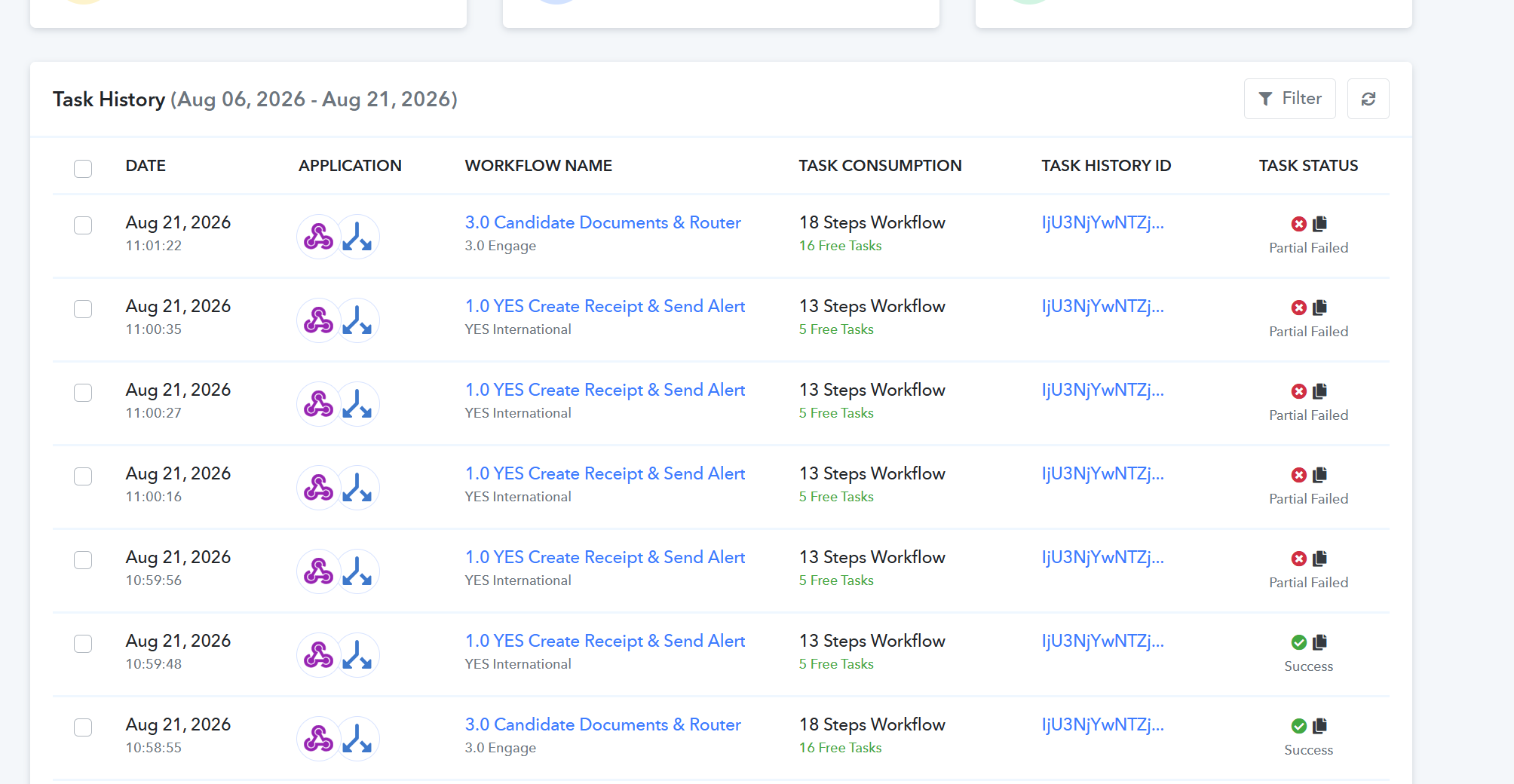
This is really a major disruption to our operation.. See this screenshot.

Only 1 flow there's SO MANY error! I have earlier asked to compensate on the credits that has been wasted for the past 1 week!

all failed.png

IChild Company β€” Reply Β·

Now Task ID IjU3NjYwNTZmMDYzNjA0MzQ1MjY5NTUzNzUxMzY1MTY3NTQzMTBmMzAi_pc

Stuck because the 5sec task is flawed! Please work on your documentation?? Don't just do for the sack of doing?

Pabbly Support β€” Reply Β·

Hi,

Thank you for your patience while we investigated your workflow execution.

Here are the updates regarding your setup:

  • Task Credits Reset: We have reset the task credits consumed by these errors in your Pabbly Connect account.

  • Simplifying Google Drive Upload: Our engineering team is actively working to make the Google Drive file upload approach much simpler and more seamless in upcoming updates.

  • Delay Step Correction: Regarding the 5-second delay: the Delay by Pabbly step requires the Delay (in Seconds) value to be between 10 and 59 seconds. For any duration longer than 59 seconds, please switch the unit to Minutes.

  • Upload Status Verification: We reviewed your recent task history and observed that you added a 10-second delay between the Upload a File action and the Get File Upload Status step. This sequence is now working successfully without any errors.

  • How Upload Works: The Upload a File action sends the upload request to Google Drive, which continues processing the file transfer in the background. The Get File Upload Status step then checks whether Google Drive has finished writing the file. The delay duration required between these two steps depends entirely on the size of the file being uploaded.

  • Current Execution Error: The recent failure seen in your Task History is unrelated to the Google Drive upload steps. The error stems from your Send Email (SMTP/Pabbly) action:

    • Step: Action: Send Email : Send Email

    • Error Message: Error: Invalid address: (cc):

    • Cause: The CC email address field in this step is receiving an invalid, improperly formatted, or empty dynamic value. Please inspect the dynamic mapping in the CC field of the Send Email step to ensure a valid email address is being passed.

Please check the CC field mapping in that step, and let us know if you need any further assistance!

Thanks & Regards,
Hrishabh
Customer Support Associate
🌐 Pabbly.com
πŸ‘‰ Rate your support

IChild Company β€” Reply Β·

Pabbly Support:
Hello,Thank you for following up!For small files, testing with a 5-second delay in a standard Delay step is a great starting point.If you prefer to dynamically verify whether Google Drive has finished processing the file without adding excessive static delays, you can set up a conditional flow using

See here . Even your reply mention to set the delay = 5 secs. This is the reason why i mentioned your team caption in the task is not clear and explicity

Pabbly Support β€” Reply Β·

Hello,

Thank you for bringing this to our attention, and please accept our sincere apologies for the confusion!

You are completely correctβ€”we made a mistake in our previous response regarding the minimum duration for the Delay by Pabbly step. The minimum selectable delay period in Pabbly Connect is 1 minute (or 10 seconds if using specific delay settings, but not lower arbitrary intervals like 5 seconds).

Because a 5-second static delay cannot be configured in the standard Delay step, we understand why our previous suggestion was confusing.

We apologize again for oversight in our earlier guidance. Please let us know if you need help tweaking your current workflow setup!

Thanks & Regards,
Hrishabh
Customer Support Associate
🌐 Pabbly.com
πŸ‘‰ Rate your support

Pabbly Support β€” Reply Β·

Hi,

Thank you for your patience as we continue to refine our integrations. We have updated the Google Drive: Upload a File action step in Pabbly Connect to make file processing smoother and more transparent based on file size.

What’s New

When you click Save & Send Test Request, Pabbly Connect now waits up to 45 seconds for the upload to process.

  • Small Files (Fast-track): Uploads that finish within 45 seconds will immediately return the webViewLink and driveResponse.id directly in the response. You do not need to set up any additional delay or status check steps.

  • Large Files (Background Processing): If the file requires extra processing time beyond the initial window, the response will provide a requestId.

Steps for Handling Large Files

If your workflow handles larger files that return a requestId, set up the following sequence after the upload step:

  1. Delay by Pabbly: Add a delay step appropriate for your expected file size.

  2. Google Drive – Get File Upload Status: Add this action step and map the requestId from the upload step.

  3. Filter by Pabbly: Add a Filter step set to Field: requestStatus | Condition: Equal to | Value: Complete before proceeding to downstream action steps.

Additionally, error reporting has been improvedβ€”if an issue occurs (such as an invalid Folder ID, expired connection, or an inaccessible file URL), the error details will display immediately in the response.

Please let us know if you have any questions or need assistance adjusting your existing workflows.

Thanks & Regards,
Hrishabh
Customer Support Associate
🌐 Pabbly.com
πŸ‘‰ Rate your support

Back to all forum threads Β· Log in to reply