

Getting started with Twitch Integration inside Pabbly Connect requires an app registration in the developer area: https://dev.twitch.tv/login
After login, you will get into the console area, where you can register your application details under the Applications tab as shown in the below screenshot -
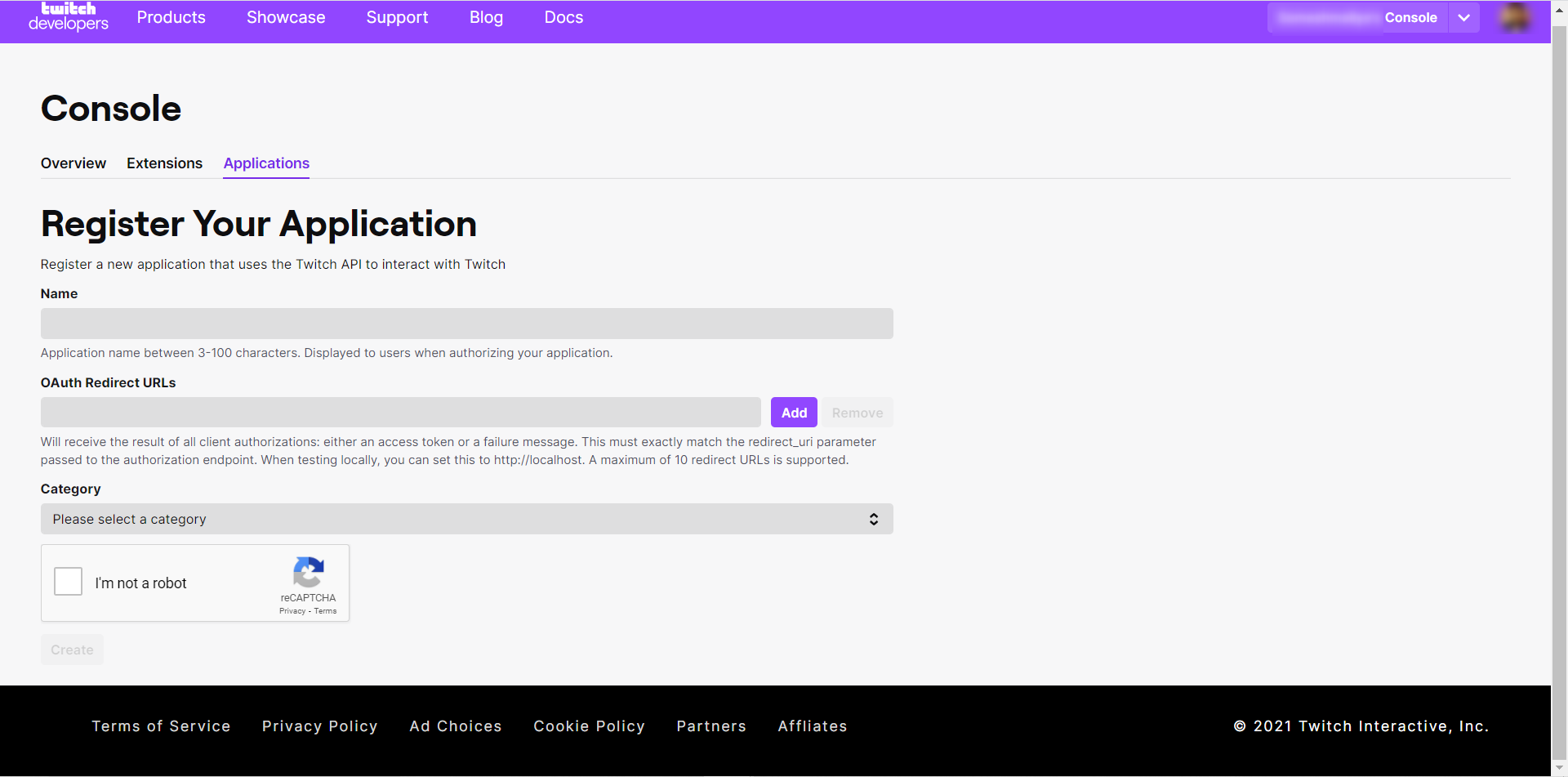
For getting the Client ID and Client Secret, you need to follow the steps explained below -
1. Enter your Application name ex: Pabbly Connect, choose Application Integration from category dropdown, and for OAuth Redirect URLs, you can simply enter this URL
2. Click on Create button and you will be redirected to the Developer Applications page, from the recently created app click on Manage.
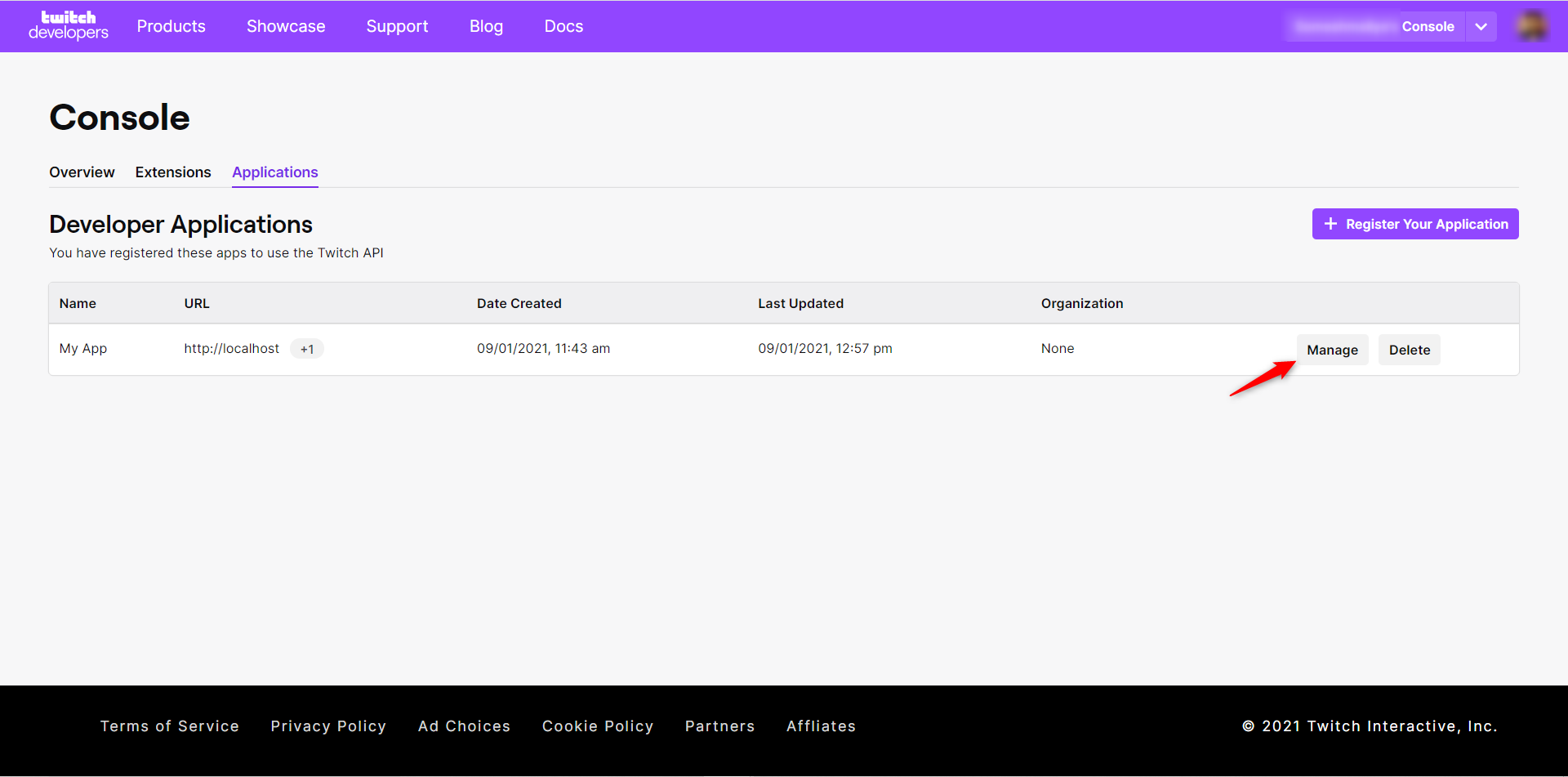
3. You can now get your Client ID and for Client Secret click on New Secret button which will then generate you new client secret for your application.
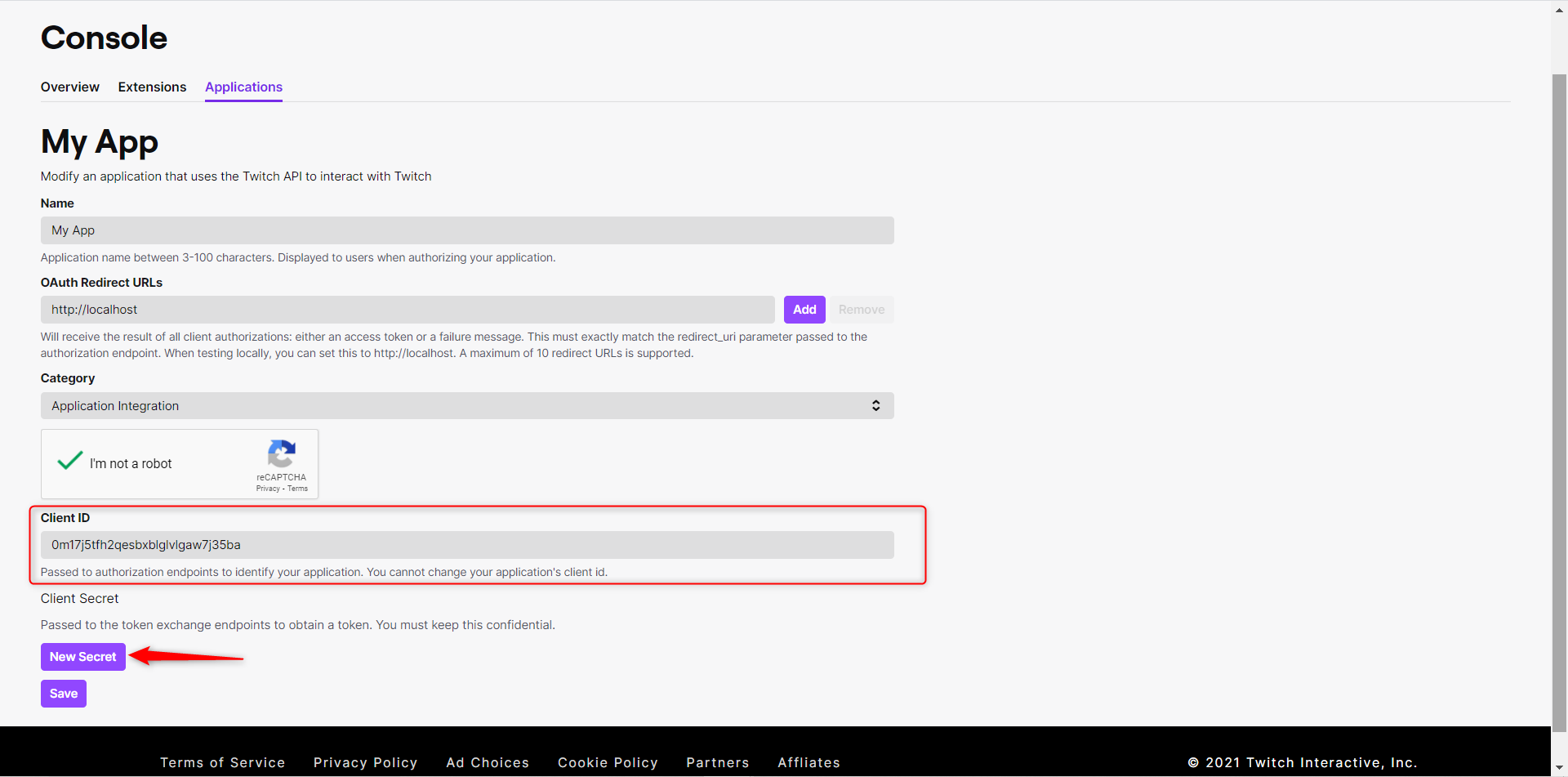
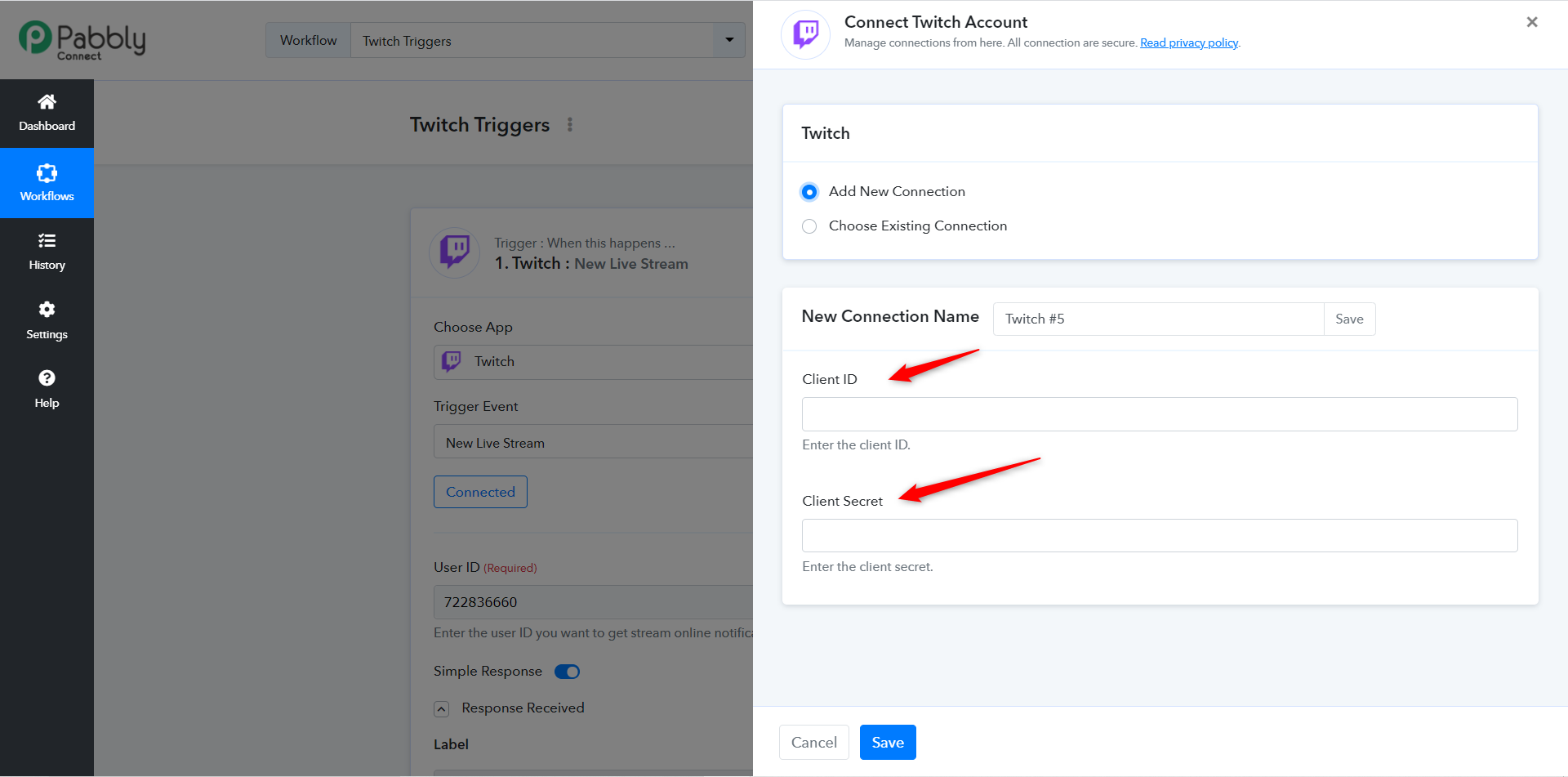
4. Ensure to save the Client Secret because, it is only visible once. After generating the Client ID and Client Secret, you can use these credentials for authentication in Pabbly Connect as shown below.
After login, you will get into the console area, where you can register your application details under the Applications tab as shown in the below screenshot -
For getting the Client ID and Client Secret, you need to follow the steps explained below -
1. Enter your Application name ex: Pabbly Connect, choose Application Integration from category dropdown, and for OAuth Redirect URLs, you can simply enter this URL
2. Click on Create button and you will be redirected to the Developer Applications page, from the recently created app click on Manage.
3. You can now get your Client ID and for Client Secret click on New Secret button which will then generate you new client secret for your application.
4. Ensure to save the Client Secret because, it is only visible once. After generating the Client ID and Client Secret, you can use these credentials for authentication in Pabbly Connect as shown below.
Last edited by a moderator:


