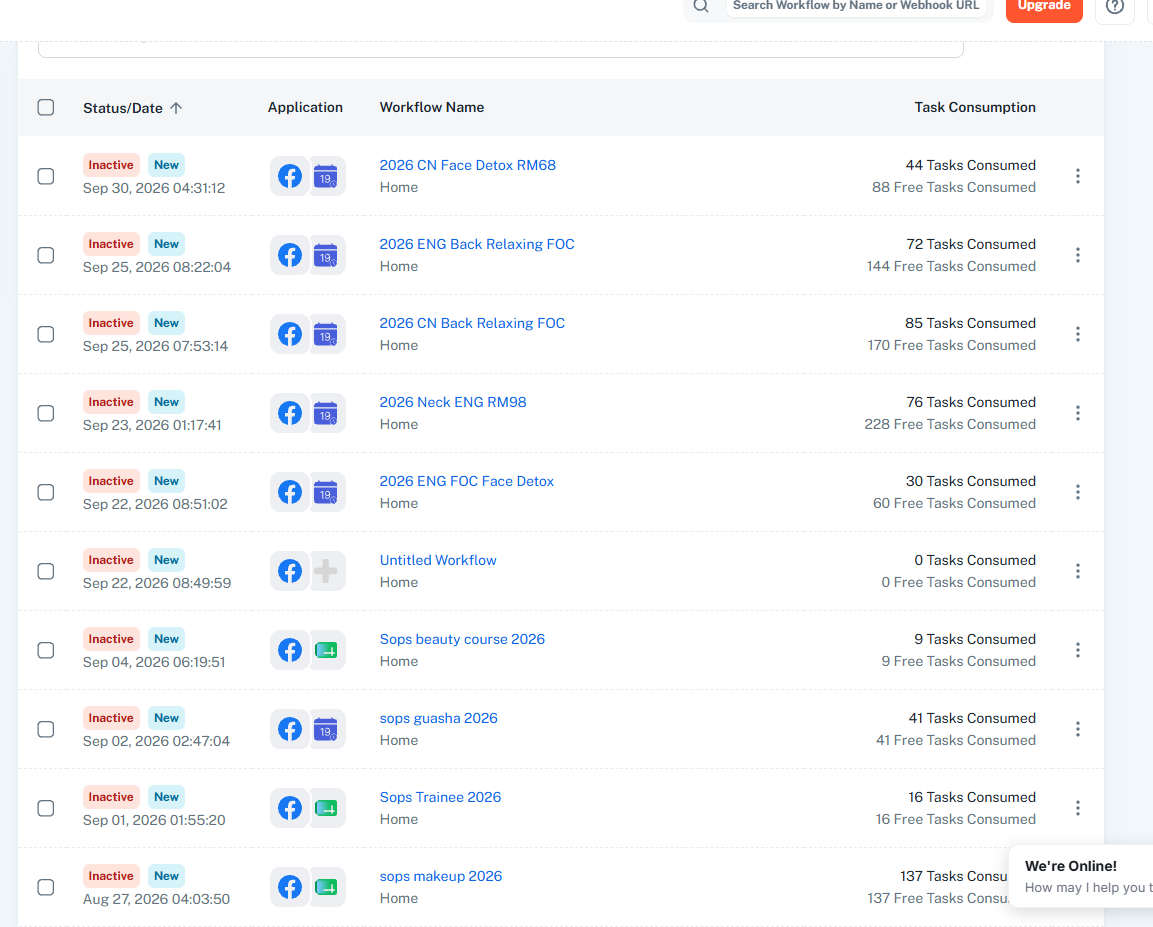
workflow disable
Status: Closed · Asked by Ricky Loh on · 0 views
Hello Ricky,
Thank you for reaching out to Pabbly Support.
When workflows are automatically disabled by the system shortly after being re-enabled, it usually points to an automated safety threshold or connectivity trigger being hit repeatedly.
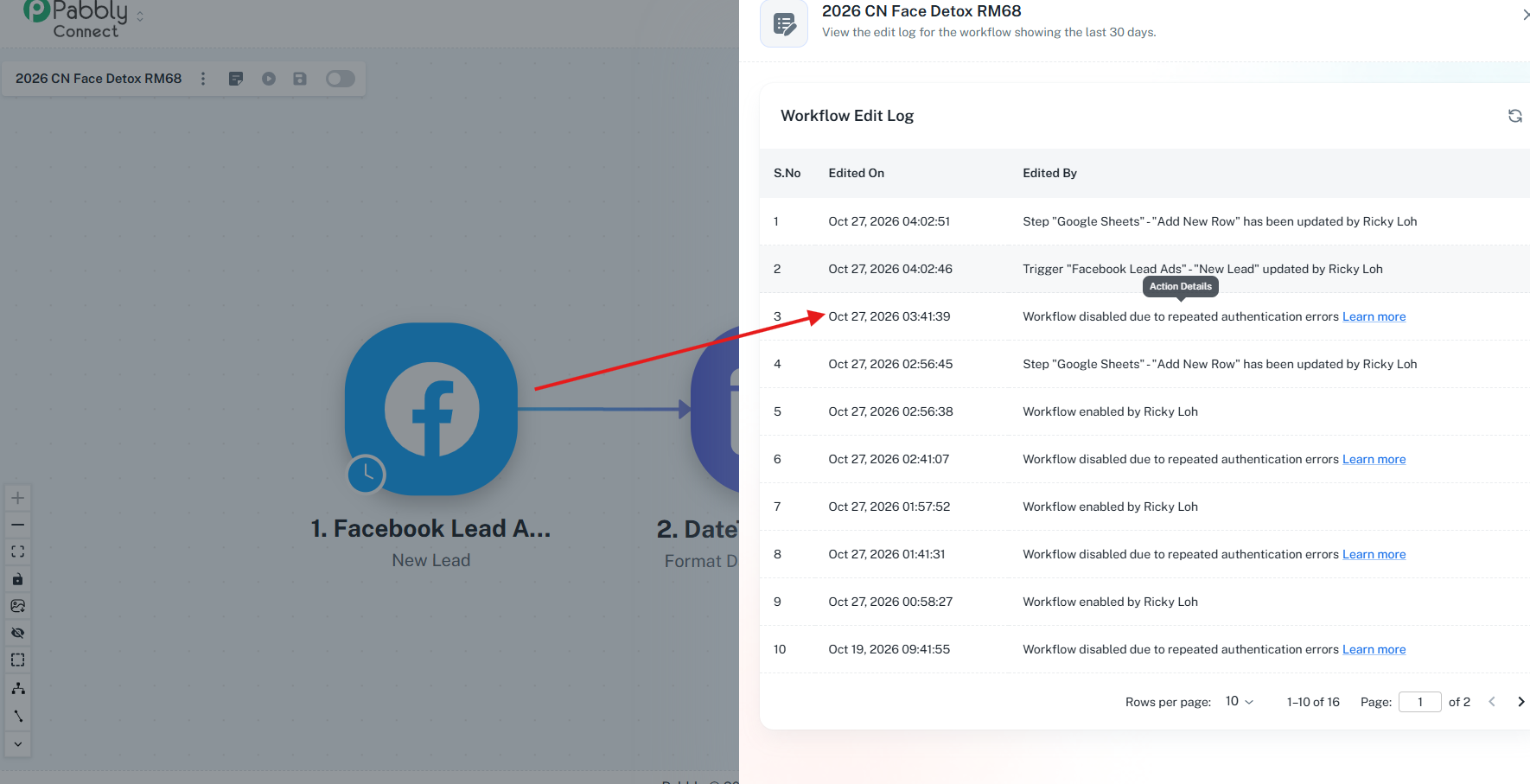
Below are the 6 standard cases where Pabbly Connect automatically disables workflows. Please check your Workflow History / Edit Log to see which specific reason is listed:
1. Repeated Authentication Errors (Most Likely for Hourly Disables)
Workflows are automatically disabled if Pabbly Connect fails to authenticate with your trigger/action app 5 consecutive times. This happens if:
API keys or OAuth tokens have expired or been revoked.
Account passwords/credentials were changed in the connected app.
Resolution: Re-authorize/reconnect the application connection inside the workflow step and then re-enable the workflow.
2. High Polling Errors
Workflows using a polling trigger are automatically disabled if they fail to fetch new data for 50 consecutive polling attempts.
Resolution: Check the trigger app configuration for API outages, invalid parameters, or permission issues.
3. Fair Usage Policy (Free Task Limits)
Workflows consuming an excessive volume of free tasks will be temporarily disabled to ensure system stability:
Daily Limit: Exceeding 10× your account's total allotted task count in a single day (e.g., over 100,000 tasks/day for a 10,000 task plan).
Monthly Limit: Exceeding 50× your account's total allotted task count in a month.
4. All Account Tasks Fully Consumed
If all paid/allotted tasks in your Pabbly Connect account are fully exhausted, all active workflows will automatically disable until additional tasks are allocated or your billing cycle resets.
5. Disabled via Pabbly Connect Manager
If you or a team member are using the Pabbly Connect Manager extension/feature to bulk-manage workflows, actions taken there will log as disabled by manager.
6. System Enabled (Post-Payment Auto-Restoration)
(Note) Workflows previously disabled due to an expired subscription or failed payment are automatically re-enabled by the system once payment succeeds.
How to Check Your Specific Cause:
Open your workflow in Pabbly Connect.
Click on History / Edit Log in the top right menu.
Review the exact reason entry listed next to the disable timestamp.

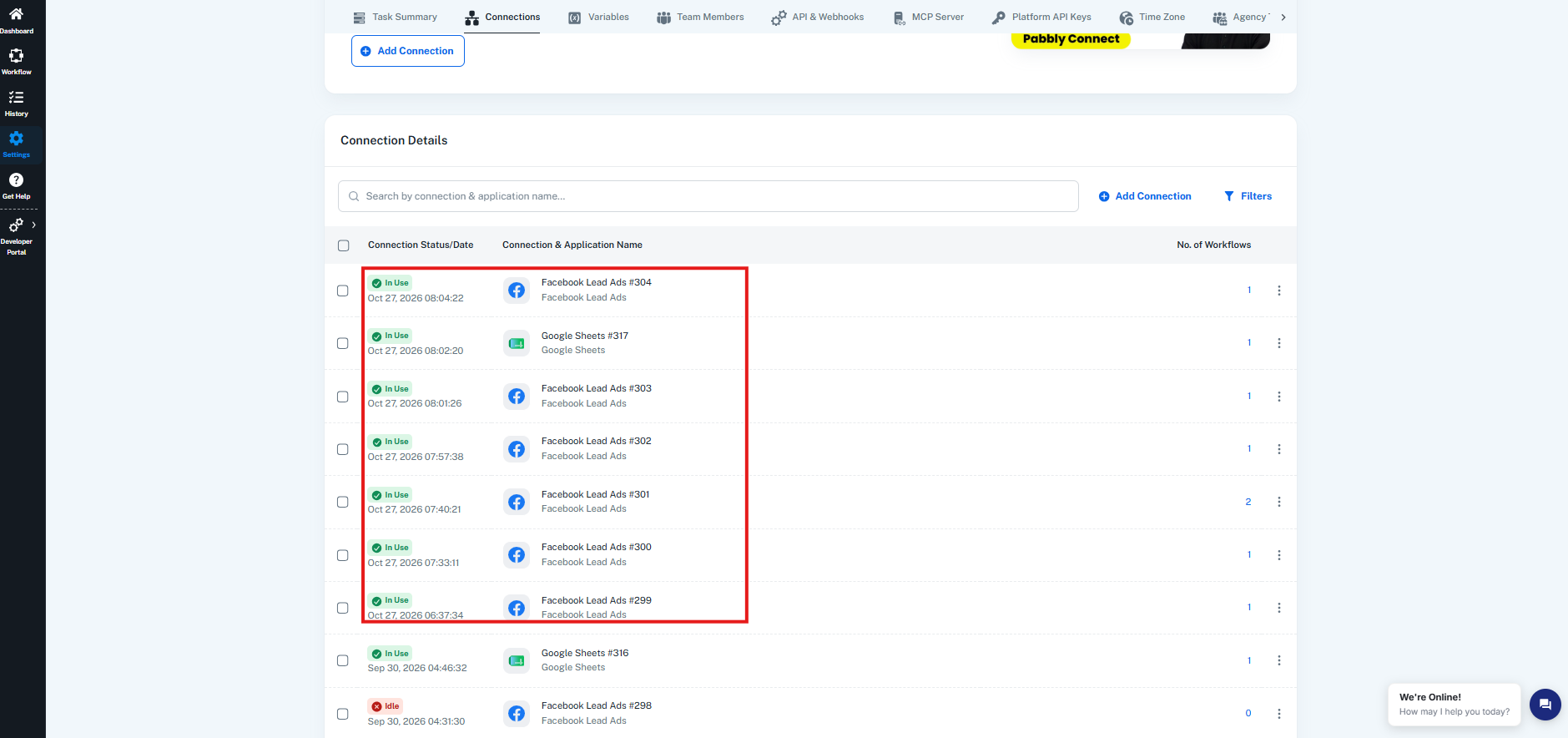
all success connect, don't have any failed connect. how to solve the error now?

Hello,
We have reviewed your account and verified that your connections are currently active and stable.
It appears the previous connection issues have been replaced already by the new connections. So, there's nothing need to be done from your side.
 Please continue to monitor your workflows, and if you notice them disabling again, feel free to reach out to us.
We are here to help if the issue persists.