

This guide walks you through generating an access token to enable Instagram DM automation using the Meta Developer Platform and creating a connection with it in Pabbly Connect.
Prerequisites
- A public Instagram Professional or Business account
- A Meta (Facebook) account
- https://developers.facebook.com/docs/instagram-platform/overview
Step 1: Go to Meta Developers Portal
- Open developers.facebook.com
- Log in with your Facebook account
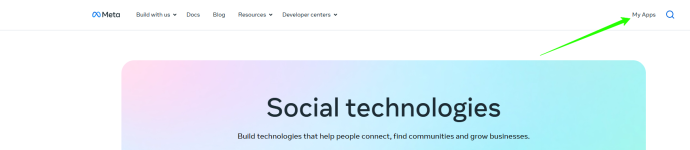
- Click My Apps in the top menu
Step 2: Create a New App
- Click Create App
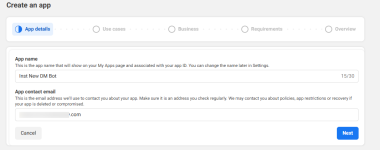
- Enter an App name (anything you like)
- Enter your App contact email
- Click Next
Step 3: Select Use Cases
- Choose Filter by Business messaging
- Choose Manage messaging & content on Instagram
- Click Next
Step 4: Select Business Portfolio
- Choose a business portfolio to connect, or select "I don't want to connect a business portfolio yet"
- Click Next to continue
Step 5: Open API Setup with Instagram Login
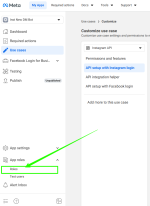
- In your app Dashboard, go to the left sidebar
- Click Use Cases
- Click on Customize
Step 6: Add Required Messaging Permissions
Under "1. Add required messaging permissions", make sure these are enabled:- instagram_business_basic
- instagram_manage_comments
- instagram_business_manage_messages
Step 7: Add Your Instagram Account as Tester
- Go to App roles → Roles in the left sidebar
- Click Add People
- Search for your Instagram username
- Select Instagram Tester as the role and click Add
- The status will show Pending
Step 8: Accept the Tester Invitation
- Open Instagram (app or web)
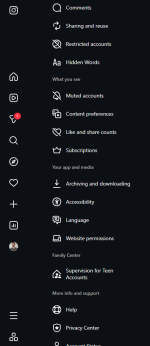
- Go to Settings → Website permissions → Apps and websites
- Find your app and Accept the invitation
Note: Tokens can only be generated for public Instagram accounts.
Step 9: Generate Access Token and Copy Account ID
- Return to Meta Developer Portal
- Click on Use Cases, then click on Customize
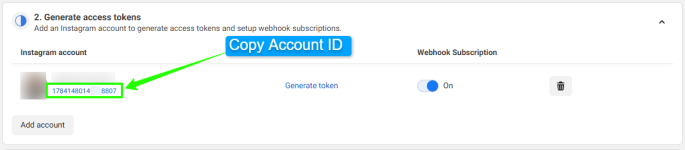
- Under "2. Generate access tokens", find your Instagram account
- Click Generate token
- Copy the token immediately — it is displayed only once
- After that, toggle on the Webhook Subscription.
- You can also able to see the account ID, copy and save it somewhere.
Important: Keep this token secure. Do not share it publicly.
Step 10: Create a connection in Pabbly Connect
- Goto Pabbly connect platform and create a workflow.
- Click on add trigger and choose your app "Instagram DM automation".
- Select App Event for an example "New message" and click on "connect".
- Provide data for input fields: Access Token and Account Identifier ( Refer to Step 9 ), and click on save
- Your connection is now ready to accept the webhook response.
Attachments
Last edited:


