Urgent: Pabbly Chatflow Unable to Send PDF & Video via WhatsApp – Invalid Media Link Error
Status: Open · Asked by Anjali koli on · 0 views
Hi Pabbly Support Team,
We are setting up a WhatsApp automation in Pabbly Connect using Pabbly Chatflow after a Calendly booking.
Our workflow is:
Calendly Booking → Google Sheets → WhatsApp Template Message → PDF Document → Video
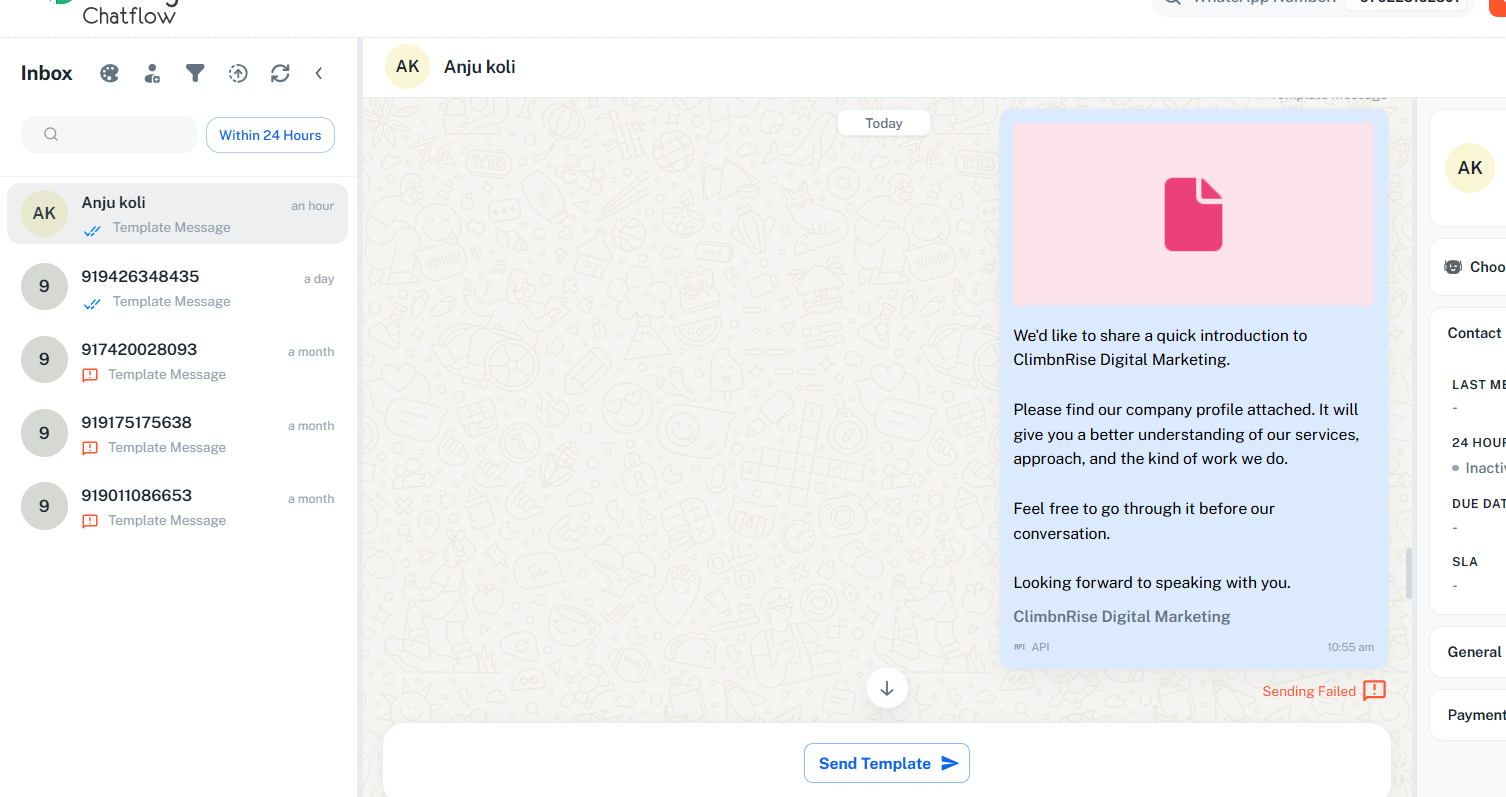
The initial WhatsApp template message is working correctly. However, we are facing issues while sending the PDF and Video through Pabbly Chatflow.
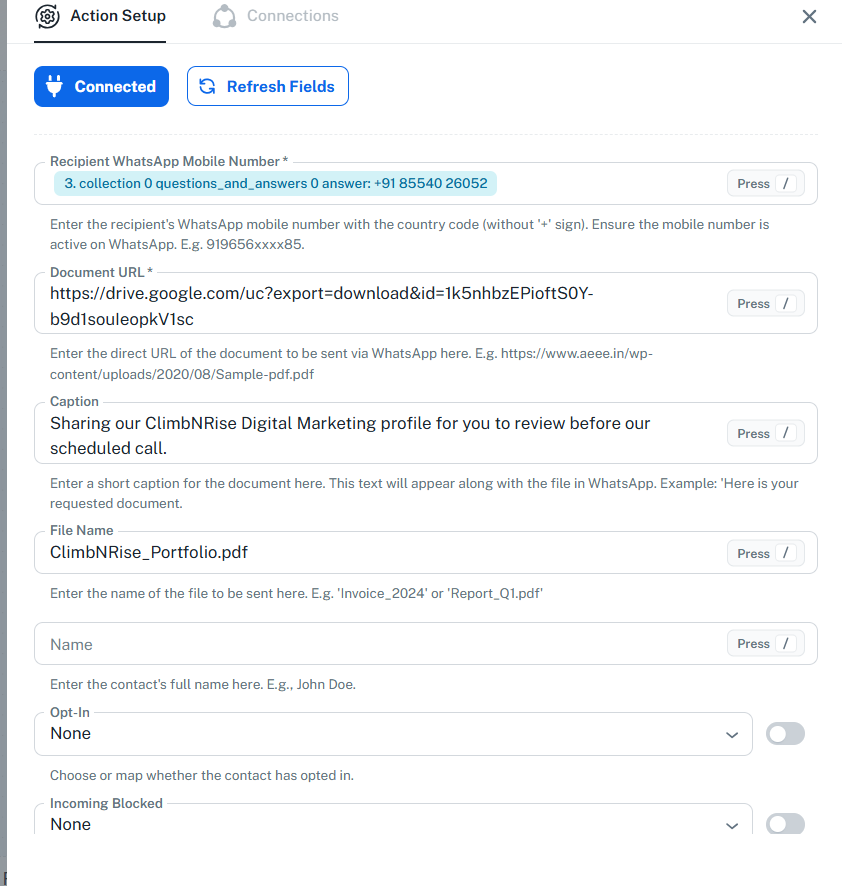
For the PDF, we are using the Send Document Message action with the following Google Drive file:
PDF:
https://drive.google.com/file/d/1k5nhbzEPioftS0Y-b9d1souIeopkV1sc/view?usp=sharing
We also tried using the direct-download format:
https://drive.google.com/uc?export=download&id=1k5nhbzEPioftS0Y-b9d1souIeopkV1sc
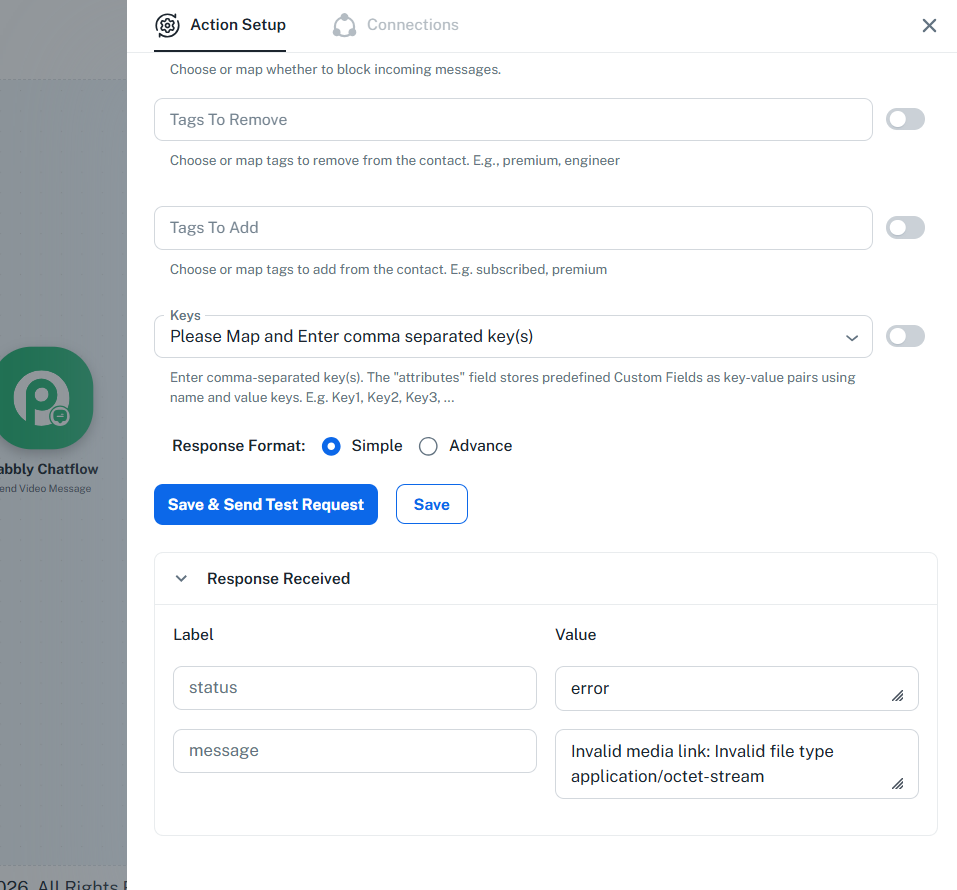
But Pabbly returns the following error:
Status: Error
Message: Invalid media link: Invalid file type application/octet-stream
Similarly, we need to send the following video through Send Video Message:
https://drive.google.com/file/d/1R1X1-0M3VVE_bHUovJx6L_Qk2eOE_Rin/view?usp=sharing
Both files are shared publicly with Anyone with the link – Viewer access.
Could you please help us with the following:
- What exact type of URL should be used in Document URL and Video URL in Pabbly Chatflow?
- Can Google Drive-hosted PDF and MP4 files be sent directly through Pabbly Chatflow?
- If yes, please share the correct URL format/setup required.
- If Google Drive links are not supported, please suggest the recommended way to host/send these files without using a separate paid hosting service.
- Please also confirm whether there are any file-size or MIME-type requirements for PDF and MP4 files.
We have already completed the rest of the workflow and the WhatsApp booking confirmation is working properly. The only pending issue is the PDF and video delivery.
This automation needs to go live today, so we would really appreciate it if your team could help us resolve this today itself.
I am also attaching screenshots of the current Pabbly setup and the error response for reference.
Regards,
Sidharth Parmar
Founder & CEO
ClimbNRise Digital Marketing Pvt. Ltd.